
In an age dominated by sophisticated technology, even the most ubiquitous tools often harbor settings and functionalities that, if misunderstood, can lead to significant errors and frustration. The humble calculator, a staple in academic, professional, and personal environments, is one such device. One of its most critical yet frequently overlooked settings is the angle mode: specifically, switching it to “degrees.” While seemingly minor, an incorrect angle mode can invalidate entire sets of calculations, leading to critical errors in fields ranging from engineering to finance.
This guide aims to demystify the process of changing your calculator’s mode to degrees. Beyond simple instructions, we will delve into the underlying reasons why this setting is paramount, explore its implications across various disciplines, and provide a comprehensive, engaging overview of how to master this essential aspect of calculator usage.
The Fundamental Importance of Angle Modes: Degrees vs. Radians vs. Gradians
Before diving into the “how-to,” it’s crucial to understand the “why.” A calculator’s angle mode dictates how it interprets and processes trigonometric functions like sine, cosine, and tangent. Without the correct mode selected, any calculation involving angles will yield inaccurate results.
What is an Angle Mode and Why Does it Matter?
An angle mode defines the unit in which angles are measured. Imagine measuring distance: you could use miles, kilometers, or even feet. Each unit describes the same physical quantity but uses a different scale. Similarly, angles can be measured in degrees, radians, or gradians. Your calculator needs to know which “language” you’re speaking to produce the correct output for trigonometric operations. Forgetting to check or change this mode is one of the most common and easily avoidable mistakes made by students and professionals alike.
Understanding Degrees: The Everyday Standard
Degrees are the most familiar unit of angular measurement for most people. A full circle is divided into 360 degrees (360°). This system dates back to ancient Babylonians and is intuitively linked to our perception of geometry. When you think of a right angle, you visualize 90°. A straight line is 180°. Degrees are the standard in many practical applications, including geometry, surveying, navigation, and most entry-level trigonometry. If you’re working on a problem that specifies angles in degrees, your calculator must be in degree mode.
A Quick Look at Radians: The Mathematical Workhorse
While degrees are intuitive, radians are the preferred unit in higher mathematics, physics, and engineering, especially when dealing with calculus, rotational motion, and wave functions. A radian is defined as the angle subtended at the center of a circle by an arc equal in length to the radius of the circle. A full circle is 2π radians (approximately 6.283 radians). Though less intuitive for beginners, radians simplify many mathematical formulas and derivations. The potential for confusion arises when a problem is presented in degrees, but a calculator is inadvertently set to radians, or vice-versa.
Gradians: The Lesser-Known Mode
Gradians, sometimes called “grads” or “gons,” are a less common unit where a full circle is divided into 400 gradians. They are occasionally encountered in surveying and some European contexts but are rarely used in general academic or professional settings. Most scientific and graphing calculators include this mode for completeness, but it’s far less likely to be the cause of errors compared to the degree/radian mix-up.
Step-by-Step Guides for Popular Calculator Types
Changing the angle mode typically involves navigating a menu or pressing a specific sequence of buttons. While the exact steps vary slightly by manufacturer and model, the underlying logic is consistent.
Scientific Calculators (e.g., Casio fx series, Texas Instruments TI-30Xa/IIs)
These are the workhorses of high school and early college mathematics. The process is usually straightforward:
-
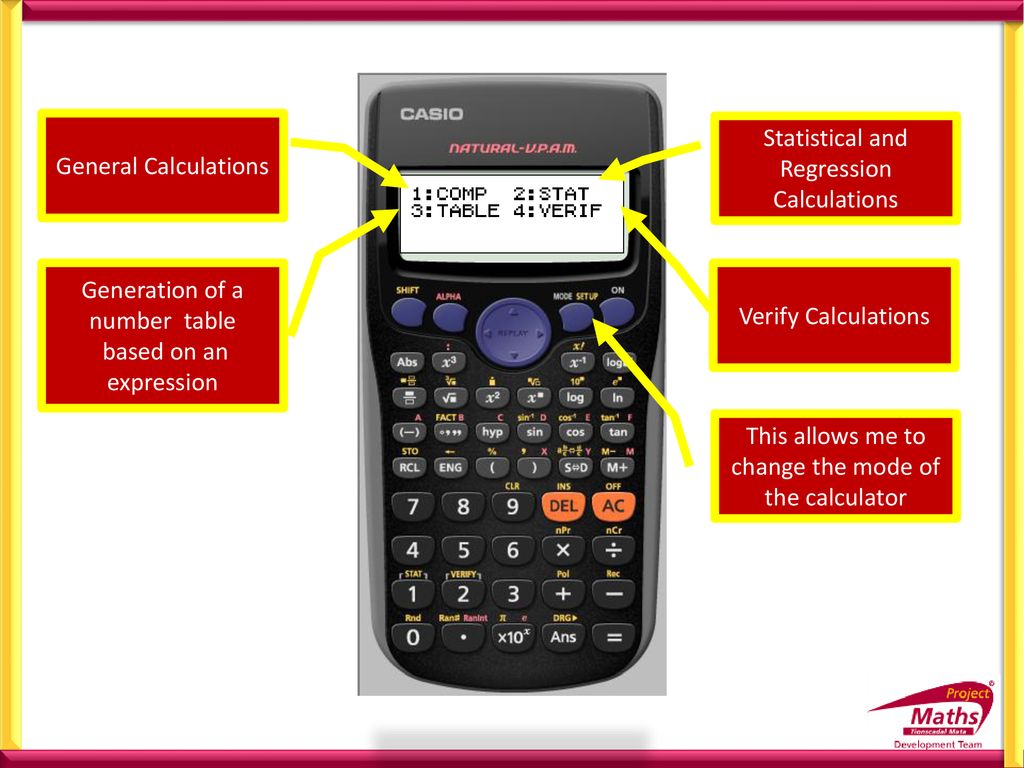
Locate the “MODE” or “SETUP” button: This is often found near the top left of the keypad. For Casio calculators, it’s typically “MODE” or “SHIFT” followed by “SETUP.” For Texas Instruments, it’s often just “MODE.”
-
Enter the Mode Menu: Pressing this button will usually display a list of options on the screen.
-
Navigate to Angle Settings: Use the arrow keys (if available) or repeatedly press the “MODE” button to cycle through the options until you see “Deg,” “Rad,” and “Gra” (or similar abbreviations). Some calculators might display them as numbers (e.g., 1: Deg, 2: Rad, 3: Gra).
-
Select “Deg”: Press the number corresponding to “Deg” or use the arrow keys to highlight “Deg” and then press “ENTER” or “=”.
-
Verify: A small “D” or “DEG” indicator should appear on the calculator’s display, usually at the top or bottom, confirming it’s in degree mode. Always perform a simple test, like
sin(90), which should yield1. If it’s0.89..., you’re likely in radian mode.
Graphing Calculators (e.g., TI-83/84 Plus, TI-Nspire, Casio fx-CG series)
Graphing calculators offer more extensive menus but the principle remains the same. They often retain settings even after being turned off.
-
Press the “MODE” button: This dedicated button is typically located near the top of the keypad.
-
Access the Mode Screen: The screen will display a list of current settings, often spanning multiple lines.
-
Navigate to Angle Settings: Use the arrow keys to scroll down until you find the line that lists “DEGREE,” “RADIAN,” and “GRADIAN.”
-
Select “DEGREE”: Use the left/right arrow keys to highlight “DEGREE” and then press “ENTER.”
-
Exit and Verify: Press “2nd” then “MODE” (or “CLEAR”) to exit the mode menu. Confirm the “DEG” indicator on the display or perform a test calculation (
sin(30)should be0.5).
Online Calculators and Smartphone Apps: Software-Based Solutions
With the proliferation of digital tools, many people rely on online calculators or smartphone apps. The method here is usually more visually intuitive:
-
Look for a Button or Setting: Many online calculators and apps have a dedicated “DEG/RAD” button that toggles between modes. This is often prominent on the main interface.
-
Check a “Settings” or “Menu” Icon: If not immediately visible, look for a gear icon (⚙️), a three-line “hamburger” menu (☰), or a dropdown menu labeled “Mode” or “Units.”
-
Select “Degrees”: Tap or click on “Degrees” within the menu.
-
Confirmation: The interface will usually update to show “DEG” or similar.
Windows Calculator and macOS Calculator: Built-in Operating System Tools
Modern operating systems include powerful built-in calculators.
Windows Calculator:
-
Open the Calculator app.
-
Ensure you are in Scientific or Graphing Mode: Click the “Menu” button (three horizontal lines, top-left) and select “Scientific” or “Graphing” from the dropdown. The “Standard” mode usually doesn’t offer angle settings.
-
Locate the “DEG/RAD/GRAD” Toggle: This will appear as a button on the calculator interface. Click “RAD” or “GRAD” until it changes to “DEG.”
-
Verify: The button itself will display “DEG” when active.
macOS Calculator:
-
Open the Calculator app.
-
Switch to Scientific Mode: Go to “View” in the menu bar and select “Scientific.”
-
Select “Degrees”: Go to “View” again and ensure “Degrees” is checked. If “Radians” or “Gradians” is checked, select “Degrees” to switch.

Common Pitfalls and Troubleshooting Tips
Even with clear instructions, issues can arise. Understanding common mistakes and how to address them can save immense frustration.
Forgetting to Check the Mode: The Most Common Error
This is by far the leading cause of incorrect answers. Before any calculation involving trigonometric functions, take a half-second to glance at the display for the “D” or “DEG” indicator. Make it a habit.
Incorrectly Interpreting Results: When the Numbers Don’t Add Up
If you’re calculating cos(60) expecting 0.5, but get something like -0.95..., your calculator is almost certainly in radian mode. cos(60 radians) is approximately -0.95, while cos(60 degrees) is exactly 0.5. Always have an intuitive sense of what your answer should roughly be.
Resetting Your Calculator: When All Else Fails
If you’re stuck and can’t find the setting, or if your calculator seems to be behaving erratically, a factory reset might be necessary.
-
Casio: Often involves
SHIFT+9(Clear) +3(All) +=(Yes) +AC. -
Texas Instruments: For graphing calculators,
2nd+MEM(+) +7(Reset…) +1(All RAM) +2(Reset). Be aware this will clear all stored programs, variables, and custom settings.
Consult your calculator’s manual for precise reset instructions.
The ‘DRG’ Button: A Shortcut, But Be Wary
Some older or simpler scientific calculators have a “DRG” button. Pressing it cycles through Degree, Radian, and Gradian modes directly. While convenient, it’s easy to accidentally press it and switch modes without realizing, especially if the indicator isn’t prominently displayed.
Beyond the Basics: When and Why to Switch Modes
Knowing how to change the mode is just the beginning. Understanding when and why to use each mode is crucial for academic success and professional accuracy.
Academic Scenarios: From Geometry to Calculus
-
Trigonometry (High School): Almost always use degrees. Problems in geometry, basic physics (forces, vectors), and pre-calculus are typically framed in degrees.
-
Physics (Advanced): While initial physics might use degrees, rotational motion, oscillations, and wave equations often use radians because they simplify the mathematical relationships (e.g., angular velocity in radians per second).
-
Calculus: Radians are almost exclusively used in calculus when dealing with trigonometric functions. The derivatives and integrals of sin(x) and cos(x) are only simple (
cos(x)and-sin(x)respectively) if x is measured in radians. Using degrees would introduce an awkward conversion factor (π/180).
Real-World Applications: Surveying, Navigation, and Design
-
Surveying and Construction: Degrees are standard for measuring angles on land, for building structures, and defining property lines.
-
Aviation and Marine Navigation: Degrees are universally used for headings, courses, and bearings. Latitude and longitude are also expressed in degrees.
-
Engineering Design: Depending on the specific context, engineers might use degrees for mechanical rotations or structural angles, but radians for theoretical calculations involving angular frequency or phase shifts.
Programming and Advanced Mathematics: The Role of Radians
In most programming languages, standard trigonometric functions (like Math.sin() in JavaScript or math.sin() in Python) expect their arguments to be in radians. If you’re translating a problem from degrees into code, you’ll need to convert degrees to radians (degrees * π/180) before passing them to these functions. This highlights the inherent mathematical preference for radians in computational contexts.
The Impact of Mode Selection on Accuracy and Understanding
The choice of angle mode is not merely a technicality; it profoundly impacts the accuracy of results and can significantly influence one’s understanding of mathematical and scientific principles.
Preventing Costly Errors in Professional Settings
Imagine an engineer designing a bridge, a surveyor mapping terrain, or a pilot plotting a course. An error in angle calculation due to an incorrect calculator mode could have catastrophic consequences, leading to structural failures, land disputes, or dangerous navigation mistakes. In these contexts, double-checking the calculator mode is as fundamental as checking units of measurement.
Deepening Mathematical Intuition
Consistently using the correct angle mode reinforces understanding. When you calculate sin(90°) and get 1, it intuitively aligns with the unit circle and the definition of sine. If you mistakenly get -0.89..., it breaks that intuition and creates confusion, hindering genuine understanding. Mastering this setting helps build a robust foundation in trigonometry and related fields.
The Interplay with Other Calculator Functions
The angle mode also affects inverse trigonometric functions (arcsin, arccos, arctan). If your calculator is in degree mode and you compute arcsin(0.5), it will correctly return 30°. If it’s in radian mode, it will return π/6 radians (approximately 0.5236 radians). The output unit of these inverse functions is determined by the active angle mode, reinforcing the need for constant awareness.

Conclusion: Mastering Your Calculator, Mastering Your Calculations
The ability to accurately change your calculator’s mode to degrees is more than a simple trick; it’s a foundational skill for anyone engaging with mathematics, science, or engineering. This seemingly small technical detail holds immense power, dictating the correctness and reliability of your calculations.
By understanding the distinction between degrees, radians, and gradians, familiarizing yourself with the specific steps for your calculator model, and cultivating the habit of always verifying your angle mode, you empower yourself to prevent common errors and ensure precision in all your endeavors. Mastering this aspect of your calculator means taking a significant step towards mastering your calculations, fostering confidence, and achieving accurate results every time. So, before you punch in that next trigonometric function, take a moment: Is your calculator speaking the right language? Is it in DEGrees?
aViewFromTheCave is a participant in the Amazon Services LLC Associates Program, an affiliate advertising program designed to provide a means for sites to earn advertising fees by advertising and linking to Amazon.com. Amazon, the Amazon logo, AmazonSupply, and the AmazonSupply logo are trademarks of Amazon.com, Inc. or its affiliates. As an Amazon Associate we earn affiliate commissions from qualifying purchases.