
The digital landscape has shifted dramatically toward a subscription-based economy. As software-as-a-service (SaaS) and streaming platforms become the primary delivery methods for entertainment, the ability to manage these digital assets becomes a fundamental skill for any tech-savvy consumer. Android, as the most widely used mobile operating system globally, utilizes a sophisticated backend via the Google Play Store to manage these recurring transactions. However, because Paramount Plus offers multiple entry points for registration, the process of cancellation is not always uniform across the ecosystem. Understanding the technical architecture of Android subscriptions is the first step in regaining control over your digital footprint and software expenditures.
Navigating the Google Play Subscription Architecture
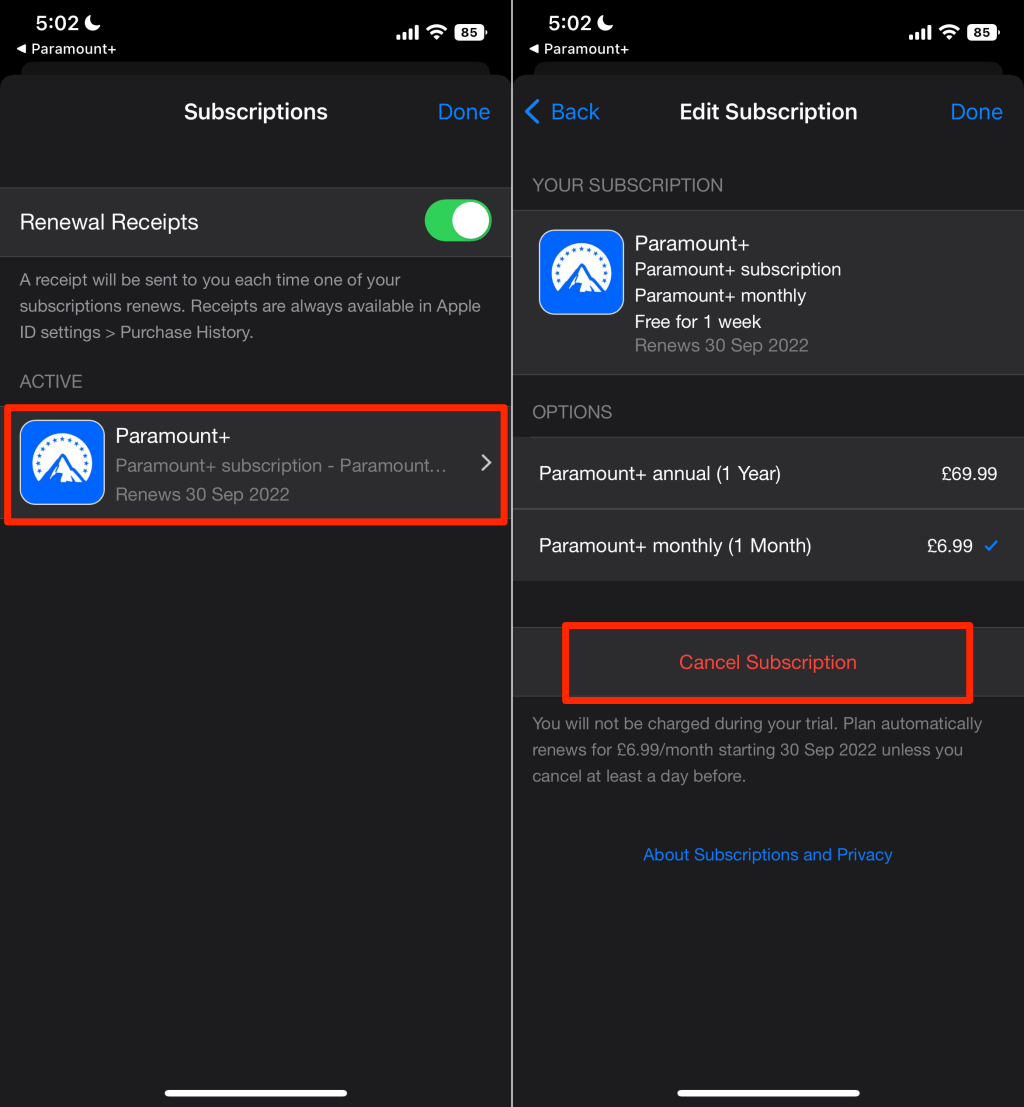
For the vast majority of Android users, Paramount Plus is managed through the Google Play Store’s integrated billing system. This system is designed to provide a centralized hub for all software licenses and recurring payments, utilizing the Google Play Billing API. When you subscribe via an app downloaded from the Play Store, Google acts as the intermediary, handling the encryption of payment data and the scheduling of billing cycles.
Accessing the Subscriptions Menu
To initiate a cancellation through the official Android framework, you must navigate to the Play Store’s management interface. This is not located within the Paramount Plus app itself, as the app serves as the content delivery interface, while the Play Store serves as the financial management layer.
-
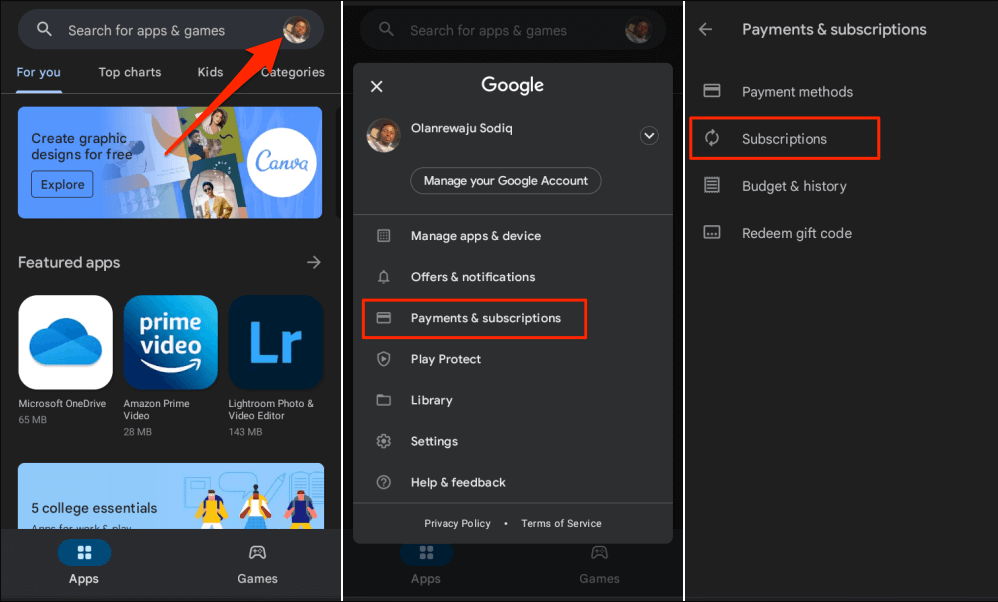
Launch the Google Play Store app on your Android device.
-
Tap your Profile Icon located at the top right corner of the interface. This opens the primary account management overlay.
-
Select Payments & subscriptions. This section aggregates all financial interactions tied to your Google Identity.
-
Tap on Subscriptions. Here, the Play Store queries its database to list all active, paused, and expired services associated with your account.
Executing the Cancellation
Once you locate Paramount Plus within the list, the interface provides several options governed by the Google Play UI logic.
-
Locating the Service: Scroll through the list until you find the Paramount Plus entry. It will display the next billing date and the current price point.
-
Managing the Plan: Upon tapping the service, you are presented with the subscription details page. Here, you can update payment methods or change the tier of service.
-
The Termination Process: Tap Cancel subscription. Google’s UI will often prompt you with a brief survey or a “retention offer” (such as a discounted month or a temporary pause). Technically, “pausing” a subscription keeps the billing token active but suspends the charge for a set period, whereas “canceling” ensures the token is revoked at the end of the current billing cycle.
-
Confirmation: Follow the on-screen prompts to confirm. The status will change from “Renews on [Date]” to “Ends on [Date].”
Managing Subscriptions via Mobile Web and Direct Billing
While the Google Play Store manages most Android-based subscriptions, some users may have bypassed the Play Store’s billing API by signing up directly through the Paramount Plus website or via a third-party promotional link. In these instances, the subscription logic resides on Paramount’s proprietary servers rather than Google’s.
Identifying the Billing Source
If you open the Google Play Store and do not see Paramount Plus listed under your subscriptions, your account is likely being billed directly by the service provider or through an alternative platform (like Amazon Prime Video Channels or a mobile carrier bundle). For users who signed up via the official website but use the app on Android, the cancellation must occur through a web browser.
Using a Mobile Browser for Direct Cancellation
-
Open Chrome or your preferred mobile browser on your Android device.
-
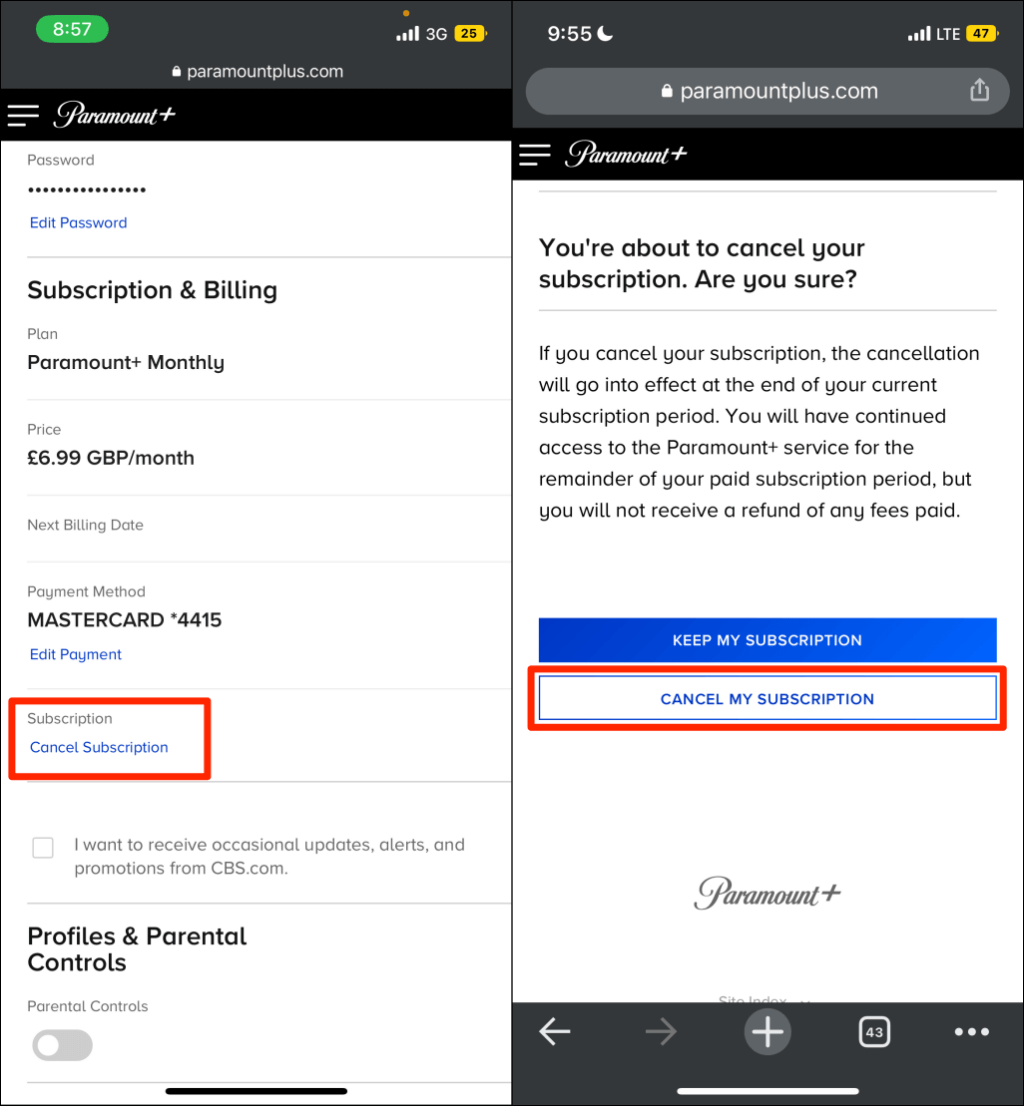
Navigate to the official Paramount Plus website and log in with your credentials.
-
Access the Account settings menu, usually found by tapping the user profile icon.
-
Locate the Subscription & Billing section.
-
Select Cancel Subscription and follow the verification steps.
From a technical standpoint, this process updates your user profile metadata on Paramount’s database to reflect a pending termination status. Unlike the Play Store method, which uses Google’s localized UI, this method relies on the service’s specific web architecture.
Technical Troubleshooting: When the Subscription Does Not Appear
One of the most common issues in the Android ecosystem is the “missing subscription” glitch. This occurs when a user attempts to cancel a service, but the entry is absent from the expected menu. This is typically a result of account fragmentation or synchronization errors between the device’s local cache and the cloud database.
Account Synchronization and Multiple Profiles
Android devices often support multiple Google accounts. If you have a personal account and a work account, or multiple Gmail addresses, the Google Play Store may be displaying the subscription list for the wrong profile.
To resolve this, tap your profile icon in the Play Store and use the dropdown arrow to switch between accounts. Each account maintains a unique ledger of digital purchases. If the subscription was initiated on a specific account, it will only be visible and manageable through that specific Google ID.
Clearing the Play Store Cache
If you are certain you are on the correct account but the information is not populating, a local data error may be the culprit. The Google Play Store app stores metadata locally to speed up UI loading. If this data becomes stale, it may not reflect recent changes or active subscriptions.
-
Open the Settings app on your Android device.
-
Go to Apps or Application Manager.
-
Find and select Google Play Store.
-
Tap Storage & cache.
-
Select Clear Cache and then Clear Data.
-
Relaunch the Play Store and re-authenticate if prompted. This forces the app to pull fresh data from Google’s servers, ensuring the subscription list is accurate.
Third-Party Billing Integration
If the subscription was initiated as an “Add-on” through another service (such as Amazon, Roku, or a cable provider), the Android app serves merely as a portal. In these cases, the “source of truth” for billing is the third-party provider’s system. You would need to navigate to that specific provider’s management console to terminate the recurring charge.
Digital Security and Subscription Hygiene
Managing a cancellation is not just about stopping a payment; it is an essential part of digital security and data privacy. Every active subscription represents an open link between your financial data and a service provider’s database.
Revoking Payment Permissions
When you cancel a subscription on Android, you are essentially revoking a pre-authorized payment token. From a digital security perspective, it is wise to periodically audit your “Payment Methods” in the Google Play Store. If you no longer use a specific service, ensuring that no unauthorized “ghost” subscriptions remain active can prevent financial data leaks.
Data Retention Policies
Upon canceling Paramount Plus, your user data (viewing history, preferences, and account details) typically remains in their system for a period of time to facilitate easy re-subscription. If your goal is complete data removal, the cancellation is only the first step. You may need to request a formal data deletion under privacy regulations like GDPR or CCPA, depending on your jurisdiction. This moves beyond subscription management and into the realm of digital rights management.
Verifying the End of the Billing Cycle
A critical technical detail of the Android subscription model is that access is rarely revoked immediately upon cancellation. Because you have pre-paid for a specific “term” (usually 30 days), your access persists until the end of that period.
To confirm the cancellation was successful, always check for a confirmation email from Google Play (or Paramount Plus). This email contains a transaction ID and a timestamp, which serve as your technical proof of termination should a billing error occur in the future.
The Future of Subscription Management on Android
As the Android OS continues to evolve, Google is placing a heavier emphasis on “Subscription Intelligence.” Recent updates to the Android framework have introduced better notification systems that alert users when a free trial is about to end or when a subscription price is set to increase.
For the modern Android user, mastering the “Payments & Subscriptions” interface is as important as understanding app permissions or battery optimization. The complexity of the streaming market means that “cancellation” is no longer a simple button press but a navigation through various software layers. By understanding whether your billing is handled by the Google Play API or a direct web-based system, you can efficiently manage your software library and ensure your Android device remains an optimized tool for both entertainment and fiscal management.
In summary, canceling Paramount Plus on Android requires an understanding of where your digital contract resides. Whether it is through the centralized Google Play Store or the decentralized web-billing model, the tools to manage your digital subscriptions are integrated directly into the Android experience, provided you know where to look within the system’s technical hierarchy.
aViewFromTheCave is a participant in the Amazon Services LLC Associates Program, an affiliate advertising program designed to provide a means for sites to earn advertising fees by advertising and linking to Amazon.com. Amazon, the Amazon logo, AmazonSupply, and the AmazonSupply logo are trademarks of Amazon.com, Inc. or its affiliates. As an Amazon Associate we earn affiliate commissions from qualifying purchases.