
In the complex ecosystem of a modern personal computer, the hardware and software must communicate with absolute precision to deliver the performance users expect. At the heart of this communication layer are device drivers—specialized software components that act as translators between the operating system and the physical components of the machine. Whether you are a gamer seeking higher frame rates, a creative professional requiring system stability, or a general user looking to fix a malfunctioning Wi-Fi connection, understanding how to update your PC drivers is an essential technical skill.

Maintaining up-to-date drivers is not merely about gaining new features; it is a critical aspect of digital hygiene that prevents system crashes, addresses security vulnerabilities, and ensures that your hardware can leverage the latest architectural optimizations provided by software developers.
The Fundamental Role of Device Drivers in Your PC Ecosystem
To understand why updating drivers is necessary, one must first understand their function. A driver is essentially a manual for the operating system (OS). For example, when you click “Print” in a document, the OS does not inherently know how to talk to your specific brand of printer. The printer driver provides the necessary instructions to translate the generic print command into a language the hardware understands.
Bridging the Gap Between Hardware and Software
Every component in your PC—from the central processing unit (CPU) and graphics card (GPU) to the smallest USB controller—requires a driver. These drivers operate primarily in the “Kernel Mode” of the operating system. This means they have high-level access to the system’s resources. Because they operate at such a deep level, a poorly optimized or outdated driver can cause significant instability, leading to the infamous Blue Screen of Death (BSOD) or hardware “hangs.”
As software evolves, particularly with the release of new versions of Windows or major updates to creative suites and game engines, the way the OS manages memory and processing cycles changes. Drivers must be updated to align with these changes. For instance, the introduction of DirectX 12 Ultimate required massive driver overhauls from GPU manufacturers to ensure that hardware could handle new features like ray tracing and variable rate shading.
The Risks of Outdated Drivers
Running outdated drivers is akin to using an old map for a rapidly changing city. You may eventually get to your destination, but you will encounter dead ends and inefficiencies. Common issues stemming from neglected drivers include:
-
Performance Degradation: New drivers often include “game-ready” optimizations or efficiency patches that reduce CPU overhead.
-
Security Vulnerabilities: Hackers often exploit bugs in driver code to gain kernel-level access to a system. Manufacturers regularly patch these holes.
-
Hardware Malfunction: Issues like flickering screens, crackling audio, or intermittent internet drops are frequently solved by a simple driver refresh.
-
Incompatibility: New peripherals or software may fail to launch entirely if the underlying driver architecture is too old to support modern APIs.
Method 1: Leveraging Windows Update and Built-in System Tools
For the majority of users, Microsoft has streamlined the driver update process through Windows Update. In modern iterations of Windows 10 and 11, the operating system is remarkably proficient at identifying hardware and pulling the necessary “WHQL” (Windows Hardware Quality Labs) certified drivers from Microsoft’s servers.
Using Windows Update for Core Components
Windows Update handles the “silent” updates that keep your machine running smoothly without user intervention. However, it often prioritizes stability over the absolute latest features. To check for driver updates through this method:
-
Open Settings and navigate to Windows Update.
-
Click Check for updates.
-
Crucially, look for a section labeled Advanced options, then select Optional updates. This is where Microsoft hides non-critical driver updates for things like printers, cameras, and specialized input devices.
While Windows Update is excellent for generic components, it may lag behind by several months regarding high-performance hardware like gaming GPUs or high-end sound cards.
Navigating the Device Manager for Manual Control
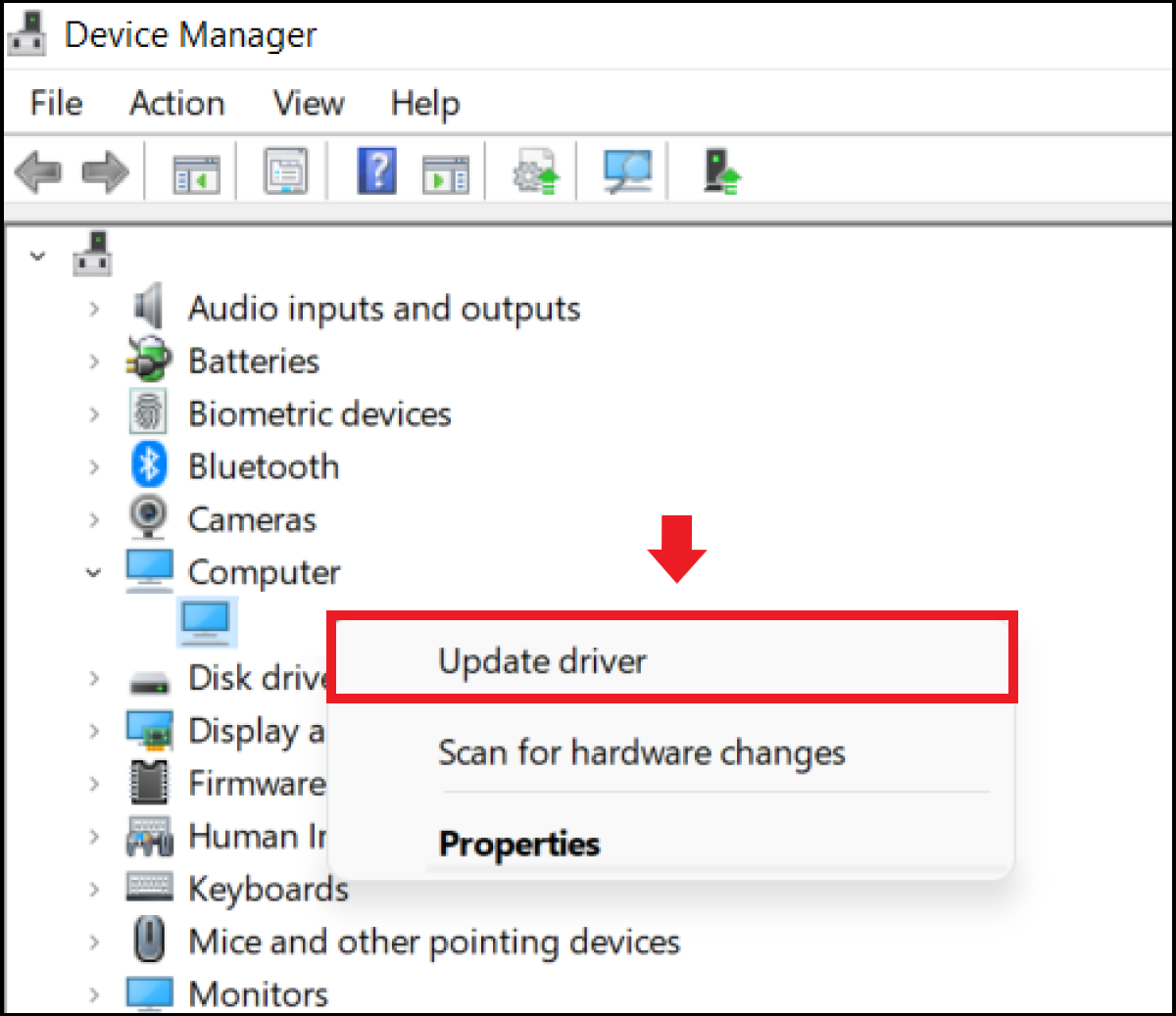
The Device Manager remains a powerful tool for targeting specific components that are misbehaving. If a specific piece of hardware—such as a Bluetooth adapter—is not working, the Device Manager allows you to force a search for a new driver.
-
Right-click the Start button and select Device Manager.
-
Locate the hardware category and expand it.
-
Right-click the specific device and select Update driver.
-
Choose “Search automatically for drivers.”
If Windows fails to find a driver here, it indicates that you must move to the manufacturer’s direct resources, as the device may be too new or too niche for the Windows driver repository.
Method 2: Direct Updates from Hardware Manufacturers
For power users, gamers, and professionals, the built-in Windows tools are often insufficient. To get the most out of your hardware, you must go directly to the source. This is particularly true for “Big Three” components: the GPU, the Motherboard (Chipset), and specialized peripherals.
Graphics Processing Units (GPUs): NVIDIA, AMD, and Intel
The GPU is the most frequently updated component in a PC. NVIDIA and AMD release new drivers almost monthly to coincide with major game releases.
-
NVIDIA: Use the GeForce Experience or the new NVIDIA App. These tools automatically notify you of updates and allow for “Express Installation,” which handles the entire process.
-
AMD: The Radeon Software Adrenalin Edition provides a similar one-click update path, along with performance tuning tools.
-
Intel: For those using integrated graphics or Intel Arc GPUs, the Intel Driver & Support Assistant (DSA) is a web-based tool that scans your system and provides direct download links.
Motherboard Chipsets and BIOS/UEFI Firmware
While often overlooked, the motherboard chipset driver manages the data flow between the CPU and other devices. Updating these can significantly improve system “snappiness” and USB stability. You should visit the support page of your motherboard manufacturer (e.g., ASUS, MSI, Gigabyte, or ASRock) and search for your specific model.
In this same section, you will often find BIOS/UEFI updates. While technically firmware rather than drivers, they are vital for hardware compatibility—especially when upgrading to a newer CPU on an older motherboard. Note that BIOS updates should be handled with caution, as a power loss during the process can render the motherboard unusable.
Peripheral Drivers and Specialized Hardware
Professional equipment, such as Wacom tablets, high-fidelity audio interfaces (Focusrite, RME), and programmable mechanical keyboards, require proprietary drivers to unlock their full feature sets. Using the generic Windows HID driver for a high-end mouse, for example, might result in a lower polling rate or the inability to map macro keys. Always download the dedicated software suite provided by the manufacturer for these devices.
Exploring Third-Party Driver Update Software
The market is flooded with third-party utilities that promise to “scan and update all drivers with one click.” While these can be useful, they should be approached with a degree of healthy skepticism.
The Benefits of Automation
Tools like Driver Booster, Snappy Driver Installer (SDI), or Patch My PC can be lifesavers when setting up a fresh Windows installation or maintaining an older machine where the original manufacturer’s website has gone dark. These tools maintain vast databases of driver versions and can save hours of manual searching. They are particularly effective at identifying obscure “Unknown Devices” in the Device Manager that lack clear identification.
Potential Pitfalls and Security Considerations
The risk with third-party tools is two-fold: security and stability. Some “free” driver updaters are bundled with bloatware or adware. More dangerously, they may occasionally suggest a driver that is almost correct but not quite, leading to system instability. If you choose to use these tools, stick to well-reviewed, reputable options and always avoid any software that makes hyperbolic claims about “boosting PC speed by 300%.”
Best Practices for Maintenance and Troubleshooting
Driver updates are generally safe, but because they interact with the system kernel, things can occasionally go wrong. Establishing a workflow for driver maintenance can prevent minor issues from becoming catastrophic failures.
How to Roll Back a Faulty Driver
If you install a new driver and immediately notice screen flickering or audio cutouts, Windows provides a safety net called the “Roll Back Driver” feature.
-
Open Device Manager.
-
Right-click the problematic device and select Properties.
-
Go to the Driver tab and click Roll Back Driver.
This reverts the system to the previous, stable version of the software.
Utilizing System Restore Points Before Updates
Before performing major updates—especially chipset or BIOS updates—it is wise to manually create a System Restore Point. This creates a “snapshot” of your Windows registry and system files. If an update prevents the OS from booting correctly, you can boot into Recovery Mode and revert to this snapshot, effectively undoing the damage.

Using DDU for Clean Graphics Installations
For GPU updates, sometimes a standard installation isn’t enough, especially when switching from an NVIDIA card to an AMD card (or vice versa). Residual files from old drivers can conflict with new ones. In these cases, enthusiasts use Display Driver Uninstaller (DDU). This utility, run in Windows Safe Mode, completely wipes every trace of a graphics driver from the registry and system folders, allowing for a truly “clean” install of the new software.
By following these structured methods—starting with the convenience of Windows Update, moving to the precision of manufacturer downloads, and utilizing recovery tools when necessary—you can ensure your PC remains a high-performing, stable, and secure machine. Driver maintenance is not a one-time task but an ongoing part of owning a computer, ensuring that your hardware continues to evolve alongside the software it supports.
aViewFromTheCave is a participant in the Amazon Services LLC Associates Program, an affiliate advertising program designed to provide a means for sites to earn advertising fees by advertising and linking to Amazon.com. Amazon, the Amazon logo, AmazonSupply, and the AmazonSupply logo are trademarks of Amazon.com, Inc. or its affiliates. As an Amazon Associate we earn affiliate commissions from qualifying purchases.