
The landscape of television has shifted fundamentally from coaxial cables and proprietary set-top boxes to cloud-based streaming and high-speed data packets. Among the leaders of this digital revolution is YouTube TV, Google’s premium live TV streaming service. For many cord-cutters, the transition from traditional cable to an Over-the-Top (OTT) service hinges on one critical technical question: “How many devices can I use at once?”
Understanding the device limits, concurrent stream protocols, and hardware compatibility of YouTube TV is essential for optimizing your home entertainment ecosystem. This guide provides a deep dive into the technical specifications of YouTube TV’s device management, from standard streaming limits to the advanced capabilities of the 4K Plus add-on.
Understanding YouTube TV’s Simultaneous Stream Limits
At the core of any streaming service’s value proposition is its concurrency policy. This refers to how many unique data streams the service allows to be active under a single subscription at any given moment. For YouTube TV, the baseline offering is designed to accommodate the average household, but it carries specific technical constraints.
The Standard Three-Stream Rule
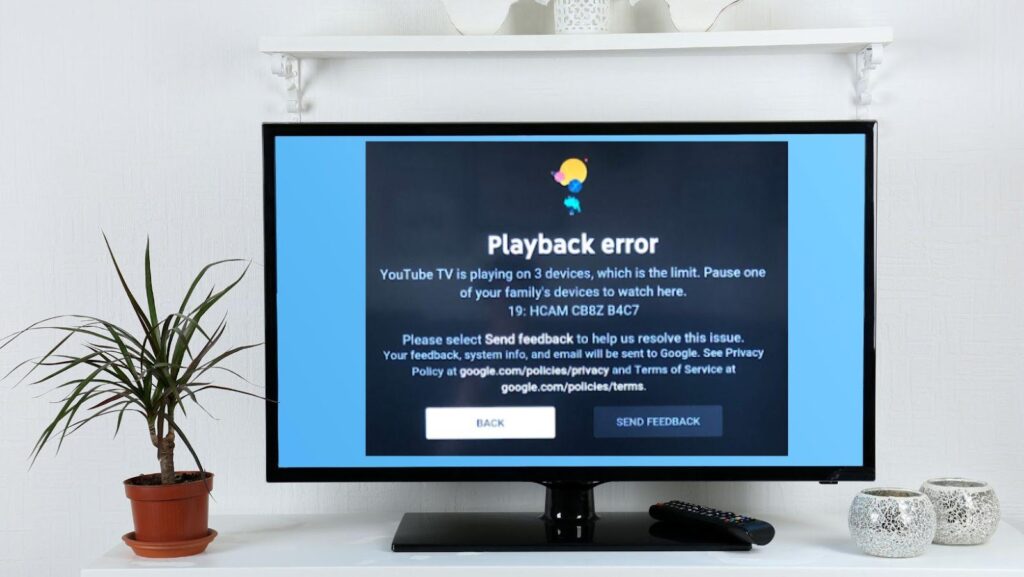
By default, a standard YouTube TV subscription allows for three simultaneous streams. This means that three different devices can access live or recorded content at the exact same time. It is important to distinguish between “logged-in devices” and “active streams.” You can sign into your YouTube TV account on dozens of devices—including your smartphone, tablet, laptop, and multiple smart TVs—without penalty. The restriction only triggers when the fourth device attempts to initiate a playback session.
When the fourth stream is attempted, the service will typically display an error message indicating that too many people are watching. This limit is enforced via server-side monitoring of your account credentials, ensuring that the bandwidth and licensing agreements between Google and content providers are respected.
How Device Registration and Profiles Work
YouTube TV allows for up to six individual profiles per household. Each profile receives its own personalized recommendations and “Library” (DVR) space. However, a common technical misconception is that each profile gets three streams. In reality, the three-stream limit is shared across the entire account.
Technically, this is managed through Google’s unified account system. When you invite a family member to your “Family Group,” they use their own Google login. While this provides privacy and customization, the software architecture aggregates all active sessions from that family group into a single tally to enforce the three-stream cap.
Expanding Your Horizons with the 4K Plus Add-on
For power users and large households, the standard three-stream limit can be a significant bottleneck. To address this, Google introduced the “4K Plus” add-on. While the name emphasizes higher resolution, the most impactful technical upgrade for many is the removal of stream limits within the home network.
Unlimited In-Home Streams Explained
The 4K Plus package modifies the account’s permissions to allow for unlimited simultaneous streams, provided those devices are connected to your “Home Network.” This is a sophisticated technical implementation that uses your IP address and Wi-Fi SSID to verify the location of the devices.
If you have ten televisions in a single house all connected to the same local area network (LAN), they can all stream YouTube TV concurrently under the 4K Plus plan. This makes the service a viable replacement for complex, multi-room cable installations. However, there is a caveat: when streaming outside of your home network (using mobile data or a friend’s Wi-Fi), the limit defaults back to three streams.
Technical Requirements for 4K Streaming
The 4K Plus add-on isn’t just about the number of devices; it’s about the quality of the data being delivered. Streaming in 4K (Ultra High Definition) requires significantly more bandwidth than standard 1080p HD. Technically, YouTube TV recommends a sustained download speed of at least 25 Mbps per 4K stream.
Furthermore, not all devices are hardware-capable of decoding 4K HEVC (High Efficiency Video Coding) streams. To utilize this feature on multiple devices, your hardware—whether it’s a smart TV or a streaming stick—must support 4K playback and the VP9 or AV1 codecs used by Google for high-resolution delivery.
Supported Hardware and Ecosystem Compatibility
One of YouTube TV’s greatest technical strengths is its broad device support. Unlike the early days of streaming, where apps were buggy or unavailable on certain platforms, YouTube TV has optimized its UI/UX across a vast array of hardware.

Smart TVs and Streaming Sticks
The primary way most users interact with YouTube TV is through dedicated streaming hardware. The service is natively supported on:
- Chromecast with Google TV: This offers the most integrated experience, featuring deep OS-level integration for live channels.
- Roku and Amazon Fire TV: Despite past carriage disputes, YouTube TV remains a staple on these platforms, utilizing optimized APIs to ensure smooth navigation through the electronic program guide (EPG).
- Apple TV: The app leverages the powerful processors in Apple TV 4K units to provide some of the fastest channel-switching speeds in the industry.
From a technical standpoint, these devices use “Adaptive Bitrate Streaming.” This technology allows the YouTube TV app to detect the device’s processing power and the current network stability, adjusting the video quality in real-time to prevent buffering.
Mobile Devices and Web Browsers
For viewing on the go, YouTube TV supports iOS and Android devices, as well as most modern web browsers (Chrome, Firefox, Safari, and Edge). On mobile, the app utilizes low-latency protocols to ensure that “Live” TV is as close to real-time as possible, which is critical for sports.
The mobile experience also includes “Picture-in-Picture” (PiP) functionality on supported operating systems, allowing the video stream to continue in a small floating window while the user interacts with other apps. This requires the device to have sufficient RAM to handle two active foreground processes simultaneously.
Gaming Consoles and Integration
For those who use their gaming console as a media hub, YouTube TV is available on PlayStation (PS4, PS5) and Xbox (One, Series X/S). These versions of the app are often the most robust, utilizing the consoles’ high-end GPUs to render the interface at high frame rates. Interestingly, these consoles often support “Stats for Nerds,” a technical overlay that shows real-time data on connection speed, frames dropped, and the specific video codec being used.
Managing Profiles and Digital Security
With multiple devices accessing a single account, security and profile management become paramount. YouTube TV leverages Google’s existing security infrastructure to protect user data and subscription integrity.
Family Sharing vs. Simultaneous Streams
As mentioned, you can share your subscription with up to five other household members. Technically, this is handled through the Google Family Link system. Each person uses their own Google Account, which means they never have to share passwords. This is a significant security advantage over “traditional” streaming services where one person shares their main login credentials with others, risking account compromise.
Geographic Restrictions and Home Area Requirements
A unique technical aspect of YouTube TV is its reliance on “Home Areas.” Because the service provides local broadcast channels (ABC, CBS, NBC, Fox), it must use GPS data or IP-based geolocation to determine which local feeds to provide.
Devices are required to check in from the designated “Home Area” periodically. If a device is used exclusively outside the home area for more than 90 days, the service may restrict access. This is enforced via digital geofencing, ensuring that the service complies with regional broadcasting rights and prevents account sharing across different cities.
Troubleshooting Connection and Device Limit Issues
Even with a robust technical framework, users may occasionally encounter issues regarding device limits or stream quality. Understanding the underlying technology can help in resolving these errors quickly.
Resolving “Too Many Streams” Errors
If you receive an error stating you have exceeded your stream limit, the first technical step is to verify which devices are active. Since YouTube TV doesn’t have a “log out of all devices” button specifically for the TV app, the best way to manage this is through your Google Account security settings.
By navigating to the “Your Devices” section of your Google Account, you can see every piece of hardware currently signed in. Removing an old tablet or a forgotten laptop can often clear up a “phantom” stream that didn’t close properly on the server side.
Optimizing Network Bandwidth for Multiple Devices
When running multiple devices simultaneously, the bottleneck is often not the YouTube TV servers, but the local home network. To support three or more HD streams, your router must handle high-volume UDP (User Datagram Protocol) traffic effectively.
For the best technical performance:
- Use 5GHz Wi-Fi or Ethernet: The 2.4GHz band is often too crowded and slow for multiple concurrent HD streams.
- Quality of Service (QoS): Many modern routers allow you to prioritize traffic for specific devices. Setting your primary streaming devices to “High Priority” ensures that a large file download on a computer won’t cause buffering on the TV.
- Mesh Networking: In larger homes, using a Mesh Wi-Fi system ensures that devices far from the main router still receive the high-speed data required to maintain a stable connection to YouTube TV’s content delivery network (CDN).
Conclusion
YouTube TV offers one of the most flexible and technically advanced device policies in the streaming industry. While the standard three-stream limit serves the needs of most, the ability to scale to unlimited in-home streams via the 4K Plus add-on demonstrates Google’s commitment to high-end users. By understanding the interplay between account profiles, hardware compatibility, and network requirements, users can create a seamless, high-definition viewing experience across every screen in their digital ecosystem.
aViewFromTheCave is a participant in the Amazon Services LLC Associates Program, an affiliate advertising program designed to provide a means for sites to earn advertising fees by advertising and linking to Amazon.com. Amazon, the Amazon logo, AmazonSupply, and the AmazonSupply logo are trademarks of Amazon.com, Inc. or its affiliates. As an Amazon Associate we earn affiliate commissions from qualifying purchases.