
The digital landscape has undergone a seismic shift in how media is consumed, transitioning from the rigid structures of traditional cable to the fluid, data-driven world of Over-the-Top (OTT) streaming. At the forefront of this revolution is YouTube TV. Unlike its namesake video-sharing platform, YouTube TV is a sophisticated live television service that leverages Google’s robust infrastructure to deliver a seamless, cloud-based viewing experience. Mastering this platform requires more than just knowing how to click “play”; it involves understanding the nuances of its interface, optimizing its hardware requirements, and leveraging its advanced algorithmic features to personalize your entertainment ecosystem.
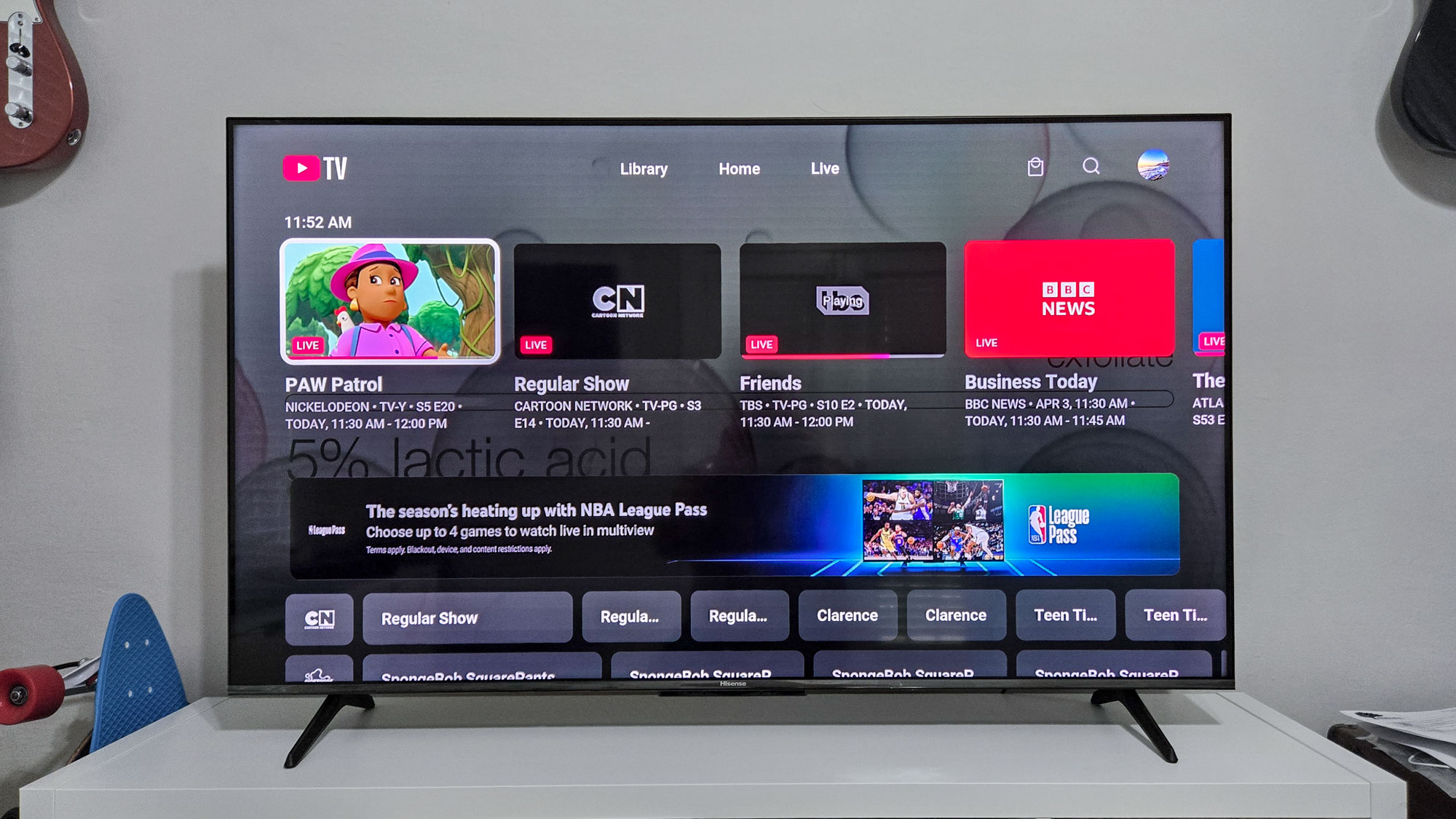
Setting Up Your YouTube TV Ecosystem: Hardware and Software Integration
Before diving into the interface, it is essential to understand the technical prerequisites that ensure a high-fidelity experience. YouTube TV is designed to be platform-agnostic, but the quality of your stream is heavily dependent on your hardware and network configuration.
Device Compatibility and Installation
YouTube TV is compatible with a vast array of hardware, spanning the entire spectrum of modern consumer electronics. For the best living room experience, dedicated streaming devices such as the Chromecast with Google TV, Roku, Amazon Fire TV Stick, and Apple TV are recommended. These devices offer dedicated processors that handle high-bitrate video decoding more efficiently than the integrated chips found in older smart TVs.
To get started, download the YouTube TV app from your device’s respective app store. Upon launching, you will be prompted to sign in using a Google account. It is worth noting that this account becomes the “Family Manager,” the central hub that controls billing and access for up to five additional family members. This multi-user architecture is one of the platform’s strongest technical features, as it keeps individual viewing habits and DVR libraries completely separate.
Network Requirements and Optimization
Because YouTube TV delivers live content at resolutions up to 4K (with the appropriate add-on), your local area network (LAN) plays a critical role. For a standard 1080p stream, a consistent download speed of at least 7 Mbps is required. However, for a household with multiple streams running simultaneously or for those viewing 4K content, a connection of 25 Mbps or higher is necessary.
To minimize latency and “buffer bloat,” tech-savvy users should prioritize a wired Ethernet connection for their primary streaming device. If Wi-Fi is the only option, utilizing the 5GHz or 6GHz (Wi-Fi 6E/7) bands is preferable to the crowded 2.4GHz band, as these higher frequencies offer the throughput necessary for sustained high-definition video data.
Navigating the Three Pillars: Library, Home, and Live
The YouTube TV user interface (UI) is built upon a minimalist, three-tab philosophy designed to reduce “decision fatigue.” Understanding the logic behind these pillars is key to efficient navigation.
The Home Tab: The Algorithmic Engine
The “Home” tab is the heart of the platform’s discovery engine. Similar to the standard YouTube experience, this section uses machine learning to analyze your viewing patterns and suggest content you are likely to enjoy. It features “Top Picks For You,” which aggregates both live and on-demand content.
A technical advantage of the Home tab is the “Resume Watching” feature. Because YouTube TV is cloud-native, your progress on a specific show is synced across all devices. You can start a news broadcast on your mobile device during a commute and resume it exactly where you left off on your living room television.
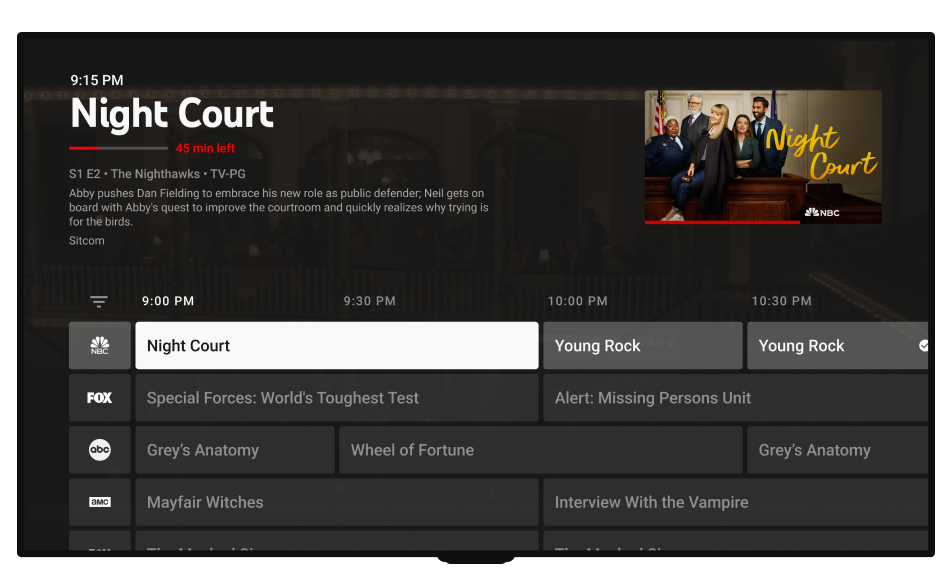
The Live Tab: A Modernized Electronic Programming Guide (EPG)
The “Live” tab provides a traditional grid-style view of what is currently airing. However, unlike traditional cable boxes, this grid is highly customizable. By accessing the settings via a web browser or the mobile app, users can enter “Custom” mode. Here, you can reorder channels—placing your most-watched sports or news networks at the top—and hide channels that do not interest you. This customization persists across all devices, ensuring a streamlined interface that ignores the “bloatware” of unwanted channels.
The Library: The Power of Unlimited Cloud DVR
The “Library” is perhaps the most significant technological leap YouTube TV offers over its competitors. Traditional DVRs are limited by local hard drive space; YouTube TV offers unlimited cloud storage. When you “add” a show or a sports team to your library, the system automatically records every airing of that content.
Technically, you are not “recording” a file to a personal drive; rather, you are flagging an entry in Google’s massive server-side database to be accessible to your account. These recordings are kept for nine months, and because the storage is unlimited, there is no need to manage or delete files to make room for new ones.
Advanced Features and Technical Optimization
To truly master YouTube TV, one must venture beyond basic playback and explore the advanced features that distinguish it as a premium tech product.
Multi-View and Sports Integration
For sports enthusiasts, YouTube TV has introduced “Multi-View,” a feature that allows users to watch up to four live streams simultaneously on a single screen. This is a computationally intensive task that YouTube TV handles server-side, meaning it doesn’t require extra processing power from your local streaming stick. This ensures that even lower-end hardware can display four HD streams without lagging.
Additionally, the “Key Plays” feature uses computer vision and real-time data metadata to allow viewers to catch up on important moments in a game. If you join a basketball game in the fourth quarter, you can select “Catch up with Key Plays” to see a curated highlight reel generated by the platform’s AI before jumping into the live action.
4K Plus and Bitrate Control
For users with high-end OLED or QLED displays, the “4K Plus” add-on is a significant upgrade. Beyond just increasing pixel density, this tier often allows for higher bitrate streams, reducing compression artifacts in dark scenes or fast-moving sports. Within the playback settings (indicated by the gear icon), users can manually select their resolution. While “Auto” is generally effective, “Stats for Nerds”—a diagnostic overlay familiar to YouTube power users—can be toggled to view real-time data on connection speed, frame drops, and the specific codec being used (such as VP9 or AV1).
Family Sharing and Privacy Settings
YouTube TV allows for six individual profiles per household. Each profile gets its own personalized Library and Home recommendations. From a digital security and privacy standpoint, it is important to manage these via the Google Family Link. Each user signs in with their own credentials, meaning you don’t have to share your primary Google password with everyone in the house.
Furthermore, users should be aware of the “Area” settings. YouTube TV uses your IP address and device GPS to determine your “Home Area,” which dictates which local broadcast networks (ABC, NBC, CBS, FOX) you receive. If you are traveling, you can still use the service, but you will receive the local news of your current location, while your DVR will continue to record based on your home market.
Integrating YouTube TV into the Broader Tech Stack
The utility of YouTube TV expands when it is integrated with other smart home and productivity tools.
Voice Control and Smart Home Integration
As a Google product, YouTube TV is deeply integrated with Google Assistant. Users with Nest Mini or Nest Hub devices can use voice commands to control their viewing experience. Commands such as “Hey Google, play ESPN on the Living Room TV” or “Hey Google, pause YouTube TV” create a hands-free environment. For those using the platform on a mobile device, it fully supports “casting” via the DIAL (Discovery-and-Launch) and Cast protocols, allowing you to flick video from your phone to a compatible screen with minimal latency.
Data Management for Capped Connections
While YouTube TV is an efficient streamer, live video is data-intensive. For users with monthly data caps from their Internet Service Provider (ISP), it is important to monitor consumption. An hour of 1080p streaming can consume approximately 3GB of data, while 4K can exceed 7GB per hour. To mitigate this, users can lower the default resolution in the app settings during casual viewing to preserve data for high-stakes content like live sports or movies.
In conclusion, YouTube TV is a robust, feature-rich application that represents the pinnacle of modern streaming technology. By understanding the hardware requirements, mastering the three-tab interface, and utilizing advanced features like the unlimited Cloud DVR and Multi-View, users can transform their television experience into a personalized, high-performance digital hub. Whether you are a casual viewer or a tech enthusiast, the platform provides the tools necessary to move beyond the limitations of traditional media and embrace the future of digital broadcast.
aViewFromTheCave is a participant in the Amazon Services LLC Associates Program, an affiliate advertising program designed to provide a means for sites to earn advertising fees by advertising and linking to Amazon.com. Amazon, the Amazon logo, AmazonSupply, and the AmazonSupply logo are trademarks of Amazon.com, Inc. or its affiliates. As an Amazon Associate we earn affiliate commissions from qualifying purchases.