
The landscape of home entertainment has undergone a seismic shift over the last decade. As traditional cable infrastructure begins to age out, cloud-based streaming services have stepped in to fill the void, offering a more flexible, data-driven approach to live television. Among these services, YouTube TV has emerged as a frontrunner, leveraging Google’s massive global server network to provide a seamless, high-definition viewing experience. To stream YouTube TV effectively, one must understand the interplay between hardware compatibility, network optimization, and software configuration. This guide provides a comprehensive technical roadmap for transitioning from linear television to the YouTube TV ecosystem.
Hardware Requirements and Ecosystem Compatibility
The first step in streaming YouTube TV is ensuring that your hardware environment is capable of handling the application’s demands. Unlike traditional cable boxes that rely on coaxial cables, YouTube TV is an Over-The-Top (OTT) service that functions as a software application across various operating systems.
Smart TVs and Integrated Operating Systems
Most modern Smart TVs manufactured within the last five to seven years come pre-equipped with the necessary processing power to run the YouTube TV app. Specifically, televisions running on Android TV, Google TV, Samsung Tizen OS (2016 models and newer), and LG webOS (3.0 and newer) offer native support. On these devices, the streaming process is as simple as navigating to the respective app store—whether it be the Google Play Store or the LG Content Store—and downloading the application. The benefit of using a native Smart TV app is the elimination of external cables, though the performance is strictly limited by the television’s internal processor and RAM.
External Streaming Media Players
For users with older televisions or those who prefer a snappier user interface, external streaming sticks and set-top boxes are the preferred technical solution. Devices such as the Chromecast with Google TV, Roku Premiere and Ultra, Amazon Fire TV Stick 4K, and Apple TV 4K provide dedicated hardware optimized for video decoding. These devices plug into an HDMI port and often feature superior Wi-Fi antennas compared to those found inside televisions, leading to reduced latency and faster buffer times.
Mobile and Desktop Integration
The YouTube TV ecosystem extends beyond the living room. On mobile devices, the app is available for both iOS and Android, supporting features like “Picture-in-Picture” for multitasking. On desktop environments, streaming is performed through a web browser. For the best performance, using a Chromium-based browser (such as Google Chrome or Microsoft Edge) is recommended, as these browsers are optimized for the VP9 and AV1 video codecs used by YouTube to deliver high-quality video at lower bitrates.
The Setup Process: Establishing Your Digital Hub
Once the hardware is in place, the software configuration begins. Streaming YouTube TV is fundamentally different from turning on a cable box; it requires a digital identity linked to the Google ecosystem.
Account Initialization and Authentication
To begin, you must have a Google Account. This account acts as your digital “tuner,” storing your preferences, DVR recordings, and personalized recommendations. After subscribing via the web or mobile app, the authentication process on a television usually involves a “second-screen” sign-in. The TV will display an alphanumeric code; you must then navigate to a specific URL on your smartphone or computer to enter that code. This OAuth 2.0 handshake ensures that your credentials remain secure without requiring you to type complex passwords using a television remote.
Configuring Family Groups and Profiles
One of the most powerful tech features of YouTube TV is the ability to create a Family Group. Using Google’s family sharing infrastructure, a single subscription can support up to six individual profiles. Each profile maintains its own unique DVR library and viewing history. This is managed through the Google Family settings, where the primary account holder invites members via email. From a technical standpoint, this allows for concurrent streams—usually up to three at once—across different devices within the same household network.
Location Services and Geo-IP Verification
Because YouTube TV provides local broadcast stations (ABC, NBC, CBS, FOX), the app must verify your physical location. This is handled via Geo-IP mapping on desktops or GPS data on mobile devices. When setting up a streaming device like a Roku or Fire Stick, which lacks a GPS chip, the app uses your network’s IP address to determine your “Home Area.” If you are traveling, the app will allow you to watch national content, but local stations will temporarily shift to match your current location, a process managed by the app’s internal location-tracking algorithms.

Mastering the Interface and Advanced Features
Streaming YouTube TV is more than just watching live feeds; it is about interacting with a sophisticated database of content. Understanding the UI (User Interface) and the underlying features can significantly enhance the technical experience.
The Three Pillars: Home, Live, and Library
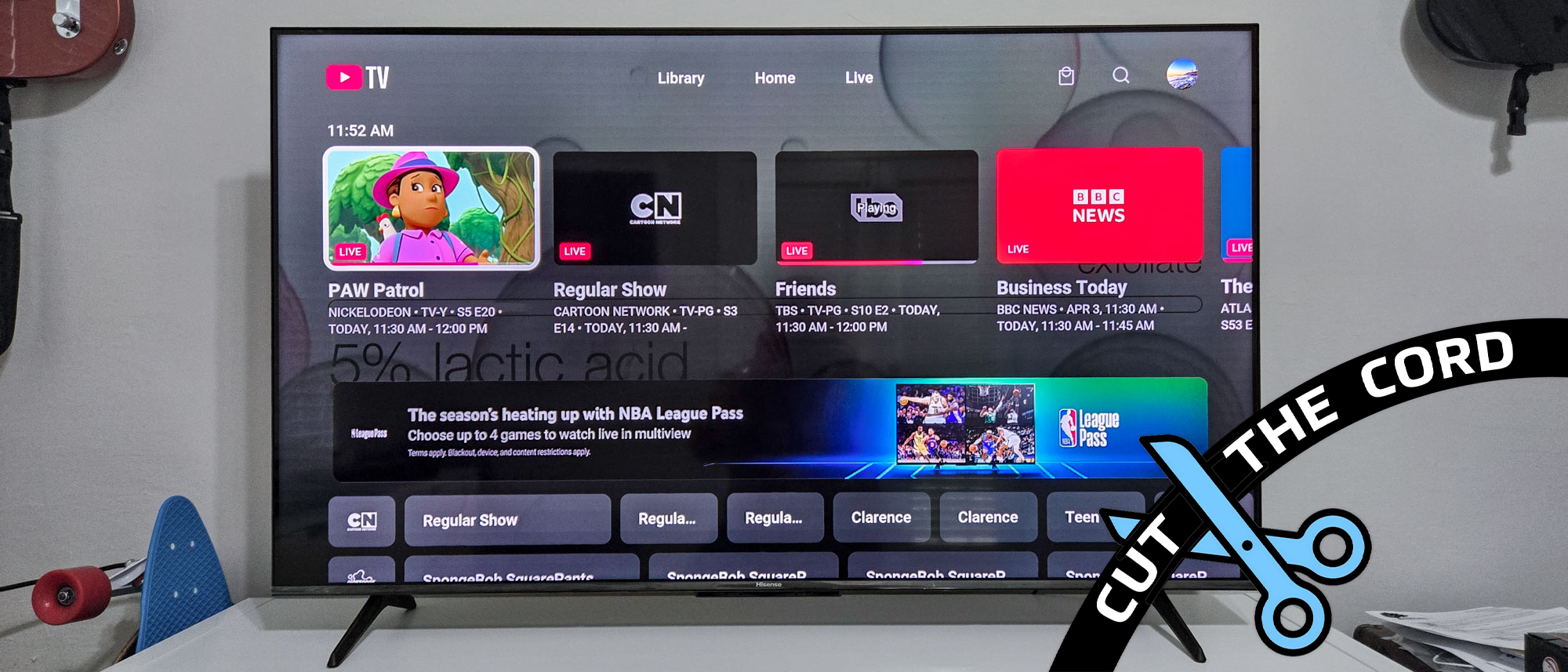
The interface is divided into three primary segments. The “Home” tab uses machine learning algorithms to suggest content based on your previous viewing habits and trending data. The “Live” tab provides a traditional Electronic Programming Guide (EPG), showing what is currently on air and what is scheduled next. The “Library” is where the Cloud DVR resides. Unlike hardware-based DVRs that are limited by physical hard drive space, YouTube TV’s Cloud DVR offers unlimited storage. Recordings are stored on Google’s servers for up to nine months, allowing users to “record” thousands of hours of content without ever worrying about hardware failure or storage limits.
Multi-View and Adaptive Bitrate Streaming
For sports enthusiasts, YouTube TV has introduced a “Multi-View” feature, which allows for the simultaneous streaming of up to four different live feeds on a single screen. This requires significant bandwidth and processing power, but YouTube TV handles the heavy lifting on the server side, sending a single pre-rendered stream to your device to ensure even lower-powered hardware can display all four feeds without crashing. Furthermore, the service utilizes Adaptive Bitrate Streaming (ABS). This technology monitors your internet speed in real-time and adjusts the video quality (from 480p to 1080p or 4K) to prevent buffering during network fluctuations.
4K Plus and Enhanced Audio
For users with high-end home theater setups, the “4K Plus” add-on provides access to select content in Ultra High Definition. Beyond resolution, the service supports 5.1 Dolby Audio surround sound on compatible devices. To ensure you are receiving the highest quality audio and video, you can toggle the “Stats for Nerds” overlay in the settings menu. This provides a real-time data feed showing your current resolution, connection speed, and frame drops, allowing for precise technical monitoring of your stream’s performance.
Technical Troubleshooting and Network Optimization
Even the most robust streaming services can encounter issues. Most problems associated with streaming YouTube TV stem from network congestion or software glitches rather than the service itself.
Managing Bandwidth and Latency
To stream in 1080p, a stable connection of at least 7 Mbps is required. For 4K content or multiple simultaneous streams, that requirement jumps to 25 Mbps or higher. If you experience buffering, the first step is to perform a speed test to ensure your ISP is delivering the promised bandwidth. Switching from a 2.4 GHz Wi-Fi band to a 5 GHz band—or, ideally, using a wired Ethernet connection—can drastically reduce latency and interference from other household electronics.
App Cache and Firmware Updates
Like any software, the YouTube TV app can accumulate “digital cruft.” If the app becomes sluggish or crashes, clearing the cache in the device settings (common on Android TV and Fire TV) can resolve the issue. Additionally, ensuring that both the app and the device’s firmware are up to date is crucial. Developers frequently release patches to fix bugs and improve compatibility with new video codecs.
Resolving Playback Errors and Licensing Issues
Occasionally, users may encounter a “Playback Error” or “Licensing Error.” This is often related to Digital Rights Management (DRM) handshakes. Unplugging the HDMI cable and re-inserting it, or restarting the device to refresh the HDCP (High-bandwidth Digital Content Protection) handshake, usually solves the problem. If location errors occur, opening the YouTube TV app on a mobile device with GPS enabled while connected to the same Wi-Fi network will “re-verify” the location of the streaming device.
Future-Proofing Your Home Entertainment System
As we look toward the future of streaming, YouTube TV continues to integrate more AI-driven features and deeper integration with the broader Google ecosystem. The shift toward 5G home internet and Wi-Fi 6E will further stabilize the streaming experience, allowing for even lower latency and higher bitrates.
By understanding the hardware requirements, mastering the account setup, and optimizing your home network, you can transform your television into a high-performance streaming hub. YouTube TV represents the pinnacle of current cloud-television technology, offering a robust, scalable, and highly customizable alternative to the legacy systems of the past. Whether you are navigating the Live EPG or managing an unlimited Cloud DVR, the technical foundations of the service ensure that your entertainment is always accessible, high-definition, and tailored to your specific digital lifestyle.
aViewFromTheCave is a participant in the Amazon Services LLC Associates Program, an affiliate advertising program designed to provide a means for sites to earn advertising fees by advertising and linking to Amazon.com. Amazon, the Amazon logo, AmazonSupply, and the AmazonSupply logo are trademarks of Amazon.com, Inc. or its affiliates. As an Amazon Associate we earn affiliate commissions from qualifying purchases.