
In the rapidly evolving landscape of Over-the-Top (OTT) media services, YouTube TV has established itself as a premier live-streaming platform. However, the fluid nature of digital software and the constant release of competing applications means that users often need to transition between services to optimize their technical setup or user experience. Understanding the mechanics of how to cancel your YouTube TV account is not merely about finding a “delete” button; it involves navigating the software’s ecosystem, understanding cross-platform billing synchronizations, and managing cloud-based data storage.
Whether you are migrating to a different streaming architecture or simply streamlining your digital footprint, this guide provides a comprehensive technical walkthrough for terminating or pausing your service across various devices.
Navigating the YouTube TV Ecosystem: Understanding the Platform Mechanics
YouTube TV operates on a complex backend that integrates with the broader Google account infrastructure. Unlike traditional cable services, your subscription is a digital entitlement tied to your Google identity. Before initiating a cancellation, it is critical to understand how the software handles your data and your current billing cycle.
The Cross-Platform Interface (Web vs. Mobile)
The user interface (UI) of YouTube TV is designed for consistency, but the administrative backend varies slightly depending on whether you are accessing the service via a desktop browser, an Android application, or an iOS environment. For the most stable experience, Google recommends performing administrative changes through a desktop web browser. This bypasses the limitations often found in mobile app wrappers and ensures you have access to the full suite of account management tools.
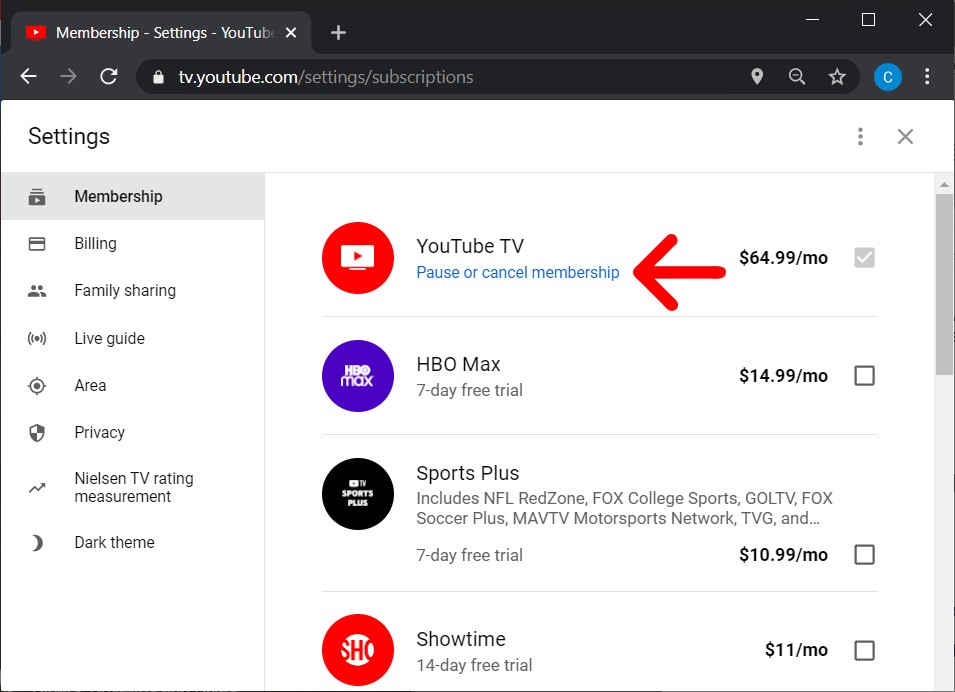
When you access the settings through a browser, you are interacting directly with the Google Billing API. This interface provides more granular control over individual “add-on” networks (like HBO Max or Sports Plus packages) which can be toggled off individually without canceling the entire base plan.
Billing Cycles and Prorated Access
One of the most important technical aspects of canceling a YouTube TV subscription is the “access window.” YouTube TV does not offer prorated refunds for mid-cycle cancellations. Instead, the software is programmed to grant “paid-through” access. If your billing cycle begins on the 1st of the month and you cancel on the 15th, your digital credentials will remain valid until the end of that 30-day period.
From a technical standpoint, the system marks your account for “pending termination.” During this window, your Cloud DVR will continue to record scheduled programs, and your multi-user family sharing permissions will remain active. Once the cycle expires, the system revokes these tokens, and access is restricted.
Step-by-Step Cancellation Procedures for Every Device
The process of canceling YouTube TV requires navigating through several layers of the application’s settings. Because Google utilizes “frictionless” sign-up but requires specific intent for cancellation, it is important to follow the correct path to ensure the request is logged in the database.
Canceling via Web Browser (Desktop)
The desktop method is the most reliable way to ensure your cancellation is processed immediately.
-
Authentication: Open your preferred web browser and navigate to
tv.youtube.com. Ensure you are logged into the primary “Family Manager” account, as sub-accounts do not have the administrative permissions to terminate billing. -
Accessing Settings: Click on your profile avatar in the top-right corner of the interface and select “Settings” from the dropdown menu.
-
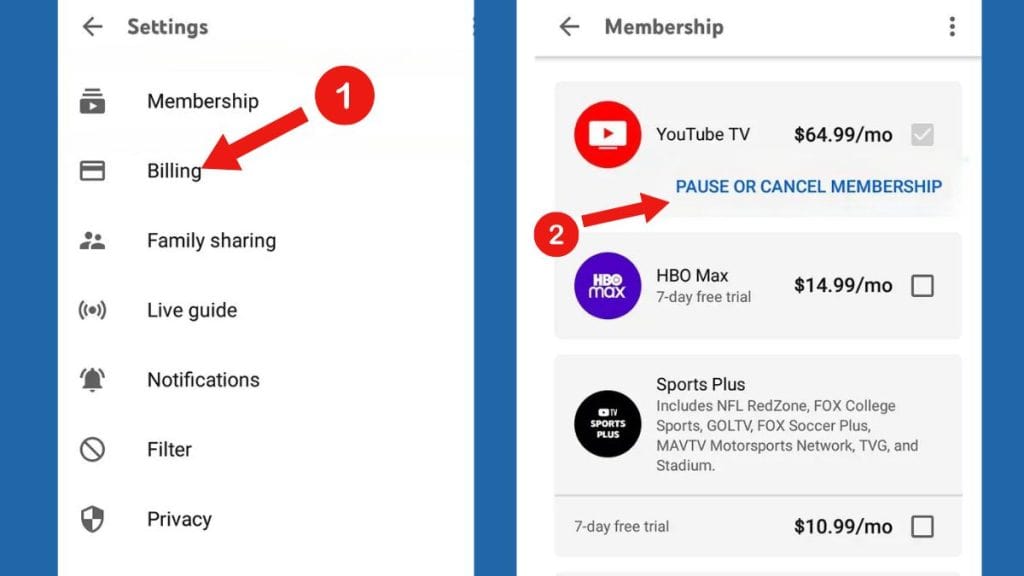
Membership Management: In the left-hand navigation pane, select the “Membership” tab. This screen displays your base plan and any active add-ons.
-
Initiating Termination: Click the “Manage” button next to your base plan. You will be presented with two options: “Pause membership” or “Cancel membership.”
-
Confirmation Logic: Select “Cancel.” The system will likely prompt you with a brief survey regarding your reason for leaving. This is a standard UX data collection practice used for software iteration and churn analysis.
-
Final Verification: After navigating the prompts, you must click “Confirm Cancellation.” You should receive an automated email confirmation almost instantly. If you do not receive this email, the transaction may not have been committed to the database.
Managing Subscriptions on Android and iOS Devices
For users on mobile platforms, the cancellation process depends heavily on the OS version and the initial method of sign-up.
-
Android Devices: Since YouTube TV is a Google product, the Android app integrates directly with the Google Play Store’s subscription management system. You can cancel through the YouTube TV app settings, which will redirect you to the Play Store’s billing interface.
-
iOS/Apple Devices: This is a common point of technical confusion. If you subscribed to YouTube TV via the Apple App Store (using Apple’s In-App Purchase system), you cannot cancel through the YouTube TV website or the app’s internal settings. You must navigate to the “Settings” app on your iPhone or iPad, tap your Apple ID, and manage the subscription through the “Subscriptions” menu. This is due to the sandboxed nature of Apple’s billing ecosystem.
The “Pause” Alternative: Technical Benefits of Temporary Deactivation
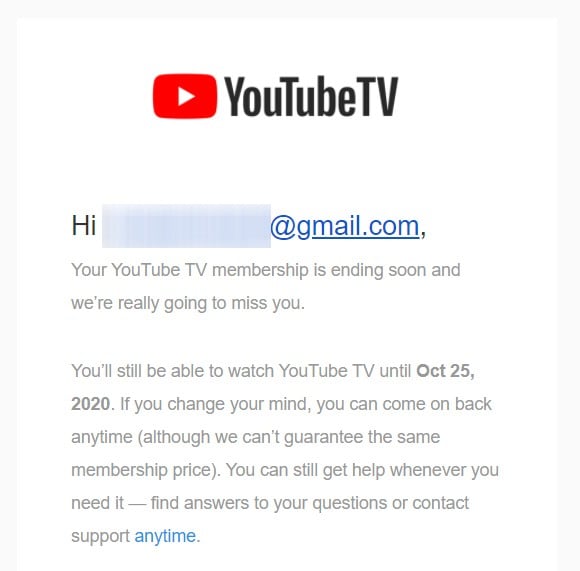
Before fully committing to a total cancellation, it is worth exploring the “Pause” functionality within the YouTube TV software. This feature is a sophisticated middle ground designed for users who may only need the service during specific seasons, such as during the NFL or NBA cycles.
Retaining Your DVR Cloud Storage
The primary technical advantage of pausing rather than canceling is the preservation of your Cloud DVR metadata. When you cancel a subscription, Google typically purges your recorded library after 21 days. However, if you choose the “Pause” option, your recordings are stored in a dormant state for the duration of the pause (up to 6 months).
When the pause period ends, or when you manually resume the service, your library, watch history, and personalized recommendations are instantly restored. This is particularly useful for users who have spent months training the platform’s algorithm to surface relevant content.
Managing Data and User Profiles During a Hiatus
During a pause, your account effectively enters a “read-only” state. You cannot watch live TV or new recordings, but your profile remains linked to the Family Group. This prevents the need to re-invite family members or re-configure individual user permissions when you decide to return to the platform. From a data management perspective, pausing is significantly more efficient than a full account deletion and recreation.
Post-Cancellation Troubleshooting and Data Privacy
Once the cancellation is finalized, there are several technical “housekeeping” tasks that users should perform to ensure their digital security and to verify that no residual charges occur.
Verifying Account Termination
It is a best practice to verify that the “automatic renewal” flag has been successfully toggled to “off” in your Google account. You can do this by visiting pay.google.com. Under the “Subscriptions and services” tab, YouTube TV should appear as “Canceled” or “Inactive.”
If the service still appears as “Active,” it may indicate a synchronization error between the YouTube TV front-end and the Google Pay back-end. In such cases, manually removing the payment method or contacting technical support is necessary to prevent an automated “retry” of the billing token at the start of the next cycle.
Managing Your Digital Footprint and Permissions
Canceling the service does not automatically delete the data Google has collected regarding your viewing habits. If your goal is a total exit from the ecosystem, you should navigate to your “Google My Activity” page. Here, you can filter for “YouTube TV” and manually delete your search and watch history.
Furthermore, check your “Third-party apps with account access” in your Google Security settings. If you have linked YouTube TV to external hardware—such as a Roku, Fire Stick, or Smart TV—it is advisable to sign out of the app on those devices to revoke the OAuth tokens.
Exploring the Post-YouTube TV Landscape: Software Alternatives
For many users, canceling YouTube TV is the first step in migrating to a different software stack that better aligns with their technical requirements. The OTT market is saturated with platforms that offer varying degrees of performance, codec support, and UI sophistication.
Comparing Interface and UX of Competitors
If your reason for canceling was based on UI friction or app performance, evaluating the competitors from a technical standpoint is essential:
-
Hulu + Live TV: Offers a deeply integrated experience with Disney+ and ESPN+. Its UI is more visual but can be more resource-intensive on older hardware compared to the relatively lightweight YouTube TV app.
-
Sling TV: A more modular approach to streaming. Technically, it allows for a “lighter” installation, making it ideal for users with limited bandwidth or lower-end streaming sticks.
-
Fubo: Focused heavily on sports, Fubo’s backend supports 4K streaming more broadly than many of its competitors, though it requires a robust home network (at least 25-50 Mbps) to maintain stability.
Optimizing Your Home Network for Streaming Transitions
When moving away from YouTube TV, it is a strategic time to audit your home network. Different streaming apps utilize different bitrates and buffering algorithms. YouTube TV is known for its highly efficient VP9 and AV1 codec implementation, which allows for smooth playback even on sub-optimal connections.
If you move to a service that uses less efficient compression, you may notice increased latency or pixelation. Ensuring your router’s firmware is updated and utilizing a wired Ethernet connection for your primary streaming device can mitigate the technical hurdles associated with switching platforms.
Ultimately, canceling a YouTube TV account is a straightforward process when approached with an understanding of the underlying digital infrastructure. By following the correct administrative paths and understanding the implications for your cloud data, you can move between tech ecosystems with confidence and precision.
aViewFromTheCave is a participant in the Amazon Services LLC Associates Program, an affiliate advertising program designed to provide a means for sites to earn advertising fees by advertising and linking to Amazon.com. Amazon, the Amazon logo, AmazonSupply, and the AmazonSupply logo are trademarks of Amazon.com, Inc. or its affiliates. As an Amazon Associate we earn affiliate commissions from qualifying purchases.