
The iPad, a marvel of modern technology, offers an unparalleled canvas for work, entertainment, and communication. Its larger screen, robust processing power, and intuitive interface make it a compelling device for many daily tasks. Yet, a persistent question echoes among its users: “How can I install WhatsApp on my iPad?” This seemingly simple query unveils a nuanced reality in the world of mobile applications, as WhatsApp, the ubiquitous messaging platform, has notably refrained from releasing a native application specifically designed for Apple’s tablet.
This article delves into the heart of this enigma, exploring the underlying reasons for WhatsApp’s absence on the iPad App Store and, more importantly, providing comprehensive, practical solutions to access your WhatsApp chats on your iPad. We’ll navigate through the official, albeit indirect, methods, scrutinize the allure and perils of third-party alternatives, and equip you with the knowledge to make an informed decision, all while keeping your digital security and productivity at the forefront, in line with the core tenets of technology and digital well-being championed by GlobalizeThis.

The Unofficial Truth: Why No Native WhatsApp for iPad?
For years, the tech community has speculated and debated the reasons behind WhatsApp’s conspicuous absence from the iPad’s native app ecosystem. While other Meta-owned applications like Facebook and Instagram offer dedicated iPad experiences, WhatsApp remains stubbornly mobile-phone-centric. Understanding this strategy is crucial before we explore the workarounds.
Understanding Meta’s Strategy and Platform Priorities
WhatsApp’s fundamental design principle has always been deeply rooted in its mobile-first approach, intrinsically linking each user account to a single phone number registered on a primary mobile device. This foundational architecture underpins everything from account creation to end-to-end encryption. When WhatsApp was conceived, the mobile phone was the undisputed hub of personal communication, and its developers built the service around this premise. Extending this to an iPad, which often lacks its own cellular number tied to a unique device in the same way a smartphone does, presents significant architectural challenges that go beyond simply resizing an app interface.
Meta, WhatsApp’s parent company, has historically prioritized a streamlined, consistent user experience across the primary smartphone platform. Developing and maintaining a separate, dedicated iPad app would require substantial engineering resources for development, ongoing updates, bug fixes, and security patches. Given that WhatsApp already serves billions of users globally across iOS and Android smartphones, the strategic decision might be to focus resources on enhancing the core mobile experience and its web/desktop counterparts, which already cater to a broader range of devices, including tablets, through a browser. The introduction of “multi-device support” represented a significant shift, allowing users to link companion devices without requiring the primary phone to be online, but this feature primarily extends to web browsers and desktop apps, not yet a standalone iPad app. This strategic choice is a classic example in the tech world where resource allocation and market priorities dictate product development, often leaving niche desires (like a native iPad app) on the backburner despite user demand.
The Ecosystem Challenge: Mobile-First Design
The very essence of WhatsApp’s security and user identification is tied to the SIM card and phone number registered on a smartphone. This “mobile-first” philosophy is more than just a design choice; it’s an architectural backbone. An iPad, while capable of cellular connectivity, doesn’t always have a distinct phone number in the same way a smartphone does. Many iPads are Wi-Fi only, and even cellular models often share a number with a primary device or use a data-only SIM. This creates a complex authentication challenge for WhatsApp’s existing framework, which relies on SMS verification to bind an account to a specific phone number and, by extension, a primary device.
Furthermore, the user experience designers at WhatsApp have meticulously crafted the app for the intimate, on-the-go interaction model of a smartphone. Scaling this directly to a tablet without a complete rethinking of the UI/UX could lead to a clunky or suboptimal experience. While the larger screen offers opportunities for enhanced media viewing and typing, it also demands a different interaction paradigm than a handheld device. The perceived effort versus reward for developing a full-fledged, architecturally compliant, and user-friendly native iPad app may simply not have crossed the threshold for Meta, especially when the existing WhatsApp Web functionality provides a viable, albeit indirect, solution for tablet users. This situation highlights how technological constraints and design philosophies influence app availability across different hardware platforms, directly impacting how users engage with software and apps—a key consideration in technology trends.
Method 1: Harnessing the Power of WhatsApp Web for Your iPad
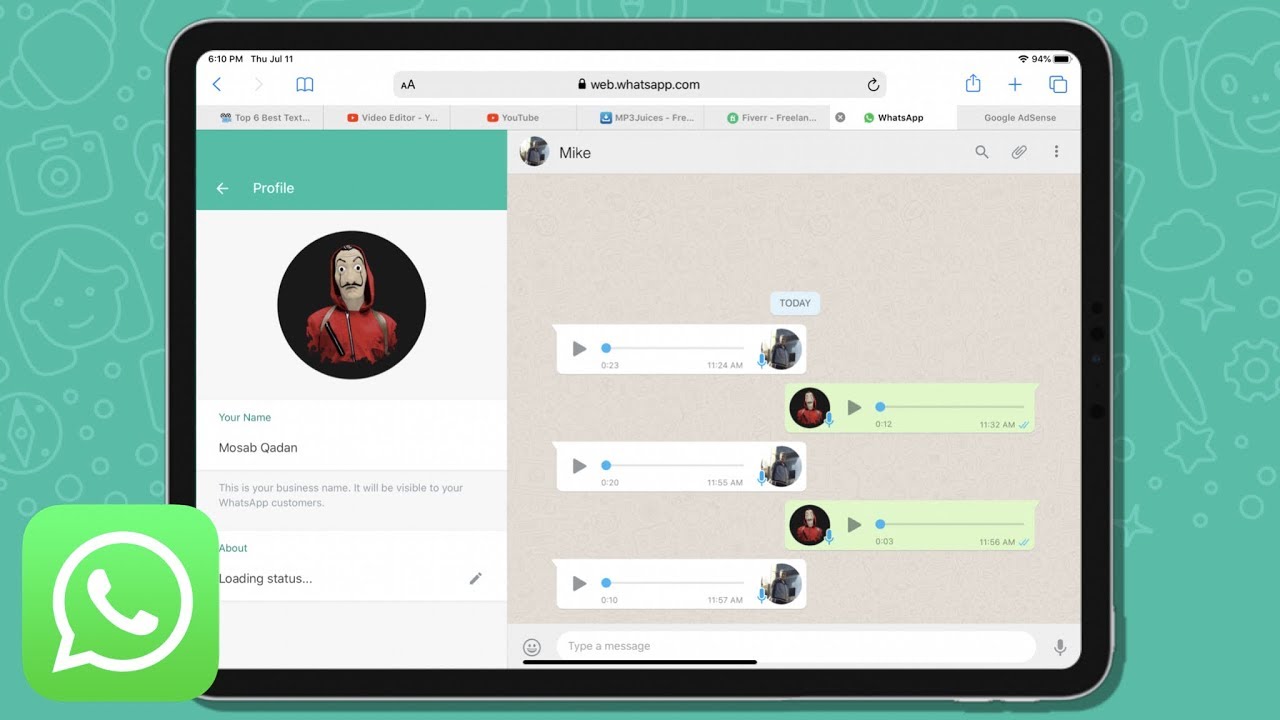
Given the absence of a native app, the most reliable, secure, and officially sanctioned method to access WhatsApp on your iPad is through WhatsApp Web. This approach leverages your iPad’s web browser to create a synchronized, real-time connection to your primary WhatsApp account on your smartphone. It’s a testament to the power of web technologies and an excellent example of how software can extend its reach without requiring a dedicated install.
Step-by-Step Guide to Linking WhatsApp Web
Accessing WhatsApp Web on your iPad is straightforward, requiring only your primary smartphone with WhatsApp installed and an internet connection on both devices. Here’s a detailed guide:
- Open Safari (or Chrome) on Your iPad: Launch your preferred web browser on your iPad. Safari is the default and generally works very well.
- Navigate to WhatsApp Web: In the browser’s address bar, type
web.whatsapp.comand press Enter. - Request Desktop Website (Crucial Step): By default, Safari (and many other browsers) might try to load the mobile version of the WhatsApp website, which will just prompt you to download the app. To avoid this, you must request the desktop version of the site.
- For Safari: Tap the “AA” icon in the address bar (top-left corner). From the dropdown menu, select “Request Desktop Website.” The page will reload, displaying a QR code.
- For Chrome: Tap the three-dot menu icon (top-right or bottom-right). Scroll down and select “Request Desktop Site.”
- Open WhatsApp on Your Smartphone: Now, pick up your primary smartphone (the one with your WhatsApp account active).
- Access Linked Devices:
- On Android: Open WhatsApp, tap the three-dot menu icon (top-right), then select “Linked Devices.”
- On iOS (iPhone): Open WhatsApp, go to the “Settings” tab (bottom-right), then tap “Linked Devices.”
- Link a Device: Tap the “Link a Device” button. You may be prompted to unlock your phone using your fingerprint, face ID, or passcode.
- Scan the QR Code: Your smartphone’s camera will activate. Point your phone’s camera at the QR code displayed on your iPad’s screen. Ensure the entire QR code is visible within the scanner’s frame.
- Synchronization: Once the QR code is successfully scanned, your WhatsApp chats will begin to synchronize and appear on your iPad’s browser. This process might take a few moments depending on the number of chats and media you have.
- Stay Logged In: WhatsApp Web usually keeps you logged in unless you manually log out from your phone or the browser, or if there’s an extended period of inactivity.
This method effectively transforms your iPad into a secondary screen for your WhatsApp activity, offering the convenience of a larger display for typing and viewing media without compromising security.
Enhancing the WhatsApp Web Experience on iPad
While WhatsApp Web isn’t a native app, you can significantly improve its usability on your iPad to make it feel more integrated:
- Add to Home Screen: For quick access, you can create a shortcut to WhatsApp Web on your iPad’s home screen. This makes it launch like an app.
- For Safari: With WhatsApp Web open and logged in, tap the “Share” icon (a square with an arrow pointing upwards) in the Safari toolbar. Scroll down and tap “Add to Home Screen.” You can name the shortcut “WhatsApp” or “WhatsApp Web.”
- For Chrome: Tap the three-dot menu, then “Add to Home Screen.”
This shortcut will open WhatsApp Web directly, bypassing the need to type the URL or request the desktop site each time.
- Enable Notifications: To receive notifications from WhatsApp Web, your browser might ask for permission. Allow it. While these aren’t as robust as native app notifications, they can alert you to new messages even when the browser isn’t actively in focus. However, browser notifications are less reliable and might only work when the browser tab is open.
- Utilize iPad Multitasking: Leverage iPadOS’s multitasking features like Split View or Slide Over. You can have WhatsApp Web open alongside another app, enhancing productivity. For instance, you could be reading an email in one half of the screen and responding to WhatsApp messages in the other, making it a powerful tool for business communication and time management.
- External Keyboard and Mouse Support: The iPad’s compatibility with external keyboards and mice (or trackpads) dramatically improves the WhatsApp Web experience. Typing long messages becomes effortless, transforming your iPad into a competent communication hub, much like a laptop.
Advantages and Limitations of This Approach
Advantages:
- Official and Secure: This is the only method officially endorsed by WhatsApp/Meta. Your chats remain end-to-end encrypted, and you are not risking your data with third-party software. This aligns perfectly with digital security and privacy best practices.
- No Installation Required: It works directly through your web browser, consuming minimal storage on your iPad.
- Larger Screen Experience: Enjoy viewing media, typing messages, and managing group chats on the iPad’s spacious display.
- Multi-Device Support: Thanks to recent updates, WhatsApp Web now functions independently of your primary phone’s internet connection, meaning your phone doesn’t need to be online once the device is linked. This significantly enhances reliability and convenience.
- Cost-Effective: It requires no additional purchases, utilizing existing technology on your iPad.
Limitations:
- Not a Native App: It lacks the deep system integration of a native app. You won’t get background refresh, consistent notifications, or direct access to iPad features like camera or microphone permissions in the same seamless way.
- Browser-Dependent: WhatsApp Web needs to be open in a browser tab to function optimally. If the tab is closed or the browser is quit, you might miss messages or notifications.
- No Direct Calls: You cannot initiate or receive WhatsApp voice or video calls directly through WhatsApp Web; these still require your primary smartphone.
- Limited Customization: The interface is fixed and cannot be customized like a native app might be.
Despite its limitations, WhatsApp Web remains the gold standard for accessing WhatsApp on your iPad, offering a robust and secure bridge to your conversations.
Method 2: Exploring Third-Party Solutions and Their Risks
Beyond the official WhatsApp Web, the App Store teems with applications that claim to provide a native WhatsApp experience on your iPad. These are often referred to as “wrapper apps” or “client apps.” While they might seem appealing due to their app-like interface, it is crucial to approach them with extreme caution. This section delves into the nature of these apps and the significant risks associated with their use, emphasizing digital security and app review considerations.
The Allure of Wrapper Apps
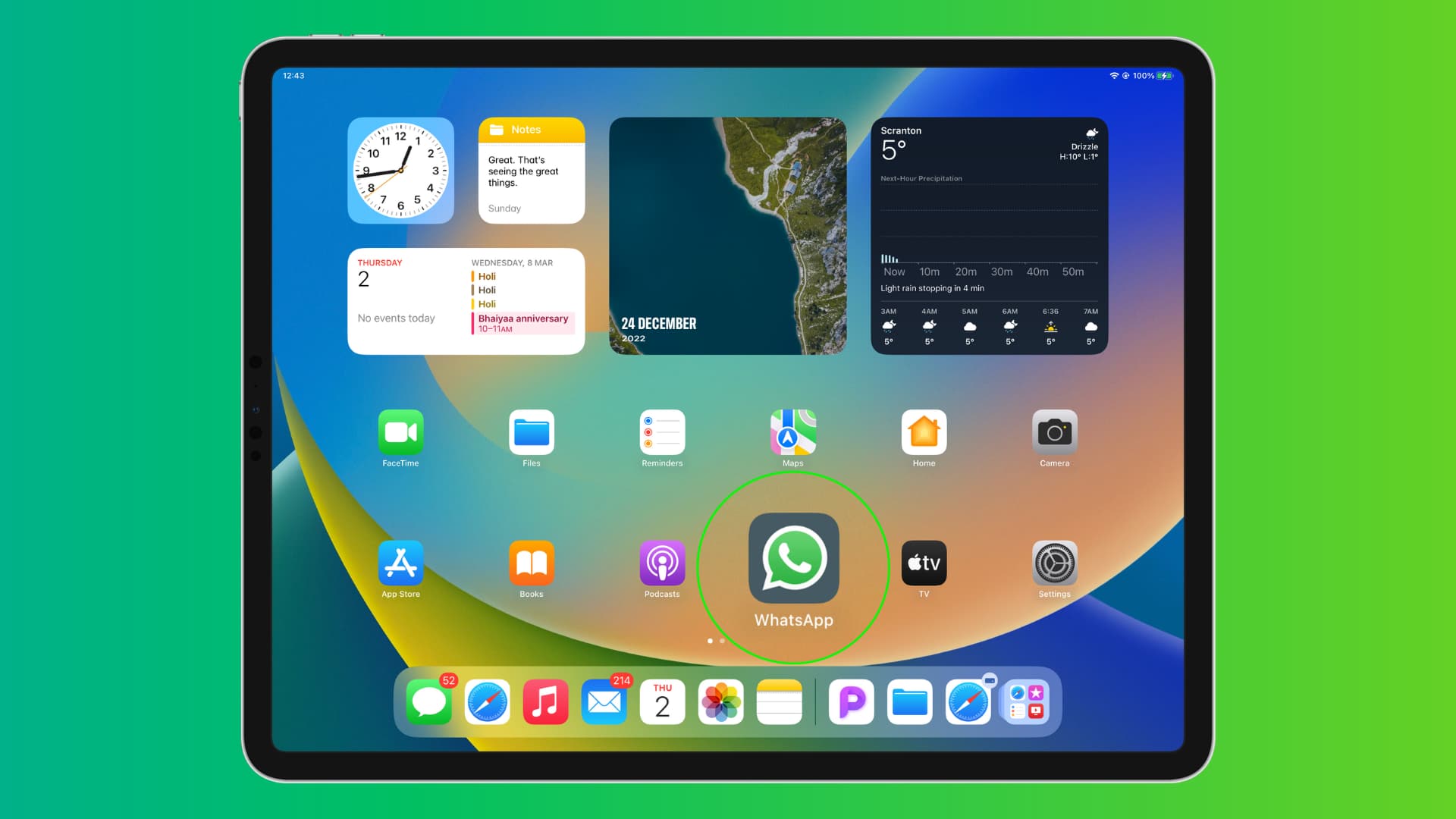
Wrapper apps for WhatsApp on iPad are essentially web browsers masquerading as native applications. They do not contain any proprietary WhatsApp code; instead, they simply load the WhatsApp Web interface within their own app framework. Their primary appeal lies in providing a more “app-like” feel: an icon on your home screen, an app window that doesn’t share tabs with your regular browsing, and sometimes a slightly customized interface. For users who find the browser experience clunky or yearn for a dedicated icon, these apps can seem like a convenient solution. Some might even promise features beyond WhatsApp Web, though these promises are often empty or achieved through risky means.
These applications often appear higher in search results because their developers optimize their App Store listings for terms like “WhatsApp for iPad” or “iPad messenger.” They leverage user frustration with the lack of an official app, offering a seemingly simple solution to a widespread problem. However, this convenience often comes at a steep price, primarily concerning data privacy and digital security—critical aspects of tech usage.
Critical Security and Privacy Concerns
The fundamental problem with third-party WhatsApp wrapper apps is trust. When you use such an app, you are essentially giving an unknown developer access to a communication channel that contains your most sensitive personal and professional data. Here are the paramount concerns:
- Interception of Data: While WhatsApp Web itself is end-to-end encrypted, the wrapper app acts as an intermediary. It’s theoretically possible for malicious wrapper apps to inject code or proxy your connection, potentially intercepting your messages, media, or login credentials before they reach WhatsApp’s secure servers. This compromises the very end-to-end encryption WhatsApp prides itself on.
- Malware and Spyware: Some wrapper apps could be Trojan horses, containing malicious code designed to steal other data from your iPad, track your online activity, or even hijack your device. Because they are not officially sanctioned, they are not subject to the same rigorous security audits that WhatsApp performs internally.
- Violation of WhatsApp’s Terms of Service: Using unofficial clients is a direct violation of WhatsApp’s Terms of Service. This could lead to your WhatsApp account being temporarily or permanently banned. Such a ban would be a significant disruption, especially for individuals or businesses that rely heavily on WhatsApp for communication and customer engagement (a brand and productivity concern).
- Lack of Updates and Support: These apps are often developed by small, independent developers who may not have the resources or incentive to consistently update the app to match WhatsApp Web’s evolving security protocols or feature sets. This can lead to security vulnerabilities or the app simply ceasing to function after a WhatsApp Web update.
- Phishing and Scams: Some fake apps might try to trick you into entering your WhatsApp login details (though WhatsApp Web uses QR code scanning, not direct login credentials), which could then be used to gain unauthorized access to your account.
The risks far outweigh the minor convenience these apps might offer. In a world where digital security breaches are increasingly common, knowingly exposing your personal communications to unknown third parties is an ill-advised gamble.
Choosing Wisely: A Cautionary Tale
When considering any application, especially those that deal with sensitive communication, it’s essential to exercise extreme caution. For WhatsApp on iPad:
- Avoid Unofficial Apps: The safest course of action is to completely avoid third-party apps claiming to offer a native WhatsApp experience. Their perceived benefits are superficial, and the security risks are profound.
- Stick to WhatsApp Web: Rely solely on
web.whatsapp.comaccessed directly through a reputable browser like Safari or Chrome. This is the only official and secure method. - Check App Store Reviews (Skeptically): While App Store reviews can be helpful, be wary. Negative reviews often highlight security issues or non-functionality, but positive reviews could be fabricated or from users unaware of the underlying risks. Always cross-reference with official developer information.
- Prioritize Privacy: Remember that your personal communications are invaluable. Compromising them for minor convenience is never a good trade-off. Think about the implications for your personal branding or business reputation if your communications were intercepted.
In the realm of digital security and software choices, the adage “if it seems too good to be true, it probably is” holds immense weight. Stick to official channels to protect your privacy and data, a fundamental principle for navigating the ever-evolving tech landscape.
Beyond the Basics: Optimizing Your WhatsApp Experience on iPad
While the primary challenge is simply accessing WhatsApp on your iPad, an optimized experience goes further. It involves leveraging iPadOS features, understanding security nuances, and looking ahead to potential future developments. This section focuses on enhancing productivity, ensuring robust digital security, and keeping an eye on the future of apps and technology trends.
Boosting Productivity with Multitasking and Notifications
The iPad, especially with recent iPadOS versions, is a powerful productivity machine. Integrating WhatsApp Web effectively into your workflow can significantly enhance how you manage communications, particularly for professionals or active users.
- Split View for Seamless Interaction: Imagine researching a topic in Safari on one half of your iPad screen and communicating with colleagues or clients about it in WhatsApp Web on the other. Split View allows you to run two apps side-by-side, dramatically reducing the need to switch between applications. This is invaluable for tasks requiring immediate communication alongside other work, making your iPad a central hub for multitasking and efficient work.
- Slide Over for Quick Access: For quick checks and responses, use Slide Over. This allows a small, floating window of WhatsApp Web to hover over your primary app. Tap its handle, slide it in, send a quick message, and slide it away, maintaining focus on your main task. This fluid interaction can save precious seconds and prevent context switching overload, a key aspect of digital productivity.
- Persistent Notifications (Browser Settings): While not as robust as native app notifications, enabling browser notifications for
web.whatsapp.comcan still be beneficial. Ensure your browser is allowed to send notifications through iPadOS settings. While they might only appear when the browser tab is active or recently active, they offer a visual cue for incoming messages, preventing missed communications. - Utilizing External Accessories: As mentioned, an external keyboard transforms the iPad into a typing powerhouse. For extensive chat sessions, typing on a physical keyboard is vastly superior to the on-screen keyboard, boosting typing speed and reducing fatigue. Pair this with a trackpad or mouse for precise navigation and selection within WhatsApp Web, completing a desktop-like communication setup. These accessories not only make communication faster but also contribute to a more ergonomic and comfortable experience, vital for prolonged productivity.
By strategically using these iPadOS features and accessories, WhatsApp Web transcends being just a browser tab and becomes an integral, highly productive communication tool on your iPad.
Digital Security Best Practices for Linked Devices
Using WhatsApp Web, or any “linked device” feature, introduces new considerations for digital security. While the method itself is secure, user practices can impact overall safety. Adhering to these best practices is vital for protecting your personal and financial information, aligning with global standards for digital security.
- Regularly Review Linked Devices: WhatsApp provides a list of all devices linked to your account (via “Linked Devices” in Settings on your phone). Make it a habit to check this list periodically. If you see any unfamiliar devices, immediately unlink them. This acts as an audit trail for your account access.
- Log Out from Public/Shared iPads: If you use WhatsApp Web on a shared iPad (e.g., at work, a library, or a friend’s device), always remember to log out explicitly when you are finished. You can do this from within WhatsApp Web itself (three-dot menu > Log out) or remotely from your primary phone via the “Linked Devices” section. Forgetting to log out can leave your entire chat history vulnerable to the next user.
- Secure Your iPad: Ensure your iPad itself is secured with a strong passcode, Face ID, or Touch ID. This prevents unauthorized access to your device, and by extension, your WhatsApp Web session if you’re logged in. A robust device security strategy is the first line of defense against digital intrusion.
- Beware of Phishing Attempts: Be vigilant against suspicious links or messages, even within WhatsApp. Phishing attempts can trick you into revealing personal information or installing malware. Always verify the source and legitimacy of links before clicking, and never share sensitive information like passwords or financial details in chats unless absolutely certain of the recipient’s identity. This advice extends to any platform but is particularly relevant for widely used communication apps.
- Keep WhatsApp and Your Browser Updated: Ensure your WhatsApp app on your smartphone and your browser on your iPad are always updated to the latest versions. Updates often include critical security patches that protect against newly discovered vulnerabilities. Staying current with software updates is a fundamental practice in maintaining digital security across all your tech.
By adopting these habits, you can enjoy the convenience of WhatsApp on your iPad without compromising your digital security, safeguarding your communication and personal data.
The Future of WhatsApp on iPad: What to Expect
The persistent demand for a native WhatsApp iPad app continues to be a hot topic in technology trends. While Meta has not made any official announcements regarding a standalone iPad application, several indicators suggest it’s a possibility, though perhaps not imminent.
- Multi-Device Support as a Precursor: The rollout of “multi-device support” that allows companion devices (like WhatsApp Web) to function independently of the primary phone’s internet connection was a monumental architectural shift for WhatsApp. This foundational work potentially paves the way for a more robust tablet or even desktop client that isn’t tethered to the phone. It resolved the biggest technical hurdle for a native iPad app, which was the requirement for the phone to be constantly online.
- Meta’s Broader Integration Strategy: Meta is increasingly focused on cross-platform integration and a unified messaging experience across its family of apps. As they continue to invest in improving the user experience on larger screens and different form factors (e.g., Ray-Ban Stories, Quest headsets), the iPad might eventually be deemed a strategic priority.
- Competitive Landscape: Other messaging apps, such as Telegram and Signal, already offer native iPad applications. While WhatsApp has a dominant market share, competitive pressures could eventually nudge Meta to fill this gap to retain and attract users who value a consistent experience across all their devices.
- Potential Design Challenges Remain: Even with the technical groundwork laid, the user interface and user experience design for a native iPad app would still require significant effort to ensure it feels “right” on a tablet. It can’t just be a stretched-out phone app.
While there’s no guarantee, the technical barriers for a native iPad app are significantly lower than they once were. Users can remain hopeful that Meta will eventually choose to invest in a dedicated WhatsApp iPad app, offering a seamless and fully integrated experience. Until then, WhatsApp Web, utilized smartly and securely, remains the most viable and responsible solution for bringing your conversations to the larger screen of your iPad.
Conclusion
The journey to install WhatsApp on an iPad reveals a fascinating interplay between user demand, technological architecture, and corporate strategy. While the dream of a dedicated, native WhatsApp app for the iPad remains unfulfilled, the robust and increasingly independent WhatsApp Web offers a powerful and secure alternative. By understanding the reasons behind this absence and diligently applying the steps outlined for WhatsApp Web, iPad users can effectively bridge the gap, bringing their vital communications to their tablet’s larger screen.
This approach not only harnesses the full potential of your iPad for enhanced productivity through multitasking and external accessories but also upholds paramount digital security standards. The emphasis on using official channels, being vigilant against third-party risks, and regularly auditing linked devices ensures that your personal and professional communications remain private and protected. As technology evolves and Meta continues to refine its multi-device strategy, the future may yet hold a native iPad application for WhatsApp. Until then, the secure and optimized use of WhatsApp Web stands as the definitive answer to how you can truly integrate WhatsApp into your iPad experience, reinforcing the core values of intelligent tech utilization and digital safety for every user.
aViewFromTheCave is a participant in the Amazon Services LLC Associates Program, an affiliate advertising program designed to provide a means for sites to earn advertising fees by advertising and linking to Amazon.com. Amazon, the Amazon logo, AmazonSupply, and the AmazonSupply logo are trademarks of Amazon.com, Inc. or its affiliates. As an Amazon Associate we earn affiliate commissions from qualifying purchases.