
Ubuntu has long been hailed as one of the most stable, secure, and user-friendly Linux distributions available today. For tech enthusiasts, developers, and digital entrepreneurs, it offers a streamlined environment free from many of the bloatware issues found in other operating systems. However, even the most dedicated Linux users occasionally run into a significant hurdle: software compatibility. Many industry-standard applications—ranging from niche financial tools to specialized design software—remain exclusive to the Windows ecosystem.
This is where Wine comes into play. Contrary to popular belief, Wine is not an emulator; in fact, its name is a recursive acronym for “Wine Is Not an Emulator.” Instead, it is a compatibility layer capable of running Windows applications on several POSIX-compliant operating systems, such as Linux, macOS, and BSD. By translating Windows API calls into on-the-fly POSIX calls, Wine allows you to integrate Windows software into your Ubuntu workflow without the performance overhead of a virtual machine.
In this guide, we will walk you through the entire process of installing and configuring Wine on Ubuntu. Whether you are looking to boost your productivity, save money on hardware, or maintain your professional brand’s workflow, mastering Wine is an essential skill for the modern tech-savvy user.
Why Use Wine? The Intersection of Tech, Brand, and Money
Before diving into the technical steps, it is important to understand why Wine is such a pivotal tool in the current digital landscape.
From a Tech perspective, Wine represents a bridge between two worlds. It allows users to leverage the security of Linux while maintaining access to legacy Windows software. From a Money and Business Finance standpoint, Wine is a cost-saving powerhouse. Instead of purchasing expensive Windows licenses or high-end hardware to run resource-heavy virtual machines, Wine allows you to run applications natively on your existing hardware. For those involved in Side Hustles or Online Income, being able to run specific Windows-based SEO tools, trading platforms, or accounting software on a lightweight Linux laptop can significantly increase efficiency.
Furthermore, from a Brand and Productivity perspective, consistency is key. If your personal brand relies on a specific piece of software that isn’t available on Linux, you don’t have to compromise your identity or workflow. Wine ensures that you remain professional and productive, regardless of your choice of operating system.
Step 1: Preparing Your Ubuntu System
To ensure a smooth installation, you must first prepare your Ubuntu system. Wine requires certain dependencies, and modern 64-bit systems often need 32-bit architecture support to run older Windows applications successfully.
Checking Your Ubuntu Version
Open your terminal (Ctrl+Alt+T) and verify your Ubuntu version by typing:
lsb_release -a
Knowing whether you are on an LTS (Long Term Support) version like 22.04 or 24.04 is crucial because the repository names vary slightly between versions.
Enabling 32-bit Architecture
Most Windows applications, especially older ones, are built for 32-bit systems. To ensure compatibility, you must enable the i386 architecture on your Ubuntu machine. Run the following command:
sudo dpkg --add-architecture i386
Updating System Repositories
Before installing any new software, it is a best practice to update your local package index. This ensures you are pulling the most recent versions of the necessary libraries:
sudo apt update
Step 2: Choosing Your Installation Method
There are two primary ways to install Wine on Ubuntu. The method you choose depends on whether you value stability or want the latest features to support newer software.
Method 1: Installing via Ubuntu Standard Repositories
This is the easiest method and is recommended for users who want a stable, “set it and forget it” experience. Ubuntu maintains its own version of Wine in its official repositories.
To install it, run:
sudo apt install wine64 wine32
While this version is well-tested, it is often several versions behind the latest release from the Wine developers. If you are trying to run a very modern application or a high-end game, you may need a more recent version.
Method 2: Installing via the WineHQ Repository (The Professional Choice)
For those who need the latest patches and the best compatibility for modern software, installing directly from the WineHQ developers is the way to go.
- Download and add the repository key:
The system needs to verify the authenticity of the WineHQ packages. Use the following commands to download the GPG key:
sudo mkdir -pm 755 /etc/apt/keyrings
sudo wget -O /etc/apt/keyrings/winehq-archive.key https://dl.winehq.org/wine-builds/winehq.key
-
Add the WineHQ repository:
Depending on your Ubuntu version, you will need to add the correct source. For Ubuntu 22.04 (Jammy Jellyfish), the command is:
sudo wget -NP /etc/apt/sources.list.d/ https://dl.winehq.org/wine-builds/ubuntu/dists/jammy/winehq-jammy.sources
(Note: Replace “jammy” with the codename of your specific version, such as “noble” for 24.04). -
Install the Wine package:
Update your packages again and choose your preferred Wine branch:
sudo apt update
You now have three choices:- Stable branch: Best for most users. (
sudo apt install --install-recommends winehq-stable) - Development branch: For those who want the latest features but can tolerate occasional bugs. (
sudo apt install --install-recommends winehq-devel) - Staging branch: Contains experimental patches not yet in the main version. (
sudo apt install --install-recommends winehq-staging)
- Stable branch: Best for most users. (
Step 3: Configuring Wine for Optimal Performance
Once installed, you cannot simply start clicking on .exe files and expect perfect results. Wine requires a bit of configuration to mimic the Windows environment correctly.
Initializing the Wine Configuration
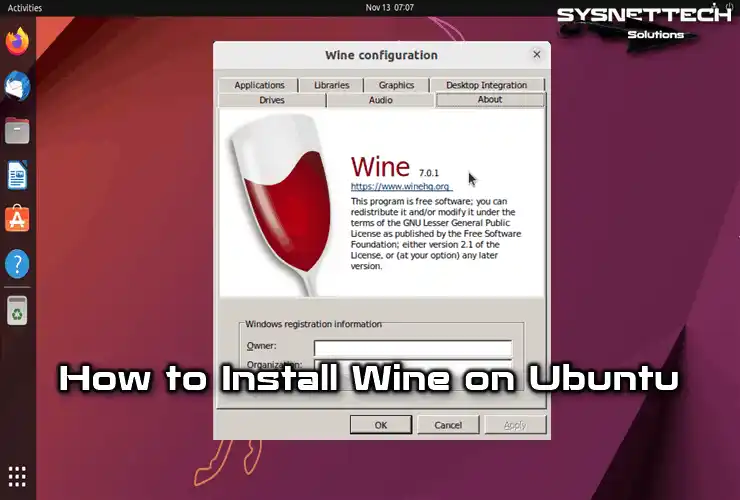
Run the command winecfg in your terminal. This will trigger the creation of a “Wine prefix,” which is essentially a virtual C: drive located in your home directory (~/.wine).
During this process, a prompt will likely appear asking to install Mono and Gecko. These are essential open-source implementations of .NET and Internet Explorer engines. Always click “Install” for these, as many Windows apps rely on them to function.
In the winecfg window, you can set the “Windows Version” (e.g., Windows 10 or Windows 7). This setting tells the application which version of the Windows API to expect.
Enhancing Functionality with Winetricks
For many tech professionals and designers, standard Wine isn’t enough. You may need specific Microsoft fonts (like Arial or Times New Roman) or specialized DLLs (like DirectX or .NET frameworks).
Winetricks is a helper script that simplifies the installation of these components. To install it:
sudo apt install winetricks
With Winetricks, you can easily install missing libraries that prevent professional software from launching, ensuring your digital tools are always ready for work.
Step 4: Installing and Running Windows Applications
Now that the foundation is laid, you can begin installing your Windows software.
- Download the .exe file: Locate the Windows installer for the software you wish to use.
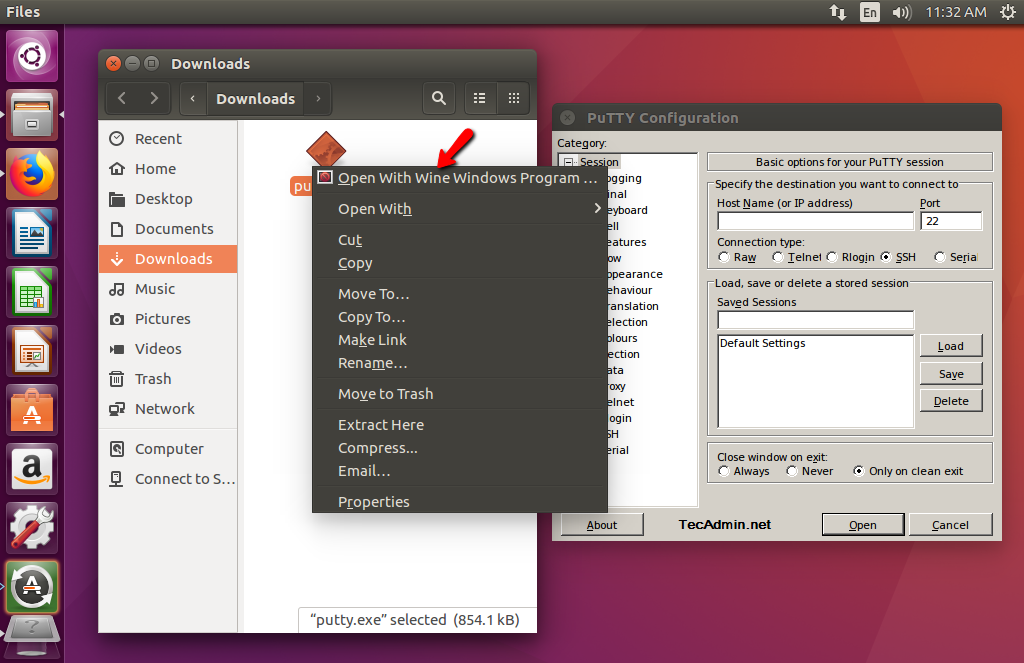
- Run with Wine: Right-click the file and select “Open With Wine Windows Program Loader.” Alternatively, use the terminal:
wine /path/to/your/installer.exe - Follow the Prompts: The installation wizard will look exactly like it does on Windows. Follow the steps, and the application will typically install into your virtual
C:drive.
Once installed, you can usually find the application in your Ubuntu “Applications” menu, or you can launch it via the terminal by navigating to its directory and typing wine program_name.exe.
The Strategic Advantage: Why This Matters for Your Career and Finance
Mastering Ubuntu and Wine is more than just a technical exercise; it is a strategic move for your Brand and Financial Security.
In the world of Personal Branding, being “OS-agnostic” makes you a more versatile professional. Whether you are a developer testing cross-platform compatibility or a marketer using specialized data scraping tools that only run on Windows, Wine allows you to maintain a high-performance Linux environment without losing access to necessary utilities.
From a Money perspective, the ability to use Linux as a primary workstation reduces your reliance on expensive proprietary ecosystems. Many small business owners and freelancers find that by switching to Ubuntu and using Wine for their few essential Windows apps, they save hundreds of dollars annually on operating system upgrades, antivirus subscriptions, and premium hardware. It is a lean, efficient way to manage a digital business.

Conclusion
Installing Wine on Ubuntu opens up a world of possibilities, blending the open-source freedom of Linux with the vast software library of Windows. By following the steps outlined above—enabling 32-bit architecture, adding the WineHQ repositories, and using tools like winecfg and winetricks—you can create a robust, hybrid workstation tailored to your specific needs.
As technology continues to evolve, the lines between operating systems are blurring. By becoming proficient in tools like Wine, you position yourself at the forefront of this trend, ensuring that your tech stack is flexible, your professional brand remains unhindered, and your financial overhead stays low. Now, go ahead and install those essential tools, and experience the best of both worlds on your Ubuntu machine.
aViewFromTheCave is a participant in the Amazon Services LLC Associates Program, an affiliate advertising program designed to provide a means for sites to earn advertising fees by advertising and linking to Amazon.com. Amazon, the Amazon logo, AmazonSupply, and the AmazonSupply logo are trademarks of Amazon.com, Inc. or its affiliates. As an Amazon Associate we earn affiliate commissions from qualifying purchases.