
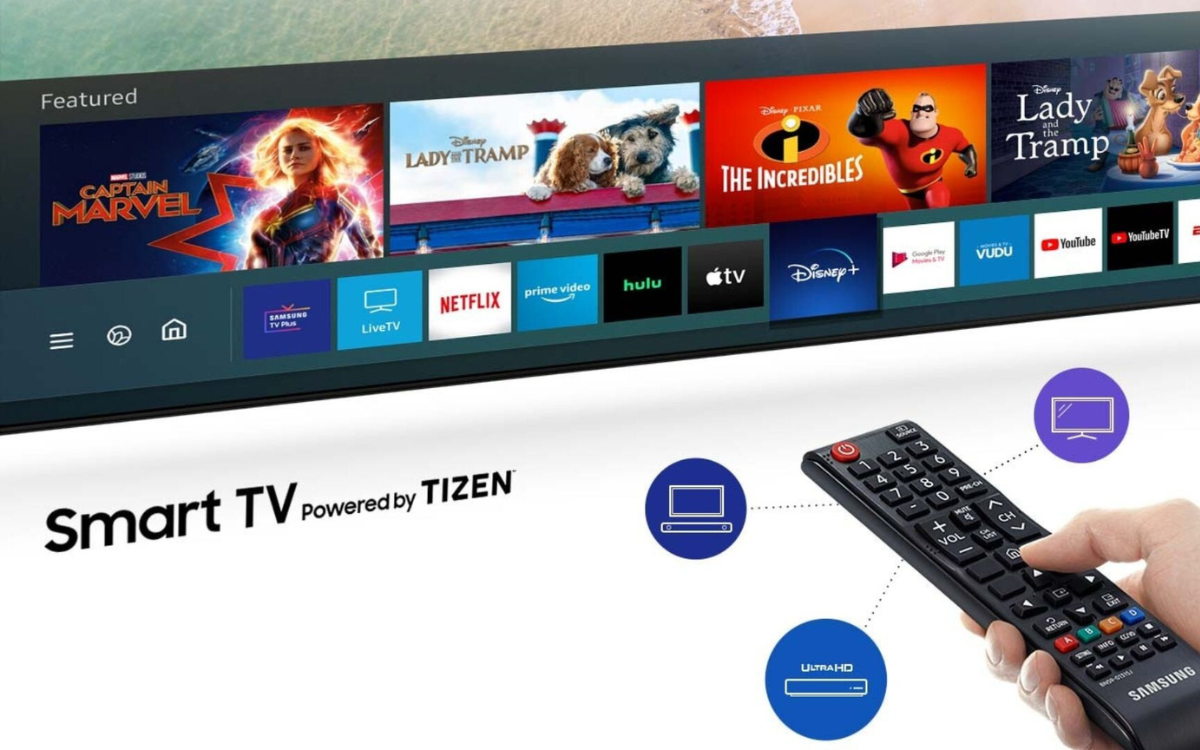
The modern living room has undergone a radical transformation over the last decade, evolving from a simple space for broadcast consumption into a sophisticated digital hub. At the center of this revolution is the Samsung Smart TV. Powered by the robust Tizen operating system, Samsung’s ecosystem offers more than just a screen; it provides a gateway to a massive library of software ranging from global streaming giants like Netflix and Disney+ to niche fitness tools, cloud gaming platforms, and smart home controllers.
However, as the complexity of these devices increases, so does the need for a clear understanding of how to navigate their software environments. Whether you have just unboxed a flagship Neo QLED or you are looking to breathe new life into an older model, mastering the app installation process is the first step toward unlocking the full potential of your hardware. This guide provides an in-depth exploration of the Samsung Smart Hub, offering technical insights and step-by-step instructions to optimize your viewing experience.
Understanding the Samsung Smart Hub Ecosystem
Before diving into the “how-to,” it is essential to understand the underlying technology that makes these applications possible. Samsung Smart TVs primarily run on Tizen OS, a Linux-based open-source operating system. Unlike Android TV, Tizen is tailored specifically for Samsung hardware, ensuring a high degree of optimization between the software and the display panel’s processing power.
The Tizen OS Advantage
Tizen is designed for speed and minimalism. The “Smart Hub” is the interface layer that sits atop this OS, allowing users to switch between live TV, external devices, and streaming apps without closing their current activity. One of the key technical advantages of Tizen is its support for Web-based apps (HTML5), which allows developers to push updates quickly. For the user, this means the apps on your Samsung TV are often more stable and better integrated with the TV’s specific remote-control shortcuts compared to generic set-top boxes.
Essential Prerequisites for App Installation
To begin installing software, your hardware must meet a few basic digital requirements:
- Stable Internet Connection: While 10 Mbps is sufficient for browsing the store, 4K streaming apps will require at least 25 Mbps for a seamless experience.
- Samsung Account: Similar to an Apple ID or a Google Account, a Samsung Account is mandatory for downloading third-party apps. It synchronizes your preferences, watchlists, and payment information for premium services across all Samsung devices.
- Available Storage: Samsung TVs come with internal flash storage. While most apps are small (50MB–200MB), high-end games or localized content databases can quickly fill up the cache.
Step-by-Step Guide: How to Install Apps on Your Samsung TV
Installing an app on a Samsung TV is an intuitive process, but the interface can vary slightly depending on the year your model was released. The following steps apply to most models from 2018 to the present.
Accessing the App Store
- The Home Button: Press the Home button on your Smart Remote. This brings up the Smart Hub ribbon at the bottom of the screen.
- Navigate to ‘Apps’: Use the directional pad to scroll left until you highlight the icon labeled Apps (represented by four small squares). Press the center Select button.
- The App Store Interface: You are now inside the Samsung App Store. Here, you will see categories such as “Editor’s Choice,” “Most Popular,” and “Video.”
Searching and Installing
If you have a specific application in mind, navigating categories might be inefficient.
- The Search Icon: In the top-right corner of the Apps screen, select the Magnifying Glass icon.
- Entering Text: Use the on-screen keyboard to type the name of the app (e.g., “HBO Max” or “Spotify”). If your remote supports voice commands via Bixby, Alexa, or Google Assistant, you can simply hold the microphone button and say, “Search for YouTube.”
- The Detail Page: Once you select the app from the search results, you will be taken to its dedicated page. Here, you can view the app’s file size, version number, and user ratings.
- Download: Select Install. Once the download is complete, the button will change to Open. You can also choose Add to Home to ensure the app appears in your main navigation ribbon for quick access.
Dealing with Older Models (Orsay OS)
If you own a Samsung Smart TV from 2014 or earlier, it likely runs on the older “Orsay” platform. The process is similar, but instead of the Smart Hub ribbon, you will likely enter a full-screen menu called “Internet @TV” or “Smart Hub” via a dedicated hexagonal button on the remote. The app selection for these models is more limited today as developers focus on newer Tizen versions.
Optimizing Your Experience: Managing and Customizing Apps

Installation is only the beginning. To maintain peak performance and ensure your most-used tools are always at your fingertips, you must actively manage your digital library.
Organizing Your Home Screen Ribbon
The default order of apps on the Home screen is rarely ideal for the individual user. To move an app:
- Navigate to the app in the Home ribbon but do not click it.
- Press the Down directional button on your remote.
- Select Move. You can now slide the app left or right to your preferred position.
- If an app is no longer needed on the main bar, select Remove (this does not delete the app, it only hides it from the ribbon).
Enabling Auto-Updates
In the world of software, security patches and feature updates are frequent. To ensure your apps are always running the latest version:
- Open the Apps menu.
- Select Settings (the gear icon in the top-right).
- Ensure the Auto Update toggle is set to On. This allows the TV to update software in the background while the device is in standby mode.
Freeing Up System Storage
If you find that your TV is becoming sluggish or you receive a “Memory Full” error, it is time to prune your collection.
- Go to Settings within the Apps store.
- Locate the apps you no longer use.
- Select Delete. For system-critical apps that cannot be deleted, you can often select Reinstall to clear the temporary cache associated with that specific software.
Troubleshooting Common Installation and Performance Issues
Technology is rarely without its friction. If you encounter hurdles while trying to expand your TV’s capabilities, the following technical troubleshooting steps usually resolve the majority of issues.
Connectivity and Server Errors
If the App Store refuses to load or the download gets stuck at 0%, the issue is likely network-related.
- Cold Boot: Unplug the TV from the power outlet for 60 seconds and then plug it back in. This clears the temporary system RAM and forces a fresh handshake with your router.
- DNS Settings: Sometimes, ISP-provided DNS servers struggle to connect to Samsung’s global servers. Changing your TV’s DNS settings to 8.8.8.8 (Google DNS) in the Network Settings menu can often bypass regional routing issues.
Regional App Availability
The Samsung App Store is “Geo-locked.” This means the apps available in the US store are different from those in the UK or Asia. If you cannot find a specific local news app or a niche streaming service, verify that your Samsung Account and the TV’s “Service Location” are set to the correct region. Note that changing the region often requires a factory reset of the Smart Hub.
Managing Storage and Cache
Unlike a PC, a Smart TV has limited “System Memory.” If an app installs but fails to launch, try clearing the Device Care settings. Navigate to Settings > Support > Device Care > Start Device Care. This utility scans the system, closes background processes, and clears the memory cache, which often resolves software conflicts without requiring a full factory reset.
The Future of Smart TV Software: Beyond Simple Apps
As we look toward the future of the Samsung ecosystem, the definition of an “app” is expanding. We are moving away from simple video playback and toward a fully integrated IoT (Internet of Things) and gaming environment.
Integration with SmartThings
Your Samsung TV is increasingly becoming the dashboard for your smart home. By installing and configuring the SmartThings app, you can receive notifications from your Samsung refrigerator, view your Ring doorbell camera feed as a Picture-in-Picture (PiP) window while watching a movie, or automate your living room lights to dim whenever a streaming app is launched.

The Rise of the Gaming Hub
One of the most significant tech shifts in recent years is the Samsung Gaming Hub. On 2022 models and newer, users can install apps like Xbox Cloud Gaming and NVIDIA GeForce Now. These apps allow you to stream AAA video games directly to your TV without a console, requiring only a Bluetooth controller. This transforms the TV from a passive display into a high-performance gaming terminal, highlighting the incredible evolution of the software capabilities within these devices.
In conclusion, knowing how to install and manage apps on your Samsung TV is the key to a personalized entertainment experience. By understanding the Tizen architecture, maintaining your storage, and exploring advanced features like SmartThings and cloud gaming, you move beyond being a mere viewer and become a power user of one of the most advanced consumer electronics platforms available today.
aViewFromTheCave is a participant in the Amazon Services LLC Associates Program, an affiliate advertising program designed to provide a means for sites to earn advertising fees by advertising and linking to Amazon.com. Amazon, the Amazon logo, AmazonSupply, and the AmazonSupply logo are trademarks of Amazon.com, Inc. or its affiliates. As an Amazon Associate we earn affiliate commissions from qualifying purchases.