
In an increasingly interconnected digital world, the security of our online accounts is paramount. Platforms like YouTube, which often serve as repositories for personal content, subscriptions, and even monetized channels, are prime targets for malicious actors. Understanding how to manage and secure your account credentials, particularly your password, is not merely a convenience but a fundamental aspect of digital self-defense. This comprehensive guide will walk you through the process of changing your password on YouTube, emphasizing the underlying technological principles and best practices for robust online security.
The Indispensable Role of Password Management in Digital Security
The perceived hassle of regularly updating passwords often leads users to neglect this critical security measure. However, a strong, frequently changed password acts as the primary barrier against unauthorized access, safeguarding your personal data, privacy, and digital assets. For a platform like YouTube, which is intrinsically linked to your Google account, compromising one means potentially compromising many.
Protecting Against Unauthorized Access and Identity Theft
Every login attempt to your YouTube account (and by extension, your Google account) relies on the correct password. If your password falls into the wrong hands—whether through phishing scams, malware, or human error—attackers gain immediate entry. This can lead to a cascade of negative consequences:
- Content manipulation: Unauthorized uploads, deletions, or monetization changes for creators.
- Privacy breaches: Access to viewing history, private playlists, and potentially linked personal information.
- Identity theft: If your Google account is compromised, attackers can access emails, documents, and other sensitive data, using it to impersonate you across other services.
- Financial loss: For monetized channels, a breach can result in loss of earnings or fraudulent transactions.
Regular password changes significantly reduce the window of opportunity for attackers, even if they somehow acquire an old password. It’s a proactive measure that mitigates risk rather than waiting for an incident to occur.
Mitigating the Impact of Data Breaches and Credential Stuffing
The digital landscape is unfortunately rife with data breaches, where large databases of user credentials are stolen from various online services. If you use the same password across multiple sites, a breach on one unrelated website can inadvertently compromise your YouTube/Google account. This technique, known as “credential stuffing,” is highly effective for attackers because many users recycle passwords.
By changing your password regularly and ensuring it’s unique to your Google account, you erect a firewall against such widespread attacks. Even if an old password surfaces in a breach, it will no longer grant access to your YouTube account, keeping your digital footprint secure.
Implementing Best Practices for Password Hygiene
Effective password management goes beyond just changing your password; it involves adopting a holistic approach to “password hygiene”:
- Uniqueness: Every critical online account should have a unique password. Password managers (e.g., LastPass, 1Password, Bitwarden) are invaluable tools for generating and storing complex, unique passwords for hundreds of services.
- Complexity: A strong password combines uppercase and lowercase letters, numbers, and symbols. It should be at least 12-16 characters long. Avoid easily guessable information like birthdays, pet names, or common dictionary words.
- Randomness: Truly random passwords are the hardest to crack. Password generators are excellent for this.
- Regular Updates: While the exact frequency can vary, changing your most important passwords (like your Google/YouTube password) every 3-6 months is a sound practice, or immediately if you suspect any compromise.
Adopting these practices elevates your digital security from reactive to proactive, providing a robust defense against evolving cyber threats.
Prerequisites and Preparation for Your YouTube Password Change
Before you embark on the technical steps of changing your YouTube password, it’s crucial to understand a few foundational concepts and prepare adequately. Because YouTube account management is inextricably linked to your Google account, the process isn’t directly on YouTube itself but rather through Google’s security settings.
Understanding the YouTube-Google Account Linkage
It’s important to clarify that YouTube does not have a separate password. Your YouTube login credentials are the same as your Google account credentials. When you change your Google account password, you are simultaneously changing your YouTube password, along with access to Gmail, Google Drive, Google Photos, and any other Google service linked to that account. This integration streamlines account management but also underscores the criticality of securing your primary Google account. Any security measures you take for your Google account directly enhance the security of your YouTube presence.
Ensuring Access to Your Google Account
To change your password, you must first be able to access your Google account. If you are already logged in to YouTube or any Google service, you likely have the necessary access. If you are logged out and have forgotten your current password, you will need to go through Google’s account recovery process first. This often involves verifying your identity through a recovery email, phone number, or by answering security questions. Having these recovery options up-to-date is a vital preparatory step, not just for password changes but for general account accessibility.
Crafting a New, Strong, and Unique Password
Before you even start the technical steps, take a moment to conceptualize your new password. As discussed, it should be:
- Long: At least 12-16 characters.
- Complex: A mix of uppercase, lowercase, numbers, and symbols.
- Unique: Not used for any other online service.
- Memorable (to you): While complexity is key, you’ll need to remember it, or store it securely in a password manager. Avoid patterns or sequential characters.
Consider using a passphrase (e.g., “MyDogAteMyHomework!2024”) which is long and complex but easier to remember than a random string of characters. However, ensure it’s not a common phrase. Utilizing a reputable password manager is the most recommended approach for generating and managing truly secure passwords without the burden of memorization.
Step-by-Step Guide: Changing Your YouTube (Google) Password
With the preparations complete, you are now ready to execute the password change. This process is conducted entirely within your Google Account settings, which govern your access to YouTube and all other associated Google services.
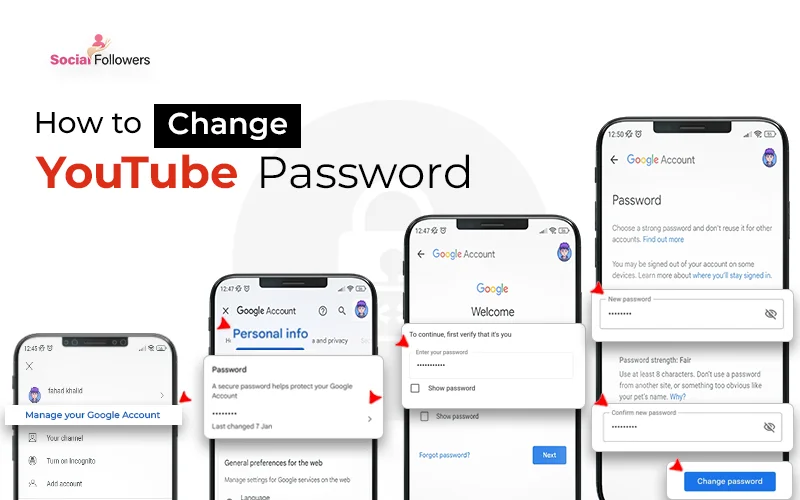
1. Navigating to Your Google Account Settings
There are several pathways to reach your Google Account settings:
- Via YouTube:
- Go to YouTube.com and ensure you are logged in.
- Click on your profile picture (usually in the top right corner).
- From the dropdown menu, select “Manage your Google Account.” This will open a new tab directly to your Google Account settings.
- Directly via Google:
- Go to myaccount.google.com.
- Ensure you are logged in with the correct Google account associated with your YouTube channel. If not, log in.
2. Locating the Security Section
Once you are on your Google Account management page, you will see a navigation menu on the left (or sometimes across the top on mobile/smaller screens).
- Click on the “Security” tab. This section is dedicated to all aspects of your account’s protection, including sign-in methods, device activity, and third-party access.
3. Executing the Password Change
Within the “Security” section, scroll down to the “How you sign in to Google” box.
- Find and click on “Password.”
- Google will prompt you to re-enter your current password for security verification. This is to ensure that it is genuinely you making changes to the account. Enter your current password and click “Next.”
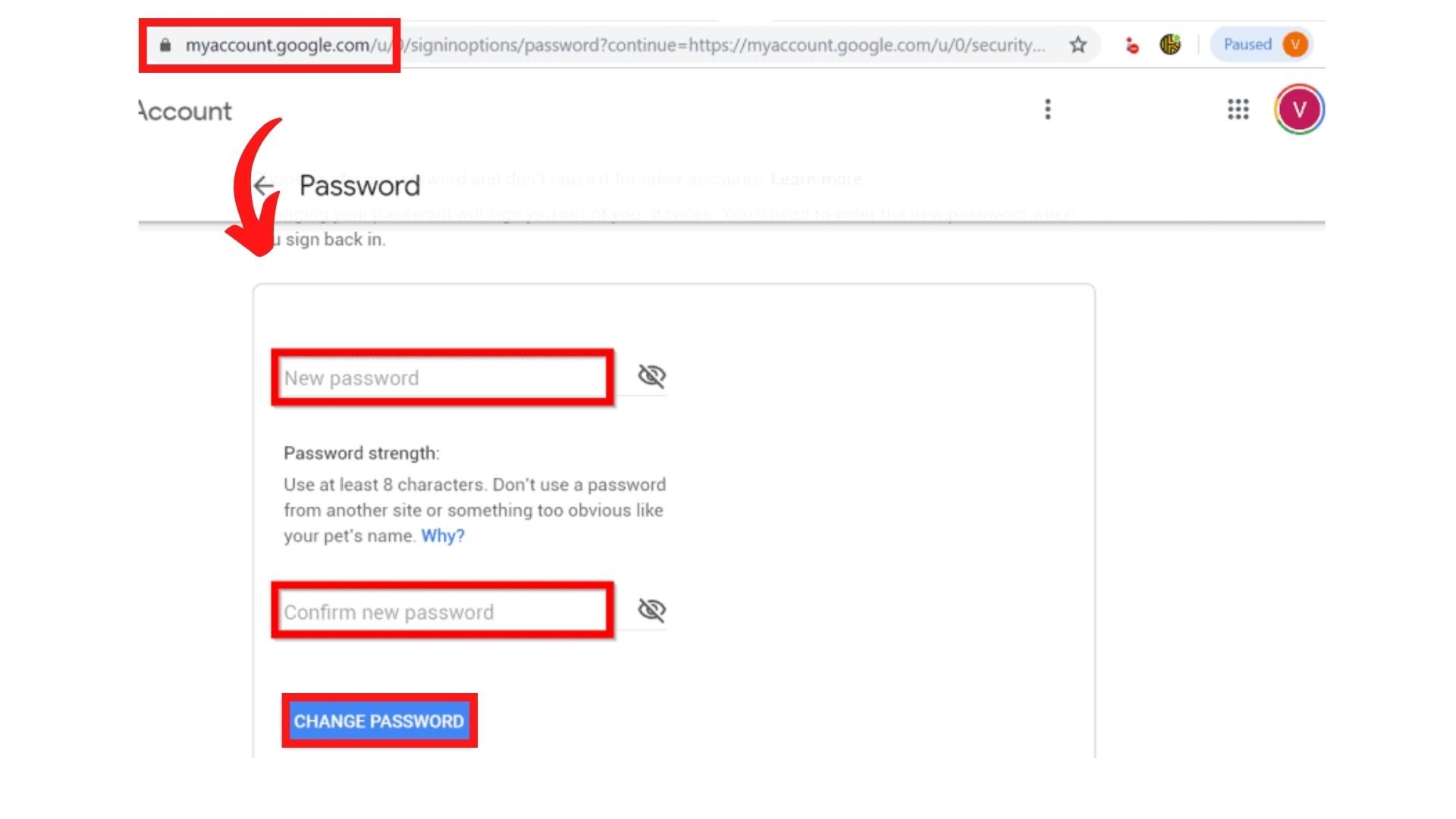
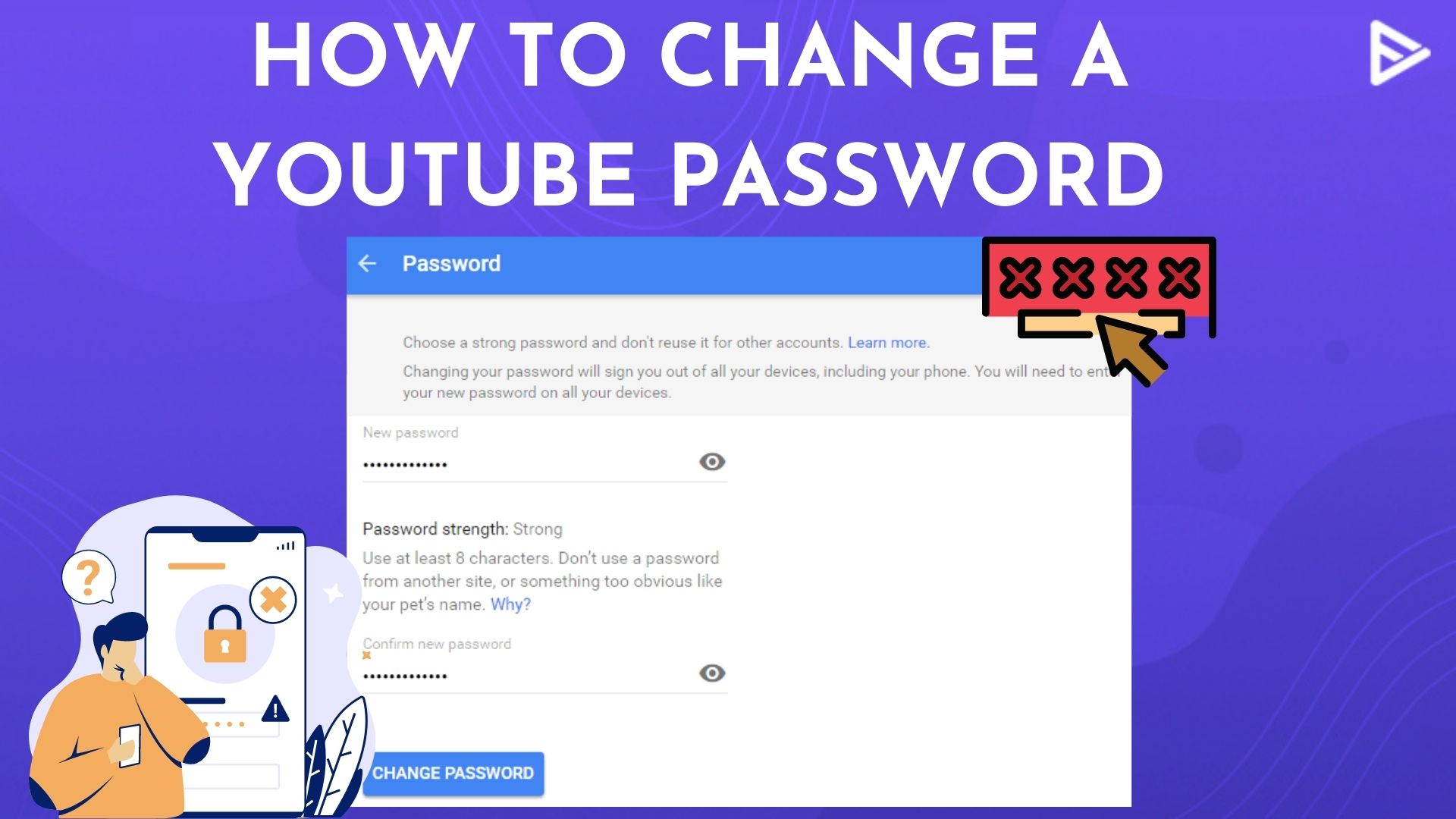
- You will then be presented with two fields: “New password” and “Confirm new password.”
- Carefully enter your newly chosen strong, unique password into both fields. Double-check for typos.
- Click “Change Password.”
4. Confirming the Change and Logging Back In
Upon successful password change, Google will display a confirmation message, often notifying you that your password has been changed and suggesting you review your security settings.
- You might be prompted to log back in to certain Google services, or you may be automatically signed out of all devices where your Google account was active. This is a standard security measure to ensure all sessions are using the new credentials.
- It’s a good practice to log out of all devices (an option often provided immediately after a password change) and then log back in with your new password on your primary devices. This ensures that no old, compromised sessions remain active.
What to Do If You Forget Your Password
Even with the best intentions and memory, sometimes passwords slip our minds. Google has a robust account recovery system designed to help you regain access securely.
Utilizing Google’s Account Recovery Options
If you attempt to log in to your Google account and realize you’ve forgotten your password:
- On the login screen, after entering your email address or phone number, click “Forgot password?“
- Google will then guide you through a series of verification steps.
Verifying Your Identity
The recovery process is designed to confirm your identity without requiring your actual password. This typically involves:
- Sending a code to your recovery phone number: A text message with a verification code.
- Sending a code to your recovery email address: An email containing a verification code.
- Answering security questions: Questions you may have set up previously (e.g., “What was the name of your first pet?”).
- Confirming a recent activity: For example, asking you to confirm a recent login location or device.
- Using a linked device: If you’re signed in on another device, Google might send a prompt to that device for you to approve the login.
It’s critical to keep your recovery phone number and email address up-to-date in your Google Account settings. These are your lifelines if you ever lose access.
Setting a New Password Securely
Once your identity is successfully verified, Google will allow you to set a new password. At this point, revert to the “Crafting a New, Strong, and Unique Password” guidelines. Choose a robust, unique password that you haven’t used before, and ideally, store it in a password manager. This new password will immediately grant you access to your Google account and, consequently, your YouTube channel.
Enhancing Your YouTube Security Beyond Passwords
While a strong, frequently changed password is the bedrock of your online security, it’s merely the first line of defense. Google offers advanced security features that significantly bolster your account’s resilience against sophisticated attacks.
Enabling Two-Factor Authentication (2FA)
Two-Factor Authentication (also known as 2-Step Verification by Google) adds an essential layer of security. Even if an attacker somehow obtains your password, they would still need a second piece of information to log in. This second factor is typically something you “have,” such as:
- A code from an authenticator app: (e.g., Google Authenticator, Authy) on your smartphone.
- A security key: A physical USB device that plugs into your computer.
- A code sent via SMS to your phone.
- A prompt on a trusted device: A simple “Yes” or “No” prompt on your phone.
Enabling 2FA for your Google account is perhaps the most impactful step you can take after setting a strong password. It dramatically reduces the risk of account takeover. To enable it, navigate to the “Security” section of your Google Account, find “2-Step Verification,” and follow the prompts.
Regularly Reviewing Connected Apps and Devices
Your Google Account settings allow you to see which applications and devices have access to your account.
- Connected Apps: In the “Security” section, under “Third-party apps with account access,” you can review and revoke access for any apps you no longer use or don’t recognize. Granting third-party apps access to your Google account can sometimes create security vulnerabilities if those apps are compromised.
- Your Devices: Under “Your devices,” you can see all devices currently logged into your Google account. If you spot an unfamiliar device, you can log it out remotely. This is particularly useful if you lose a device or log in on a public computer and forget to log out.
Periodically reviewing these sections ensures that only trusted entities and devices maintain access to your valuable YouTube and Google data.
Recognizing Phishing Attempts and Scam Warnings
Cybersecurity is also about awareness. Attackers constantly evolve their methods, and phishing remains one of the most common ways to compromise accounts. Be vigilant for:
- Suspicious emails or messages: Look for unsolicited emails claiming to be from YouTube or Google, especially those asking you to click on links, verify account details, or promising rewards that seem too good to be true.
- Fake login pages: Always verify the URL of any login page. Legitimate Google login pages will always start with
accounts.google.comor a Google-owned domain. - Urgency and threats: Phishing attempts often use urgent or threatening language to pressure you into acting without thinking. Google will never threaten to close your account immediately without proper notice, nor will they ask for your password via email.
Learning to recognize these red flags is a critical non-technical skill that complements your technical security measures, forming a comprehensive defense against online threats.
In conclusion, changing your YouTube password is a straightforward process managed through your Google Account settings. However, its simplicity belies its immense importance in your overall digital security posture. By regularly updating your password, making it strong and unique, and layering on additional protections like two-factor authentication, you empower yourself to navigate the digital world safely and keep your valuable YouTube content and personal information secure from unauthorized access. Proactive security is the best security.
aViewFromTheCave is a participant in the Amazon Services LLC Associates Program, an affiliate advertising program designed to provide a means for sites to earn advertising fees by advertising and linking to Amazon.com. Amazon, the Amazon logo, AmazonSupply, and the AmazonSupply logo are trademarks of Amazon.com, Inc. or its affiliates. As an Amazon Associate we earn affiliate commissions from qualifying purchases.