
The Epic Games Launcher is the gateway to a universe of gaming, from the global phenomenon of Fortnite to a vast library of acclaimed titles and a thriving digital storefront. For millions, it’s a seamless experience, but for a frustrating few, the installation process can grind to a halt with an enigmatic “invalid drive” error. This seemingly simple message can mask a multitude of underlying issues, transforming anticipation into exasperation.
This comprehensive guide is designed to demystify the “invalid drive” error, dissect its potential causes, and provide a systematic, step-by-step approach to resolve it. Whether you’re a seasoned PC user or new to troubleshooting, we’ll navigate the complexities together, ensuring you can finally access your games and join the Epic community without further ado. We’ll delve into the technical intricacies, offer practical solutions, and even touch upon why a smooth installation experience is crucial, not just for the user, but for the brand itself.
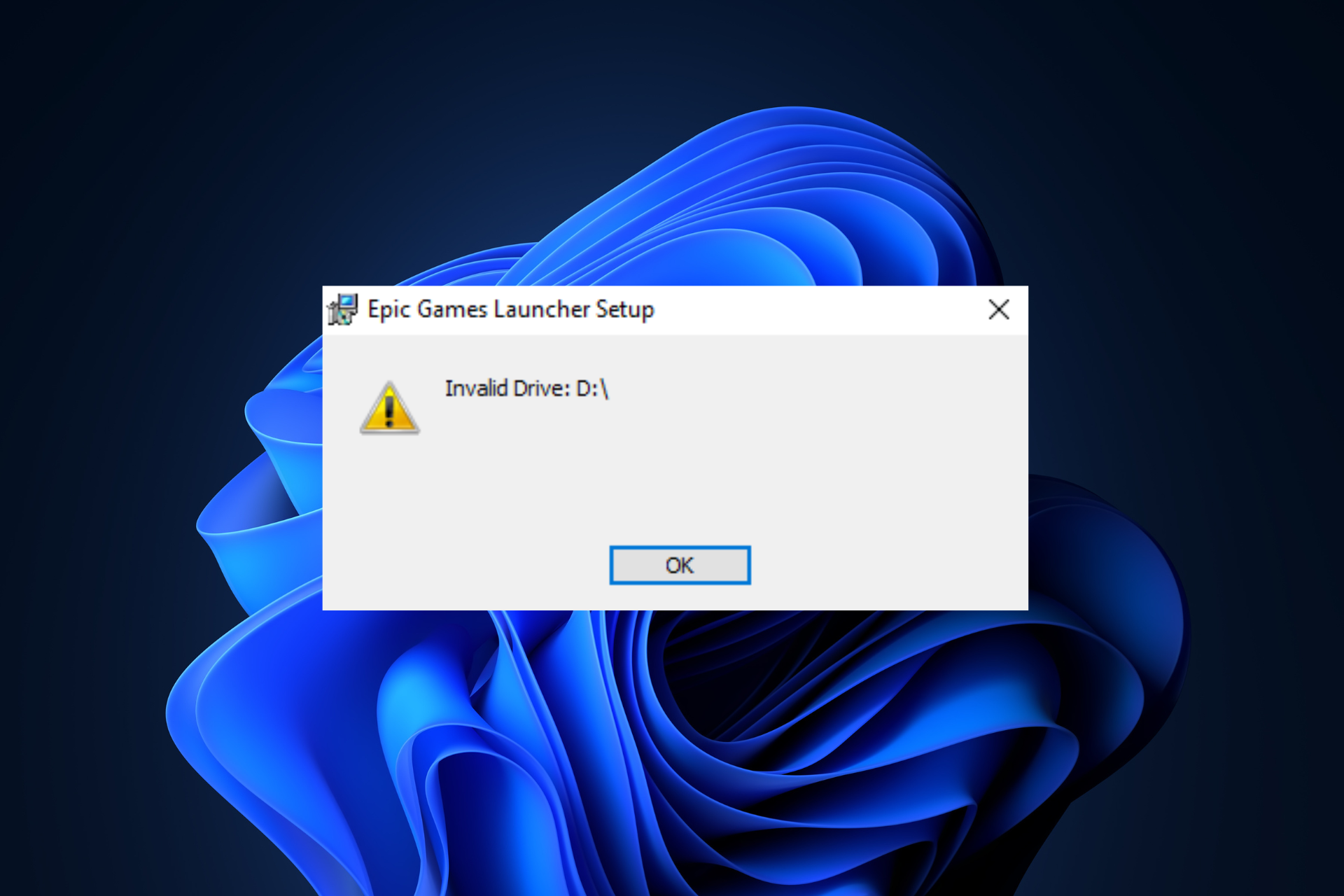
Understanding the “Invalid Drive” Error Message
When you encounter an “invalid drive” error during the Epic Games Launcher installation, it’s natural to assume the problem lies directly with your chosen hard drive. While that can certainly be the case, this message often acts as a broad umbrella for a variety of system, permission, or file-related issues. It’s the installer’s way of saying, “I can’t write to the location you’ve specified, or even verify its existence, for reasons I can’t explicitly tell you.”
What Does “Invalid Drive” Truly Mean?
The interpretation of “invalid drive” can vary significantly. Here are the most common scenarios it might signify:
- Non-Existent or Inaccessible Drive: The most literal interpretation is that the drive letter you selected (e.g., D:, E:) does not exist on your system, or it’s temporarily disconnected (for external drives), or it’s not recognized by Windows. In rare cases, the drive might be corrupted or have a file system error preventing access.
- Insufficient Permissions: This is perhaps the most frequent culprit. Even if the drive exists, the installer might not have the necessary administrative privileges to create folders, write files, or modify system paths on that particular drive or directory. This is especially common if you’re trying to install to a drive or folder with restrictive security settings.
- Corrupted Installer File: The Epic Games Launcher setup file itself might be corrupted during download. If the installer cannot read its own necessary components, it might fail when attempting to interact with the target drive.
- Low Disk Space: While less likely to directly trigger an “invalid drive” error (which usually results in a “low disk space” warning), severe lack of space can sometimes cause unexpected write errors that manifest ambiguously.
- Registry Conflicts or Leftovers: If you’ve had a previous failed installation of the Epic Games Launcher, or other software that left behind corrupted registry entries, these can interfere with new installations, making it impossible for the installer to correctly map paths or access drives.
- Antivirus/Firewall Interference: Aggressive security software can sometimes mistake legitimate installation processes for malicious activity, blocking the installer’s attempts to write to the drive, leading to an “invalid drive” error.
- Temporary File Issues: Remnants of old temporary files can sometimes clutter the system and interfere with new installations, causing unexpected errors during file extraction or path creation.
Understanding these underlying possibilities is the first step toward effectively troubleshooting the problem, allowing us to move beyond the ambiguous error message and pinpoint the true cause.
Common Scenarios Leading to Installation Failure
While the error message is vague, the actual circumstances often fall into predictable patterns. Users frequently encounter this when:
- Installing to a non-C: drive: Many users prefer to keep their C: drive for the operating system and install games or applications on a secondary drive (D:, E:, etc.). These secondary drives often have different default permissions or might be external, making them more prone to access issues.
- After a Windows update or system migration: Major system changes can sometimes reset or alter drive permissions, leading to issues with existing or new installations.
- Using an old or incomplete installer: Attempting to use an installer downloaded long ago, or one that was interrupted during download, can lead to file corruption.
- On a shared computer or a user account without full administrator rights: Strict user account controls can prevent software from installing correctly even if the user thinks they have sufficient permissions.
By recognizing these common scenarios, we can better anticipate where the problem might lie and apply the most relevant solutions efficiently.
Step-by-Step Solutions to Overcome Installation Hurdles
Resolving the “invalid drive” error requires a systematic approach. We’ll start with the simplest, most common fixes and gradually move to more technical solutions. Before you begin, ensure you’ve restarted your computer – sometimes a simple reboot can clear minor system glitches.
Initial Checks: The Basics First
These preliminary steps address the most frequent and straightforward causes of the error.
Verify Drive Existence and Accessibility
First, ensure the drive you’re trying to install to is actually present and accessible.
- Open File Explorer: Press
Win + E. - Check “This PC”: Look for the drive letter (e.g., D:, E:) where you intend to install the Epic Games Launcher.
- Attempt to open the drive: Double-click on the drive. Can you access it? Can you create a new folder on it manually (right-click -> New -> Folder)? If not, the drive itself might have an issue.
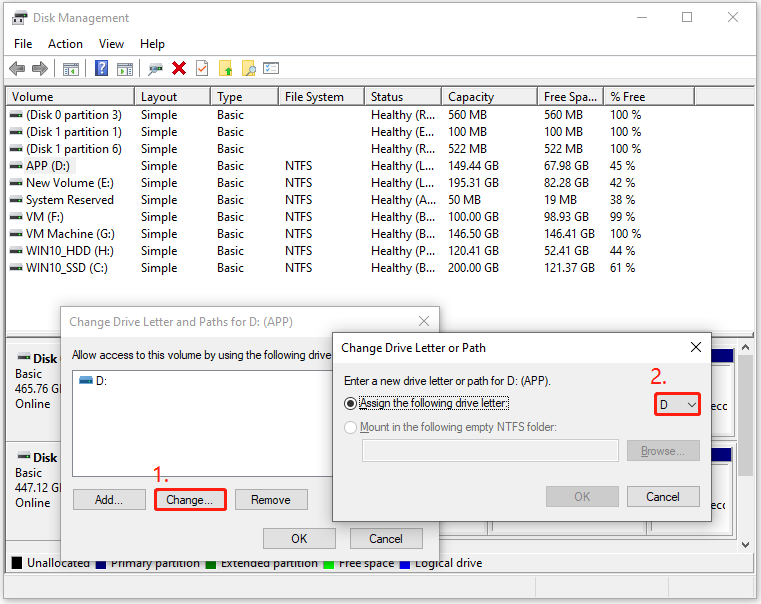
- Check Disk Management: Right-click the Start button and select “Disk Management.” Ensure the drive appears here and is online. If it shows as “RAW” or has other issues, it may require advanced repair.
Check for Sufficient Disk Space
Even if the error isn’t explicitly “low disk space,” it’s crucial to confirm you have enough room.
- Open File Explorer: Press
Win + E. - Right-click on the target drive: Select “Properties.”
- Verify “Free space”: Ensure you have at least 10-20 GB of free space. While the launcher itself isn’t huge, games installed through it can be very large. A general rule of thumb is to aim for at least 15% free space on any drive. If space is low, consider deleting unnecessary files or uninstalling old programs.
Run Installer as Administrator
Lack of administrative privileges is a prime suspect. This simple step often resolves the issue.
- Locate the Epic Games Launcher installer file: (e.g.,
EpicInstaller.msiorEpicGamesLauncherSetup.exe). - Right-click on the installer file: Select “Run as administrator.”
- Follow the on-screen prompts: See if the installation proceeds without the “invalid drive” error.
Redownload the Epic Games Launcher Installer
A corrupted download can cause installation failures.
- Delete the existing installer file: Go to your Downloads folder and remove any Epic Games Launcher setup files.
- Clear your browser cache: This ensures you’re getting a fresh download.
- Download the latest installer: Go to the official Epic Games website (epicgames.com) and download the launcher again.
- Run the new installer: Try installing, preferably as administrator.
Addressing Deeper System and Permission Issues
If the basic checks didn’t work, we need to delve into system permissions and potential software conflicts.
Managing Drive Permissions (NTFS Permissions)
This is a common solution, especially for non-C: drives.
- Open File Explorer: Navigate to the drive (e.g., D:) or the specific folder where you want to install.
- Right-click on the drive/folder: Select “Properties.”
- Go to the “Security” tab.
- Click “Edit…” to change permissions.
- Select your user account (or “Users” or “Everyone”): Ensure “Full control” is checked under “Allow.” If not, check it and click “Apply.”
- If your user account isn’t listed, click “Add…”: Type “Everyone” (without quotes) and click “Check Names,” then “OK.” Grant “Full control” to “Everyone.” While less secure in general, this is a troubleshooting step to confirm permissions are the issue. You can revert this later.
- Click “Advanced” for more options: Click “Change Permissions,” then “Add.” Select your user account (or “Everyone”), grant “Full control,” and ensure “Apply to: This folder, subfolders and files” is selected. Also, ensure “Replace all child object permission entries with inheritable permission entries from this object” is checked if present. This ensures all subfolders and files inherit the correct permissions.
Cleaning Temporary Files
Accumulated temporary files can sometimes interfere with installations.
- Use Disk Cleanup:
- Search for “Disk Cleanup” in the Windows search bar and run it.
- Select your C: drive (or the drive with your Windows installation).
- Check “Temporary files,” “Temporary Internet Files,” and potentially “Windows Update Cleanup.”
- Click “Clean up system files” for more options.
- Manually delete %TEMP% files:
- Press
Win + R, type%TEMP%, and press Enter. This opens your user’s temporary folder. - Select all files and folders (
Ctrl + A) and delete them (Shift + Deletefor permanent deletion, skipping Recycle Bin). Skip any files that are currently in use.
- Press
Resolving Registry Conflicts
Corrupted registry entries can be tricky. Microsoft provides a tool for this.
- Download Microsoft’s Program Install and Uninstall Troubleshooter: Search for “Fix problems that block programs from being installed or removed” on the Microsoft Support website. Download and run the
MicrosoftProgram_Install_and_Uninstall.meta.diagcabtool. - Follow the on-screen instructions: When prompted, select “Installing” and then choose “Epic Games Launcher” (if it appears) or “Not Listed” if it doesn’t. This tool automatically attempts to fix registry issues that prevent installations.
- Caution: Avoid using third-party registry cleaners unless you know exactly what they do, as they can sometimes cause more harm than good.
Disabling Antivirus/Firewall Temporarily
Your security software might be overzealous.
- Temporarily disable your antivirus program: Consult your antivirus software’s documentation for instructions on how to temporarily disable it.
- Temporarily disable Windows Firewall:
- Search for “Windows Defender Firewall” in the Windows search bar.
- Click “Turn Windows Defender Firewall on or off” in the left pane.
- Select “Turn off Windows Defender Firewall (not recommended)” for both private and public networks.
- Crucially, remember to re-enable both your antivirus and firewall immediately after testing the installation.
Advanced Troubleshooting and System Integrity
If the previous steps haven’t worked, the problem might be rooted in system file corruption or deeper drive issues.
Running System File Checker (SFC Scan)
SFC scan checks for and repairs corrupted Windows system files.
- Open Command Prompt as administrator: Search for “cmd” in the Windows search bar, right-click “Command Prompt,” and select “Run as administrator.”
- Type
sfc /scannowand press Enter. - Wait for the scan to complete: This can take some time. If it finds and fixes errors, restart your computer and try installing the launcher again.
Checking for Disk Errors (CHKDSK)
This tool scans your hard drive for errors and attempts to fix them.
- Open Command Prompt as administrator: Search for “cmd” in the Windows search bar, right-click “Command Prompt,” and select “Run as administrator.”
- Type
chkdsk X: /f /rand press Enter: ReplaceXwith the letter of the drive you’re trying to install to (e.g.,chkdsk D: /f /r). - For your C: drive: If you run
chkdsk C: /f /r, you’ll likely be prompted to schedule the check for the next restart. TypeYand press Enter, then restart your computer. The scan will run before Windows loads. - After the scan, try installing again.
Creating a New User Account
Sometimes, user profile corruption can lead to installation issues.
- Create a new local administrator account:
- Go to “Settings” (
Win + I) -> “Accounts” -> “Family & other users.” - Click “Add someone else to this PC.”
- Choose “I don’t have this person’s sign-in information” -> “Add a user without a Microsoft account.”
- Create a username and password.
- Select the new user, click “Change account type,” and change it to “Administrator.”
- Go to “Settings” (
- Log out of your current account and log into the new administrator account.
- Try installing the Epic Games Launcher from this new account. If it works, you might have to transfer your files or troubleshoot your original user profile further.
Considering a Different Installation Path
As a last resort, if all else fails for a specific drive, try installing to a different location, such as your C: drive (if you were originally trying another drive). This helps isolate whether the problem is with a particular drive or a more general system issue. If it installs successfully on C:, the original drive likely has deeper, persistent issues that require more advanced attention.
Why a Smooth Installation Matters: Beyond Just Gaming
While the immediate goal is to get the Epic Games Launcher working, it’s worth reflecting on why a seamless installation experience is so critical, extending beyond mere convenience into the realms of brand perception and the value of digital assets. This isn’t just about troubleshooting a tech problem; it’s about the broader implications for users and publishers alike.
The User Experience and Brand Perception
In today’s competitive digital landscape, user experience (UX) is paramount. The installation process is often the very first interaction a user has with a piece of software and, by extension, with its brand.
- First Impressions Matter: A frustrating installation immediately creates a negative first impression. Users are likely to associate this difficulty with the Epic Games brand itself, leading to decreased satisfaction even before they’ve played a single game.
- Erosion of Trust and Loyalty: Repeated failures or cryptic error messages erode user trust. If a user struggles to even get the launcher installed, they might question the reliability of the platform, impacting their willingness to purchase games or invest further in the ecosystem. This can lead to users seeking alternative gaming platforms that offer a more friction-free experience.
- Negative Word-of-Mouth: Frustrated users are more likely to share their negative experiences online, contributing to negative reviews and tarnishing the brand’s reputation. Conversely, a smooth experience builds goodwill and encourages positive recommendations. For a major platform like Epic Games, which relies heavily on community engagement and digital sales, this direct impact on brand equity is significant.
A smooth installation isn’t just a technical detail; it’s a foundational element of brand strategy, ensuring that Epic Games maintains its image as a reliable, user-friendly, and enjoyable gaming platform.
Protecting Your Digital Investments and Time
Beyond the brand, installation issues have tangible costs for the individual user.
- Access to Purchased Content: Many users have invested significant money into games on the Epic Games Store. An inability to install the launcher means an inability to access these purchased digital assets. This financial investment is effectively locked away, causing genuine frustration and a sense of financial loss, even if temporary.
- The Value of Time: Time spent troubleshooting is time lost. This could be time not spent gaming, not being productive for work, or simply not engaging in other leisure activities. In a world where time is a valuable commodity, any extended period dedicated to resolving a software glitch represents an opportunity cost. For those with limited free time, such frustrations can be particularly impactful.
- Maintaining Digital Security and Productivity: For many, the Epic Games Launcher is part of a larger digital ecosystem. An “invalid drive” error can interrupt workflow, delay access to important updates, or even raise concerns about underlying system health, potentially leading to further time investment in broader system diagnostics.
Ultimately, a functional and accessible Epic Games Launcher ensures that users can fully leverage their digital investments and enjoy their leisure time without unnecessary technical roadblocks. The effort put into resolving these errors is an investment in protecting personal finance (the value of owned games) and personal productivity (the value of one’s time).

Conclusion
Encountering an “invalid drive” error when trying to install the Epic Games Launcher can be a profoundly frustrating experience, transforming the excitement of new games into a tiresome troubleshooting session. However, as we’ve explored, this vague error message is often a symptom of underlying issues that are, in most cases, entirely resolvable with a methodical approach.
From basic checks like verifying drive existence and running the installer as an administrator, to delving into complex permission settings, clearing temporary files, addressing registry conflicts, and even utilizing advanced system tools like SFC and CHKDSK, there’s a solution for almost every scenario. Remember to approach the problem systematically, testing one solution at a time, to efficiently pinpoint and resolve the root cause.
Beyond the immediate technical fix, it’s crucial to recognize the broader implications. A smooth installation process is not just about personal convenience; it’s a cornerstone of positive user experience, directly impacting brand perception and safeguarding your digital investments and valuable time. Epic Games, like any leading tech brand, thrives on accessibility and reliability, and ensuring their launcher is easily installable is paramount to maintaining user loyalty and a robust gaming ecosystem.
Don’t let a cryptic error message deter you. With the comprehensive steps outlined in this guide, you are well-equipped to overcome the “invalid drive” hurdle and finally immerse yourself in the vast and exciting world of Epic Games. If, after diligently trying all these solutions, you still face issues, don’t hesitate to reach out to Epic Games support; they may be able to offer more personalized assistance specific to your system configuration. Happy gaming!
aViewFromTheCave is a participant in the Amazon Services LLC Associates Program, an affiliate advertising program designed to provide a means for sites to earn advertising fees by advertising and linking to Amazon.com. Amazon, the Amazon logo, AmazonSupply, and the AmazonSupply logo are trademarks of Amazon.com, Inc. or its affiliates. As an Amazon Associate we earn affiliate commissions from qualifying purchases.