
Chromebooks, powered by Google’s Chrome OS, offer a streamlined and cloud-centric computing experience. While the built-in Chrome browser is robust and deeply integrated, some users find themselves wanting the unique features, customization options, or specific extensions offered by other browsers. Among the most popular alternatives is Mozilla Firefox, a privacy-focused browser known for its extensive add-on ecosystem and user-friendly interface. If you’re a Chromebook owner who prefers Firefox, you’ll be pleased to know that installing it is a straightforward process, thanks to the evolving capabilities of Chrome OS.
This comprehensive guide will walk you through the steps to get Firefox up and running on your Chromebook, ensuring you can enjoy your preferred browsing experience without compromising the core functionality of your device. We’ll explore the primary method of installation and touch upon why you might choose Firefox over Chrome on your Chromebook.
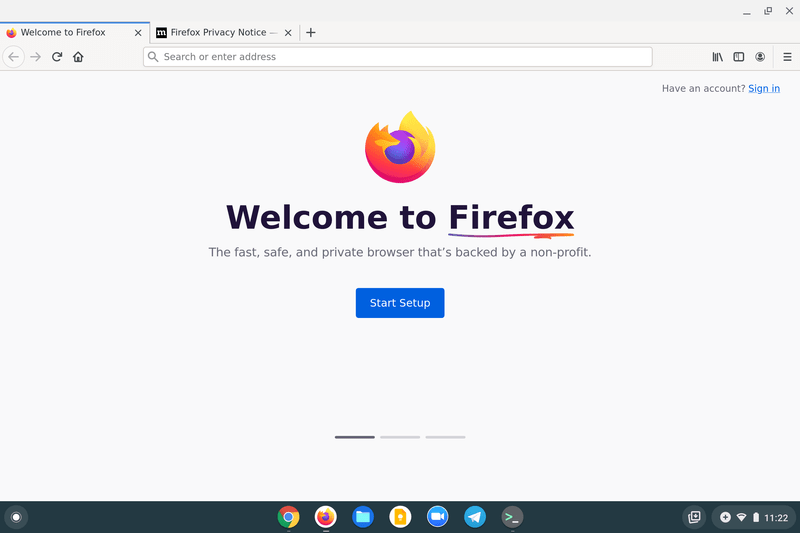
Why Consider Firefox on Your Chromebook?
Before diving into the installation process, it’s worth understanding the motivations behind wanting to install Firefox on a Chromebook. While Chrome OS is designed to work seamlessly with the Chrome browser, several compelling reasons might lead you to explore other options:
- Privacy and Security Features: Mozilla Firefox has long been a champion of user privacy. Its robust tracking protection, enhanced cookie blocking, and commitment to open-source development resonate with users who prioritize a more secure and private online experience. Many users feel more in control of their data with Firefox.
- Extensive Add-on Ecosystem: While Chrome boasts a vast library of extensions, Firefox’s add-on library is equally impressive and, in some cases, offers unique functionalities or a different approach to common tasks. If you rely on specific Firefox-exclusive add-ons for productivity, customization, or security, this is a primary driver.
- Customization and User Interface: Firefox offers a high degree of customization, allowing users to tailor the browser’s appearance and functionality to their exact preferences. For some, the user interface and the flexibility it provides are key differentiators.
- Developer Tools: For web developers, certain developer tools and debugging capabilities within Firefox might be preferred or offer a distinct workflow compared to Chrome’s built-in tools.
- Breaking Away from the Google Ecosystem: While Chrome OS is a Google product, some users appreciate the diversity of choice and prefer not to be exclusively tied to Google’s browser for all their online activities.
The Primary Method: Installing Firefox via Linux (Beta)
The most common and recommended way to install Firefox on a Chromebook is through the Linux (Beta) feature, also known as Crostini. This feature allows you to run a Debian Linux environment directly on your Chromebook, opening up a world of Linux applications, including Firefox.
Before you begin, ensure your Chromebook supports Linux (Beta) and that you have it enabled. Most modern Chromebooks released after 2019 come with this capability.
Enabling Linux (Beta) on Your Chromebook
If you haven’t already enabled Linux (Beta), follow these steps:
- Open Settings: Click on the time in the bottom-right corner of your screen, then click the gear icon (Settings).
- Navigate to Developers: In the left-hand menu, scroll down and click on “Advanced,” then click on “Developers.”
- Turn on Linux: Look for the “Linux development environment” option and click “Turn on.”
- Follow the On-Screen Prompts: A setup wizard will guide you through installing the Linux environment. You’ll be asked to choose a username and allocate disk space. It’s generally recommended to allocate a reasonable amount of space, as applications and files will be stored within this environment.
- Wait for Installation: The installation process can take several minutes. Once complete, a Linux terminal window will appear.
Installing Firefox from the Linux Terminal
Once Linux (Beta) is set up, you can install Firefox using command-line instructions. This method ensures you’re installing the official, stable version of Firefox directly from the Debian repositories.
-
Open the Linux Terminal: You can find the “Terminal” app in your Chromebook’s app launcher.
-
Update Your Package Lists: It’s crucial to ensure your system has the latest information about available software. Type the following command and press Enter:
bash

sudo apt update
This command downloads the latest package information from the repositories. You might be prompted for your Linux password. -
Upgrade Existing Packages: It’s also a good practice to upgrade any installed packages to their latest versions. Run this command:
bash

sudo apt upgrade
This process might take some time, depending on how many packages need updating. You’ll likely be asked to confirm the upgrade by typing ‘Y’ and pressing Enter. -
Install Firefox: Now, you’re ready to install Firefox. Execute the following command:
sudo apt install firefox-esrsudo: This command allows you to run subsequent commands with administrative privileges, which is necessary for installing software.apt install: This is the command used by Debian-based Linux distributions (like the one on your Chromebook) to install packages.firefox-esr: This specifies the package to install.firefox-esrstands for “Extended Support Release,” which is generally the most stable and recommended version for this type of installation.
Press Enter after typing the command. You will be prompted to confirm the installation by typing ‘Y’ and pressing Enter.
-
Wait for Installation to Complete: The download and installation of Firefox will begin. This might take a few minutes, depending on your internet speed and Chromebook’s performance.
-
Launch Firefox: Once the installation is finished, you can launch Firefox.
- Open your app launcher (the circle icon in the bottom-left corner).
- Look for the “Linux apps” folder.
- Inside the “Linux apps” folder, you should find the Firefox icon. Click on it to launch the browser.
Firefox will now open, and you can start using it just like you would on any other operating system. You can set it as your default browser within the Linux environment, although Chrome will remain the default for the Chrome OS interface.
Managing Firefox Within the Linux Environment
Once Firefox is installed via Linux (Beta), it operates within that isolated Linux container. This means its settings, extensions, and data are separate from your Chrome OS environment.
Setting Firefox as Your Default Browser (Within Linux)
While you can’t easily set Firefox as the system-wide default browser for Chrome OS (Chrome will always be the primary browser for Chrome OS itself), you can make it the default within the Linux environment. This means that if you open a web link from a Linux application, it will open in Firefox.
The exact method for setting a default browser can vary slightly depending on the Debian version and desktop environment used by Chrome OS. However, a common approach involves using the command line:
- Open the Linux Terminal.
- Run the following command:
bash

xdg-settings set default-web-browser firefox-esr.desktop
This command tells the Linux system to associate.desktopfiles for web browsers with Firefox.
You can test this by trying to open a web link from another Linux application, if you have any installed.
Installing Firefox Add-ons and Extensions
One of the biggest draws of Firefox is its vast add-on library. You can install add-ons directly from within Firefox just as you would on any other operating system.
- Open Firefox (from your Linux apps folder).
- Navigate to the Add-ons Manager: Click the menu button (three horizontal lines) in the top-right corner of Firefox and select “Add-ons and themes.”
- Browse and Install: You can search for specific add-ons or browse through recommended categories. Once you find an add-on you want, click on it and then click the “Add to Firefox” button. You’ll be prompted to grant permissions for the add-on.
Remember that these add-ons will only function within the Firefox browser running in your Linux environment.
Keeping Firefox Updated
Mozilla releases regular updates for Firefox to improve security, performance, and introduce new features. Since you installed Firefox using the apt package manager, keeping it updated is straightforward.
- Open the Linux Terminal.
- Run the update commands:
bash

sudo apt update

sudo apt upgrade
These commands will check for updates for all installed Linux packages, including Firefox. If an update is available for Firefox, it will be downloaded and installed.
It’s a good practice to run these commands periodically to ensure your Linux applications, including Firefox, are kept up-to-date.
Troubleshooting Common Issues
While the Linux (Beta) installation of Firefox is generally reliable, you might encounter a few minor issues.
- Firefox Not Launching: If Firefox doesn’t launch after installation, try restarting your Chromebook and then attempting to open it again from the Linux apps folder. If the problem persists, ensure your Linux environment is fully updated by running
sudo apt update && sudo apt upgradein the terminal. - Performance Issues: Chromebooks have varying hardware capabilities. If Firefox feels slow, consider disabling unnecessary add-ons or closing other Linux applications running in the background. The
firefox-esrversion is optimized for stability, but resource limitations can still affect performance. - Graphics Glitches or Display Issues: In rare cases, you might experience minor graphical artifacts. Ensure your Chrome OS is up-to-date, as updates often include improvements to the Linux integration and graphics drivers.
- Can’t Access Certain Websites: If you’re having trouble accessing specific websites, it’s unlikely to be related to installing Firefox itself, but rather to network issues or specific website configurations. However, you can try clearing Firefox’s cache and cookies through its settings.
Alternatives and Future Considerations
While Linux (Beta) is the primary and most robust method for installing Firefox on a Chromebook, it’s worth noting that Chrome OS is an evolving platform. Google has been enhancing its support for Android apps, and in the past, there might have been experimental ways to run Linux applications. However, the Linux (Beta) feature is the official and most stable solution currently available.
Some users might look for alternative browsers, but if Firefox is your specific choice, the Linux (Beta) method is the way to go. It provides a near-native experience for the browser within the Chrome OS environment.

Conclusion
Installing Firefox on your Chromebook is an excellent way to enjoy the browser’s robust privacy features, extensive customization options, and unique add-on library. By leveraging the power of Linux (Beta), you can seamlessly integrate Firefox into your Chrome OS experience. The process involves enabling Linux, opening the terminal, updating your package lists, and then installing Firefox using simple command-line instructions.
While Chrome will remain your primary browser for the Chrome OS interface, Firefox will be readily available within your Linux apps folder for all your browsing needs. Remember to keep your Linux environment and Firefox updated to ensure optimal performance and security. With Firefox installed, you can continue to browse the web with confidence and the flexibility you desire, all on your Chromebook.
aViewFromTheCave is a participant in the Amazon Services LLC Associates Program, an affiliate advertising program designed to provide a means for sites to earn advertising fees by advertising and linking to Amazon.com. Amazon, the Amazon logo, AmazonSupply, and the AmazonSupply logo are trademarks of Amazon.com, Inc. or its affiliates. As an Amazon Associate we earn affiliate commissions from qualifying purchases.