
In the ever-evolving landscape of technology, our laptops serve as indispensable tools for work, entertainment, and connection. We rely on them for everything from crunching complex data and editing high-definition videos to simply browsing the web and keeping up with social media. As our digital lives become more demanding, so too do the requirements placed upon our hardware. One of the most common bottlenecks to a smooth and responsive computing experience is insufficient Random Access Memory, or RAM. This leads to a fundamental question that many laptop users ponder: “Can you install more RAM on a laptop?”
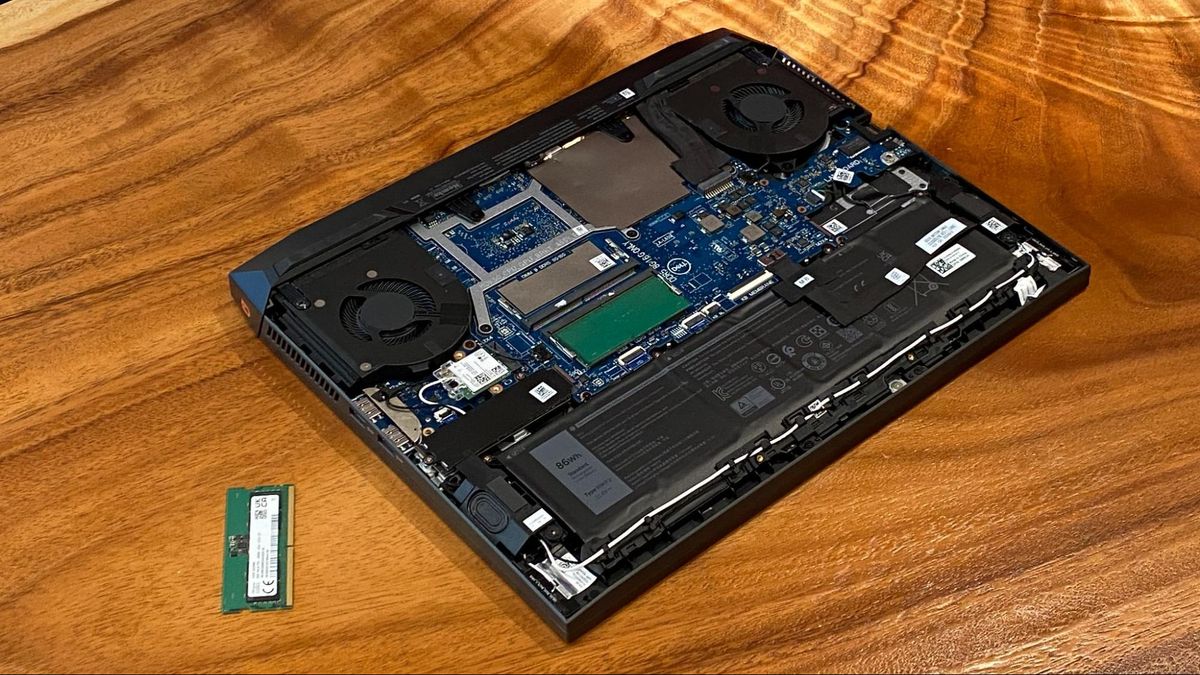
The short answer is a resounding yes, in most cases. However, the path to upgrading your laptop’s RAM is not always as straightforward as it might seem. It involves understanding your current system, identifying compatible components, and often, a degree of hands-on technical skill. This article will delve deep into the world of laptop RAM upgrades, exploring the benefits, the process, and the crucial considerations that will help you unlock your machine’s full potential.
The Crucial Role of RAM and Why More is Often Better
Before we dive into the “how,” it’s essential to grasp the “why.” RAM is your laptop’s short-term memory, a high-speed workspace where the operating system, applications, and data currently in use are temporarily stored. Think of it like your desk: the more items you can spread out on your desk at once, the easier it is to work efficiently without constantly having to put things away and retrieve them from drawers.
When your laptop runs out of available RAM, it has to resort to using the much slower storage drive (SSD or HDD) as a virtual memory. This process, known as “paging” or “swapping,” significantly degrades performance. You’ll notice sluggishness, applications taking longer to open, frequent freezing, and a general unresponsiveness that can be incredibly frustrating.
Understanding the Benefits of a RAM Upgrade
- Enhanced Multitasking: The most significant benefit of increasing RAM is the ability to run more applications simultaneously without performance degradation. You can switch between demanding programs like video editors, virtual machines, and multiple browser tabs with ease.
- Faster Application Loading and Performance: Applications that require substantial memory will launch faster and run more smoothly. This is particularly noticeable with memory-intensive software such as professional design tools, CAD programs, and large-scale gaming.
- Improved System Responsiveness: Even everyday tasks like web browsing and document editing can feel snappier when your system has ample RAM to work with.
- Smoother Gaming Experience: For gamers, more RAM can lead to higher frame rates, reduced stuttering, and the ability to run games with higher graphical settings.
- Extended Laptop Lifespan: Instead of immediately thinking about purchasing a new laptop when your current one starts to feel slow, a RAM upgrade can breathe new life into your existing machine, extending its useful lifespan and saving you money.
Assessing Your Laptop’s RAM Upgrade Potential
Not all laptops are created equal when it comes to RAM upgradability. Some are designed with ease of access in mind, while others make it a more challenging endeavor, and some are entirely non-upgradable. The first step is to determine if your laptop can be upgraded and, if so, what kind of RAM it supports.
Identifying Your Current RAM and System Specifications
To begin, you need to know what you’re working with.
- Check System Information:
- Windows: Right-click on the “This PC” or “My Computer” icon, select “Properties.” Here you’ll find information about your processor and installed RAM. To see the RAM slots and how many are occupied, open the Task Manager (Ctrl+Shift+Esc), go to the “Performance” tab, and select “Memory.” This will show you the total RAM, speed, and often the number of slots used.
- macOS: Click the Apple menu, then “About This Mac.” Select the “Memory” tab to see the total RAM and how many slots are available.
- Consult Your Laptop’s Manual or Manufacturer Website: The most reliable source of information is your laptop’s user manual or the manufacturer’s support website. Search for your specific model number to find detailed specifications, including the maximum supported RAM capacity and the type of RAM modules it uses.
- Use Third-Party Tools: Software like CPU-Z (for Windows) can provide detailed information about your motherboard, CPU, and RAM, including the type, speed, and timings of your current modules.
Understanding RAM Types and Specifications
Once you know your system’s capabilities, you need to understand the specifics of the RAM itself.

- DDR Generation: RAM comes in different generations, primarily DDR3, DDR4, and DDR5. You cannot mix and match these generations; your laptop’s motherboard is designed for a specific DDR generation.
- Speed (MHz): RAM speed is measured in megahertz (MHz) and indicates how quickly data can be transferred. While faster RAM can offer a performance boost, ensure it’s compatible with your motherboard’s capabilities, as it may downclock to the motherboard’s limit.
- Capacity (GB): This refers to the amount of memory on a single RAM module (e.g., 4GB, 8GB, 16GB). Your laptop’s motherboard has a maximum RAM capacity it can support.
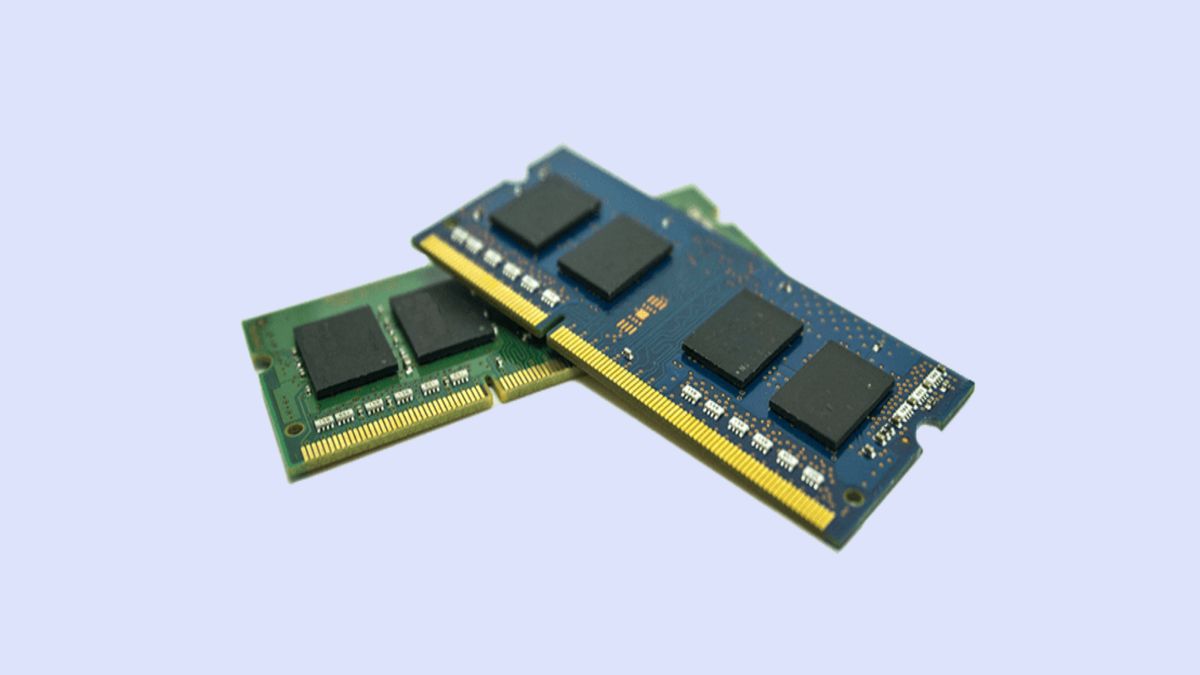
- Form Factor (SO-DIMM): Laptops use smaller RAM modules called SO-DIMM (Small Outline Dual In-line Memory Module), distinct from the larger DIMM modules found in desktop computers.
- Number of Slots: Most laptops have either one or two RAM slots. Some ultra-thin laptops may have RAM soldered directly onto the motherboard, making it non-upgradable.
The Process of Installing More RAM on a Laptop
With the necessary information in hand, you can proceed with the upgrade. This is where the actual installation takes place.
Preparing for the Upgrade
- Purchase Compatible RAM: Based on your research, buy RAM modules that match your laptop’s specifications for DDR generation, speed, and form factor. It’s often recommended to buy identical modules if you’re filling an empty slot or replacing existing ones to ensure optimal performance (though mixed brands can sometimes work, it’s not ideal).
- Gather Tools: You’ll likely need a small Phillips head screwdriver. Some laptops may require specialized tools or pry tools to open the chassis.
- Back Up Your Data: While a RAM upgrade is generally safe, it’s always prudent to back up your important data before undertaking any hardware modifications.
- Ground Yourself: Static electricity can damage sensitive electronic components. Before touching any internal parts, discharge any static electricity by touching a grounded metal object, such as the unpainted metal casing of a plugged-in (but turned-off) desktop computer. An anti-static wrist strap is highly recommended.
- Find a Clean, Well-Lit Workspace: A clutter-free environment will help prevent losing small screws and make the process easier.
Step-by-Step Installation Guide
- Power Down and Unplug: Shut down your laptop completely and unplug the AC adapter.
- Remove the Battery (if removable): If your laptop has a removable battery, take it out. For non-removable batteries, proceed with caution, as you’ll need to be extra careful not to short circuit anything.
- Locate the RAM Access Panel: Most laptops have a dedicated panel on the underside for accessing the RAM. Consult your laptop’s manual if you’re unsure. Older laptops might require removing the entire bottom cover.
- Open the Access Panel: Unscrew the panel and carefully remove it. Keep track of the screws, as they can vary in size.
- Identify the RAM Slots: You’ll see one or two RAM modules installed in slots.
- Remove Existing RAM (if upgrading capacity): If you’re replacing existing modules, gently push outwards on the clips on either side of the RAM module. The module should pop up at an angle. Carefully pull it out of the slot.
- Install New RAM: Align the notch on the new RAM module with the notch in the slot. Insert the module at a 45-degree angle until it’s seated firmly. Then, gently push down on the module until the clips on both sides snap into place, securing it.
- Close the Access Panel: Replace the RAM access panel and screw it back in place.
- Reinstall Battery (if removed): If you removed the battery, put it back.
- Power On and Test: Plug in the AC adapter and turn on your laptop. Your system should recognize the new RAM. You can verify this in the system information as described earlier.
Troubleshooting Common Issues
- Laptop won’t boot: Ensure the RAM is fully seated and correctly oriented. Try installing one module at a time to isolate a faulty module.
- System doesn’t recognize all the RAM: Make sure your motherboard supports the total amount of RAM you’ve installed. Check for compatibility issues or ensure the modules are correctly seated.
- Performance hasn’t improved: While RAM is crucial, other factors can also cause performance issues. Ensure your drivers are up to date and that no other components are bottlenecking your system.
Beyond the Upgrade: Optimizing Your Laptop’s Performance
While a RAM upgrade can significantly boost performance, it’s not the only way to keep your laptop running smoothly. Integrating this hardware improvement with software optimization and smart usage habits will yield the best results.
Software Optimization and Maintenance
- Keep Your Operating System Updated: Operating system updates often include performance enhancements and bug fixes.
- Manage Startup Programs: Too many programs launching at startup can consume valuable RAM. Disable unnecessary startup applications through Task Manager (Windows) or System Settings (macOS).
- Uninstall Unused Software: Remove applications you no longer use, as they can still consume system resources in the background.
- Regularly Clean Up Temporary Files: Temporary files can accumulate and take up storage space, indirectly affecting performance. Use Disk Cleanup (Windows) or similar utilities.
- Update Drivers: Outdated drivers, especially for graphics cards and chipsets, can lead to performance issues.
Smart Usage Habits for Longevity
- Close Unnecessary Applications: Be mindful of the number of applications you have open simultaneously.
- Limit Browser Tabs: Excessive browser tabs, especially on resource-heavy websites, can quickly consume RAM.
- Consider SSD Over HDD: If your laptop still uses a traditional hard disk drive (HDD), upgrading to a Solid State Drive (SSD) will provide a far more dramatic performance improvement than RAM alone, as it significantly speeds up data access.
- Regularly Monitor System Performance: Keep an eye on your Task Manager (or Activity Monitor on Mac) to identify any applications or processes that are consuming excessive resources.
In conclusion, the question “can you install more RAM on a laptop” is answered with a qualified yes. For many users, it’s a remarkably effective and cost-efficient way to revitalize an aging machine and improve daily computing experiences. By understanding your laptop’s limitations, carefully selecting compatible components, and following the installation process with care, you can unlock a smoother, faster, and more responsive digital life. Remember that a hardware upgrade is often best complemented by diligent software maintenance and smart usage habits to ensure your laptop performs at its peak for years to come.
aViewFromTheCave is a participant in the Amazon Services LLC Associates Program, an affiliate advertising program designed to provide a means for sites to earn advertising fees by advertising and linking to Amazon.com. Amazon, the Amazon logo, AmazonSupply, and the AmazonSupply logo are trademarks of Amazon.com, Inc. or its affiliates. As an Amazon Associate we earn affiliate commissions from qualifying purchases.