
The ever-evolving landscape of technology often presents us with intriguing questions that push the boundaries of what we consider standard. One such question that has gained traction within the tech community is whether it’s possible to install Windows 10 directly onto a USB NVMe drive. While the initial thought might lean towards a simple “no,” the reality is far more nuanced. This exploration delves into the technical feasibility, the practical implications, and the potential use cases of such a setup, drawing upon our understanding of technology trends, system architecture, and user needs.

Understanding the Core Technologies: NVMe and USB
Before we can definitively answer whether Windows 10 can be installed on a USB NVMe drive, it’s crucial to grasp the fundamental technologies at play.
NVMe: The Speed Demon of Storage
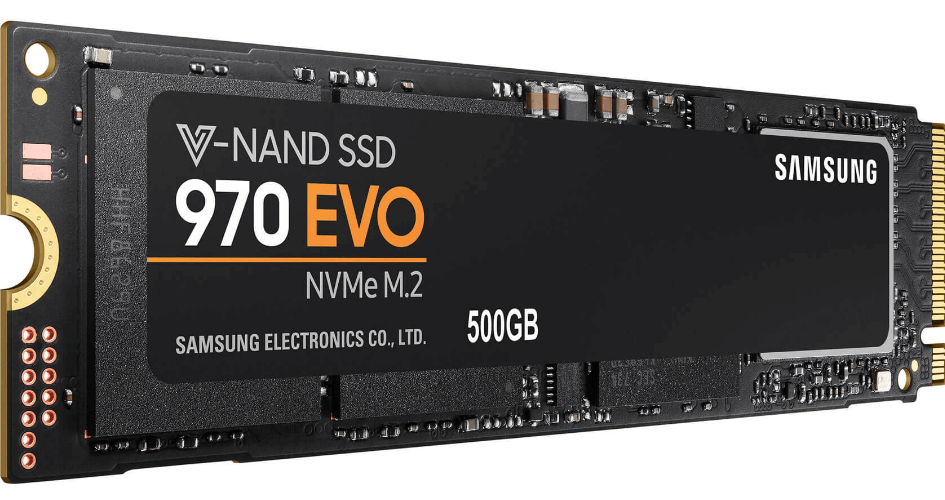
NVMe, which stands for Non-Volatile Memory Express, is a communication protocol designed specifically for SSDs (Solid State Drives). Its primary advantage lies in its direct connection to the CPU via the PCIe (Peripheral Component Interconnect Express) bus, bypassing traditional SATA bottlenecks. This allows for significantly lower latency and higher throughput, translating to dramatically faster read and write speeds compared to older storage interfaces. NVMe drives are renowned for their lightning-fast performance, making them ideal for demanding applications, operating system installations, and rapid data access.
USB: The Universal Connector
USB (Universal Serial Bus) is a ubiquitous standard for connecting peripherals to computers. It’s designed for ease of use and broad compatibility, allowing a vast array of devices, from keyboards and mice to external hard drives and flash drives, to communicate with a host system. While USB has seen continuous improvements in speed with each iteration (USB 3.0, 3.1, 3.2, and USB4), it still operates with a certain level of overhead and is generally not considered a direct competitor to the raw bandwidth and low latency offered by PCIe for internal storage.
The Crucial Distinction: Internal vs. External Connectivity
The inherent difference between how NVMe drives are typically used and how USB operates is the core of our inquiry.
Internal NVMe: Direct PCIe Integration
Traditionally, NVMe SSDs are installed directly into M.2 slots on a motherboard, connecting via the PCIe lanes. This direct connection ensures maximum bandwidth utilization and minimal latency, unlocking the full potential of the NVMe protocol. This is how operating systems are typically installed for optimal performance on modern desktops and laptops.
USB NVMe: Bridging the Gap
When we talk about a “USB NVMe drive,” we’re usually referring to an NVMe SSD housed within an external enclosure that connects to a computer via a USB port. This enclosure acts as an adapter, translating the NVMe protocol to a USB protocol. While the drive itself is an NVMe SSD and capable of high speeds, its performance is ultimately limited by the USB interface and the enclosure’s chipset.
The Technical Hurdles and Workarounds for Windows 10 Installation
The primary reason for the initial skepticism surrounding installing Windows 10 on a USB NVMe drive stems from how operating systems are designed to boot and access storage.
Boot Process Challenges
During the boot process, the BIOS/UEFI firmware of a computer needs to recognize and access the drive containing the operating system’s bootloader. Standard Windows installations are optimized for internal SATA or NVMe drives that are directly recognized by the system’s storage controllers. USB devices, while generally supported for booting, can sometimes present challenges, especially when trying to emulate the behavior of an internal drive with the high-performance demands of an NVMe SSD.
Driver Support and Initialization
For Windows to successfully boot and operate from any storage device, it requires appropriate drivers to communicate with that device. When installing Windows on an internal NVMe drive, the necessary drivers are typically integrated into the Windows installation media or are readily available on the motherboard’s drivers. However, when dealing with a USB NVMe enclosure, the specific USB-to-NVMe controller chipset within the enclosure requires specific drivers that might not be natively present or easily loadable during the early stages of the Windows boot process.
UEFI Boot Requirements
Modern operating systems like Windows 10 (and especially Windows 11) rely heavily on UEFI (Unified Extensible Firmware Interface) for booting. UEFI has specific requirements for how bootable media is structured and recognized. While many modern UEFI implementations can boot from USB drives, ensuring that a USB NVMe drive is recognized as a bootable UEFI device can sometimes require specific configurations or support from both the motherboard and the USB NVMe enclosure.
Workarounds and Advanced Techniques
Despite these challenges, tech enthusiasts and professionals have found ways to achieve this seemingly unconventional installation. These methods often involve:
- Pre-installation Configuration: Preparing the Windows installation media with specific drivers for the USB NVMe enclosure’s controller. This can involve integrating these drivers into the Windows image itself or creating a custom boot environment.
- Modified Bootloaders: Employing bootloaders or utilities that can bridge the gap between the UEFI firmware and the USB NVMe device, ensuring it’s recognized as a bootable drive.
- Specialized Enclosures and Tools: Certain high-end USB NVMe enclosures and specialized cloning or installation tools are designed to facilitate booting from external NVMe SSDs. These often have better firmware support and driver compatibility.
- BIOS/UEFI Settings: Carefully configuring BIOS/UEFI settings to prioritize USB boot devices and ensure that USB storage is correctly initialized during the boot sequence.
These methods often require a degree of technical expertise and patience, as they deviate from the standard Windows installation procedure.
Potential Use Cases and Practical Applications
While the technical hurdles are significant, successfully installing Windows 10 on a USB NVMe drive opens up several practical and compelling use cases.
Portable Operating System Environments
Perhaps the most obvious application is creating a fully portable Windows 10 installation. Imagine a scenario where you need to access your familiar computing environment with all your applications, settings, and files on any compatible computer.
- Business Professionals: Consultants, IT professionals, or remote workers who frequently move between different machines or client sites can carry their entire work environment on a compact, high-speed USB drive. This eliminates the need to set up a new machine or rely on potentially insecure public computers.
- Developers and Testers: Developers can maintain consistent development environments across multiple machines, ensuring that their code runs the same way regardless of the host system. Testers can also utilize this for reproducible testing environments.
- Students: Students could have a personalized learning environment that they can plug into any available computer in a lab or library, keeping their projects and study materials readily accessible.
Enhanced Performance for Older or Limited Systems
Some older computers, while capable of running Windows 10, might have slow internal storage. A USB NVMe drive can act as a significant performance upgrade, essentially giving a new lease on life to an aging machine.
- Boosting Older Laptops: If a laptop has a functional USB 3.0 or higher port but a very slow internal hard drive, booting Windows 10 from a USB NVMe drive can make it feel remarkably faster for everyday tasks.
- Dedicated Workstations: For users who need a fast, temporary Windows environment for specific tasks without altering their primary operating system, a USB NVMe drive offers a high-performance alternative.
Secure and Isolated Environments
A USB NVMe installation can also be used to create secure and isolated environments for sensitive tasks.
- Privacy-Conscious Users: By installing Windows on an external drive, users can maintain a separate, potentially more secure, operating system that is not directly tied to their primary machine’s internal storage. This can be useful for online banking, sensitive research, or any activity where maximum privacy is paramount.
- Penetration Testing and Digital Forensics: In the realm of cybersecurity, a bootable USB NVMe drive can house specialized tools and operating systems for penetration testing or digital forensics, allowing for rapid deployment of analytical environments.
Overcoming Hardware Limitations
In some rare cases, a computer’s internal storage might be faulty, or the motherboard might lack sufficient internal drive bays for an NVMe SSD. A USB NVMe drive offers a viable workaround.
- Repair and Recovery: A bootable Windows 10 USB NVMe drive can be used to boot into a fully functional operating system to diagnose and repair issues with a computer’s internal storage or other components.
Considerations and Performance Expectations
While the concept is intriguing and the possibilities are exciting, it’s important to set realistic expectations regarding performance.
The USB Bottleneck
Even with the fastest NVMe SSD, the ultimate speed of a USB NVMe setup will be constrained by the USB interface. While USB 3.2 Gen 2×2 and USB4 offer speeds in the tens of gigabits per second, they still introduce more latency and have less raw bandwidth than a direct PCIe connection.
- Real-World Performance: You will likely experience speeds that are significantly faster than a traditional USB flash drive or an external HDD, but potentially not as fast as an internal NVMe SSD directly connected to the motherboard. However, for many everyday tasks, the performance difference might be imperceptible, especially when compared to older internal storage solutions.
Enclosure Quality Matters
The quality and chipset of the USB-to-NVMe enclosure play a crucial role in performance and stability.
- Controller Chipset: Different enclosures use different controller chips. Some are better optimized for high-speed data transfer and UASP (USB Attached SCSI Protocol) support, which is essential for achieving good NVMe performance over USB.
- Thermal Management: NVMe drives can generate heat under heavy load. A well-designed enclosure will have adequate thermal management to prevent throttling and ensure consistent performance.
Power Consumption and Port Availability
Running a full operating system from a USB drive will draw more power than a standard USB flash drive.
- Powered USB Ports: It’s advisable to use a powered USB port (directly on the motherboard or a powered USB hub) to ensure stable power delivery to the NVMe drive.
- USB Version Compatibility: Ensure that the USB port on the host computer supports the speed of the USB NVMe drive and enclosure for optimal performance. A USB 3.0 port will significantly limit the speed of a USB 3.2 Gen 2×2 enclosure.
Software Compatibility and Stability
While Windows 10 is generally adaptable, certain low-level hardware interactions might behave differently when accessed through a USB interface compared to an internal connection.
- Driver Stability: Ensuring the stability of the USB NVMe enclosure drivers within the Windows 10 environment is critical for a seamless experience.
- System Updates: Major Windows updates or driver changes on the host system could potentially impact the stability of the USB NVMe installation.
Conclusion: A Feasible, Though Specialized, Option
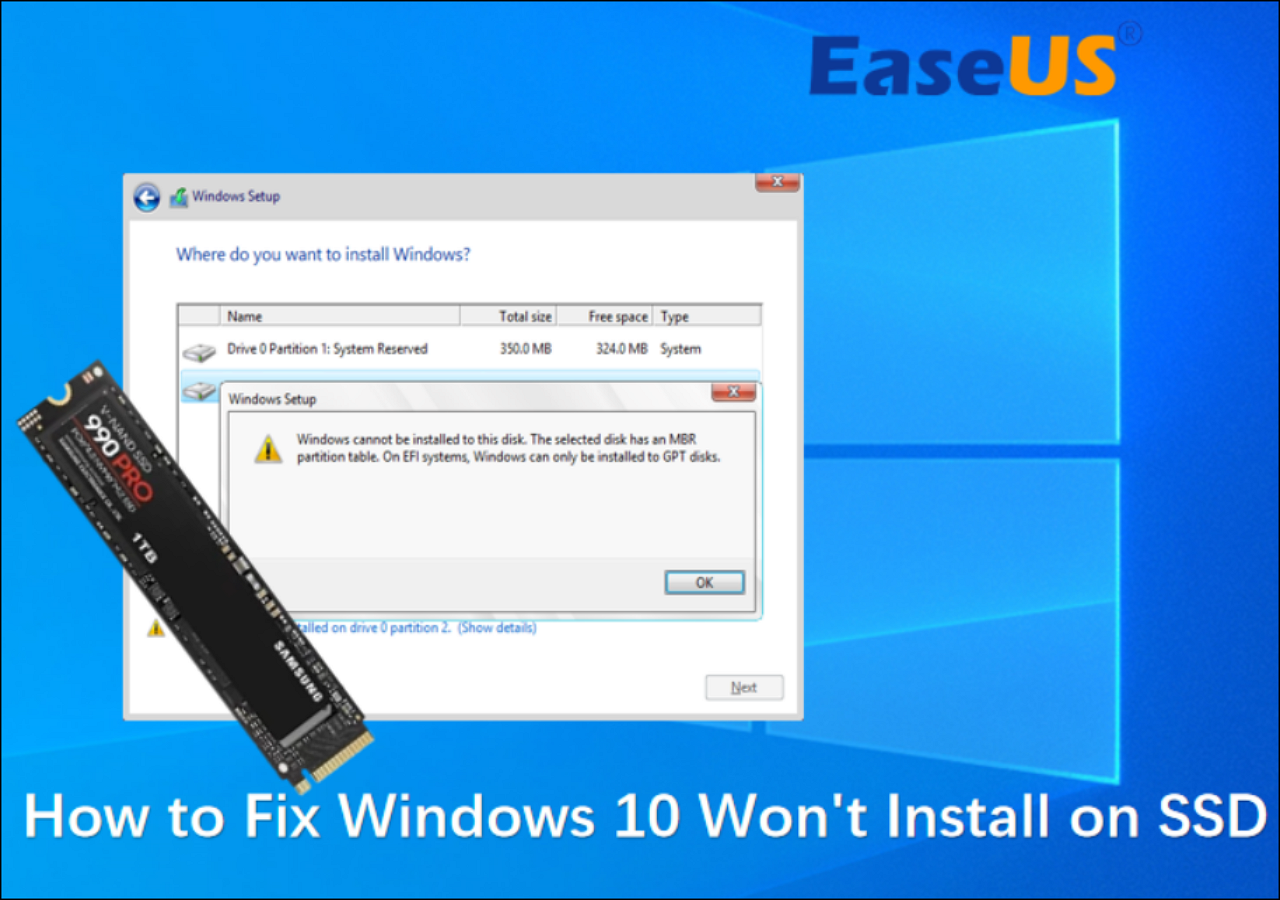
In conclusion, yes, Windows 10 can be installed on a USB NVMe drive, but it’s not a straightforward, plug-and-play process. It requires careful planning, specific technical knowledge, and potentially specialized hardware. The primary challenges lie in ensuring that the system’s firmware can boot from the USB device and that the necessary drivers are available for the USB-to-NVMe controller during the critical boot stages.
The appeal of this setup lies in its ability to create highly portable, high-performance Windows environments, boost the capabilities of older systems, and offer more secure or isolated computing experiences. While the ultimate performance will be limited by the USB interface, the speed advantage over traditional external storage solutions is substantial.
For the average user, installing an operating system on an internal NVMe drive remains the simpler and typically more performant option. However, for tech enthusiasts, IT professionals, developers, or anyone with a specific need for a portable, powerful Windows environment, installing Windows 10 on a USB NVMe drive presents an intriguing and increasingly viable technical solution. As technology continues to advance, we can expect further refinements and simplified methods for achieving such advanced configurations.
aViewFromTheCave is a participant in the Amazon Services LLC Associates Program, an affiliate advertising program designed to provide a means for sites to earn advertising fees by advertising and linking to Amazon.com. Amazon, the Amazon logo, AmazonSupply, and the AmazonSupply logo are trademarks of Amazon.com, Inc. or its affiliates. As an Amazon Associate we earn affiliate commissions from qualifying purchases.