
The question “Can I delete previous Windows installation?” is a common one for anyone who has recently upgraded their operating system or performed a clean install. It’s a natural inclination to want to reclaim disk space and streamline your system. However, the answer isn’t a simple yes or no. Deleting a previous Windows installation can be a great way to free up significant storage, but it comes with crucial caveats that can lead to data loss or system instability if not handled correctly. This article will dive deep into the nuances of this process, drawing upon our expertise in technology, brand strategy, and personal finance to provide a well-rounded understanding.
Understanding the “Windows.old” Folder
When you upgrade Windows from an older version (like Windows 10 to Windows 11) or perform an in-place upgrade, Windows automatically creates a folder named Windows.old on your primary drive (usually C:). This folder serves as a backup of your previous operating system files, settings, and personal data. It’s essentially a safety net, designed to allow you to roll back to your previous Windows version if the new installation proves problematic or if you find that some of your essential software or hardware is no longer compatible.
The Purpose of Windows.old: A Safety Net for Your Digital Life
The existence of the Windows.old folder is a testament to Microsoft’s commitment to user experience and data integrity. Imagine upgrading your operating system only to discover that a critical piece of software you rely on daily no longer functions. Without the Windows.old folder, you’d be faced with the daunting task of completely reinstalling your previous Windows version from scratch, potentially losing personal files and settings in the process. The Windows.old folder eliminates this risk by providing a readily accessible repository of your old system.
What’s Inside Windows.old?
The Windows.old folder typically contains:
- Your previous Windows system files: This includes the operating system files, program files, and system configurations that were in place before the upgrade.
- User profiles and data: Crucially, it houses your user accounts, documents, pictures, music, and other personal files that were stored in your user profile folders (like Desktop, Documents, Downloads, etc.).
- Application data: Settings and data for applications installed on your previous Windows version might also be found here.
This comprehensive backup is what makes the Windows.old folder so valuable in the immediate aftermath of an upgrade. It allows for a quick and painless rollback if necessary.
The Temporary Nature of Windows.old
While invaluable, the Windows.old folder is not meant to be a permanent fixture. Microsoft typically sets a retention period for this folder. After a certain number of days (usually 10 days by default), the Windows.old folder is automatically deleted by the system to reclaim the disk space it occupies. This automatic deletion is a key factor in understanding when and how you can safely remove it yourself.
When Can You Safely Delete the Previous Windows Installation?
The primary determinant of whether you can safely delete the previous Windows installation lies in your confidence with the new operating system and the successful transfer of your essential data. Here’s a breakdown of the key considerations:
1. Successful Upgrade and System Stability
The most critical factor is the stability and functionality of your current Windows installation. Before even considering deleting the Windows.old folder, you should have thoroughly tested your new operating system. This includes:
- Running all essential applications: Ensure that all the software you rely on for work, entertainment, or personal use is installed correctly and functions without any glitches or errors. This is particularly important for specialized software or older applications that might not be fully compatible with newer operating systems.
- Checking hardware compatibility: Verify that all your hardware components – such as your printer, scanner, graphics card, and webcam – are recognized and working correctly with the new drivers and operating system.
- Testing peripherals: Plug in and test all your external devices to confirm they are functioning as expected.
- Navigating the system with confidence: You should feel comfortable and confident using the new Windows interface and accessing your files and settings. If you’re still encountering frequent issues or finding yourself lost, it’s best to wait and resolve those problems first.
2. Data Verification and Backup
Even though the Windows.old folder contains your data, it’s always prudent to ensure you have a separate, up-to-date backup of your critical files. This aligns with sound personal finance and digital security practices – never rely on a single point of failure for your valuable data.
- Manually review your files: Navigate through the
Usersfolder within theWindows.olddirectory and manually check your important documents, photos, videos, and any other personal files. Ensure they are all present and accessible. - Confirm data migration: If you manually migrated files during the upgrade process, double-check that everything you intended to move has been successfully transferred to your new user profile.
- Create an external backup: Before deleting anything, create a backup of your most important files to an external hard drive or a cloud storage service. This provides an extra layer of security in case something goes wrong during the deletion process. This is a proactive step that aligns with responsible digital asset management.
3. The 10-Day Rollback Window (and Beyond)
As mentioned earlier, Windows automatically makes the Windows.old folder available for rollback for a default period of 10 days. After this period, the option to easily roll back through the Windows settings menu will disappear. However, the Windows.old folder itself might still exist until manually deleted or automatically purged by disk cleanup tools.
- Within the 10-day window: If you are within this initial period and are experiencing significant issues, you can still use the built-in Windows rollback feature. This is often the easiest and safest way to revert to your previous installation.
- After the 10-day window: Once the 10-day period has passed, the rollback option via settings is usually gone. The
Windows.oldfolder, however, will likely still be present, occupying a considerable amount of disk space. At this point, if you are confident in your new installation and have verified your data, you can proceed with manual deletion.
Methods to Delete the Previous Windows Installation
There are several ways to delete the Windows.old folder, ranging from automated tools to manual file deletion. Each method has its own advantages and considerations.

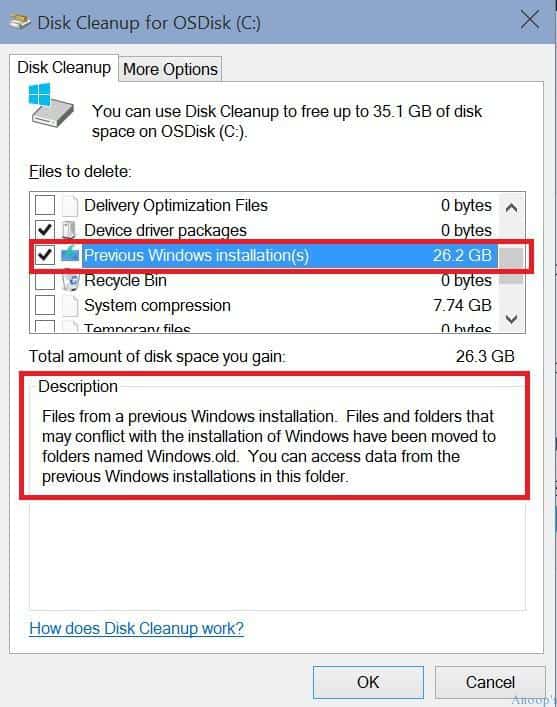
Method 1: Using Disk Cleanup (The Recommended Approach)
Disk Cleanup is a built-in Windows utility designed to free up disk space by removing temporary files, system error memory dump files, and other files that are no longer needed. It’s often the safest and most straightforward method for removing the Windows.old folder.
Steps:
- Open Disk Cleanup: Search for “Disk Cleanup” in the Windows search bar and open the application.
- Select the drive: Choose the drive where Windows is installed (usually C:).
- Click “Clean up system files”: This is a crucial step. It allows Disk Cleanup to scan for more files, including those from previous Windows installations. You might need administrative privileges for this.
- Scan and select “Previous Windows installation(s)”: After scanning, you will see a list of files and categories that can be deleted. Look for “Previous Windows installation(s)” or similar entries.
- Confirm deletion: Select the checkbox next to “Previous Windows installation(s)” and any other items you wish to remove. Then, click “OK” and confirm the deletion when prompted.
Disk Cleanup intelligently identifies and removes the necessary files from the Windows.old folder. This method is generally safe because it’s managed by the operating system itself.
Method 2: Manual Deletion (Use with Extreme Caution)
Manually deleting the Windows.old folder is possible, but it comes with a higher risk of error. If you accidentally delete files that are still needed by your current Windows installation, you could face system instability or even prevent your computer from booting.
Steps (Proceed with extreme caution):
- Ensure you are an administrator: You need administrative rights to delete system folders.
- Enable viewing hidden files and folders: Go to File Explorer, click the “View” tab, and check the box for “Hidden items.”
- Navigate to the C: drive: Open File Explorer and go to your C: drive.
- Locate the “Windows.old” folder: You should see the
Windows.oldfolder. - Delete the folder: Right-click on the
Windows.oldfolder and select “Delete.” You will likely be prompted for administrator permission.
Important Considerations for Manual Deletion:
- System Protection: If the folder is still considered part of a system rollback option, Windows might prevent you from deleting it directly.
- Accidental Deletion: As warned, be extremely careful. If you are unsure about any files, do not proceed with manual deletion. Disk Cleanup is the preferred method for a reason.
- No Rollback Option: Once manually deleted, there’s no easy way to revert to the previous installation if you change your mind.
Method 3: Storage Sense (Automated Space Management)
Windows 10 and Windows 11 have a feature called Storage Sense, which can automatically free up space by deleting unnecessary files, including those from previous Windows installations.
Steps:
- Go to Settings: Click the Start button and select “Settings” (the gear icon).
- Navigate to System > Storage: In the Settings window, click on “System” and then “Storage.”
- Turn on Storage Sense: Toggle the switch to “On.”
- Configure Storage Sense: Click on “Configure Storage Sense or run it now.” Here, you can set how often Storage Sense runs and what it deletes.
- Choose “Delete previous versions of Windows”: Under the “Free up space now” section, you can select “Delete previous versions of Windows.” You can also choose to have Storage Sense automatically delete temporary files and items in your Recycle Bin.
- Run Storage Sense: You can click “Clean now” to run Storage Sense immediately.
Storage Sense offers a hands-off approach to managing disk space. While convenient, it’s still advisable to understand what it’s deleting, especially when it comes to system files.
The Financial Implications of Disk Space
While seemingly a technical issue, managing disk space has subtle financial implications. Freeing up space on your computer can impact your productivity, which in turn can affect your income.
- Increased Productivity: A cluttered and slow computer can be a significant drain on productivity. If deleting the
Windows.oldfolder resolves performance issues and speeds up your system, it can lead to more efficient work, potentially allowing you to take on more tasks or complete them faster. This directly translates to better earning potential, whether you’re a freelancer, an entrepreneur, or an employee. - Avoiding Hardware Upgrades: If your computer is consistently running out of space, you might be tempted to purchase a new, larger hard drive or even a new computer. By intelligently managing your existing storage, you can extend the life of your current hardware and postpone these potentially significant expenses. This is a practical application of personal finance principles – maximizing the utility of existing assets.
- Data Management as a Business Asset: For businesses and freelancers, data is an asset. Ensuring efficient storage and easy access to this data contributes to smooth operations. The
Windows.oldfolder, if left unnecessarily, represents a large chunk of unused storage that could be repurposed for active data storage or backups, contributing to a more robust operational framework.
Branding and User Experience: The “Rollback” Feature
From a brand perspective, the Windows.old folder and the associated rollback feature represent Microsoft’s understanding of user experience.
- Trust and Reliability: Providing a safety net like the
Windows.oldfolder builds trust with users. It signals that Microsoft is aware of the potential disruptions of major software updates and has implemented a mechanism to mitigate user frustration and data loss. This proactive approach to user concerns is a cornerstone of strong brand reputation. - Brand Loyalty: When users have a smooth upgrade experience with the option to easily revert if needed, they are more likely to remain loyal to the Windows ecosystem. Conversely, a disastrous upgrade without a safety net can lead to negative word-of-mouth and a tarnished brand image.
- User-Centric Design: The existence and accessibility of the
Windows.oldfolder, particularly through tools like Disk Cleanup, highlight a user-centric design philosophy. It acknowledges that users have varying levels of technical expertise and provides accessible options for managing their system.

Conclusion: To Delete or Not to Delete?
The answer to “Can I delete previous Windows installation?” is a resounding yes, but only when you are absolutely certain your current installation is stable, all your essential data is secure, and you no longer require the rollback option.
For most users, utilizing the Disk Cleanup utility with the “Clean up system files” option is the safest and most effective method. It automates the process and ensures that only unnecessary files are removed. Storage Sense offers a convenient, automated alternative for those who prefer a hands-off approach to disk space management. Manual deletion should only be considered by advanced users who fully understand the risks involved.
By carefully considering your system’s stability, backing up your data, and employing the right tools, you can confidently reclaim valuable disk space and maintain a clean, efficient, and reliable computing experience, all while keeping sound financial and digital security practices in mind.
aViewFromTheCave is a participant in the Amazon Services LLC Associates Program, an affiliate advertising program designed to provide a means for sites to earn advertising fees by advertising and linking to Amazon.com. Amazon, the Amazon logo, AmazonSupply, and the AmazonSupply logo are trademarks of Amazon.com, Inc. or its affiliates. As an Amazon Associate we earn affiliate commissions from qualifying purchases.