
Encountering an “invalid” message when attempting to use Apple Cash can be a frustrating and confusing experience. In an era where digital payments are seamlessly integrated into our daily lives, a sudden roadblock can disrupt plans and raise questions about the reliability of our digital financial tools. This comprehensive guide delves into the technical underpinnings of why your Apple Cash might display an “invalid” status, providing insights into common causes, detailed troubleshooting steps, and proactive measures to ensure a smooth, uninterrupted experience. As a core component of the Apple Wallet ecosystem, Apple Cash’s functionality relies on a complex interplay of software, hardware, network connectivity, and robust security protocols. Understanding where these systems might falter is the first step toward resolving the issue.

Decoding the “Invalid” Message: What It Truly Means for Apple Cash
When your Apple Cash transaction or account status is flagged as “invalid,” it signals a technical or systemic issue preventing the intended operation. Unlike a simple “declined” message, which often points to insufficient funds or a bank refusal, “invalid” typically indicates a problem with the validity of the account itself, the transaction parameters, or the underlying technical infrastructure.
Beyond Insufficient Funds: Differentiating Error Types
It’s crucial to distinguish an “invalid” status from other common transaction errors. A “declined” message usually originates from the linked financial institution, indicating issues like a lack of funds, exceeding daily limits, or a card issuer’s security block. In contrast, an “invalid” Apple Cash status points to an issue within the Apple Cash system itself, or with the way your Apple Cash account is set up and verified. This could range from problems with your identity verification, an outdated software version, a temporary service outage, or even a technical glitch within the Apple Wallet app. The message implies a failure of the system to recognize the legitimacy or eligibility of the transaction or account under its current conditions.
The Interplay of Software, Servers, and Security Protocols
Apple Cash operates on a sophisticated architecture that integrates your device’s hardware security (like the Secure Enclave), the iOS operating system, the Apple Wallet app, Apple’s cloud services, and often, third-party banking partners (like Green Dot Bank, which partners with Apple for Apple Cash services). An “invalid” message can arise when any part of this intricate chain breaks down.
-
Software: Bugs in iOS or the Wallet app can cause unexpected behavior.
-
Servers: Temporary outages or maintenance on Apple’s servers can disrupt services.
-
Security Protocols: Strict anti-fraud and identity verification protocols are constantly at play. If any piece of your account information or transaction pattern triggers a security flag, the system might deem your Apple Cash “invalid” until further verification or resolution. This layered security, while essential for protecting users, can sometimes lead to an “invalid” status when a minor discrepancy or an unusual activity is detected.
Primary Technical Culprits Behind Apple Cash Invalidity
Pinpointing the exact technical reason for an “invalid” Apple Cash status can be challenging, but several common factors often emerge as the primary culprits. These issues typically stem from software, network, or device-specific configurations rather than purely financial aspects.
Outdated Software and System Bugs
One of the most frequent yet overlooked causes of technical issues with any app, including Apple Cash, is running outdated software. Apple consistently releases iOS updates that include bug fixes, security enhancements, and performance improvements for core applications.
-
Outdated iOS: If your iPhone or iPad is running an old version of iOS, it might contain bugs that affect Apple Wallet and Apple Cash functionality. Newer Apple Cash features or security updates might also require a minimum iOS version, rendering older versions “invalid” in some contexts.
-
Wallet App Glitches: While the Wallet app is integral to iOS, specific internal glitches can sometimes occur, leading to an “invalid” status. These are often resolved with a simple app restart or a full device reboot, but persistent issues might point to deeper software corruption.
Connectivity and Server-Side Disruptions
Apple Cash, like most online services, relies heavily on a stable internet connection and Apple’s backend servers.
-
Poor Internet Connection: A weak, intermittent, or non-existent Wi-Fi or cellular data connection can prevent your device from communicating with Apple’s servers to verify your Apple Cash balance or transaction. The system might interpret the inability to connect as an “invalid” state.
-
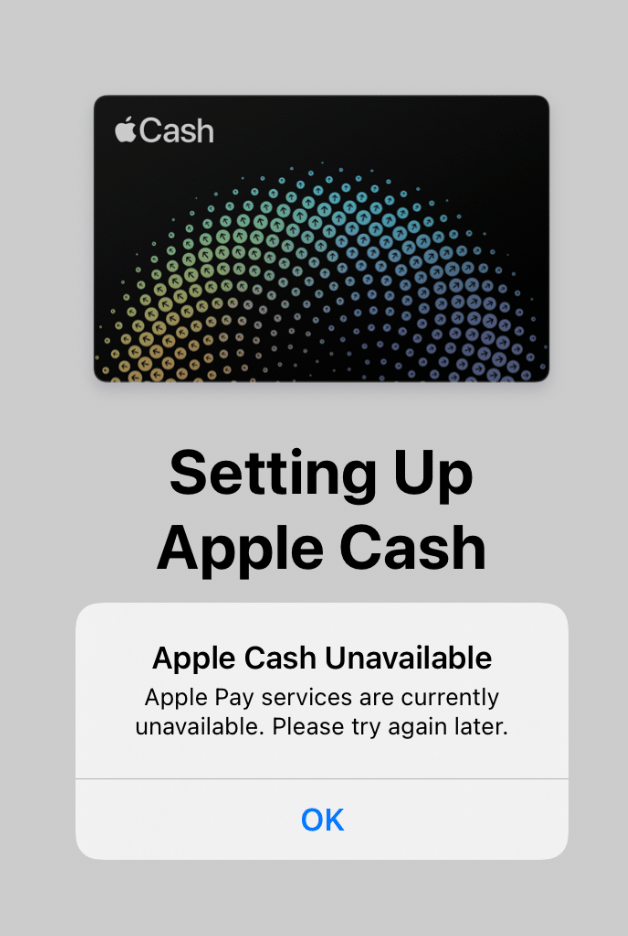
Apple System Status: Sometimes, the problem isn’t with your device but with Apple’s services themselves. Apple regularly performs maintenance or experiences temporary outages. If Apple Cash services are down, your attempts to use it will be deemed “invalid” until the service is restored. Checking Apple’s System Status page (found on Apple’s support website) is a quick way to rule this out.
Device-Specific Configuration and Security Flags
Your device’s configuration and security settings play a crucial role in Apple Cash functionality.
-
Region and Language Settings: Mismatches between your device’s region settings and your Apple ID country can sometimes create conflicts, as Apple Cash is region-specific.
-
Jailbroken Devices: For security reasons, Apple Cash will not function on jailbroken iPhones or iPads. The modification of the operating system compromises the security safeguards that Apple Pay and Apple Cash rely upon, thus invalidating its usage.
-
VPN Usage: While generally harmless, some VPN configurations can interfere with location services or create IP conflicts that trigger security flags, leading to an “invalid” status for transactions that are sensitive to location verification.
Wallet App Integrity and Data Corruption
The Apple Wallet app stores sensitive data related to your Apple Cash and other payment methods.
-
Corrupted Wallet Data: On rare occasions, the data within your Wallet app pertaining to Apple Cash might become corrupted. This can happen due to an incomplete software update, a storage error, or an unexpected app crash. Such corruption can prevent the system from properly reading or validating your Apple Cash details.
-
Multiple Devices: If you use Apple Cash across multiple devices (e.g., iPhone and Apple Watch), ensure consistency. Issues might arise if one device isn’t properly synced or updated, causing discrepancies that flag the account as “invalid” on another.
User-Centric and Account-Related Technical Hurdles
Beyond the immediate technical environment, specific details about your Apple Cash account and linked information can also lead to an “invalid” status. These often relate to compliance, security, and verification processes designed to protect both the user and the financial system.
Identity Verification and Age Restrictions
Apple Cash, being a regulated financial service, requires identity verification to comply with “Know Your Customer” (KYC) regulations.
-
Incomplete or Failed Verification: If your identity verification process is incomplete, pending, or has failed (e.g., due to incorrect information, expired ID, or discrepancies), your Apple Cash account might be temporarily or permanently rendered “invalid” until verification is successful. This is a critical step for preventing fraud and ensuring regulatory compliance.
-
Age Requirements: Apple Cash is only available to users 18 years or older, or users between 13 and 17 as part of a Family Sharing Apple Cash Family setup. If an account is mistakenly set up for a user under the minimum age, or if age verification fails, the account status can become “invalid.”
Linked Payment Method Status and Details

While Apple Cash uses its own balance, it often relies on a linked debit card for adding funds.
-
Expired or Invalid Linked Card: If the debit card you use to add money to Apple Cash is expired, canceled, or has incorrect details, the system might flag your Apple Cash as “invalid” if it attempts to verify the primary funding source, even if you’re trying to send from an existing balance. This can sometimes occur if the system anticipates needing to draw funds and finds the linked source unviable.
-
Bank Restrictions: Your bank might have placed restrictions on your debit card that prevent it from interacting with Apple Cash, leading to an “invalid” funding source status.
Regional Availability and Transaction Limits
Apple Cash is not universally available, and even where it is, there are defined limits on its usage.
-
Geographical Restrictions: Apple Cash is currently only available to eligible users in the United States. Attempting to use or manage Apple Cash from outside supported regions, or if your Apple ID is associated with a different country, can lead to an “invalid” status.
-
Exceeding Limits: Apple Cash has daily, weekly, and monthly limits on sending, receiving, and adding funds. If a transaction attempts to exceed these limits, it will be flagged as “invalid” and will not process. These limits are in place for security and regulatory compliance.
Security Holds and Potential Fraud Alerts
To protect users from unauthorized activity, Apple Cash employs sophisticated fraud detection systems.
-
Unusual Activity: If the system detects unusual activity on your account (e.g., large transactions, multiple transactions in quick succession, transactions to unfamiliar recipients, or access from a new device/location), it might place a temporary security hold, rendering your Apple Cash “invalid” until the activity is verified.
-
Account Compromise: If there’s any suspicion that your Apple ID or device has been compromised, Apple may temporarily invalidate your Apple Cash to prevent fraudulent transactions. This is a protective measure.
Step-by-Step Technical Troubleshooting Guide
When faced with an “invalid” Apple Cash message, a systematic approach to troubleshooting can help identify and resolve the underlying issue. Start with the simplest solutions and progressively move to more complex diagnostics.
Foundational Checks: Connectivity and Device Refresh
Before diving into deeper settings, ensure the basics are covered.
-
Check Internet Connection: Make sure your device has a strong and stable Wi-Fi or cellular data connection. Try opening a web page to confirm internet access. If using cellular data, ensure you have sufficient data allowance.
-
Restart Your Device: A simple reboot can often resolve minor software glitches and refresh network connections. Turn your iPhone/iPad completely off, wait 30 seconds, and turn it back on.
-
Check Apple System Status: Visit
apple.com/support/systemstatusto see if there are any reported outages or maintenance for Apple Pay & Wallet services. If services are down, you’ll need to wait for Apple to resolve the issue.
Software and Wallet App Diagnostics
If foundational checks don’t work, focus on the software.
-
Update iOS: Ensure your device is running the latest version of iOS. Go to
Settings > General > Software Updateand install any available updates. -
Force Close and Reopen Wallet App: Swipe up from the bottom of the screen (or double-click the Home button on older devices) to open the app switcher. Swipe the Wallet app up and off the screen to force close it. Then, reopen it.
-
Check Wallet Settings: Go to
Settings > Wallet & Apple Pay. Ensure Apple Cash is turned on and that your associated debit card (if you use one to add funds) is correctly listed and not expired. -
Sign Out and Back Into Apple ID (as a last resort): This can sometimes refresh Apple ID services on your device. Go to
Settings > [Your Name] > Sign Out. You’ll need to sign back in, which might require re-enabling some services. Be aware this is a more disruptive step.
Managing Linked Cards and Apple Cash Settings
Specific issues with your Apple Cash setup often require adjustments within the Wallet.
-
Verify Linked Debit Card Details: If you add funds to Apple Cash, ensure the linked debit card’s details (card number, expiration date, CVV) are correct and that the card is active and not expired. You may need to remove and re-add the card.
-
Review Apple Cash Account Information: In the Wallet app, tap your Apple Cash card, then tap the three dots (…) or the info icon. Check for any alerts regarding identity verification, age restrictions, or other account status messages. You might need to provide additional information or re-verify your identity.
-
Remove and Re-add Apple Cash (Extreme Measure): If all else fails and you suspect deep data corruption, you can try removing Apple Cash and re-adding it. Be extremely cautious with this step if you have a balance, as it might require re-verification. This option is usually found by tapping the Apple Cash card in Wallet, then the info icon, and scrolling down to “Remove Card.”
When to Escalate: Engaging Apple Support
If you’ve exhausted all troubleshooting steps and your Apple Cash still says “invalid,” it’s time to contact Apple Support directly.
-
Provide Details: Be prepared to explain exactly what the message says, what you were trying to do, and all the troubleshooting steps you’ve already taken.
-
Green Dot Bank: Since Green Dot Bank is the issuing bank for Apple Cash, Apple Support may direct you to them for specific account-level issues, especially those related to identity verification or security holds.
Proactive Measures to Maintain Apple Cash Health
Prevention is always better than cure. By adopting a few best practices, you can significantly reduce the likelihood of encountering an “invalid” Apple Cash status.
Regular Software Updates and System Hygiene
Keeping your devices and software up-to-date is paramount for both functionality and security.
-
Enable Automatic Updates: Ensure your iPhone or iPad is set to automatically download and install iOS updates (
Settings > General > Software Update > Automatic Updates). -
Restart Regularly: Periodically restarting your device can clear temporary caches and resolve minor software conflicts before they escalate.
-
Monitor Apple System Status: Before making important transactions, quickly check Apple’s System Status page, especially if you’ve encountered issues recently.
Understanding Apple Cash Policies and Limits
Familiarize yourself with the operational guidelines of Apple Cash.
-
Know Your Limits: Be aware of the daily, weekly, and monthly sending, receiving, and adding funds limits to avoid transactions being flagged as “invalid” for exceeding them. These limits are detailed on Apple’s support pages.
-
Identity Verification: Ensure your identity verification is complete and accurate. Respond promptly to any requests for additional information from Apple or Green Dot Bank to maintain your account’s validity.
-
Regional Compliance: Remember that Apple Cash is a U.S.-only service. Ensure your Apple ID and device region settings align with this requirement.
Safeguarding Your Apple ID and Device Security
Strong security practices are fundamental to the integrity of your Apple Cash account.
-
Two-Factor Authentication (2FA): Always keep Two-Factor Authentication enabled for your Apple ID. This adds a crucial layer of security, making it much harder for unauthorized users to access your account, even if they have your password.
-
Strong Passcodes/Face ID/Touch ID: Use a strong passcode, Face ID, or Touch ID to secure your device. This prevents unauthorized access to your Wallet app and Apple Cash.
-
Beware of Phishing: Be vigilant against phishing attempts that try to trick you into revealing your Apple ID credentials or personal information. Apple will never ask for your password via email or text message.
-
Monitor Account Activity: Regularly review your Apple Cash transaction history in the Wallet app. Report any suspicious or unauthorized transactions immediately to Apple Support.
By understanding the common technical reasons behind the “invalid” message, following methodical troubleshooting steps, and adopting proactive security and maintenance habits, you can ensure your Apple Cash remains a reliable and convenient digital payment solution. While digital systems can sometimes present challenges, equipped with the right knowledge, you can navigate these issues effectively and keep your digital wallet functioning seamlessly.
aViewFromTheCave is a participant in the Amazon Services LLC Associates Program, an affiliate advertising program designed to provide a means for sites to earn advertising fees by advertising and linking to Amazon.com. Amazon, the Amazon logo, AmazonSupply, and the AmazonSupply logo are trademarks of Amazon.com, Inc. or its affiliates. As an Amazon Associate we earn affiliate commissions from qualifying purchases.