
For many iPad users, one of the most puzzling omissions in Apple’s otherwise robust suite of pre-installed applications is a dedicated calculator app. While iPhones have come with a native calculator since their inception, the iPad, despite its larger screen and greater processing power, does not. This curious absence often leads users down a path of searching, frustration, and ultimately, discovery within the vast App Store ecosystem. This guide aims to demystify the calculator conundrum on the iPad, exploring why it’s missing, where to find powerful alternatives, and how to integrate calculation tools seamlessly into your workflow.
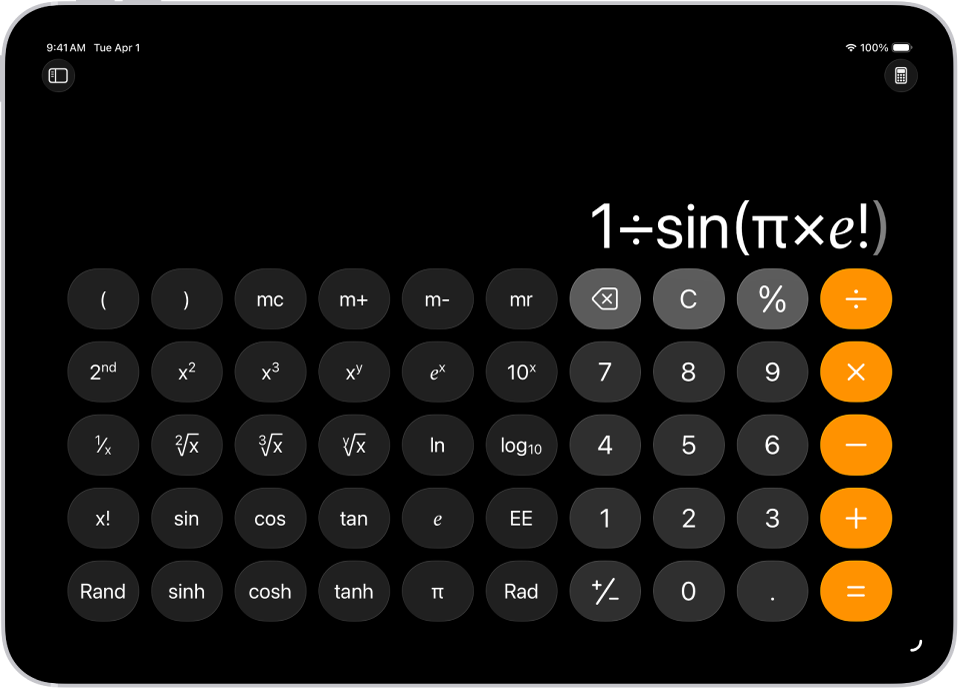
The iPad has evolved from a simple content consumption device into a powerful productivity tool, capable of handling everything from graphic design to complex data analysis. Yet, the lack of a basic utility like a calculator can feel like a glaring oversight. This isn’t an accident, however, but rather a deliberate design choice by Apple, one that has prompted a vibrant market for third-party developers to fill the void. Understanding this landscape is the first step to equipping your iPad with the precise mathematical capabilities you need, whether for quick sums or intricate scientific computations.
The Native Absence: Why No Built-in Calculator App?
The absence of a default calculator app on the iPad is a recurring point of discussion among users and tech enthusiasts alike. Unlike the iPhone, which has always featured a simple, easy-to-access calculator, the iPad experience necessitates a different approach. This isn’t due to technical limitations but stems from Apple’s specific design philosophy for its tablet.
Apple’s Design Philosophy
One prevailing theory suggests that Apple deemed the iPhone’s calculator app simply unsuitable for the iPad’s larger display. Scaling up the existing iPhone calculator interface would potentially lead to an awkward, pixelated, or overly simplistic design that wouldn’t leverage the iPad’s unique screen real estate effectively. Instead of delivering a subpar experience, Apple opted not to include one at all, perhaps expecting that if they couldn’t create an “Apple-level” calculator that felt truly optimized for the iPad, it was better to leave the space open.
Another aspect of this philosophy relates to the iPad’s positioning as a more sophisticated device. While the iPhone is often seen as a quick-access utility device, the iPad is presented as a platform for more involved tasks, creativity, and immersive experiences. Apple might have envisioned users seeking more advanced calculation tools than a basic calculator could offer, pushing them towards specialized apps that could better utilize the larger screen for complex equations, graphs, or data entry. This approach leaves it to the user to define their specific needs and choose from a myriad of robust third-party solutions.
The iPhone Parallel
The stark contrast with the iPhone’s ubiquitous calculator app highlights this design choice. On the iPhone, the calculator is readily available, often accessed from the Control Center or its dedicated app icon. It provides a quick, no-frills solution for everyday arithmetic. This simplicity is a hallmark of the iPhone experience, where quick access to essential utilities is prioritized.
The iPad, however, has a different kind of “quick access.” Its screen is conducive to multitasking, intricate apps, and more immersive interfaces. A simple four-function calculator might seem out of place or underutilized on such a large canvas. This doesn’t mean calculations aren’t important on an iPad; it simply means Apple expects users to seek out more tailored solutions that fully exploit the device’s potential.
Siri as a Quick Fix
While there isn’t a dedicated calculator app, the iPad is not entirely devoid of calculation capabilities. For quick sums, conversions, or even complex equations, Apple’s intelligent assistant, Siri, offers an immediate and hands-free solution. Simply activate Siri by saying “Hey Siri” or holding the Power/Home button, and then pose your mathematical query.
For example, you can say:
- “Hey Siri, what is 25 times 7?”
- “Hey Siri, calculate 1500 divided by 12.”
- “Hey Siri, convert 50 miles to kilometers.”
- “Hey Siri, what is the square root of 81?”
Siri will display the result directly on your screen and often vocalize the answer. This method is incredibly convenient for spontaneous calculations that don’t require a persistent interface or advanced functionalities. It’s the closest thing the iPad has to an “integrated” calculator experience without installing a separate app.
Top-Tier Third-Party Calculator Apps for iPad
The absence of a native calculator on the iPad has cultivated a thriving ecosystem of third-party apps, many of which far surpass the capabilities of a standard calculator. These apps offer diverse features, catering to everything from basic arithmetic to advanced scientific, financial, and even graphing needs. Selecting the right app involves considering your specific requirements, interface preferences, and budget.
For Basic & Scientific Needs
For users requiring more than Siri but less than a full-fledged spreadsheet, several apps strike a perfect balance, offering robust scientific functions alongside intuitive interfaces.
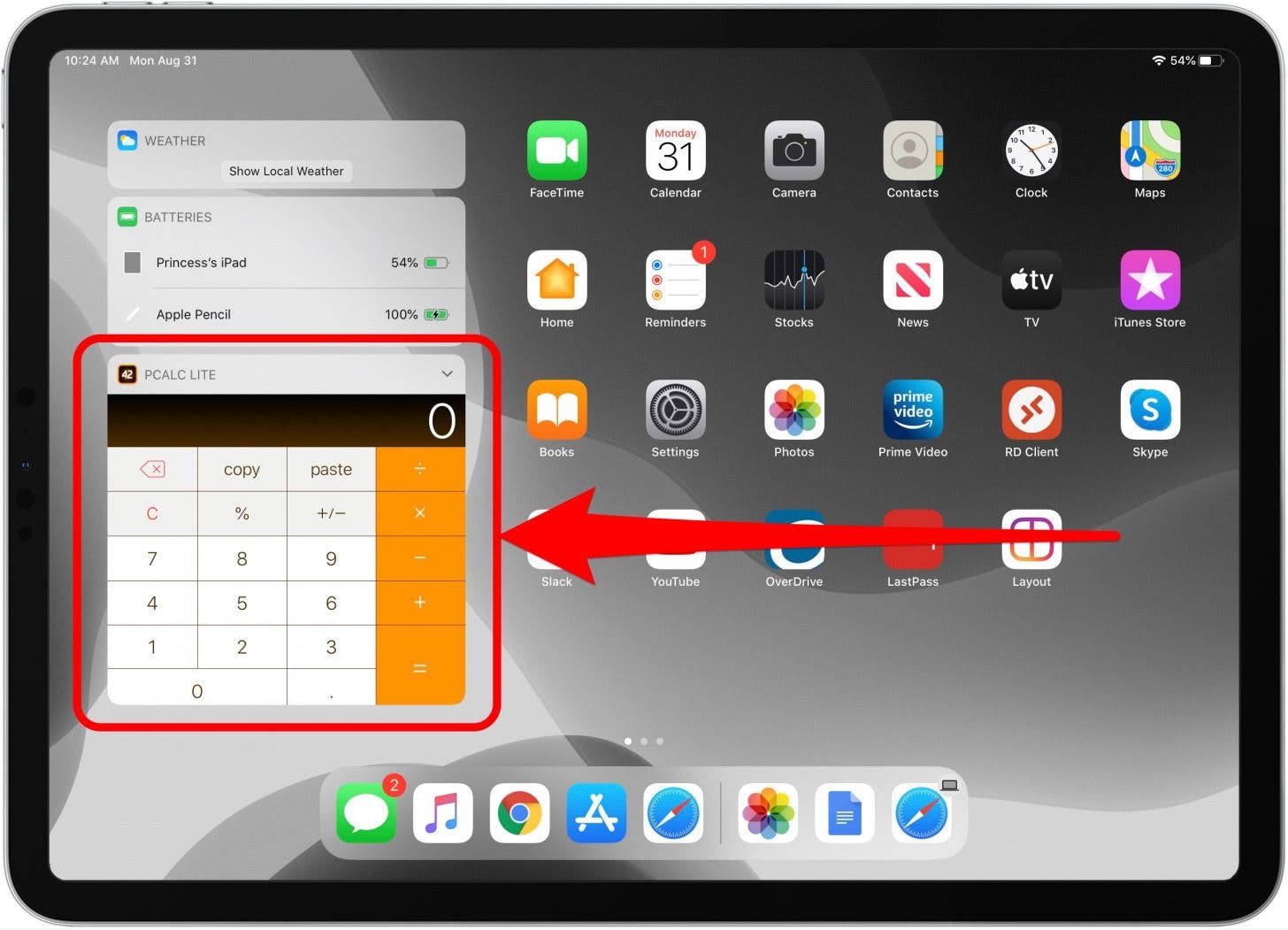
- PCalc: Widely regarded as one of the best calculators for Apple devices, PCalc offers an incredibly comprehensive suite of features. It’s a highly customizable scientific calculator with support for RPN (Reverse Polish Notation), unit conversions, multiple themes, and programming modes. Its adaptability means it can be as simple or as complex as you need it to be, making it suitable for students, engineers, and casual users alike. PCalc leverages the iPad’s screen beautifully, often allowing for multiple functions and a tape display simultaneously.
- Calcbot: Developed by the creators of the popular converter app, Convertbot, Calcbot brings a natural language input approach to calculations. Users can type equations as they would write them, and the app intelligently solves them. Its standout feature is its integrated unit conversion, allowing seamless conversion between hundreds of units across various categories, from currency to temperature. Calcbot’s clean design and intuitive interface make complex calculations feel approachable.
For Financial & Specialized Tasks
Beyond standard scientific functions, some apps cater to niche requirements, providing unique ways to interact with numbers.
- MyScript Calculator: This app transforms your iPad into a digital notepad for calculations. Instead of typing, you write your equations directly on the screen with your finger or Apple Pencil, and MyScript Calculator converts your handwriting into digital text and solves it in real-time. This natural input method is revolutionary for anyone who prefers the tactile experience of writing and can be particularly useful for quickly jotting down and solving problems.
- Calculator+: While its name might sound generic, Calculator+ offers a highly customizable and feature-rich experience. It provides a traditional calculator layout but allows users to switch between basic, scientific, and even graphing modes. Its strength lies in its ability to save calculation history, create custom functions, and offer a wide array of themes. For those who frequently switch between different types of calculations and value personalization, Calculator+ is an excellent choice.
Selecting the Right App
When choosing a calculator app for your iPad, consider the following factors:
- Features: Do you need basic arithmetic, scientific functions, unit conversions, graphing, or financial tools?
- User Interface (UI): Does the app feel intuitive and visually appealing? Does it effectively use the iPad’s larger screen?
- Input Method: Do you prefer typing, handwriting, or voice commands (via Siri integration)?
- Cost: While many excellent free options exist, premium apps like PCalc offer advanced features and often a superior, ad-free experience for a one-time purchase.
- Reviews and Updates: Check App Store reviews for performance and reliability, and ensure the app is regularly updated to support the latest iPadOS features.
By carefully evaluating these aspects, you can find a calculator app that not only fills the native void but enhances your iPad’s utility in ways a basic pre-installed app never could.
Alternative Calculation Methods on iPad
While dedicated calculator apps provide specialized functionalities, the iPad ecosystem offers several integrated and web-based methods for performing calculations without installing a new app. These alternatives can be incredibly useful for quick sums or when you’re already working within another application.
Leveraging Spotlight Search
One of the most underutilized yet powerful features on the iPad is Spotlight Search. Accessible by swiping down from the middle of any Home Screen, Spotlight isn’t just for finding apps or files; it’s also a surprisingly capable calculator.
You can type mathematical expressions directly into the Spotlight search bar, and it will instantly display the result. This works for:
- Basic Arithmetic:
100 + 25 - Multiplication and Division:
50 * 3or120 / 4 - Order of Operations:
(15 + 7) * 2 - Percentages:
20% of 500 - Simple Conversions:
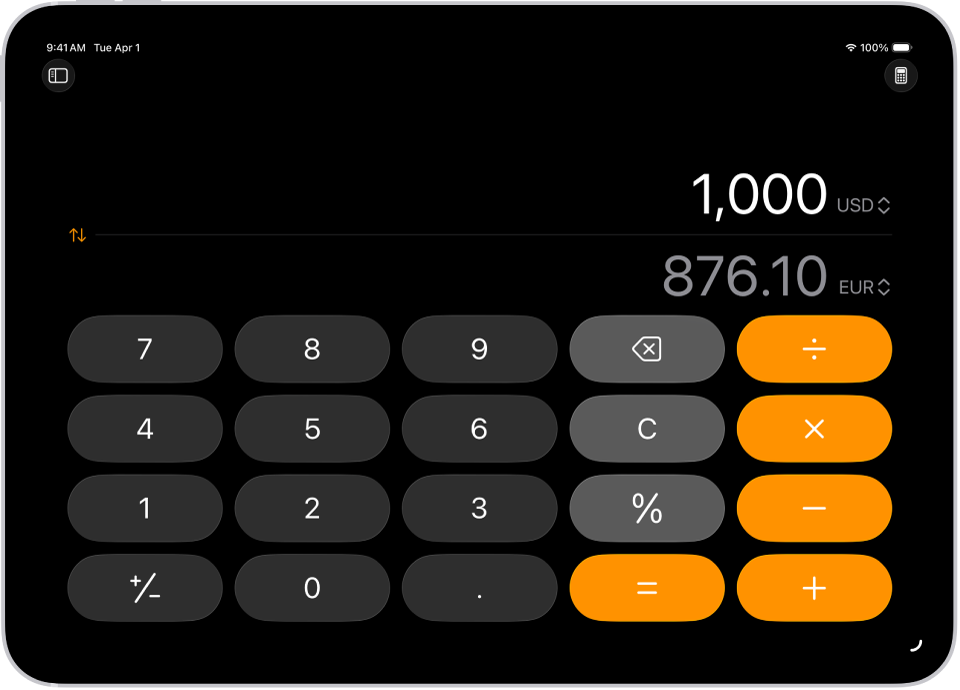
10 USD in EURor2 miles in km
The result appears immediately below the search bar, making it an incredibly fast way to get answers without switching apps or opening a browser. It’s an excellent default for everyday calculations and avoids app clutter.
Spreadsheet Apps (Numbers, Excel, Google Sheets)
For more complex calculations, data analysis, or when you need to store and manipulate numbers systematically, dedicated spreadsheet applications are unparalleled. Apple’s own Numbers, Microsoft’s Excel, and Google’s Sheets are all available on the iPad and are free or included with various subscriptions.
These apps provide:
- Extensive Formulas: Hundreds of built-in functions for financial, statistical, logical, and mathematical operations.
- Data Organization: Structured grids for organizing large datasets.
- Charting and Graphing: Visualize your data and calculation results.
- Collaboration: Work on spreadsheets with others in real-time.
For tasks ranging from budgeting and expense tracking to scientific modeling and business analytics, a spreadsheet app transforms your iPad into a powerful analytical workstation. They are designed for precision and the ability to link multiple calculations, making them far more robust than any standalone calculator app for certain use cases.
Web-Based Calculators
When you need a quick calculator but don’t want to download an app or prefer a specific type of calculator not found in the App Store, your web browser (Safari, Chrome, etc.) is your gateway to countless online tools.
Simply open Safari and search for:
- “Online calculator”
- “Scientific calculator online”
- “Mortgage calculator”
- “Unit converter”
- “Graphing calculator online”
Many websites offer free, full-featured calculators that can handle virtually any mathematical need. Google itself has an integrated calculator functionality: just type an equation into the Google search bar, and it will display the answer directly, often with an interactive calculator widget you can use. This method is particularly useful for specialized calculators that you might only need occasionally, avoiding unnecessary app installations.
These alternative methods demonstrate the iPad’s inherent flexibility. While a dedicated native app might be missing, the device’s capabilities, combined with the power of its operating system and the web, ensure that you’re never truly without a way to crunch numbers.
Optimizing Your Calculator Experience on iPad
Having identified various ways to perform calculations on your iPad, the next step is to optimize your chosen methods for efficiency and personalization. The iPad’s advanced features allow for significant customization, ensuring your calculator workflow is as seamless and productive as possible.
Customizing Accessibility
For many users, particularly those with specific visual or motor needs, customizing the calculator experience is crucial. While third-party apps often offer their own accessibility settings, iPadOS itself provides system-wide options that can enhance usability.
- Larger Text & Zoom: In Settings > Accessibility > Display & Text Size, you can enable Larger Text or use Zoom to magnify the screen, making calculator buttons and results easier to see.
- Bold Text: Make numbers and symbols stand out more by enabling Bold Text.
- Button Shapes: If your chosen app has small buttons, enabling Button Shapes in Accessibility settings can visually delineate interactive elements more clearly.
- VoiceOver: For users with visual impairments, VoiceOver can read aloud button labels and calculation results, providing auditory feedback for every interaction.
- AssistiveTouch: For users with motor difficulties, AssistiveTouch provides a customizable on-screen menu for common gestures and actions, which can be tailored for navigating calculator apps.
Many premium calculator apps also include their own extensive customization options, such as themes, button layouts, and sound effects, allowing you to create an interface that is both functional and aesthetically pleasing.
Workflow Integration
The iPad excels at multitasking, and integrating your calculator into your daily workflow can drastically improve efficiency, especially when working on other applications.
- Split View: If you’re working on a document, spreadsheet, or webpage that requires frequent calculations, use Split View to open your chosen calculator app alongside your primary application. This allows you to reference information in one app and perform calculations in the other without constantly switching back and forth. For example, have a PDF of invoices open on one side and your financial calculator on the other.
- Slide Over: For quick, on-demand calculations that don’t require a full split screen, Slide Over is invaluable. Keep your calculator app in the Slide Over dock. When you need it, simply swipe in from the right edge of the screen to bring it over your main app, perform your calculation, and then swipe it away. It’s perfect for momentary interruptions that need a numerical solution.
- Shortcuts App: For advanced users, Apple’s Shortcuts app can automate opening your favorite calculator app, setting up specific calculation modes, or even inputting predefined variables. You can create a custom shortcut to quickly launch a scientific calculator when you open a particular science textbook, or a financial calculator when you access your banking app. This allows for hyper-personalized, one-tap access to your calculation tools.
Keeping Apps Updated
Finally, to ensure optimal performance, security, and access to the latest features, it’s crucial to keep your chosen calculator apps updated. Developers frequently release updates that include:
- Bug Fixes: Addressing issues that might cause crashes or incorrect calculations.
- Performance Improvements: Making the app faster and more responsive.
- New Features: Adding new functions, unit conversions, or UI enhancements.
- Compatibility: Ensuring the app works seamlessly with the latest iPadOS versions and hardware capabilities (e.g., Apple Pencil input improvements).
Enable automatic app updates in Settings > App Store or manually check for updates regularly in the App Store’s “Updates” section. A well-maintained app ensures a smooth and reliable calculation experience.
By taking advantage of these optimization strategies, you can transform the initial challenge of finding a calculator on your iPad into an opportunity to build a highly efficient and personalized numerical toolkit tailored precisely to your needs.
Conclusion
The journey to finding a calculator on your iPad might begin with a moment of surprise at its native absence, but it quickly evolves into an exploration of the tablet’s incredible versatility. While Apple’s decision not to include a default calculator app might seem counterintuitive to some, it has inadvertently fostered a vibrant ecosystem where users are empowered to choose the perfect tool for their specific needs. From Siri’s instant answers to the sophisticated functionalities of third-party apps like PCalc or MyScript Calculator, and the analytical power of spreadsheet applications, the iPad offers a calculation solution for every scenario.
Whether you’re a student tackling complex equations, a professional managing finances, or simply need to perform a quick sum, the iPad’s flexibility ensures you’re never truly without a way to crunch numbers. By leveraging Spotlight Search, embracing a powerful third-party app, or integrating advanced tools like spreadsheets and web calculators, you can tailor your iPad into a formidable mathematical companion. Understanding these options not only fills a perceived gap but unlocks a deeper appreciation for the iPad’s adaptable nature, proving that sometimes, not having a native app leads to an even richer and more personalized user experience.
aViewFromTheCave is a participant in the Amazon Services LLC Associates Program, an affiliate advertising program designed to provide a means for sites to earn advertising fees by advertising and linking to Amazon.com. Amazon, the Amazon logo, AmazonSupply, and the AmazonSupply logo are trademarks of Amazon.com, Inc. or its affiliates. As an Amazon Associate we earn affiliate commissions from qualifying purchases.