
It’s a universally relatable moment of mild panic: you need to crunch some numbers, quickly, and instinctively reach for your smartphone. Your device, a marvel of modern engineering, capable of navigating celestial bodies, translating languages in real-time, and facilitating global communication, should surely harbor a simple calculator. Yet, for many, that indispensable tool often feels like a digital ghost, present in memory but elusive on the screen. This common conundrum, far from being a mere triviality, highlights a fascinating aspect of modern smartphone design and user interaction. In an era where apps proliferate and interfaces evolve, even the most fundamental utilities can become surprisingly difficult to locate. This article delves into why finding your calculator can sometimes be a quest, how to unearth it across various operating systems, and how to harness its full potential—or even upgrade it—to become an indispensable tool in your daily digital life.

The Ubiquitous Yet Elusive Digital Calculator
The calculator app is perhaps one of the oldest and most consistently useful applications pre-installed on virtually every smartphone. Its simplicity belies its profound utility, making it a cornerstone of both personal and professional tasks. From splitting restaurant bills to calculating mortgage payments, from quick conversions to complex scientific equations, its role is foundational. Yet, despite its importance, it often doesn’t enjoy the same prominent placement as communication apps or social media platforms.
The Hidden Powerhouse in Your Pocket
Think about the sheer processing power crammed into your phone. It’s more capable than the supercomputers of yesteryear, performing billions of calculations per second. Integrating a calculator app is trivial from a hardware perspective, a fundamental software inclusion deemed essential by device manufacturers. It’s a testament to the core utility of computing, boiled down to its most basic, arithmetic form. This “powerhouse” often resides quietly, waiting to be summoned, a quiet servant among the clamor of notifications and demanding applications. Its presence is assumed, yet its exact location can be a source of bewilderment.
Why Users Often Miss It
There are several reasons why the calculator app might seem to play hide-and-seek. For one, its icon might not be particularly distinctive, often a generic representation of a calculator keypad, easily overlooked amidst a grid of colorful, often more stylized, app icons. Secondly, its placement can vary. Some manufacturers place it in a dedicated “Utilities” folder, alongside the clock, compass, and voice recorder. Others might embed it deeper within the app drawer, requiring scrolling through numerous alphabetical listings. Compounding this is the fact that many users rarely interact with their app drawer directly, relying instead on homescreen shortcuts or system-wide search functions. The muscle memory for tapping an icon in a familiar spot is strong, but if that spot doesn’t exist for the calculator, the search begins. Furthermore, accidental deletion (or disabling) of pre-installed apps, though less common now, used to be a possibility, adding another layer of confusion.
Navigating Your Device to Unearth the Calculator App
The good news is that the calculator is almost certainly on your phone. The challenge lies in knowing where to look and how to access it efficiently. The approach varies slightly depending on whether you’re an Android or iOS user, but fundamental principles apply.
For Android Users: A Multi-Path Approach
Android’s open-source nature means a greater variety in user interfaces (UIs) across different device manufacturers like Samsung, Google Pixel, OnePlus, Xiaomi, and others.
- The App Drawer: The most common place is the app drawer. Swipe up from your homescreen (or tap an icon that looks like a grid of dots) to reveal all your installed applications. Scroll through alphabetically until you find “Calculator.” Some Android versions might group it under a folder labeled “Tools,” “Utilities,” or “System Apps.”
- Quick Settings Panel: Some Android devices, particularly those with customized UIs, include a calculator shortcut directly in the quick settings panel accessible by swiping down from the top of the screen. Look for an editable grid of shortcuts and consider adding the calculator if it’s not already there.
- Widgets: You can often place a calculator widget directly on your homescreen for instant access without opening the full app. Long-press on an empty spot on your homescreen, select “Widgets,” and search for “Calculator.” This provides a mini-calculator interface that can be incredibly convenient.
- Voice Assistant: A simple “Hey Google, open calculator” is often the quickest way.
For iOS Users: Intuitive Access Points
Apple’s iOS offers a more unified experience across iPhones, making the search generally more consistent.
- Homescreen or App Library: On newer iOS versions, the calculator icon is typically found directly on one of your homescreen pages. If not, swipe all the way to the right to access the App Library, where apps are automatically organized into categories. You’ll likely find “Calculator” under “Utilities” or “Productivity & Finance.”
- Control Center: This is arguably the most popular and quickest way to access the calculator on an iPhone. Swipe down from the top-right corner of the screen (on iPhones with Face ID) or swipe up from the bottom edge (on iPhones with a Home button). The Control Center presents a customizable grid of shortcuts, and the calculator icon (which looks like a calculator keypad) is almost always there by default. If it’s not, you can add it by going to
Settings > Control Center > Customize Controls. - Spotlight Search: Just like on Android, Apple’s Spotlight search is a powerful tool. Swipe down anywhere on your homescreen (not from the very top) to reveal the search bar. Type “Calculator,” and the app will appear, ready to be tapped.
- Siri: A vocal command like “Hey Siri, open Calculator” or “Hey Siri, what’s 15 times 27?” will either open the app or provide the answer directly.
Utilizing Search Functions Effectively
The single most effective and universal method for finding any app on your phone, including the calculator, is to use the device’s built-in search function. Both Android and iOS offer robust system-wide search capabilities. On Android, this might be a search bar on your homescreen or within the app drawer. On iOS, swipe down from the middle of any homescreen. Simply type “calculator,” and your phone will instantly surface the app, usually as the top result. This bypasses the need to remember exact folder locations or scroll through endless lists, making it an invaluable habit for quickly locating any installed application.
Beyond Basic Arithmetic: Advanced Capabilities and Hidden Features
While many users primarily rely on their phone’s calculator for simple additions and subtractions, both default and third-party apps often hide a wealth of more sophisticated features. Unlocking these can significantly enhance your productivity and reduce the need for specialized calculating devices.
Scientific Mode and Unit Conversions
Many default calculator apps come equipped with a scientific mode. On iPhones, simply rotate your device to landscape orientation while the calculator app is open, and a full scientific keypad with functions like trigonometry, logarithms, and exponents will appear. Android calculators often have a dedicated button (sometimes labeled “RAD,” “DEG,” or an arrow pointing left/right) to toggle between basic and scientific modes. Furthermore, some default calculators, or those integrated into the operating system, offer quick unit conversions for currency, length, weight, volume, and more, often accessible through a dedicated button or a menu within the app. This feature alone can save time and effort when dealing with international data or specific measurements.
History and Memory Functions
For tasks involving multiple calculations or a sequence of operations, the history and memory functions are invaluable. The history log allows you to review previous calculations, making it easy to check your work or recall a result without re-entering numbers. On many apps, you can tap on a previous calculation to re-insert its result or formula into the current operation. Memory functions (M+, M-, MR, MC) allow you to store and retrieve specific numbers, preventing the need to write them down or remember them across complex equations. These features transform the calculator from a single-use tool into a powerful, multi-step problem-solver, especially useful for financial planning or technical computations.
Integration with Other Apps and Widgets
Modern operating systems are designed for seamless integration. The calculator is no exception. As mentioned, widgets can bring a mini-calculator to your homescreen for immediate access. Some advanced calculator apps even integrate with note-taking apps or spreadsheets, allowing you to export results directly. Furthermore, accessibility features are often built-in, allowing for larger text, voice input for numbers, or even integration with screen readers, making the calculator usable for a wider range of users. The trend towards contextual computing also means your phone might suggest opening the calculator when it detects numbers in an email or message, further streamlining access.
When the Default Isn’t Enough: Exploring Third-Party Alternatives
While the built-in calculator is robust for most everyday needs, there’s a vibrant ecosystem of third-party calculator apps that offer specialized functionality, improved interfaces, or unique features that the default app might lack.
Enhanced Functionality for Specific Needs
For students, engineers, financial professionals, or anyone with highly specific calculation requirements, third-party apps can be a game-changer.
- Graphing Calculators: Apps like Desmos or GeoGebra transform your phone into a powerful graphing calculator, essential for algebra, calculus, and physics.
- Unit Conversion Specialists: Apps like “Unit Converter” offer an exhaustive list of units across countless categories, far exceeding basic conversions.
- Financial Calculators: Dedicated apps can handle complex loan amortizations, currency exchange rates with live updates, tip calculations with splitting options, and investment projections.
- Programming Calculators: For developers, specific apps offer hexadecimal, binary, and octal conversions, along with bitwise operations.
- Design and Aesthetic Calculators: Some apps prioritize a beautiful, minimalist design, while others offer themes and customizable layouts for a more personalized experience.
User Experience and Customization
Third-party developers often focus heavily on user experience, offering cleaner interfaces, more intuitive controls, and a greater degree of customization than default apps. This can include:
- Customizable Keypads: Rearrange buttons, change color schemes, or adjust button sizes.
- Gestural Inputs: Some apps allow swiping for quick deletions or holding down keys for alternative functions.
- Themes: Dark mode, light mode, and various aesthetic themes can make the app more pleasing to use.
- Ad-Free Experience: While many free third-party apps come with ads, paid versions or pro upgrades typically remove them, offering an uninterrupted experience.
Security and Privacy Considerations with Third-Party Apps
When choosing a third-party calculator, especially one that might handle sensitive financial data, it’s crucial to consider security and privacy.
- Permissions: Always review the permissions an app requests. A calculator generally doesn’t need access to your contacts, camera, or location. If it asks for unusual permissions, be cautious.
- Developer Reputation: Stick to reputable developers with good reviews and a track record of security.
- Data Handling: Understand if the app collects any data and how it’s used. For simple offline calculators, data collection should be minimal or non-existent.
- App Store Verification: Download apps only from official sources like Google Play Store or Apple App Store, which have vetting processes to help ensure app safety.
Troubleshooting and Maximizing Your Calculator Experience
Even with the best intentions, technology can sometimes present challenges. What if your calculator app genuinely seems missing, or you want to make it an even more integral part of your workflow?
What If It’s Truly Gone? Reinstallation and Recovery
While rare for pre-installed system apps, it’s possible the calculator app might have been disabled, uninstalled (on some Android devices), or moved to an obscure location.
- Check
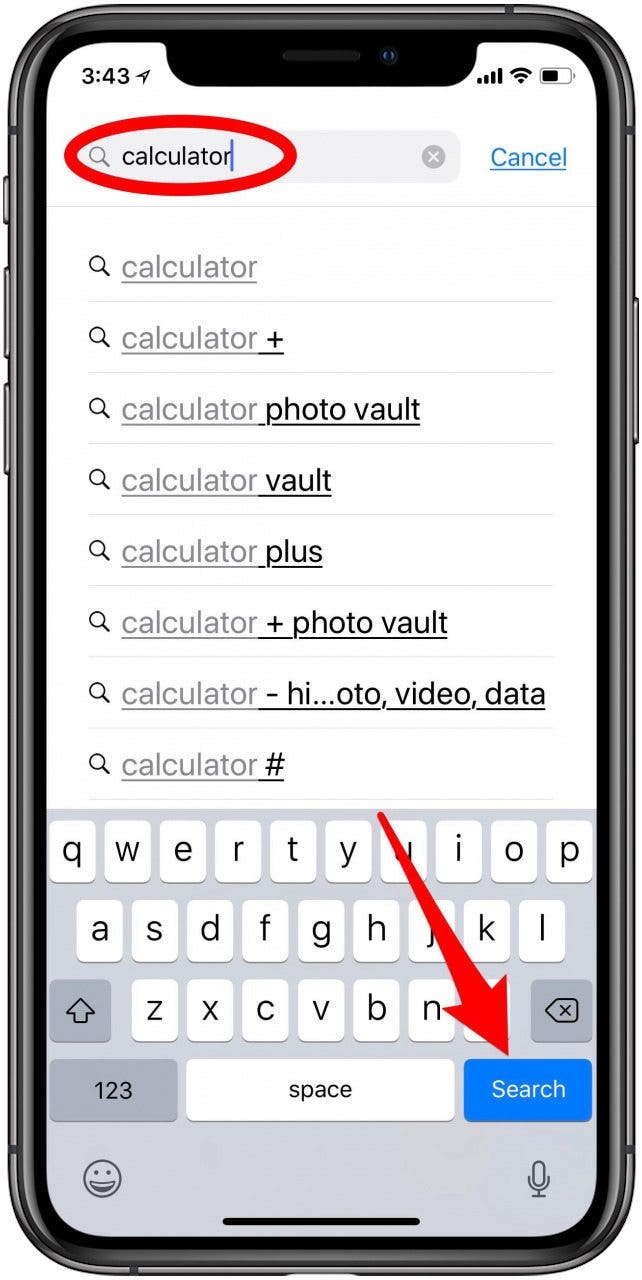
Disabled Apps: On Android, go toSettings > Apps(orApps & notifications) and look for a list of disabled apps. If it’s there, you can re-enable it. - Reinstall from App Store: If it was accidentally uninstalled (more common with older Android versions or custom ROMs), you can usually find the official calculator app by searching “Google Calculator” or “Apple Calculator” in your respective app store and reinstalling it. Some manufacturers (e.g., Samsung, Xiaomi) also have their official calculator apps available in the store.
- Factory Reset (Last Resort): If all else fails and the calculator is critical, a factory reset will restore all default apps. However, this is an extreme measure and should only be considered if other troubleshooting steps fail and you have backed up all your data.
Optimizing Accessibility and Workflow
Making your calculator easily accessible is key to maximizing its utility.
- Homescreen Shortcut: Drag the calculator icon to your homescreen or dock for quick, one-tap access.
- Control Center/Quick Settings: Ensure it’s part of your customizable quick access panel.
- Widgets: For frequent, simple calculations, a homescreen widget can be incredibly efficient.
- Voice Commands: Integrate voice assistant commands into your routine for hands-free access.
- App Folders: If you have many apps, create a “Utilities” or “Tools” folder on your homescreen and place the calculator there with other essential but less frequently used apps.

The Evolving Role of the Smartphone Calculator
The humble calculator app has evolved from a simple replica of a pocket device into a versatile digital tool. Its importance underscores the foundational need for computational power in our daily lives. As smartphones become even more integrated into our workflows, we can expect calculator apps to gain further intelligent features, perhaps leveraging AI for predictive calculations, complex unit conversions based on context, or even deeper integration with cloud services and data analysis tools. For now, knowing where to find it, how to use its advanced features, and when to seek specialized alternatives ensures that this essential digital tool remains precisely where it should be: effortlessly at your fingertips, ready to empower your numerical tasks.
aViewFromTheCave is a participant in the Amazon Services LLC Associates Program, an affiliate advertising program designed to provide a means for sites to earn advertising fees by advertising and linking to Amazon.com. Amazon, the Amazon logo, AmazonSupply, and the AmazonSupply logo are trademarks of Amazon.com, Inc. or its affiliates. As an Amazon Associate we earn affiliate commissions from qualifying purchases.