
In the dynamic world of computing, the ability to transcend operating system boundaries has become increasingly vital. For Linux users, the challenge of running Windows-specific applications has long been a point of friction. While native Linux alternatives abound, there are always those indispensable programs, legacy tools, or specific game titles that simply don’t have an equivalent on the open-source platform. This is where solutions like PlayOnLinux step in, acting as a crucial bridge, a compatibility layer that empowers Linux users to access a vast library of Windows software.
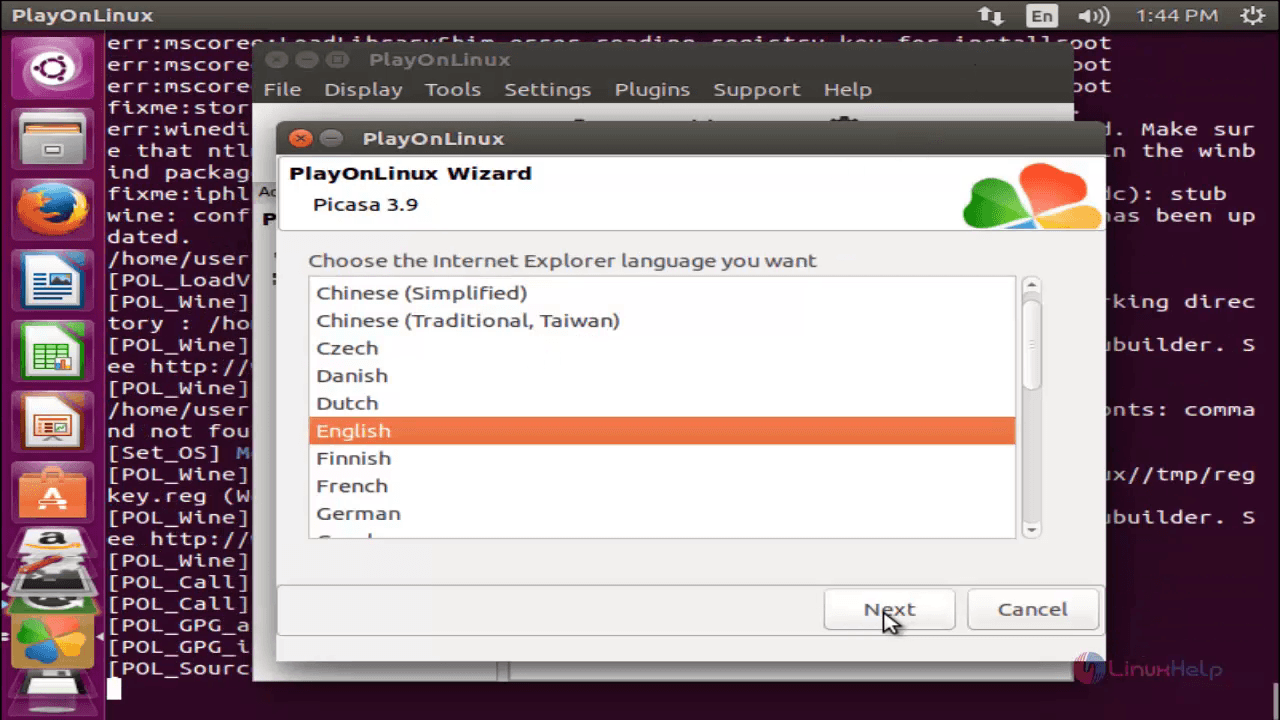
The phrase “where is local installer playonlinux” encapsulates a common query, signaling a user’s intent to take direct control over their installation process, perhaps seeking a specific version, an offline setup, or simply preferring a manual approach over package managers. This comprehensive guide will demystify the process of acquiring and utilizing PlayOnLinux, delving into the nuances of local installers, best practices for installation, and how this powerful tool fits into the broader tech ecosystem.
Understanding PlayOnLinux: Bridging the Windows-Linux Divide
At its core, PlayOnLinux is a graphical frontend for Wine (Wine Is Not an Emulator), a compatibility layer capable of running Windows applications on several POSIX-compliant operating systems, such as Linux, macOS, and BSD. While Wine itself can be complex to configure for individual applications, PlayOnLinux simplifies this process significantly. It offers a user-friendly interface that automates the installation and configuration of Wine prefixes, dependencies, and specific Wine versions required by various Windows programs.
What is PlayOnLinux and Why Do You Need It?
Imagine you’re a designer who relies on a particular version of Photoshop not available natively on Linux, or a gamer eager to play an older Windows-exclusive title. Without PlayOnLinux, your options would be limited to dual-booting Windows, running a full virtual machine (which can be resource-intensive), or simply giving up on the application. PlayOnLinux offers a much more elegant solution. It acts as a curated database and management system, providing scripts that automatically set up the optimal Wine environment for thousands of Windows programs and games. This automation drastically reduces the learning curve associated with direct Wine usage, making cross-platform software accessibility a reality for a wider audience.
Beyond convenience, PlayOnLinux promotes productivity by allowing users to integrate essential Windows tools directly into their Linux workflow. For businesses, this can mean maintaining continuity with specific industry software without the overhead of additional Windows licenses or hardware. For individuals, it liberates them from the constraints of a single operating system, enhancing their digital freedom and technological flexibility. It transforms the Linux desktop from a potential limitation into a versatile hub capable of running a broader range of applications, truly embodying the spirit of digital empowerment.
The Evolving Landscape of Windows Compatibility on Linux
The journey of Windows compatibility on Linux has been long and fraught with challenges, yet it has seen remarkable progress. From the early days of rudimentary Wine builds to the sophisticated, performant environments we have today, the ecosystem has matured considerably. PlayOnLinux emerged as a key player in this evolution, providing much-needed structure and ease of use. It helped standardize installation procedures and troubleshoot common issues, making the prospect of running Windows software less daunting.
In recent years, the landscape has continued to evolve with the rise of tools like Lutris and Bottles, which offer similar or even more advanced functionalities, often focusing heavily on gaming. Valve’s Proton, integrated with Steam, has also revolutionized gaming on Linux, leveraging Wine extensively. However, PlayOnLinux still holds a significant place for its robust scripting engine, its focus on non-gaming applications, and its proven track record. It represents a mature, stable solution for those who prioritize reliability and broad application support over cutting-edge gaming features. Understanding this evolution helps us appreciate PlayOnLinux not just as a tool, but as a significant milestone in the ongoing effort to make Linux a truly universal operating system, addressing diverse user needs from productivity to entertainment.
The Quest for the Local Installer: Where to Find PlayOnLinux
For many Linux users, the default method of installing software is through their distribution’s package manager (e.g., apt on Debian/Ubuntu, dnf on Fedora, pacman on Arch). However, there are scenarios where a “local installer” – a standalone executable or package file – is preferred or even necessary. This section explores where to find official PlayOnLinux installers and why you might opt for a manual approach.
Official Sources: The PlayOnLinux Website and Repositories
The most reliable and recommended source for PlayOnLinux is its official website, playonlinux.com. Here, you will find download links, installation instructions tailored to various Linux distributions, and detailed documentation. The website typically offers .deb packages for Debian/Ubuntu-based systems, .rpm packages for Fedora/openSUSE, and instructions for other distributions that might require compiling from source or using alternative repositories. These packages are the “local installers” you’re looking for, designed for direct download and manual installation.
In parallel, most major Linux distributions include PlayOnLinux in their official repositories. This is often the easiest installation method:
- Debian/Ubuntu/Mint:
sudo apt install playonlinux - Fedora:
sudo dnf install playonlinux - Arch Linux:
sudo pacman -S playonlinux - openSUSE:
sudo zypper install playonlinux
While using a package manager fetches the software directly from your distribution’s trusted sources, sometimes these versions might be slightly older than what’s available on the official PlayOnLinux website. The choice between a repository install and a local installer often boils down to balancing convenience (package manager) with having the absolute latest features or specific versions (local installer).
Why a Local Installer? Scenarios for Manual Downloads
The appeal of a local installer stems from several practical scenarios:
- Offline Installation: If you need to install PlayOnLinux on a machine without internet access, downloading the
.debor.rpmfile on another connected computer and transferring it is the only viable option. This is crucial for environments with strict network policies or for users in areas with unreliable internet. - Specific Version Requirements: Sometimes, a particular Windows application might perform best with a specific version of PlayOnLinux or Wine that isn’t the latest available in your distribution’s repositories. A local installer from the official website or an archive can provide access to these older, yet potentially more compatible, versions.
- Newer Features or Bug Fixes: Conversely, if your distribution’s repositories are slow to update, a local installer downloaded directly from
playonlinux.commight offer the newest features, bug fixes, or support for recently released Windows applications well before they trickle down to your system’s package manager. - Customization or Development: For advanced users or developers, having the source code or a specific package allows for greater control, enabling them to inspect, modify, or compile PlayOnLinux with custom options. While less common for the average user seeking a local installer, it’s a valid use case for direct downloads.
- Unusual Distributions: For less common or niche Linux distributions that may not maintain official PlayOnLinux packages in their repositories, obtaining a generic installer or compiling from source (guided by the official website’s instructions) might be the only route.
In these situations, the ability to bypass the package manager and directly acquire the software becomes a powerful advantage, offering flexibility and control over your software environment.
Step-by-Step: Downloading and Preparing Your Local Installer
Once you’ve decided to go the local installer route, the process is straightforward:
- Visit the Official Website: Navigate your web browser to
playonlinux.com. - Locate the Download Section: Look for a “Download” or “Install” section, typically found in the main navigation or prominently displayed on the homepage.
- Choose Your Distribution: PlayOnLinux usually provides specific instructions or package links for major distributions (Ubuntu/Debian, Fedora/Red Hat, Arch Linux, openSUSE, Gentoo, etc.). Select the option corresponding to your Linux distribution.
- Download the Package: Click on the appropriate link to download the
.deb,.rpm, or other relevant package file. Save it to a memorable location on your computer, such as yourDownloadsfolder. - Verify Integrity (Optional but Recommended): For critical installations, you might want to check the integrity of the downloaded file using a checksum (MD5, SHA256) if provided on the website. This ensures the file hasn’t been corrupted during download or tampered with.
- Review Dependencies: Before installation, it’s crucial to check for any prerequisites or dependencies listed on the download page. PlayOnLinux relies heavily on Wine, so ensuring Wine and its necessary libraries are installed (even if PlayOnLinux manages Wine versions internally) is often a good first step. Your distribution’s package manager can help with this. For example,
sudo apt install wine-stableon Debian/Ubuntu might be necessary if Wine isn’t already present.
By following these steps, you’ll successfully acquire the PlayOnLinux local installer, ready for the next phase: the actual installation and configuration. This direct approach empowers users with autonomy, ensuring they can deploy the precise version of PlayOnLinux they need, when and where they need it.
Beyond the Installer: Installing and Configuring PlayOnLinux
Once you have the local installer in hand, the next step is to get PlayOnLinux up and running. This involves not only executing the installer but also ensuring all necessary prerequisites are met and performing initial configurations to get the most out of the tool.
Prerequisites and Dependencies: Ensuring a Smooth Setup
Before you even touch that .deb or .rpm file, a critical step is to ensure your system has the fundamental components PlayOnLinux relies upon. The most significant dependency is Wine itself. While PlayOnLinux manages different Wine versions for individual applications, it still often needs a base Wine installation to function correctly or to act as a fallback.
Here’s what to look for:
- Wine: Ensure you have Wine installed. For 64-bit systems, it’s usually recommended to enable 32-bit architecture support as many Windows applications (especially older ones) are 32-bit.
- Debian/Ubuntu:
sudo dpkg --add-architecture i386 && sudo apt update && sudo apt install wine-stable(orwine-developmentfor newer versions). - Fedora:
sudo dnf install wine(this usually pulls in necessary 32-bit components).
- Debian/Ubuntu:
- Graphics Drivers: PlayOnLinux, especially when running games or graphical applications, heavily relies on robust graphics drivers. Ensure your proprietary GPU drivers (NVIDIA, AMD) are correctly installed and up-to-date, or that your open-source drivers (Mesa for AMD/Intel) are configured optimally.
- Other Libraries: PlayOnLinux might also require other libraries like
winbindor certain font packages for proper functionality. The installation process for the local installer will usually flag missing dependencies, or you can check the official PlayOnLinux documentation for a detailed list. Resolving these dependencies beforehand will prevent installation failures and ensure a smoother experience. This proactive approach saves time and avoids troubleshooting headaches down the line.
Executing the Local Installer: A Walkthrough
With dependencies in check, you can now proceed to execute your downloaded local installer:

- Navigate to the Downloaded File: Open your file manager and go to the directory where you saved the
.debor.rpmfile (e.g.,~/Downloads). - Graphical Installation:
.debfiles (Debian/Ubuntu-based): Double-clicking the.debfile will usually open it with your distribution’s default software installer (e.g., GNOME Software Center, Eddy, GDebi). From there, you can click an “Install” button. You might be prompted for your administrator password..rpmfiles (Fedora/openSUSE): Similarly, double-clicking an.rpmfile will open it in your distribution’s package manager GUI (e.g., GNOME Software, Plasma Discover). Click “Install” and provide your password.
- Command Line Installation (Alternative): For those who prefer the terminal or if the graphical method fails:
.debfiles:sudo dpkg -i playonlinux_*.deb && sudo apt install -f(theapt install -fcommand fixes any broken dependencies thatdpkgmight have encountered)..rpmfiles:sudo rpm -i playonlinux_*.rpmorsudo dnf install playonlinux_*.rpm(the latter is preferred on Fedora asdnfhandles dependencies automatically).
Once the installation completes, PlayOnLinux should be available in your application menu. Launch it to begin the initial setup.
Post-Installation: Initial Setup and Application Management
The first time you launch PlayOnLinux, it might perform an initial setup, downloading necessary components or updating its script database. This process is usually automated and requires little user intervention.
Key steps after installation:
- First Launch: PlayOnLinux will often check for Wine updates and possibly prompt you to install a default Wine version if none is found or if it needs a specific one for its operations.
- Install a Program: The main window of PlayOnLinux features a prominent “Install a program” button. Clicking this will bring up a categorized list of thousands of Windows applications and games that PlayOnLinux has scripts for.
- Search and Select: Use the search bar or browse categories (e.g., “Games,” “Office,” “Graphics”) to find your desired application.
- Follow the Script: Once selected, PlayOnLinux’s script will guide you through the installation process. This often involves downloading necessary Wine versions, installing dependencies (like .NET Frameworks or Visual C++ runtimes), and finally prompting you to point to your Windows application’s installer file (e.g., a
.exeor disc image). - Virtual Drives: PlayOnLinux creates isolated “virtual drives” (Wine prefixes) for each installed application. This prevents conflicts between different applications requiring different Wine versions or libraries, a crucial feature for stability and compatibility.
- Manage Applications: The main PlayOnLinux window will list all your installed Windows applications. You can select an application to run it, configure its Wine settings, create shortcuts, or remove it.
- Updates and Maintenance: Periodically check for PlayOnLinux updates (via your package manager or the official website) and Wine updates within PlayOnLinux itself. This ensures you have access to the latest compatibility improvements and bug fixes.
By following these steps, you’ll transform your Linux machine into a versatile platform, capable of running a broad spectrum of Windows software with remarkable ease. This not only enhances productivity but also broadens the horizons for Linux users in a world still heavily reliant on Windows applications.
Troubleshooting Common Issues and Optimizing Performance
Even with tools like PlayOnLinux simplifying the process, running Windows applications on Linux is not always entirely seamless. Users may encounter various issues, from installation failures to performance bottlenecks. Understanding common problems and their solutions is key to a smooth experience.
Dependency Woes and Runtime Errors
One of the most frequent hurdles users face relates to missing dependencies or specific runtime environments that Windows applications expect.
- Missing Libraries (Linux Side): If PlayOnLinux itself or Wine throws errors about missing shared libraries (e.g., “libGL.so,” “libvulkan.so.1”), it usually indicates that your system is missing essential graphics drivers or other core Linux packages. Ensure your graphics drivers are correctly installed and that you have a comprehensive set of development libraries if you’re compiling anything.
- Missing Runtimes (Windows Side): Many Windows applications require specific versions of .NET Framework, Visual C++ Redistributables, or DirectX. PlayOnLinux scripts are designed to handle many of these automatically. However, if an installation fails or an application crashes with errors referencing these components, you might need to manually install them within the application’s Wine prefix using PlayOnLinux’s “Configure” menu (under “Install components”).
- Wine Version Incompatibility: A particular Windows application might run better with an older or a very specific version of Wine. PlayOnLinux’s strength lies in its ability to manage multiple Wine versions. If an app isn’t working, try switching the Wine version assigned to its virtual drive (again, through the “Configure” menu for that application). Experimentation is often key here.
- Broken Virtual Drives: Sometimes a Wine prefix can become corrupted. If an application consistently fails, consider creating a new virtual drive and reinstalling the application from scratch.
When troubleshooting, always check the PlayOnLinux logs (often accessible within the configuration menu for each virtual drive) and any error messages displayed. Online forums and the PlayOnLinux community are invaluable resources for specific application issues, as others have likely encountered and solved similar problems.
Graphics Drivers and Performance Tweaks
Performance, especially for games and demanding graphical applications, is paramount. Suboptimal configuration can lead to stuttering, low frame rates, or visual glitches.
- Up-to-Date Graphics Drivers: This cannot be stressed enough. Ensure your GPU drivers (NVIDIA, AMD, Intel) are the latest stable versions. Proprietary NVIDIA drivers and modern AMDGPU drivers (often bundled with Mesa) offer the best performance.
- DRI_PRIME / PRIME Render Offload (for dual-GPU laptops): If you have a laptop with integrated and discrete graphics, ensure your system is correctly configured to use the powerful discrete GPU for PlayOnLinux applications. On NVIDIA, this often involves
prime-runor__NV_PRIME_RENDER_OFFLOAD=1. On AMD, it’s typically handled byDRI_PRIME=1. PlayOnLinux often has options within its configuration to specify these. - FSR/FSR (FSR): AMD’s FidelityFX Super Resolution and NVIDIA’s DLSS are game-changing technologies for increasing frame rates. While primarily for native games, Wine/Proton (and thus PlayOnLinux, given its Wine foundation) can leverage FSR in some titles, offering significant performance boosts. Keeping Wine updated within PlayOnLinux might provide access to newer features that improve FSR compatibility.
- Wine Configuration (winecfg): Each virtual drive has its own
winecfg. You can access this via PlayOnLinux’s configuration options. Here, you can adjust settings like Windows version emulation (e.g., Windows 7, Windows 10), graphics settings (allowing DirectX Vertex Shaders, enabling CSMT for better multi-threading performance), and drive mappings. These fine-tuning options can often unlock better performance or resolve specific display issues. - Game-Specific Tweaks: Many games have specific configurations or patches that improve their performance under Wine/PlayOnLinux. Consulting resources like ProtonDB (even for non-Steam games, as Wine compatibility often correlates) or the Wine AppDB can provide invaluable community-sourced tips and registry tweaks.
Staying Updated: Maintaining Your PlayOnLinux Environment
A well-maintained PlayOnLinux environment is crucial for ongoing compatibility and security.
- PlayOnLinux Updates: Regularly update PlayOnLinux itself. If you installed via a package manager,
sudo apt update && sudo apt upgrade(or equivalent) will handle it. If you used a local installer, checkplayonlinux.comperiodically for new stable releases and manually download and install them. - Wine Version Updates: PlayOnLinux allows you to install and manage multiple Wine versions. Keep an eye on new stable Wine releases, as they often bring significant compatibility improvements and performance enhancements. You can install new Wine versions through PlayOnLinux’s
Tools > Manage Wine versionsmenu. Always test new Wine versions with your applications before making them default. - System Updates: Keep your underlying Linux distribution updated. Kernel updates, new graphics drivers, and system library improvements can all positively impact PlayOnLinux’s performance and stability.
- Community Engagement: Engage with the PlayOnLinux community forums. Many users share solutions, custom scripts, and performance tips that can be highly beneficial. This community aspect is a cornerstone of open-source software, providing a collective knowledge base for solving intricate technical challenges.
By proactively addressing potential issues and meticulously maintaining your PlayOnLinux setup, you can ensure a consistent, high-performance experience, bridging the gap between Windows software and the Linux desktop effectively and efficiently.
The Bigger Picture: Alternatives, Future Trends, and the Linux Gaming Ecosystem
PlayOnLinux has undeniably been a foundational tool for many Linux users, but the landscape of Windows compatibility on Linux is continually evolving. Understanding its place in this broader ecosystem, alongside its alternatives and future trends, provides a holistic view of cross-platform software accessibility.
Exploring PlayOnLinux Alternatives: Lutris, Bottles, and Direct Wine
While PlayOnLinux remains a reliable choice, especially for older applications and its robust scripting system, other tools have emerged, often with a stronger focus on specific use cases:
- Lutris: This is arguably PlayOnLinux’s most direct competitor, especially in the gaming realm. Lutris offers a unified interface for installing and managing games from various sources, including Steam, GOG, Epic Games Store, and standalone installers. It supports Wine, Proton, emulators, and native Linux games, often providing more up-to-date Wine builds and sophisticated runner options. For dedicated Linux gamers, Lutris often provides a more streamlined and performant experience.
- Bottles: A newer contender, Bottles takes a more modern approach, leveraging Flatpak for sandboxed environments and offering a clean, intuitive user interface. It focuses on creating “bottles” (Wine prefixes) that are easily manageable and optimized for specific application types (gaming, software). Its ease of use and modern aesthetic have quickly made it popular, particularly for general Windows software rather than solely games.
- Direct Wine: For advanced users or those who prefer minimal overhead, using Wine directly via the command line offers the most control. While it lacks the graphical automation of PlayOnLinux, Lutris, or Bottles, it allows for highly customized installations and troubleshooting. It’s the underlying engine for all these frontends, and understanding its basics can be empowering for solving complex issues.
- Proton (via Steam Play): Strictly for gaming through Steam, Proton is Valve’s fork of Wine, heavily optimized for gaming performance and compatibility. It’s integrated directly into the Steam client on Linux, making Windows game installation as simple as clicking “install” on a native Linux game. While not a general-purpose Wine frontend, its success has dramatically boosted Linux gaming.
Each of these tools caters to slightly different needs and user preferences. PlayOnLinux excels at providing stability and a vast library of tested scripts for a wide range of applications, making it a dependable workhorse.
PlayOnLinux in the Modern Linux Gaming Era
The rise of Proton and specialized tools like Lutris has somewhat shifted the spotlight away from PlayOnLinux for gaming. Proton’s deep integration with Steam and continuous development by Valve has set a new standard for ease of use and performance in Linux gaming. Lutris offers more granular control for non-Steam games and multiple sources.
However, PlayOnLinux still holds its own, particularly for:
- Older Games: Its extensive database of scripts for legacy titles often provides a quicker path to compatibility.
- Non-Gaming Applications: Where it continues to shine, offering unparalleled support for productivity software, specialized tools, and bespoke Windows applications that might not be a priority for gaming-centric frontends.
- Stability and Simplicity: For users who value a tried-and-true solution with a clear, straightforward interface, PlayOnLinux remains an excellent choice. Its structured approach to virtual drives and dependency management offers a predictable and robust environment.
The modern Linux gaming era is defined by choice and increasing compatibility. PlayOnLinux contributes to this by providing a mature, alternative pathway to run a wide array of Windows software, complementing rather than being made obsolete by newer tools.

The Future of Cross-Platform Software and the “Local Installer” Concept
The quest for a “local installer” for PlayOnLinux points to a broader trend in software distribution and user preference. While package managers and app stores dominate, the desire for direct downloads persists for reasons like offline installation, specific version control, or simply greater autonomy.
The future of cross-platform software on Linux looks bright. With continued advancements in Wine/Proton, the growing popularity of Flatpaks and Snaps (which offer sandboxed application environments, conceptually similar to PlayOnLinux’s virtual drives), and the increasing adoption of Linux as a desktop OS, the ability to run Windows applications is becoming more seamless than ever. Projects like PlayOnLinux, Lutris, and Bottles are pushing the boundaries of what’s possible, blurring the lines between operating systems.
The “local installer” will likely remain a relevant concept, evolving from traditional .deb and .rpm files to potentially more self-contained application bundles or containerized solutions. As technology progresses, the need for comprehensive tools like PlayOnLinux, which simplify complex compatibility layers, will only grow. They empower users to maximize their technology investments, increase productivity, and enjoy a truly open and versatile computing experience. The journey from “where is local installer playonlinux” to mastering cross-platform software is a testament to the ingenuity of the open-source community and the enduring desire for unrestricted digital freedom.