
The transition from physical billfolds to digital wallets represents one of the most significant shifts in personal technology over the last decade. Google Wallet has emerged as a cornerstone of this evolution, serving as a centralized hub for payment cards, loyalty programs, transit passes, and digital keys. However, because Google’s ecosystem is vast and has undergone several rebrandings—moving from Google Pay to a unified Google Wallet experience—users frequently find themselves asking: “Where do I find my Google Wallet?”
Locating the app and understanding its integration into your hardware is the first step toward mastering the digital-first lifestyle. This guide explores the technical nuances of finding, accessing, and optimizing Google Wallet across various devices and software environments.
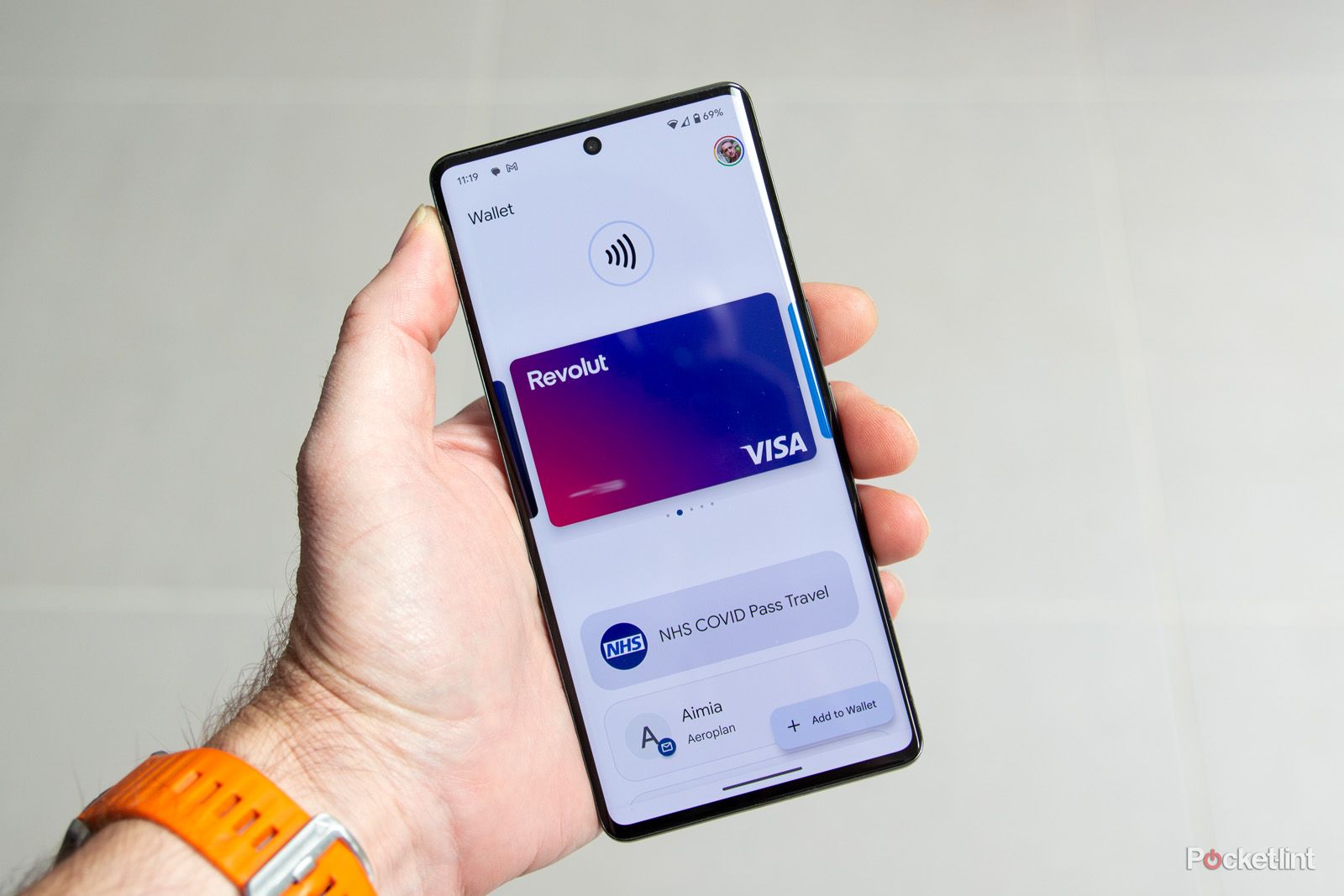
Locating Google Wallet on Your Android Device
For the vast majority of users, Google Wallet is a native component of the Android operating system. However, its visibility can vary depending on your device manufacturer, your region, and your current software version.
The App Drawer and System Search
The most direct way to find Google Wallet is through your device’s app drawer. On most modern Android devices, swiping up from the home screen reveals the list of installed applications. You can scroll alphabetically to “W” or, more efficiently, use the search bar at the top of the interface. Typing “Wallet” should immediately surface the icon—a stylized multi-colored wallet silhouette.
If you cannot find the app through a standard search, it is possible the application is disabled or requires an update from the Google Play Store. In some regions, the “Google Pay” branding still persists, though the functionality has largely migrated to the Wallet interface. If “Wallet” doesn’t appear, search for “Pay” to see if the legacy app is still the primary gateway on your specific firmware.
Quick Access via Lock Screen and Shortcuts
Android has integrated Google Wallet into the system UI for rapid deployment. On devices running Android 12 or higher, you can often find a “Wallet” shortcut directly on the lock screen or within the Quick Settings shade.
To access Quick Settings, swipe down twice from the top of your screen. Look for a tile labeled “Wallet” or “Device Controls.” If it isn’t there, tap the “Edit” (pencil) icon to drag the Wallet tile into your active grid. This allows you to trigger your default payment method without ever fully unlocking your phone or hunting through the app drawer, leveraging the underlying NFC (Near Field Communication) technology instantly.
The Power Button Shortcut
On Google Pixel devices and certain other flagship Android phones, a long press of the power button was historically the gateway to the digital wallet. While this has shifted slightly in recent OS iterations to favor the Google Assistant or the Power Menu, many users can still map the wallet to physical gestures within the “Gestures” section of the system settings.
The Software Evolution: From Google Pay to Google Wallet
To understand where to find the app, one must understand what happened to its predecessor. The confusion regarding the app’s location often stems from Google’s strategic rebranding.
The Unified Ecosystem
In 2022, Google announced the return of the “Google Wallet” name to replace the Google Pay app in most markets. While Google Pay remains the name of the actual payment service, the Wallet is the “container” for your digital life. If you previously had the Google Pay app installed, an over-the-air update likely transformed the icon and name into Google Wallet automatically.
Regional Variances
There is a technical caveat: in certain markets like India and Singapore, the “Google Pay” app remains a separate entity focused on peer-to-peer (P2P) payments and localized financial services. If you are in a region where both exist, you might find Google Wallet is used for NFC tap-to-pay and passes, while Google Pay is used for UPI or bill payments. Checking your local Play Store listings is the most reliable way to determine which version is supported in your specific geography.
Finding and Managing Google Wallet on Wear OS
The utility of a digital wallet is arguably most apparent on a smartwatch. If you own a Wear OS device (such as a Pixel Watch, Samsung Galaxy Watch 4/5/6, or Fossil Smartwatch), Google Wallet is integrated directly into the wearable’s software.

Accessing Wallet on Your Wrist
On most Wear OS watches, Google Wallet can be found by pressing the physical crown or side button to open the app list. However, most users prefer the shortcut method: a double-press of the top button or a dedicated complication on the watch face.
If the app is missing from your watch, ensure that the Google Wallet app is installed via the Play Store on the watch itself. Because the watch and phone operate on a “handshake” protocol, you must set up the cards on the phone first, then “add” them to the watch for security verification.
Hardware Requirements for Wearables
It is important to note that for Google Wallet to function (and thus be “found”) on a wearable, the watch must be equipped with an NFC chip. If you are using a budget-tier fitness tracker or an older smartwatch that lacks NFC hardware, the Google Wallet app will not be available or functional, as the hardware cannot support the proximity communication required for digital transactions.
Technical Troubleshooting: Why Is My Wallet Hidden?
Sometimes, you may know exactly where the app should be, but it remains elusive or refuses to open. This usually points to specific software or security requirements that haven’t been met.
The Security Requirement: Screen Lock
Google Wallet will not function—and may even hide its payment features—if your device does not have a secure screen lock (PIN, pattern, or biometrics) enabled. Because the app stores sensitive tokenized data, the Android “KeyStore” system requires a secure environment. If you disable your lock screen, your Google Wallet cards will be removed for your protection. To find your wallet and restore functionality, you must first re-enable system security in the Android Settings menu.
Device Certification and Bootloaders
From a technical standpoint, Google Wallet relies on a framework called “Play Integrity” (formerly SafetyNet). If you have a device with an unlocked bootloader, a custom ROM, or a rooted operating system, the Google Play Store may hide Google Wallet or prevent it from launching. This is because the “Trusted Execution Environment” (TEE) cannot guarantee that the payment data is safe from interception. To resolve this, the device must be returned to a factory-certified software state.
Regional and Account Restrictions
Google Wallet is not available in every country. If you have traveled to a region where the service is unsupported, or if your Google Account is registered to a restricted region, the app may disappear from the “Top Charts” in the Play Store or fail to initialize. Additionally, Work Profiles managed by an employer can sometimes restrict access to Google Wallet for security compliance. If you are using a company phone, check with your IT department to see if they have “whitelisted” the app in the managed Play Store.
Optimizing the Digital Wallet Experience
Once you have found your Google Wallet, the next step is ensuring it is configured for peak performance. The technology is only as good as its implementation.
Setting Wallet as the Default Payment App
If you have multiple payment apps installed (such as a banking app with its own NFC tool or Samsung Pay), you need to ensure Android knows which one to prioritize.
-
Open your phone’s Settings.
-
Navigate to Connected Devices > Connection Preferences > NFC.
-
Tap on Contactless Payments.
-
Select Google Wallet as your “Default Payment App.”
This ensures that whenever you hold your phone near a payment terminal, Google Wallet is the software that responds to the “handshake” request.
Utilizing NFC and the Secure Element
The magic of Google Wallet lies in NFC technology. Unlike barcodes, which require visual scanning, NFC uses radio frequency to share data over very short distances (usually 4cm or less). When you find and open your wallet, your phone uses a “Secure Element” (a dedicated chip or a fortified section of the main processor) to generate a one-time “token.” Your actual card number is never shared with the merchant. This technical layer of abstraction is why Google Wallet is often more secure than carrying a physical plastic card.
Beyond Payments: Adding Passes and IDs
Modern iterations of Google Wallet have expanded into “Digital Identity.” You can now find and add airline boarding passes, movie tickets, and even digital car keys for compatible vehicles. Many of these are found by clicking the “Add to Wallet” button within third-party apps or confirmation emails in Gmail. These items are then indexed within the Wallet app, often sorted automatically by date or frequency of use, turning the app into a dynamic database of your daily permissions and credentials.

Conclusion
Finding your Google Wallet is a matter of navigating the intersection of Android software and hardware. Whether you access it through the app drawer, a lock screen shortcut, or a double-tap on your smartwatch, the app serves as a sophisticated interface for a complex underlying network of NFC protocols and secure tokenization. By ensuring your device meets the necessary security certifications and by understanding the transition from the legacy Google Pay branding, you can ensure that your digital wallet is always exactly where you need it to be—right at your fingertips.
aViewFromTheCave is a participant in the Amazon Services LLC Associates Program, an affiliate advertising program designed to provide a means for sites to earn advertising fees by advertising and linking to Amazon.com. Amazon, the Amazon logo, AmazonSupply, and the AmazonSupply logo are trademarks of Amazon.com, Inc. or its affiliates. As an Amazon Associate we earn affiliate commissions from qualifying purchases.