
The transition from traditional linear cable to over-the-top (OTT) streaming services has fundamentally changed how we consume media. At the forefront of this digital revolution is YouTube TV, Google’s premier live streaming service that bridges the gap between the familiar interface of cable television and the high-tech flexibility of the cloud. For many users, the primary hurdle isn’t the subscription itself, but the technical execution of getting the service onto the largest screen in the house.
Navigating the ecosystem of smart TVs, streaming dongles, and home network configurations can be daunting. This guide provides a comprehensive technical breakdown of how to integrate YouTube TV into your home theater setup, ensuring a high-definition, low-latency viewing experience.
Understanding the Infrastructure: What You Need Before You Start
Before attempting to install the YouTube TV application, it is essential to audit your current hardware and network environment. Because YouTube TV relies on real-time data transmission rather than a cached file (like a standard YouTube video), the technical requirements are more stringent.
Internet Speed and Network Stability
While Google suggests a minimum download speed of 3 Mbps for standard definition, the reality of modern home viewing demands much more. To stream 1080p high-definition content without buffering, a consistent 13 Mbps per stream is recommended. If you have opted for the 4K Plus add-on, your bandwidth needs jump to 25 Mbps per device.
Beyond raw speed, network stability is the “hidden” requirement. Jitter and packet loss can cause the stream to “hunt” for resolution, resulting in a blurry image. For the best experience, connecting your TV or streaming device via a Cat6 Ethernet cable is superior to Wi-Fi, as it eliminates the interference common in the 2.4GHz and 5GHz wireless bands.
Hardware Compatibility: Smart TVs vs. Streaming Devices
YouTube TV is a resource-intensive application. It requires a modern processor to handle the live decoding of VP9 or AV1 video codecs used by Google. Most smart TVs manufactured after 2016 support the app natively. However, the internal processors of older smart TVs often struggle with UI navigation and app updates.
If your TV’s built-in software feels sluggish, the best technical solution is an external streaming device. These devices—such as the Apple TV 4K, Roku Ultra, or Chromecast with Google TV—are designed specifically for high-performance media playback and receive firmware updates more frequently than most television sets.
Setting Up YouTube TV on Various Platforms
The installation process varies slightly depending on the operating system your hardware utilizes. Here is the technical breakdown for the most common platforms.
Native Smart TV Apps (Samsung, LG, Sony, Vizio)
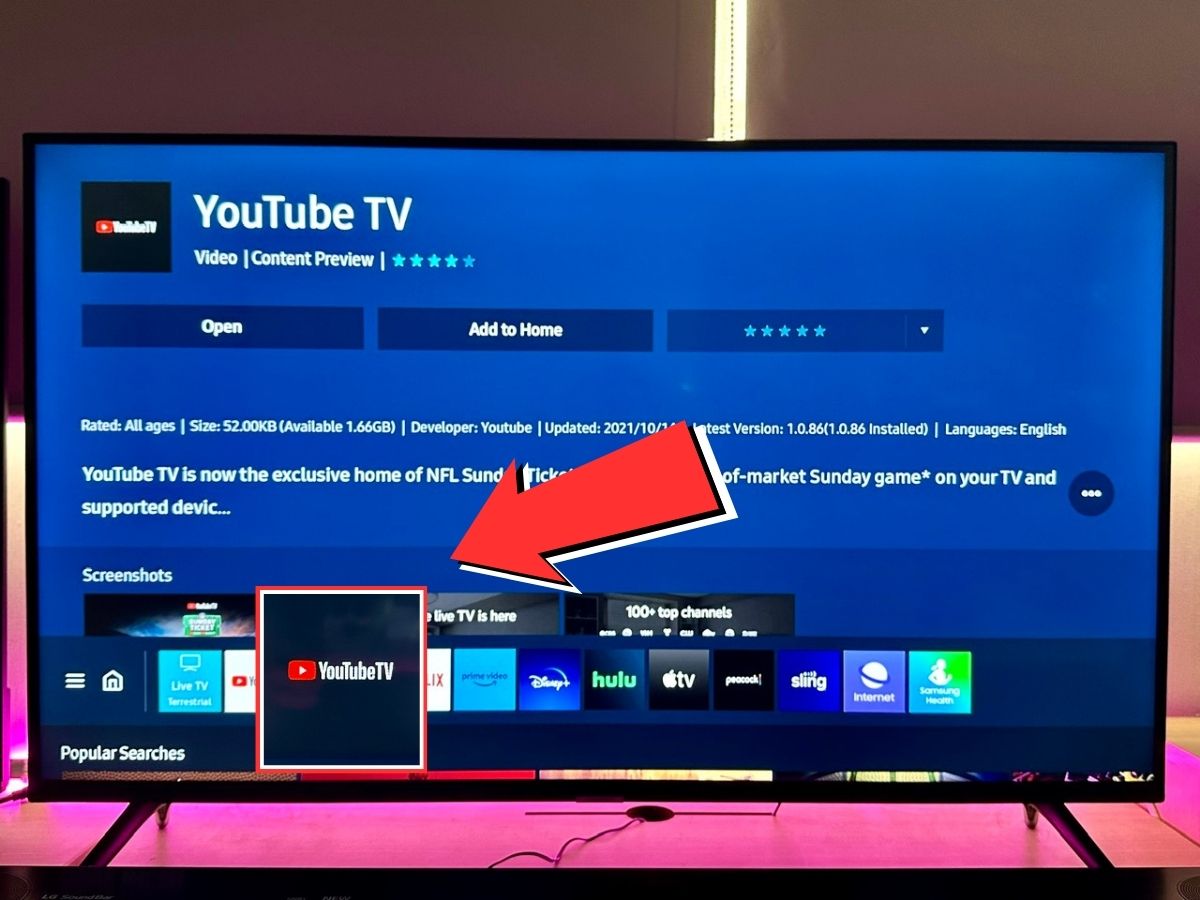
If you own a Samsung TV (Tizen OS), an LG TV (webOS), or a Sony/Vizio TV (Android TV or Google TV), the app is likely available in the respective app store.
-
Access the App Store: Navigate to the “Apps” or “Store” icon on your TV’s home screen.
-
Search and Download: Use the search function to locate “YouTube TV.” Ensure you do not confuse it with the standard “YouTube” app; they are distinct pieces of software with different encryption protocols.
-
Firmware Check: Before launching, ensure your TV’s firmware is updated. Modern streaming apps often require the latest security certificates and API hooks found in the most recent OS versions.
Streaming Sticks and Boxes (Roku, Apple TV, Fire TV)
External devices are often the preferred choice for tech enthusiasts due to their superior “System on a Chip” (SoC) performance.
-
Roku: Go to “Streaming Channels” and search for YouTube TV. Note that in some legacy disputes, the app was nested inside the standard YouTube app, but it has since returned as a standalone channel.
-
Apple TV: Use the App Store on tvOS. The Apple TV 4K is particularly effective for YouTube TV because of its powerful A-series chip, which makes switching between live channels nearly instantaneous.
-
Amazon Fire TV: Search via the “Find” menu. Since Fire TV is based on a fork of Android, the integration is generally seamless.
Gaming Consoles (PlayStation and Xbox)
For users who utilize a gaming console as their central media hub, YouTube TV is available on PlayStation 4/5 and Xbox One/Series X|S. These devices offer significant processing power, making the “Live Guide” scroll exceptionally smoothly. However, be aware that gaming consoles consume significantly more electricity than a dedicated streaming stick.

The Installation and Authentication Process
Once the application is installed, the next step involves linking your hardware to your Google account. This is a crucial security step that ensures your local area network (LAN) is authorized to access your specific subscription and localized channel lineup.
The Activation Code Method
Most TV-based apps do not require you to type your password using a cumbersome on-screen keyboard. Instead, they use a “Cross-Device Authentication” protocol.
-
Launch the YouTube TV app on your TV.
-
A 6-to-8-digit alphanumeric code will appear on the screen.
-
On a computer or smartphone connected to the same Wi-Fi network, navigate to
tv.youtube.com/start. -
Enter the code displayed on your TV.
-
Select the Google account associated with your subscription.
Configuring User Profiles and Personalization
YouTube TV allows for up to six individual profiles per household. From a technical standpoint, this is managed through Google’s “Family Sharing” infrastructure. Each profile maintains its own distinct DVR library and “Watch Next” algorithm. When setting up the app on your TV, ensure you select the correct profile to synchronize your preferences and local sports designations.
Location Permissions and Local Channels
Because YouTube TV provides local broadcast stations (ABC, CBS, FOX, NBC), it must verify your physical location. During setup, the app may ask you to “Verify on Mobile.” This uses your smartphone’s GPS to confirm your zip code, which then unlocks the correct local feed on your TV hardware. This is a common point of technical failure; if your TV’s IP address suggests a different location than your phone’s GPS, you may experience a “Location Mismatch” error.
Optimizing the Streaming Experience
Simply “getting” the app on your TV is the first step. To truly optimize the tech, you should dive into the settings to ensure you are receiving the best possible signal.
Managing Resolution and Data Usage
By default, YouTube TV uses an “Auto” resolution setting that adjusts based on your real-time bandwidth. However, you can manually override this. While watching a program, select the “HD” icon. If your hardware and internet support it, locking the resolution to 1080p or 4K prevents the “shimmering” effect caused by bit-rate fluctuations.
Utilizing the Cloud DVR and Live Guide
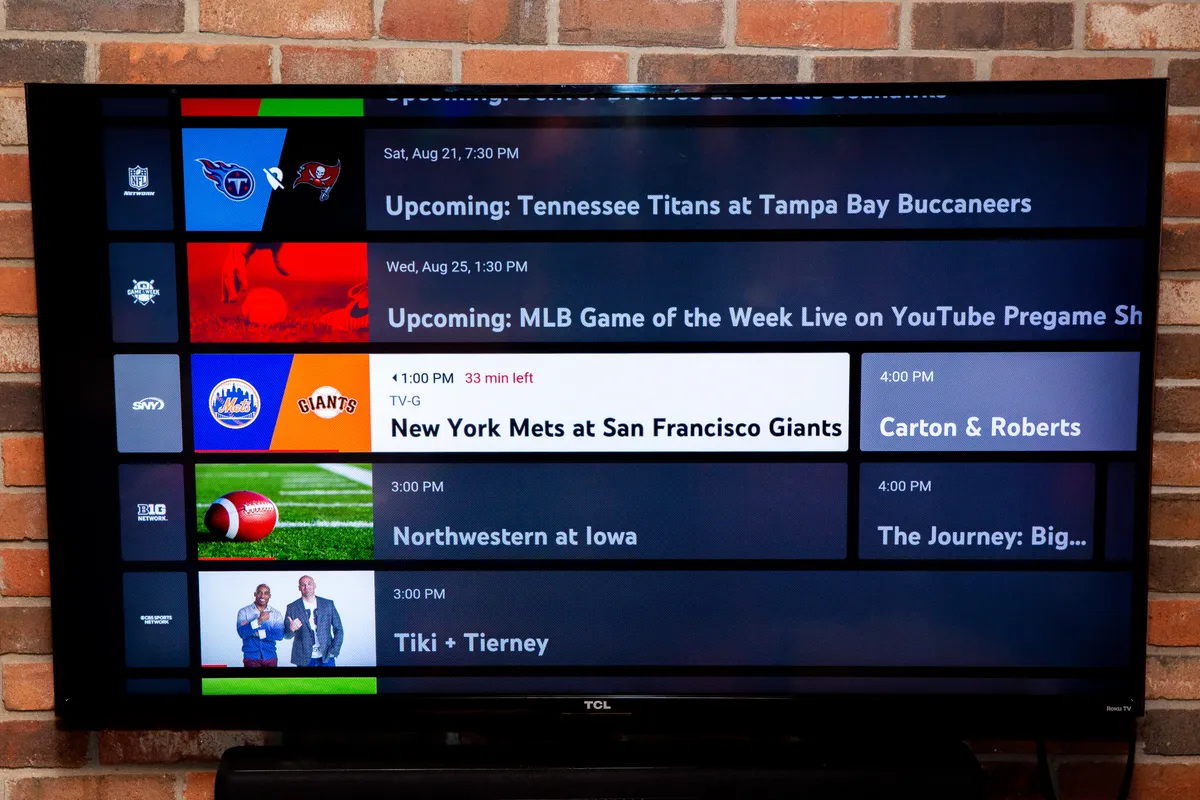
The “Cloud DVR” is one of YouTube TV’s most sophisticated technical features. Unlike traditional cable boxes with physical hard drives, your recordings are stored on Google’s massive server farms. This means there is no limit to how many shows you can record simultaneously. On your TV, navigate to the “Library” tab to manage these recordings. The metadata is synced across all devices, so a recording started on your TV can be finished on your tablet.
Troubleshooting Common Technical Glitches
Even with a robust setup, software conflicts can occur.
-
Cache Clearing: If the app becomes unresponsive, look for an option in your TV’s system settings to “Clear Cache” for the YouTube TV app.
-
Hard Reboot: Modern TVs often go into a “sleep” mode rather than turning off. Unplugging the TV for 30 seconds forces a cold boot, which can resolve memory leak issues within the app.
-
App Reinstallation: If a specific update hangs, deleting and reinstalling the app ensures you have the latest stable build from the server.
The Future of Cord-Cutting: Integration and Advanced Features
As you integrate YouTube TV into your home, it is worth exploring the advanced technical features that separate it from standard apps.
4K Plus and Technical Requirements
For those with high-end OLED or QLED displays, the 4K Plus add-on is a significant upgrade. Technically, this requires a device that supports the VP9 Profile 2 or AV1 codec. Not all “4K TVs” support these specific Google-designed codecs. If you find that 4K content isn’t appearing despite having the subscription, it may be time to upgrade to a dedicated streaming box like the Chromecast with Google TV (4K), which is hardware-optimized for these formats.
Multi-view and Smart Home Integration
One of the most impressive technical feats in the YouTube TV app is “Multi-view,” which allows you to stream up to four live feeds simultaneously on one screen. This requires significant server-side processing, as Google actually stitches the four feeds into a single stream before it reaches your TV, reducing the strain on your home processor.
Furthermore, if you are within the Google Home ecosystem, you can link your TV to a Nest Hub or Google Assistant-enabled device. This allows for voice commands like, “Hey Google, play ESPN on the Living Room TV.” This integration uses the Google Assistant API to send a “cast” command directly to your TV’s YouTube TV app, bypassing the remote control entirely.
By understanding the hardware requirements, mastering the authentication process, and optimizing your network environment, you can transform your television into a powerful, cloud-connected media center. The technical shift from cable to YouTube TV isn’t just about changing how you pay for TV; it’s about upgrading the fundamental technology of your home entertainment system.
aViewFromTheCave is a participant in the Amazon Services LLC Associates Program, an affiliate advertising program designed to provide a means for sites to earn advertising fees by advertising and linking to Amazon.com. Amazon, the Amazon logo, AmazonSupply, and the AmazonSupply logo are trademarks of Amazon.com, Inc. or its affiliates. As an Amazon Associate we earn affiliate commissions from qualifying purchases.