
Debian, often hailed as the “Universal Operating System,” is renowned for its rock-solid stability, robust security, and unwavering commitment to free and open-source software. As a foundational distribution, it serves as the base for countless other Linux distributions and powers everything from personal desktops to massive cloud infrastructures. With Debian 11 “Bullseye,” users gain access to a meticulously crafted, highly reliable, and immensely versatile operating system. But beyond its technical merits, the fundamental question for many potential adopters is: “Where can I install Linux Debian 11?”
The beauty of Debian lies in its adaptability. It’s not confined to a single type of hardware or environment, making it an excellent choice for a wide spectrum of tech enthusiasts, developers, system administrators, and even casual users. Whether you’re looking to revitalize an old laptop, power a cutting-edge server, or experiment with a secure sandbox, Debian 11 offers a pathway. This comprehensive guide will explore the diverse avenues available for installing Debian 11, dissecting the pros, cons, and ideal use cases for each, all while aligning with the broader tech topics of software, digital security, productivity, and technology trends.
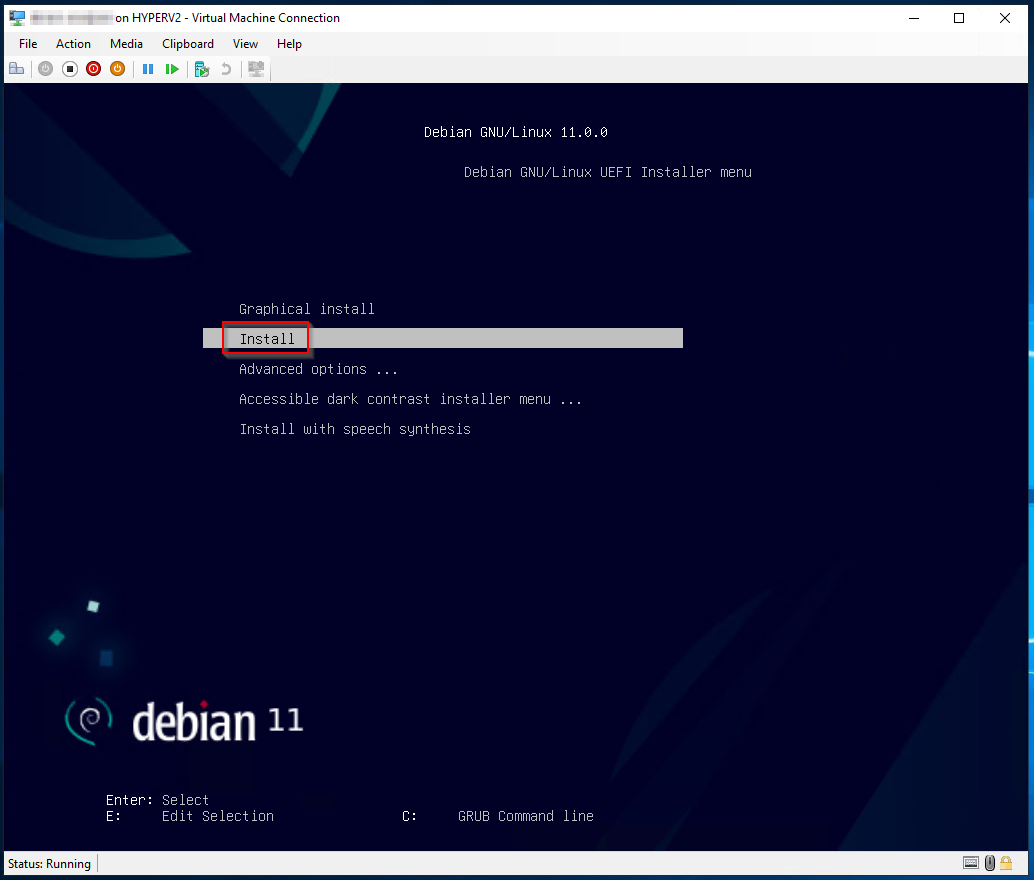
Direct Installation on Physical Hardware: The Classic Approach
For many, the most straightforward and traditional way to experience any operating system is to install it directly onto physical hardware. This method provides unfettered access to system resources, delivering maximum performance and a direct interaction with your machine.
Desktops and Laptops: Your Personal Workspace
Installing Debian 11 on a dedicated desktop or laptop transforms it into a powerful and private computing hub. This is arguably the most common installation scenario for individual users seeking a stable and secure alternative to proprietary operating systems.
Pros:
- Full Performance Utilization: Debian can leverage 100% of your hardware’s capabilities, from CPU cycles to GPU rendering, without the overhead of a host operating system or virtualization layer. This is crucial for resource-intensive tasks like software development, video editing, or even some forms of gaming (with appropriate driver support).
- Direct Hardware Access: Enjoy direct control over all peripherals and components, leading to potentially better compatibility and fewer abstraction layers for devices like printers, scanners, or specialized input devices.
- Enhanced Digital Security and Privacy: Running Debian as your primary OS provides a strong foundation for digital security. With its open-source nature, community auditing, and robust package management, you have greater transparency and control over your software environment, reducing risks associated with proprietary bloatware and data collection. This aligns perfectly with the “Digital Security” and “Productivity” themes, offering a secure base for all your tech endeavors.
- Customization and Control: From choosing your desktop environment (GNOME, KDE Plasma, XFCE, MATE, etc.) to meticulously configuring system services, Debian empowers you to tailor your workspace precisely to your needs, boosting productivity.
Cons:
- Requires Dedicated Machine or Dual-Booting: If you’re not replacing your current OS, you’ll need a separate machine or opt for a dual-boot setup, which adds complexity.
- Potential Driver Challenges: While Debian’s hardware support is excellent, very new or niche hardware might occasionally require manual driver installation or non-free firmware, which Debian strictly separates from its main repositories.
- Learning Curve: New Linux users might face a steeper learning curve compared to commercial operating systems, particularly regarding command-line operations, though modern Debian desktop environments are very user-friendly.
Ideal Use Cases: Developers (for building and testing software, leveraging tools like Docker and Git), system administrators (for managing networks and servers from a powerful workstation), power users, privacy advocates, or anyone seeking a stable, secure, and customizable daily driver.
Dual-Booting with Windows or macOS: A Hybrid Solution
For those who need to retain access to a proprietary operating system while also exploring the benefits of Debian, dual-booting presents an attractive option. This involves partitioning your hard drive to host both operating systems, allowing you to choose which one to boot into at startup.
Pros:
- Access to Both Worlds: You can switch between Debian and your existing OS, leveraging the strengths of each. This is invaluable for tasks that might be exclusive to one platform (e.g., specific Windows-only software for gaming or design, alongside Linux development tools).
- No Performance Overhead: When running, each OS gets full access to the hardware, unlike virtualization.
- Gradual Transition: It allows users to gradually familiarize themselves with Debian without fully committing or abandoning their familiar environment, making it an excellent bridge for those interested in “Technology Trends” and exploring new “Software.”
Cons:
- Partitioning Risks: Incorrect partitioning can lead to data loss or render one or both operating systems unbootable. Always back up your data!
- Bootloader Management: Managing bootloaders (like GRUB for Linux and Windows Boot Manager) can be intricate, especially with UEFI systems.
- Shared Resources: While both OSes use the same hardware, they can’t run simultaneously (without virtualization), meaning you can’t easily copy/paste or share resources dynamically between them.
Considerations: Before attempting a dual-boot, ensure you have a full backup of all critical data. Understand your machine’s UEFI/BIOS settings, particularly Secure Boot, which might need to be disabled or configured carefully for Linux.
Server Hardware: Robust Foundations for Services
Debian’s reputation for stability and minimal resource consumption makes it a premier choice for server installations. Whether you’re setting up a home server or deploying applications in a data center, Debian provides a solid, secure, and maintainable platform.
Pros:
- Unparalleled Stability: Debian’s rigorous release cycle and testing process ensure an exceptionally stable environment, crucial for mission-critical services that require high uptime.
- Security Focus: A strong emphasis on security updates and patches, coupled with minimal default installations, reduces the attack surface, aligning perfectly with “Digital Security” principles for server infrastructure.
- Efficiency: Running a server edition (often without a graphical desktop environment) means minimal resource usage, leaving more CPU, RAM, and disk I/O for your applications.
- Vast Software Repositories: Access to millions of packages, making it easy to set up web servers (Apache, Nginx), databases (PostgreSQL, MySQL), mail servers, file servers, and more, directly addressing diverse “Software” needs.
Cons:
- Requires Server Management Knowledge: Setting up and maintaining a server often requires familiarity with command-line interfaces, network configuration, and system administration best practices.
- Remote Management: Most server installations are managed remotely via SSH, which requires comfort with command-line tools.
Ideal Use Cases: Hosting websites, running web applications, managing databases, file storage, network services, home automation systems, media servers, or any backend service that demands reliability and security. This is where Debian truly shines in supporting advanced “Technology Trends” and complex “AI Tools” through robust backend infrastructure.
Virtualization: Isolated Environments for Experimentation and Production
Virtualization offers an incredibly flexible way to run Debian 11 without directly altering your primary operating system or requiring dedicated hardware. This method is a cornerstone of modern software development, testing, and system administration, providing isolated and reproducible environments.
Virtual Machines (VMs): VirtualBox, VMware, KVM/QEMU
Virtual machine software (hypervisors) creates virtualized hardware, allowing you to install and run an entire operating system (the “guest OS”) within a window on your existing OS (the “host OS”).
Pros:
- Safe Experimentation: VMs provide a sandbox where you can experiment with Debian, install new software, or even break the system without affecting your host OS. This is invaluable for learning and trying new “Software.”
- Snapshotting and Rollbacks: Most VM software allows you to take “snapshots” of your VM’s state, enabling instant rollbacks to a previous configuration. This is a game-changer for testing system changes or recovering from errors, significantly boosting “Productivity” in development and testing.
- Portability: VMs can often be moved between different host machines, providing a portable development or testing environment.
- Resource Isolation: You can allocate specific amounts of CPU, RAM, and disk space to each VM, ensuring that one environment doesn’t negatively impact others.
- Running Multiple OS Simultaneously: Run Debian alongside Windows or macOS without dual-booting, facilitating seamless interaction between different operating systems.
Cons:
- Performance Overhead: While modern virtualization is highly optimized, there’s always some performance penalty compared to bare-metal installations, as the host OS and hypervisor consume resources.
- Resource Demanding: Running multiple VMs concurrently requires significant RAM and CPU resources from the host machine.
Popular Hypervisors:
- VirtualBox: Free and open-source, user-friendly, excellent for personal use and learning.
- VMware Workstation/Fusion (Paid) & VMware Player (Free): Professional-grade virtualization, offering advanced features and robust performance.
- KVM/QEMU: A powerful open-source virtualization solution built into the Linux kernel, ideal for Linux hosts seeking high performance and advanced configurations.
Setup Steps (General): Install your chosen hypervisor, create a new virtual machine, allocate virtual hardware resources (CPU, RAM, disk), attach the Debian 11 ISO image, and proceed with the standard Debian installation process within the VM window.
Ideal Use Cases: Software testing, creating isolated development environments, learning Linux without hardware commitment, running legacy applications, malware analysis, or securely browsing suspicious websites. Virtualization embodies “Technology Trends” by enabling flexible and efficient resource utilization, crucial for “AI Tools” development and complex “Apps.”
Windows Subsystem for Linux (WSL2): Linux on Windows, Simplified
WSL2 isn’t a full bare-metal Debian installation but rather a compatibility layer that allows you to run a full Linux kernel and most Linux command-line tools, utilities, and applications directly on Windows, with excellent performance. Debian is one of the officially supported distributions available via the Microsoft Store.
Pros:
- Seamless Integration with Windows: Access Linux files directly from Windows Explorer and execute Linux commands from PowerShell or Command Prompt.
- Lightweight and Fast: WSL2 utilizes a lightweight virtual machine, offering near-native performance for most command-line tasks, making it ideal for developers and “Productivity.”
- No Dual-Booting or Dedicated VM Setup: Get a functional Linux environment without the complexities of partitioning or full VM management.
- Perfect for Developers: Ideal for web development, scripting, using compilers, and accessing a vast array of Linux-native development tools without leaving your Windows desktop. This is a huge boon for “Software” development.
Cons:
- Not a Full Desktop Experience: While you can run GUI applications via an X server, WSL2 is primarily designed for command-line use and doesn’t provide a traditional, integrated Debian desktop environment.
- Limited Hardware Access: Direct hardware access (e.g., specific GPU features for advanced AI tasks, USB passthrough for specialized devices) is more restricted than in a full VM or bare-metal install.
- Still Requires Windows: You are dependent on the Windows host OS for its functionality.
Ideal Use Cases: Developers, system administrators, and tech enthusiasts who need a powerful Linux command-line environment for scripting, coding, server management, or accessing Linux-specific utilities without leaving their Windows workspace. It’s a fantastic example of a modern “Technology Trend” bridging different operating systems.
Cloud Environments: Scalability and On-Demand Resources
For businesses, developers, and organizations requiring scalable, reliable, and globally accessible computing resources, installing Debian 11 in the cloud is the preferred method. Cloud providers offer virtual servers (instances) that can be provisioned and managed on demand.
Major Cloud Providers: AWS, Google Cloud, Microsoft Azure
The big three cloud providers offer robust infrastructure for deploying Debian 11 instances, providing unparalleled scalability, security, and a vast ecosystem of integrated services.
Pros:
- Scalability: Easily scale resources up or down based on demand, ensuring your applications can handle fluctuating loads without manual hardware upgrades. This is a core “Technology Trend” for modern “Apps.”
- Reliability and High Availability: Cloud infrastructure is designed for redundancy, minimizing downtime and ensuring continuous service.
- Global Reach: Deploy instances in data centers around the world, reducing latency for your global user base.
- Pre-configured Debian Images: Most providers offer readily available Debian 11 images, allowing for quick deployment.
- Integrated Services: Access a plethora of services like managed databases, load balancers, container orchestration (Kubernetes), machine learning platforms (“AI Tools”), and serverless computing.
Cons:
- Cost Management Complexity: Cloud costs can escalate quickly if not carefully monitored and managed, requiring expertise in cloud economics.
- Network Configuration: Setting up firewalls, VPCs (Virtual Private Clouds), and load balancers can be complex for newcomers.
- Vendor Lock-in Concerns: While Debian is open source, reliance on proprietary cloud services can create a degree of vendor lock-in.
Ideal Use Cases: Hosting web applications, microservices, big data processing, CI/CD pipelines, containerized workloads, machine learning inference servers, and any scenario requiring elastic and globally distributed infrastructure. Debian 11 provides the stable and secure base for these advanced “Technology Trends.”
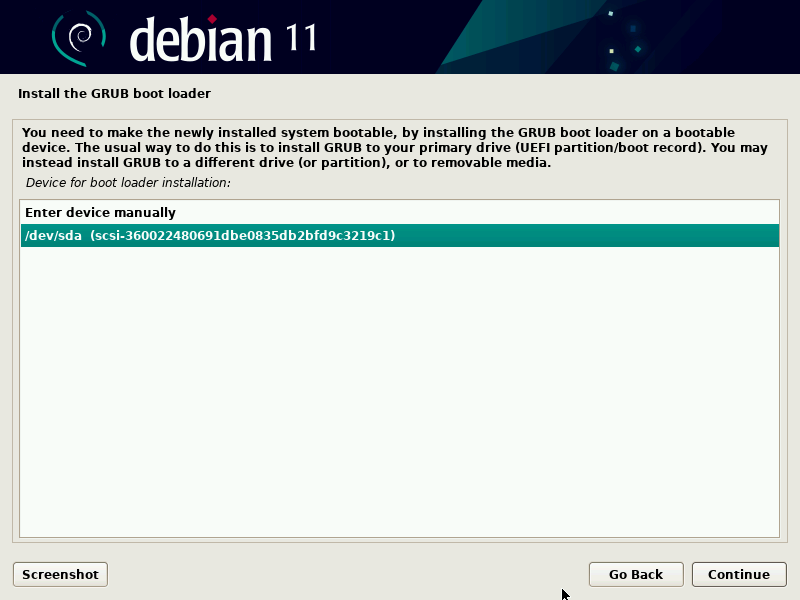
VPS Providers: DigitalOcean, Linode, Vultr
Virtual Private Server (VPS) providers offer a more focused and often more budget-friendly cloud experience, typically providing unmanaged or semi-managed virtual machines.
Pros:
- Budget-Friendly: Often more cost-effective for smaller projects or individual developers compared to the major cloud providers.
- Simpler Interface: Generally offer a more streamlined and less overwhelming user interface for managing instances.
- Good Control: Provides root access to your Debian 11 instance, allowing for full customization and installation of any “Software.”
- Predictable Pricing: Often have simpler, more predictable pricing models.
Cons:
- Less Scalability/Features: While scalable to some extent, they typically don’t offer the same depth of integrated services or extreme scalability as the major cloud platforms.
- Requires Self-Management: Many VPS plans are unmanaged, meaning you are responsible for OS updates, security patches, and application maintenance.
Ideal Use Cases: Hosting personal websites, blogs, small-to-medium scale web applications, development servers, VPN servers, private cloud storage, or learning server administration. These are excellent platforms for deploying and testing your own “Apps” and gaining hands-on experience with server-side “Technology Trends.”
Specialized and Niche Installations: Expanding Debian’s Reach
Debian’s versatility extends to specialized hardware and unique use cases, demonstrating its true “Universal Operating System” moniker.
Single-Board Computers (SBCs): Raspberry Pi and Beyond
Debian (or derivatives like Raspberry Pi OS, which is based on Debian) is a popular choice for single-board computers due to its lightweight nature, stability, and broad ARM architecture support.
Pros:
- Low Power Consumption: Ideal for always-on projects like home servers, IoT devices, or embedded systems.
- Compact and Affordable: SBCs are inexpensive and can be deployed in small spaces, perfect for custom projects and “Gadgets.”
- Educational Value: Excellent platforms for learning electronics, programming, and system administration on a small scale.
Cons:
- Limited Processing Power: SBCs have less powerful CPUs and RAM compared to desktops or servers, limiting the complexity of tasks they can handle.
- Specific Architecture: Requires Debian images compiled for ARM architecture (e.g.,
arm64,armhf).
Ideal Use Cases: Home automation hubs, media centers, network-attached storage (NAS), retro gaming consoles, robotics, IoT device control, learning embedded systems, or deploying custom “AI Tools” at the edge.
USB Drives (Live/Persistent): Portable and Diagnostic Tools
Installing Debian 11 onto a USB drive can create a portable operating system that you can boot from any compatible computer, or a “live” environment for testing and troubleshooting.
Pros:
- Portability: Carry your entire Debian environment in your pocket, accessible from almost any PC. This can be a huge “Productivity” booster for mobile professionals.
- System Troubleshooting and Recovery: A live Debian USB is invaluable for diagnosing problems with other operating systems, recovering data, or repairing corrupted bootloaders.
- Privacy and Security: For sensitive tasks, booting from a live USB ensures no traces are left on the host machine, enhancing “Digital Security.”
- Try Before You Buy (Install): Experience Debian without installing it on your hard drive, allowing you to test hardware compatibility and user experience.
Cons:
- Performance Limitations: USB drives are generally slower than internal SSDs or HDDs, impacting overall system responsiveness, especially for non-persistent live boots.
- Wear and Tear: Frequent writes to a persistent USB drive can shorten its lifespan.
Ideal Use Cases: IT support, emergency system recovery, secure browsing on public computers, mobile development environments, demonstrating Debian’s capabilities, or using a privacy-focused OS on the go.
Preparing for Your Debian 11 Installation: Essential Steps
Regardless of where you choose to install Debian 11, thorough preparation is key to a smooth and successful experience.
System Requirements and Compatibility Checks
Before downloading anything, ensure your hardware meets the minimum requirements for Debian 11 and check for known compatibility issues.
- Processor: At least 1 GHz CPU (recommended: 2 GHz dual-core or better). Debian supports a wide array of architectures including
amd64(x86-64),i386(x86),arm64,armhf,mips,mipsel,ppc64el, ands390x. - RAM: Minimum 512 MB (recommended: 2 GB for a comfortable desktop experience, 4 GB+ for heavy usage or virtualization).
- Disk Space: Minimum 10 GB for a basic installation (recommended: 20 GB+ for desktop with applications, 100 GB+ for development or multiple VMs).
- Graphics: Most modern graphics cards are supported out-of-the-box or with readily available drivers.
- Network: Wired (Ethernet) or wireless (Wi-Fi) adapter for internet access during and after installation.
Review online forums and Debian’s hardware compatibility lists if you have particularly new or niche components.
Downloading the Debian 11 ISO and Creating Bootable Media
The official Debian website is your go-to source for downloading the installation ISO images.
- Official Sources: Visit
www.debian.org/distrib/to download the appropriate ISO for your architecture. Consider using anetinst(network install) image for a minimal download and then pulling packages over the internet, or a largerDVDimage for an offline installation. - Creating Bootable USB:
- Etcher (BalenaEtcher): A cross-platform graphical tool, highly recommended for its ease of use and reliability.
- Rufus (Windows only): Another popular tool for creating bootable USB drives on Windows.
ddcommand (Linux/macOS): For command-line users,sudo dd if=/path/to/debian.iso of=/dev/sdX bs=4M status=progress(replace/dev/sdXwith your USB drive’s device identifier, be very careful as incorrect usage can wipe your hard drive).
- DVD: While less common now, you can also burn the ISO to a DVD.
Backing Up Data and Planning Partitioning
This is the most critical step, especially when installing on existing hardware.
- Backup Everything: Before making any changes to your disk, perform a full backup of all important data to an external drive or cloud storage. This aligns directly with “Digital Security” best practices.
- Understand Disk Partitioning: Familiarize yourself with partitioning schemes. Common partitions for a Linux installation include:
/(root): The main operating system partition./home: Stores user data, keeping it separate from the OS for easier upgrades or re-installations.swap: Used as virtual memory when RAM is full./boot/efi: Required for UEFI systems to store bootloader files.
- Planning: Decide on your partition sizes based on your intended use (e.g., more space for
/homeif you store a lot of media, a largerswapif you have limited RAM).
Post-Installation: What Comes Next?
Installing Debian 11 is just the first step. The real journey begins with configuring your system and making it your own, leveraging Debian’s flexibility for maximum “Productivity” and robust “Digital Security.”
Initial Configuration and Updates
Immediately after installation, a few essential steps will set you on the right track:
- Run Updates: Open a terminal and execute
sudo apt update && sudo apt upgrade. This ensures your system is up-to-date with the latest security patches and software versions. - Install Necessary Drivers: While Debian often works out-of-the-box, proprietary graphics drivers (NVIDIA, AMD), Wi-Fi firmware, or other specific hardware drivers might need to be installed from non-free repositories.
- Set Up User Accounts: If not done during installation, create additional user accounts with appropriate permissions.
Choosing Your Desktop Environment
If you opted for a desktop installation, you likely chose one during setup. However, Debian allows you to install multiple or change your desktop environment at any time.
- GNOME: Modern, user-friendly, and highly polished, offering a contemporary Linux experience.
- KDE Plasma: Feature-rich, highly customizable, and visually stunning, great for power users.
- XFCE: Lightweight, fast, and resource-efficient, ideal for older hardware or minimalists.
- MATE: A continuation of GNOME 2, offering a traditional desktop metaphor.
- Cinnamon: A comfortable and familiar desktop experience, often favored by users coming from Windows.
- LXDE/LXQt: Extremely lightweight, perfect for very old hardware or systems with minimal resources.
Your choice impacts performance, aesthetics, and overall user experience, directly influencing your daily “Productivity.”
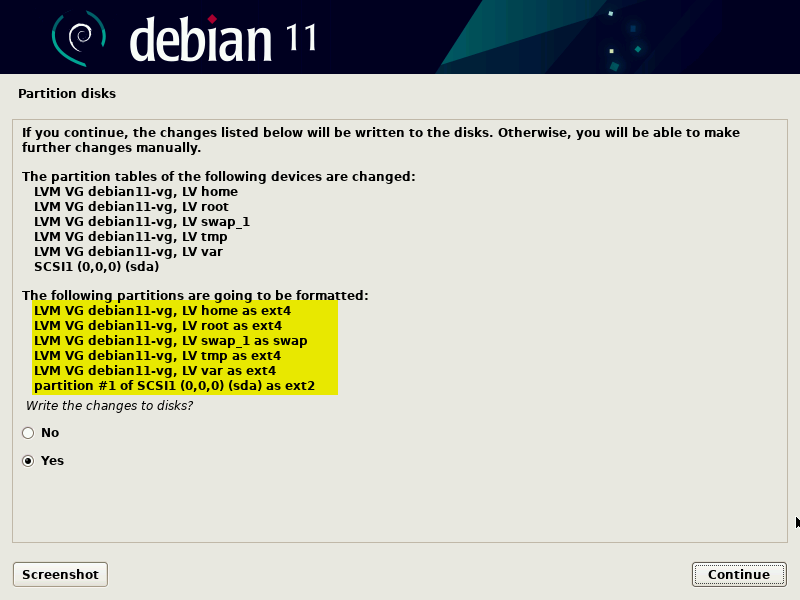
Enhancing Security and Productivity
Debian provides a fantastic foundation. Here’s how to build on it:
- Firewall Configuration: Enable and configure a firewall (e.g.,
ufw– Uncomplicated Firewall) to control incoming and outgoing network traffic, a crucial element of “Digital Security.” - SSH for Remote Access: If managing servers or needing remote access, install and secure an SSH server (
openssh-server). - Install Essential Applications: Leverage Debian’s vast
aptpackage manager to install browsers (Firefox, Chromium), office suites (LibreOffice), development tools (VS Code, Git), communication apps, and any other “Software” you need. - Explore Debian’s Ecosystem: Delve into the Debian Wiki, community forums, and package repositories. Debian’s stability and commitment to open source make it an ideal platform for long-term use, development, and contributing to “Technology Trends” by building new “Apps” and “AI Tools.”
In conclusion, Debian 11 offers an incredibly broad spectrum of installation possibilities, catering to virtually any user and any technological requirement. From the direct performance of physical hardware installations, the flexibility and safety of virtual machines, and the scalability of cloud environments, to the niche applications on single-board computers, Debian 11 proves its worth as a truly universal and adaptable operating system. By understanding these options, you can choose the perfect home for your Debian 11 journey, empowering your tech exploration, enhancing your digital security, and boosting your productivity across all facets of the modern technological landscape.
aViewFromTheCave is a participant in the Amazon Services LLC Associates Program, an affiliate advertising program designed to provide a means for sites to earn advertising fees by advertising and linking to Amazon.com. Amazon, the Amazon logo, AmazonSupply, and the AmazonSupply logo are trademarks of Amazon.com, Inc. or its affiliates. As an Amazon Associate we earn affiliate commissions from qualifying purchases.