
For millions of PC gamers worldwide, Steam is more than just a digital storefront; it’s the gateway to an expansive universe of interactive entertainment. From the latest AAA blockbusters to indie darlings, Steam hosts an unparalleled library of games. Yet, for many, the fundamental question of where these digital treasures reside on their computer remains a mystery. Understanding the installation directory for your Steam games is not merely an exercise in curiosity; it’s a crucial piece of knowledge for effective PC management, troubleshooting, modding, backing up, and optimizing your gaming experience.
This guide delves deep into the labyrinthine file systems of Windows, macOS, and Linux to pinpoint exactly where Steam tucks away its vast collection of games. We’ll explore the default paths, explain how to locate them when they deviate, and offer insights into managing these installations for peak performance and longevity. Whether you’re a seasoned PC enthusiast or a new Steam user, mastering the art of game location will empower you to take full control of your digital playground.
The Default Steam Installation Path: Your First Stop
The beauty of digital platforms like Steam is their ability to automate much of the installation process. By default, Steam will attempt to install itself and its games into a standardized location on your primary drive. While convenient, this default path can sometimes be a source of confusion, especially when troubleshooting or attempting to free up space. Knowing this standard location is the first step towards understanding your Steam game library.
Windows Operating System
The vast majority of PC gamers use Windows, and Steam adheres to a relatively consistent installation structure across different versions of the OS (Windows 7, 8, 10, 11). When you first install the Steam client, it typically places itself in the Program Files (x86) directory, which is reserved for 32-bit applications.
The full default path for Steam game installations on Windows is usually:
C:Program Files (x86)Steamsteamappscommon
Let’s break this down:
-
C:: This refers to your primary hard drive, typically where your operating system is installed. If Steam was installed on a different drive, this letter would change accordingly (e.g.,D:,E:). -
Program Files (x86): This system folder is where 32-bit applications are installed on 64-bit Windows systems. Steam, being an older client, often defaults to this location. -
Steam: This is the main directory for the Steam client itself, containing its executable files, data, and configuration settings. -
steamapps: This critical folder houses all the actual game data. It contains various manifest files (.acf) that tell Steam which games are installed and where, as well as a few subfolders. -
common: This is the most important subfolder withinsteamappsfor our purposes. It’s here that you will find individual folders for each of your installed Steam games, named after the game titles (e.g.,Cyberpunk 2077,Dota 2,Half-Life 2).
macOS Operating System
For users on Apple’s macOS, the file system structure is slightly different, but the logic remains similar. Steam games are generally tucked away within the user’s Library folder, which is hidden by default.
The typical default path on macOS is:
~/Library/Application Support/Steam/SteamApps/common
Dissecting this path:
-
~: This tilde symbol is a Unix-like shorthand representing your user’s home directory (/Users/YourUsername/). -
Library: This hidden folder contains application support files, preferences, and other user-specific data. To access it, you often need to hold theOptionkey while clickingGoin the Finder menu and selectingLibrary. -
Application Support: A standard macOS directory for applications to store their supplementary data. -
Steam: The main directory for the Steam client on macOS. -
SteamApps: Similar to Windows, this folder holds the game data. -
common: Again, this is where your individual game folders reside.
Linux Operating System
Linux users, often more accustomed to navigating file systems, will find Steam’s installation path follows typical Linux conventions, usually within the user’s home directory.
The standard default path on Linux is:
~/.local/share/Steam/steamapps/common
Breaking it down:
-
~: As with macOS, this represents your user’s home directory (/home/YourUsername/). -
.local: This is a hidden folder (indicated by the leading dot) used for local application data specific to the user, not managed by the system package manager. -
share: A standard XDG Base Directory Specification folder for shared data that doesn’t include executables or configurations. -
Steam: The Steam client’s main directory. -
steamapps: The folder containing game data. -
common: The directory housing individual game folders.
Understanding these default locations is paramount. It allows you to quickly navigate to a game’s files for purposes like installing mods, manually deleting corrupted files, or just understanding how much space each game occupies.
Locating Your Games Beyond the Default: When Things Get Tricky
While Steam aims for consistency, the reality of PC ownership often involves multiple hard drives, custom configurations, and the need to optimize storage. Consequently, many users choose to install their games on drives other than their primary C: drive, or even across several drives. In such scenarios, relying solely on the default path becomes insufficient. Fortunately, the Steam client itself provides robust tools to help you pinpoint exactly where every game is installed, regardless of its location.
Checking Via the Steam Client
The most reliable and straightforward method to find any Steam game’s installation folder is directly through the Steam client itself. This method works universally, no matter where you’ve installed the game.
Here’s how to do it:
-
Open Steam: Launch the Steam application on your computer.
-
Navigate to Library: Click on the “Library” tab at the top of the Steam window to view your list of games.
-
Select the Game: Find the game whose installation location you want to discover. You can use the search bar or scroll through your list.
-
Right-Click the Game: Right-click on the game’s title in your library list.
-
Access Properties: From the context menu that appears, select “Properties.” This will open a new window with various settings for that specific game.
-
Go to Local Files: In the “Properties” window, click on the “Local Files” tab on the left-hand side.
-
Browse Local Files: You will see a button labeled “Browse…” or “Browse Local Files…” Click this button.
Steam will then automatically open a file explorer window (Finder on macOS, your default file manager on Linux) directly to the game’s installation directory. This is the definitive location of that particular game’s files.
Identifying Multiple Steam Library Folders
A common scenario, especially for users with large game libraries or multiple storage devices (e.g., an SSD for the OS and a large HDD for games), is to have several “Steam Library Folders.” These are directories that Steam is configured to use for installing games, allowing you to spread your library across different drives.
To see all designated Steam Library Folders:
-
Open Steam: Launch the Steam application.
-
Go to Settings:
-
On Windows/Linux: Click “Steam” in the top-left corner, then select “Settings.”
-
On macOS: Click “Steam” in the menu bar, then select “Preferences.”
-
-
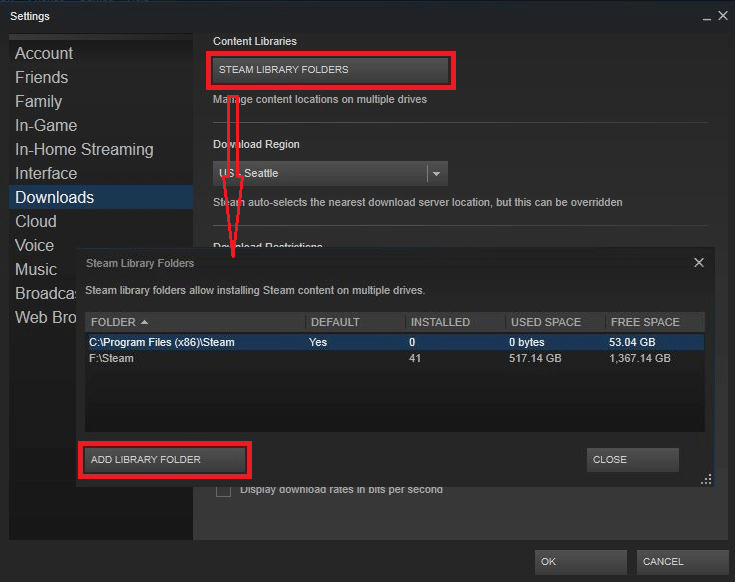
Navigate to Downloads: In the Settings/Preferences window, select the “Downloads” tab from the left-hand menu.
-
Click “Steam Library Folders”: Under the “Content Libraries” section, you’ll see a button labeled “Steam Library Folders” or “Steam Library.” Click this.
A new window will appear, listing every folder that Steam recognizes as a valid installation location for games. Each entry will show the drive it’s on, its path, and how much space is available. This is an invaluable tool for understanding your overall game storage strategy and identifying potential space constraints.
Manual Search (Advanced)

While the Steam client is the preferred method, there might be rare instances where a manual search is necessary, perhaps if Steam isn’t launching correctly or you’re dealing with remnants of an uninstalled game.
-
Windows: Open File Explorer, select “This PC,” and use the search bar in the top-right corner. You can search for the game’s executable file (e.g.,
game.exe) or the game’s folder name. Be prepared for a lengthy search on large drives. -
macOS: Open Finder, press
Command + Fto open the search bar. You can search by file name or folder name. Remember to account for hiddenLibraryfolders if necessary. -
Linux: Use your preferred file manager’s search function or, for more advanced users, the
findcommand in the terminal (e.g.,find / -name "gamename" 2>/dev/null).
These methods are less efficient than using the Steam client but can be useful in specific troubleshooting scenarios.
Managing Your Steam Game Installations: Best Practices and Troubleshooting
Understanding where your Steam games are installed is just the beginning. Effective management of these installations is key to a smooth, enjoyable, and efficient PC gaming experience. This involves strategies for storage optimization, ensuring game integrity, and facilitating backups.
Moving Games to a Different Drive
One of the most common reasons to explore installation locations is to manage storage. If your primary drive (often an SSD) is filling up, or if you acquire a new, larger drive, moving games can significantly improve system performance and organization. Steam offers a built-in feature to move games between your designated Steam Library Folders.
To move a game:
-
Create a New Steam Library Folder (if needed): If you haven’t already, set up a new Steam Library Folder on your target drive via
Steam > Settings > Downloads > Steam Library Folders > Add Library Folder. -
Access Game Properties: Follow the steps outlined earlier:
Library > Right-click Game > Properties. -
Go to Local Files: In the “Properties” window, select “Local Files.”
-
Click “Move Install Folder”: You’ll see an option to “Move Install Folder…” Click this button.
-
Select Target Library: A dropdown menu will appear, allowing you to choose one of your established Steam Library Folders as the new destination.
-
Confirm Move: Click “Move Folder.” Steam will then transfer the game files, which can take some time depending on the game’s size and the speed of your drives.
This method is highly recommended as it preserves all game data and Steam’s tracking, avoiding potential issues that arise from manually moving files.
Creating New Steam Library Folders
As mentioned, setting up multiple Steam Library Folders is crucial for storage management. This allows you to distribute your game installations across various drives, utilizing different types of storage optimally (e.g., fast SSD for competitive games, large HDD for single-player epics).
To create a new library folder:
-
Open Steam Settings:
Steam > Settings(orPreferenceson macOS). -
Go to Downloads: Select the “Downloads” tab.
-
Click “Steam Library Folders”: Open the Library Folders manager.
-
Add Library Folder: Click the “+” button (or “Add Library Folder” on some versions) and navigate to the desired location on your new drive. You’ll typically want to create a new, empty folder (e.g.,
D:SteamLibrary) and select that. Steam will then initialize it.
Once added, you can choose this new location when installing new games or when moving existing ones.
Verifying Game File Integrity
Sometimes, games encounter issues like crashes, missing textures, or corrupted files. This can often be due to corrupted installation files. Steam provides a built-in tool to verify the integrity of a game’s files, which checks your local installation against Steam’s servers and repairs any discrepancies.
To verify game files:
-
Access Game Properties:
Library > Right-click Game > Properties. -
Go to Local Files: Select the “Local Files” tab.
-
Click “Verify integrity of game files…”: Click this button. Steam will then scan all the game’s files. This process can take several minutes, depending on the game’s size and your storage speed. Any missing or corrupted files will be re-downloaded and replaced automatically.
This is a fundamental troubleshooting step that often resolves a wide array of game-related problems without needing to reinstall the entire game.
Backing Up Your Games
While Steam makes re-downloading games straightforward, large game files can consume significant bandwidth and time. Backing up your game installations can be a lifesaver, especially if you frequently reformat your PC or want to preserve specific game versions (e.g., for modding).
-
Steam’s Backup Feature (Legacy): Steam used to have a dedicated “Backup and Restore Games…” feature accessible from the Steam menu. While still present, it’s largely considered outdated and less reliable than simply copying the game folders.
-
Manual Copying: The most reliable method is to simply copy the entire game folder from its
steamappscommondirectory to an external hard drive or network-attached storage. When you reinstall Steam on a new system, you can copy these folders back into thesteamappscommondirectory, and then tell Steam to “Install” the game. Steam will quickly discover the existing files, verify them, and download any missing updates, saving you a full re-download. -
Third-Party Backup Solutions: For comprehensive system backups, including your Steam library, consider using disk imaging software or cloud backup services that handle large files efficiently.
Regular backups, especially for large games or those with extensive mod installations, are a crucial part of a proactive PC maintenance strategy.
Advanced Scenarios and Common Questions
Beyond the core aspects of locating and managing games, there are several nuances and frequently asked questions that can further enhance your understanding of Steam game installations.
What About Workshop Content or Save Files?
It’s important to distinguish between the game’s core installation files, workshop content (mods), and save files.
-
Game Installation Files: These are the core assets and executables found in
steamappscommon. -
Steam Workshop Content: Files downloaded from the Steam Workshop are typically stored in the
steamappsworkshopcontentfolder, organized by app ID and workshop item ID. This separation is crucial for troubleshooting workshop issues. -
Game Save Files: Save files are rarely stored within the game’s installation folder directly. Most modern games store save data in user-specific locations, often within
Documents(Windows),~/Library/Application Support/GameName(macOS), or~/.local/share/GameName(Linux), or sometimes in the user’sAppDatafolder (Windows). Cloud saves (Steam Cloud) synchronize these files across devices but rely on the game correctly implementing this. Always check a game-specific wiki or PCGamingWiki for exact save file locations if you need to back them up manually.
Why Can’t I Find My Game?
If you’re struggling to locate a game, consider these common pitfalls:
-
Hidden Files/Folders: On macOS and Linux, the
Libraryand.localfolders are hidden by default. You may need to enable “Show Hidden Files” in your file explorer settings. -
Multiple Steam Installations: Ensure you’re looking at the correct Steam installation if you have accidentally installed Steam client multiple times.
-
Uninstalled Game: Double-check if the game is still listed in your Steam library. If it says “Install” instead of “Play,” it’s no longer on your system.
-
Game Remnants: Sometimes, after uninstalling a game, some folders or files might remain. These won’t be recognized by Steam as installed games but might still occupy space. Use the manual search methods to clean these up.
Impact on Performance and Storage
The location of your games can significantly impact performance and overall system health:
-
SSD vs. HDD: Installing games on a Solid State Drive (SSD) offers dramatically faster loading times compared to a Hard Disk Drive (HDD). For competitive multiplayer games or graphically intensive single-player titles, an SSD is highly recommended.
-
Storage Management: Knowing where games are installed allows you to strategically manage your storage. You can prioritize SSD space for frequently played or performance-critical games and move less demanding or less frequently played titles to a larger, slower HDD. Regularly reviewing your “Steam Library Folders” and deleting unplayed games can keep your drives optimized.
-
Fragmentation (HDDs): While less of a concern with modern file systems and SSDs, fragmented files on HDDs can slightly impact load times. Keeping your game installations organized and occasionally defragmenting HDDs can offer minor benefits.

Conclusion
The question “where are Steam games installed?” might seem simple on the surface, but its answer unlocks a deeper understanding of your PC’s inner workings and empowers you with greater control over your gaming experience. From the default paths on Windows, macOS, and Linux to the invaluable tools within the Steam client for locating and managing installations, every piece of this knowledge contributes to a more efficient, enjoyable, and troubleshooting-ready setup.
By mastering the art of navigating your Steam library folders, moving games between drives, verifying file integrity, and understanding where save files reside, you transform from a passive consumer of digital entertainment into an active manager of your digital playground. This expertise is not just about convenience; it’s about optimizing performance, preventing data loss, and ensuring that your PC gaming journey remains as smooth and immersive as possible. Embrace this knowledge, and you’ll be well-equipped to tackle any challenge your vast Steam library throws your way.
aViewFromTheCave is a participant in the Amazon Services LLC Associates Program, an affiliate advertising program designed to provide a means for sites to earn advertising fees by advertising and linking to Amazon.com. Amazon, the Amazon logo, AmazonSupply, and the AmazonSupply logo are trademarks of Amazon.com, Inc. or its affiliates. As an Amazon Associate we earn affiliate commissions from qualifying purchases.