
Python’s incredible versatility and vast ecosystem of libraries make it a go-to language for developers across a spectrum of industries, from cutting-edge AI research to robust web development and intricate data analysis. As you delve deeper into the Python world, you’ll inevitably encounter the need to install third-party packages – pre-written code that extends Python’s functionality. But a common question arises: where exactly are these Python packages installed on your system? Understanding this is not just a matter of curiosity; it’s fundamental to managing your development environment effectively, troubleshooting issues, and ensuring smooth project execution.

This exploration will demystify the installation locations of Python packages, shedding light on the underlying mechanisms and offering practical insights for developers. We’ll navigate the nuances of different installation methods and environments, ensuring you have a comprehensive understanding of where your indispensable Python tools reside.
The Core Concept: Site-Packages Directories
At its heart, Python relies on specific directories to locate and load installed packages. These are broadly categorized as “site-packages” directories. When you use pip, the de facto package installer for Python, to install a library, it typically places the package’s files within one of these designated locations. The exact path, however, can vary depending on several factors, primarily your Python installation, operating system, and whether you’re using virtual environments.
Understanding the Default Python Installation Locations
For a standard, system-wide Python installation, packages are usually found within a directory named site-packages (or sometimes dist-packages on Debian-based systems) that resides within your Python installation’s directory structure.
For example, on Windows, a typical path might look something like:
C:Users<YourUsername>AppDataLocalProgramsPythonPythonXXLibsite-packages
Here, PythonXX refers to your specific Python version (e.g., Python310 for Python 3.10). The AppDataLocal directory is a hidden folder by default, so you might need to enable viewing hidden files and folders in your File Explorer settings to access it.
On macOS, installations often occur in a system-level Python distribution, or more commonly, within a Homebrew-managed Python.
If you’re using the Python that comes pre-installed with macOS (which is generally not recommended for development due to potential system conflicts), packages might be located in:
/Library/Python/X.Y/site-packages
Where X.Y represents the Python version.
However, if you’ve installed Python using Homebrew, a popular package manager for macOS, the path will differ:
/usr/local/lib/pythonX.Y/site-packages
Or, with newer Homebrew installations:
/opt/homebrew/lib/pythonX.Y/site-packages
On Linux, the site-packages directory is typically found within the Python installation’s library directory. The exact path can vary slightly depending on your distribution and how Python was installed (e.g., through your distribution’s package manager like apt or yum, or compiled from source).
A common location for system-wide Python packages on Linux is:
/usr/lib/pythonX.Y/site-packages
Or sometimes:
/usr/local/lib/pythonX.Y/dist-packages
It’s important to note that these are default locations for system-wide installations. Installing packages globally can lead to dependency conflicts between different projects, making it harder to manage your development environment. This is where virtual environments become indispensable.
The Power of Virtual Environments: Isolated Package Installations
The most significant factor influencing where Python packages are installed is the use of virtual environments. Virtual environments are isolated Python environments that allow you to install packages for a specific project without interfering with other projects or your system’s global Python installation. This is a best practice for virtually all Python development.
When you create and activate a virtual environment, pip installs packages into a dedicated site-packages directory within that environment’s folder structure. This isolation is crucial for maintaining project dependencies and reproducibility.
How Virtual Environments Work and Where Packages Reside
Virtual environments are typically created using modules like venv (built into Python 3.3+) or third-party tools like virtualenv. Let’s consider the venv module, as it’s now the standard.
When you create a virtual environment, say named myenv, in your project directory using python -m venv myenv, a new folder myenv will be created. Inside this folder, you’ll find a structure that mirrors a Python installation, including a site-packages directory where packages for this specific environment will be installed.
The typical structure looks like this:
myproject/
├── myenv/
│   ├── bin/         # (or Scripts/ on Windows)
│   │   ├── activate
│   │   ├── python
│   │   └── pip
│   ├── include/
│   ├── lib/
│   │   └── pythonX.Y/
│   │       └── site-packages/  <-- Packages installed here!
│   └── pyvenv.cfg
└── your_project_files/
On Windows: The bin directory is usually replaced by a Scripts directory.
On Linux and macOS: The bin directory contains executable scripts like python and pip for the virtual environment, as well as the activate script.
When you activate the virtual environment (e.g., by running source myenv/bin/activate on Linux/macOS or myenvScriptsactivate on Windows), your shell’s PATH environment variable is temporarily modified. This ensures that when you run python or pip, you’re using the executables within your virtual environment, and crucially, pip will install packages into the site-packages directory within that environment.
This means that if you install, say, the requests library in myenv, it will be located at:
myproject/myenv/lib/pythonX.Y/site-packages/requests/
And if you create another virtual environment, anotherenv, for a different project, requests installed in anotherenv will reside in:
myproject/anotherenv/lib/pythonX.Y/site-packages/requests/
This isolation is a game-changer. It prevents versioning conflicts. For instance, Project A might need requests version 2.20, while Project B requires version 2.28. With virtual environments, you can install the appropriate version in each environment without impacting the other.
Managing Multiple Python Versions and Environments
The concept of virtual environments extends to managing multiple Python versions on your system. Tools like pyenv (on Linux/macOS) and conda (cross-platform, popular in data science) allow you to install and switch between different Python versions.
When you use these tools, they manage the installation of Python itself, and then you can create virtual environments for each specific Python version. For example, with pyenv, you might have Python 3.8 installed at a certain location, and Python 3.10 installed elsewhere. You can then create a virtual environment based on Python 3.8 or Python 3.10, and the packages will be installed within the site-packages directory associated with that particular Python version and virtual environment.
Conda takes a slightly different approach. It manages both Python versions and packages, often installing them in its own designated directories. When you create a conda environment, it has its own Python interpreter and its own site-packages (or equivalent) directory. These environments are typically located within a envs directory within your Anaconda or Miniconda installation, or in a user-specified location.
For example, a conda environment named my_conda_env might have its packages installed within:
~/anaconda3/envs/my_conda_env/lib/pythonX.Y/site-packages
Or similar paths depending on your conda configuration.
How to Programmatically Find Package Installation Locations
If you’re ever unsure about where a specific package is installed, or if you need to programmatically access its location within your Python script, you can leverage Python’s built-in capabilities.
Using site Module and pip show
The site module provides access to Python’s site-specific directories. You can use it to inspect where Python looks for packages.
import site

print("Site-packages directories:")
for sp_dir in site.getsitepackages():
    print(sp_dir)

print("nUser site-packages directory:")
print(site.getusersitepackages())
The site.getsitepackages() function returns a list of directories where site-specific modules are installed, which typically includes your system-wide site-packages directories. site.getusersitepackages() returns the directory for user-specific package installations (often used when --user flag is passed to pip).
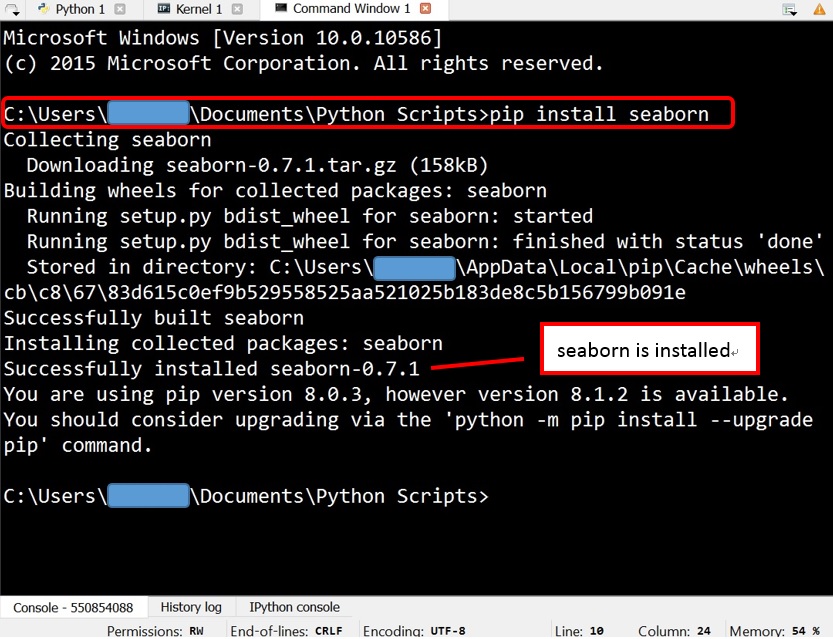
A more direct and often more useful method for inspecting a specific package is to use pip show from your terminal.
If you have activated your virtual environment (or are working with a system-wide installation), you can run:
pip show <package_name>
For example:
pip show requests
The output will include a Location: field, clearly indicating the directory where the requests package is installed.
Name: requests
Version: 2.28.1
Summary: Python HTTP for Humans.
Home-page: https://requests.readthedocs.io
Author: Kenneth Reitz
Author-email: me@kennethreitz.org
License: Apache 2.0
Location: /path/to/your/virtualenv/lib/python3.9/site-packages  <-- This is what you're looking for!
Requires: certifi, charset-normalizer, idna, urllib3
Required-by:
This command is invaluable for debugging and understanding your environment. It tells you precisely where pip has placed the files for that particular package.
Why Knowing Package Locations Matters
Understanding where Python packages are installed is more than just trivia; it has practical implications for developers:
- Environment Management: As discussed, it’s the bedrock of managing virtual environments and avoiding dependency hell. You can ensure that your project dependencies are isolated and reproducible.
- Troubleshooting: When you encounter import errors or unexpected behavior, knowing the installation path can help you verify if the package is installed correctly, if it’s in the expected location, and if there are any file permission issues.
- Customization and Development: For advanced users or those developing their own Python packages, understanding these locations can be necessary for tasks like packaging, distributing, or even manually patching installed libraries.
- Dependency Analysis: For larger projects or when onboarding new team members, being able to pinpoint package locations aids in understanding the project’s structure and its reliance on specific versions of libraries.
- Security Audits: In security-conscious environments, knowing where packages are installed can be part of auditing processes to ensure that only authorized and vetted code is present on the system.
In conclusion, while the specific path for Python package installations might seem like a minor detail, it’s a crucial piece of knowledge for any Python developer. By understanding the roles of system-wide site-packages directories and, more importantly, the isolation provided by virtual environments, you gain control over your development workflow, ensure project stability, and build a more robust and manageable Python ecosystem for yourself and your team. Always prioritize using virtual environments – it’s the key to unlocking the full potential of Python’s vast and ever-growing library landscape.