
In the contemporary landscape of consumer technology, the concept of a “digital identity” has evolved from a simple username and password into a sophisticated infrastructure that bridges the gap between hardware, software, and personal data. At the center of this evolution for millions of users worldwide is the Apple ID. It is more than just a credential; it is the master key to an expansive ecosystem that encompasses communication, productivity, entertainment, and security. Understanding what your Apple ID is, how to locate it, and how to manage its security is fundamental to navigating the Apple ecosystem effectively.
Understanding the Role of the Apple ID in the Modern Ecosystem
The Apple ID serves as the primary authentication method for all Apple services. When you power on a new iPhone, Mac, or iPad, the very first prompt typically requests this identifier. This is because the Apple ID acts as the connective tissue between your physical device and the cloud-based services that make the hardware functional. Without it, a device remains a standalone piece of hardware; with it, that hardware becomes a personalized gateway to your digital life.
The Core of Device Integration
The true power of the Apple ID lies in its ability to facilitate seamless integration across different form factors. Through a technology known as Handoff, users can start an email on their iPhone and finish it on their Mac, or copy a snippet of text on their iPad and paste it onto their MacBook. This level of continuity is made possible because the Apple ID identifies all these devices as belonging to the same individual. The identifier essentially tells Apple’s servers which encrypted data streams belong to which user, ensuring that your experience remains consistent regardless of the screen you are using.
Beyond simple synchronization, the Apple ID manages the licenses for every application and piece of media you purchase. When you buy an app on the App Store or a movie on Apple TV, that license is tied to your ID, not the specific device. This allows for the “re-download” model that has become the standard in digital consumption, ensuring that your investment in software and entertainment moves with you as you upgrade your hardware.
iCloud and Data Synchronization
Perhaps the most critical technical component tied to the Apple ID is iCloud. This cloud storage and service suite handles everything from photo libraries and device backups to sensitive health data and keychain passwords. When you ask, “What is my Apple ID?”, you are essentially asking for the address of your digital vault.
The Apple ID manages the end-to-end encryption keys that protect your data in transit and at rest. Services like iCloud Photos rely on the ID to manage permissions, ensuring that only authenticated devices can view your private imagery. Similarly, the Find My network uses the Apple ID to link a device to its rightful owner, allowing for remote locking and tracking in the event of theft or loss. In this context, the Apple ID is the ultimate security layer for your most personal information.
How to Locate Your Apple ID on Any Device
It is remarkably common for users to forget which email address they used to create their Apple account, especially if they have multiple professional and personal addresses. Fortunately, Apple provides several straightforward ways to retrieve this information across their various platforms.
Finding Your ID on iPhone and iPad
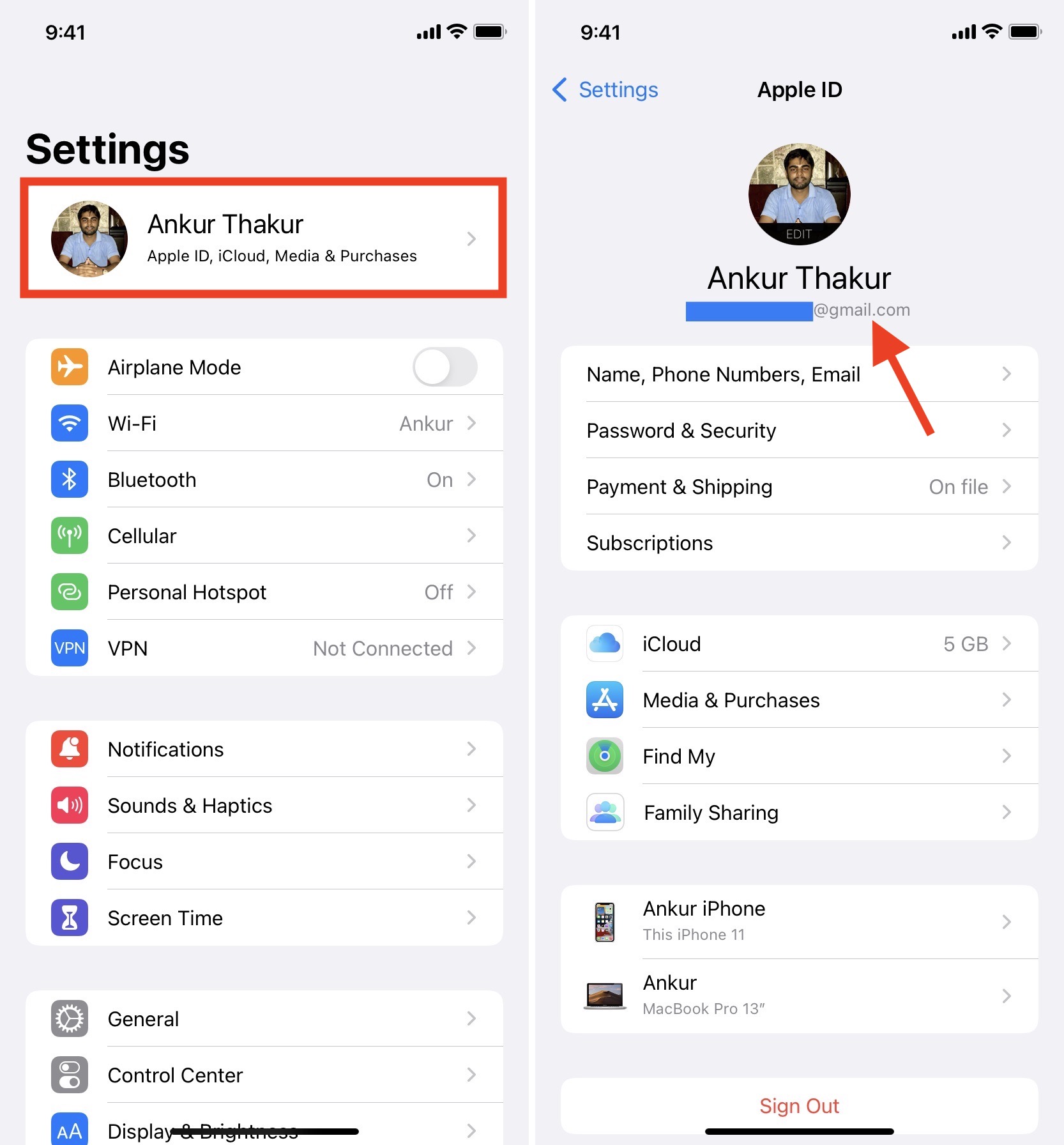
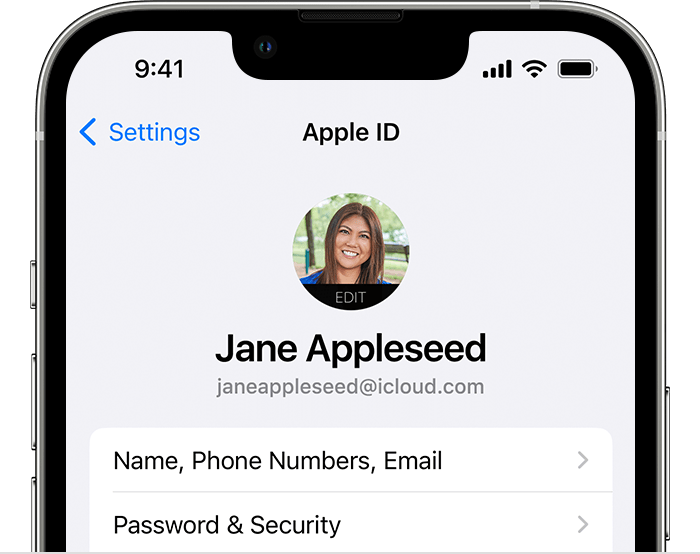
On mobile devices, the Apple ID is deeply integrated into the operating system. To find it, navigate to the Settings app. At the very top of the main menu, you will see your name and profile picture (or a generic icon if one hasn’t been set). Tapping on this section opens the Apple ID management screen. Your Apple ID—typically an email address—will be listed immediately under your name.
If you are not signed in at the top of the Settings menu, you can often find clues in specific service settings. For instance, scrolling down to Messages and checking the “Send & Receive” section will often reveal the email addresses associated with your iMessage account, which is almost always your Apple ID. Similarly, the App Store settings will show the account currently authorized for downloads and subscriptions.
Retrieving Your ID on macOS
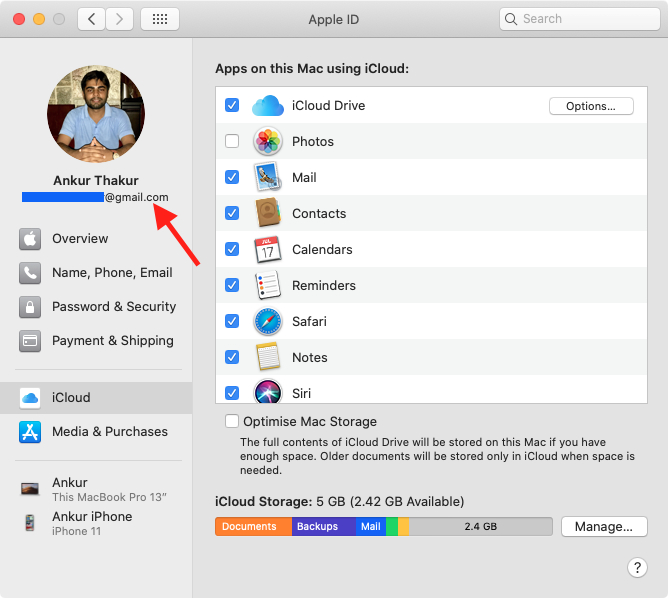
For Mac users, the process is slightly different depending on the version of macOS being used, but the logic remains consistent. On modern versions (macOS Ventura and later), you click the Apple Menu in the top-left corner and select System Settings. Like iOS, your name and email address will appear at the top of the sidebar.
On older versions of macOS, this is found under System Preferences > Apple ID. If the computer is logged out of the primary system account, you can still check the Music app (formerly iTunes) or the App Store app. By clicking “Account” in the menu bar of these applications, you can view the ID used for media purchases. Even if the Mac is shared among family members, each user profile typically maintains its own distinct link to a unique Apple ID.
Using the Apple ID Website and Web Services
If you do not have access to your primary devices, you can use any web browser to find your account details. By visiting appleid.apple.com, you can attempt to sign in. If you are unsure of the address, the “Forgot Apple ID or password?” link is an essential tool. By entering your first name, last name, and potential email addresses, Apple’s system can verify if a matching account exists.
Additionally, checking your secondary email inboxes for correspondence from Apple is a highly effective “low-tech” solution. Search for terms like “Apple Invoice,” “Your Apple ID,” or “iCloud” in your various email accounts. The address that receives these automated notifications is invariably your Apple ID.
Strategies for Managing and Securing Your Identity
Given that the Apple ID provides access to everything from financial information to private communications, securing it is a technological imperative. Apple has shifted away from simple password-based security toward a multi-layered biometric and hardware-based approach.
Transitioning to Two-Factor Authentication (2FA)
Two-factor authentication is no longer optional for many Apple services; it is a requirement. This system ensures that even if someone discovers your password, they cannot access your account without a secondary “trusted” factor. Usually, this involves a six-digit code sent to your other Apple devices or a trusted phone number.
From a technical standpoint, 2FA creates a “trusted” circle of hardware. When you sign in on a new device, a notification appears on your existing devices with a map showing the approximate location of the sign-in attempt. This proactive security measure is the first line of defense against unauthorized access. If you haven’t reviewed your “Trusted Phone Numbers” in your Apple ID settings recently, doing so is a vital maintenance task.
The Emergence of Passkeys
One of the most significant shifts in digital security is the move toward “Passkeys.” Based on the FIDO Alliance standards, passkeys allow users to sign in to their Apple ID and associated websites using only biometric data (Face ID or Touch ID) or a device passcode.
Technically, a passkey is a cryptographic entity that is stored on your device. Unlike a password, a passkey cannot be “leaked” from a server because the server only holds a public key, while your device holds the private key. This eliminates the risk of phishing, as there is no password for a malicious actor to steal. As Apple continues to integrate passkey technology, the need to “remember” a complex Apple ID password may eventually disappear entirely.
Security Keys and Advanced Protection
For individuals at high risk of targeted attacks—such as journalists, activists, or high-profile executives—Apple offers support for physical Security Keys. These are third-party hardware devices (like YubiKeys) that connect via USB-C or NFC. When enabled, a physical key is required to log in to the Apple ID on any new device. This provides a hardware-level barrier that is virtually impossible to bypass remotely, representing the pinnacle of consumer-grade digital security.
Recovering a Lost or Forgotten Apple ID
The loss of access to an Apple ID can be a digital catastrophe, potentially resulting in the loss of years of photos, documents, and purchased content. Apple has built several “safety nets” into the system to prevent permanent lockout.
Using the “Forgot Apple ID” Tool
The primary recovery path is the automated system at iforgot.apple.com. This tool walks users through a series of verification steps. If you have 2FA enabled, you can reset your password from a trusted device—like your iPhone—without needing to know the old one, provided you know the device passcode. This “local reset” is a powerful feature that prioritizes the physical possession of a device as a proof of identity.
Account Recovery Contacts and Legacy Keys
Apple recently introduced “Account Recovery Contacts.” This allows you to designate a trusted friend or family member who can receive a recovery code on your behalf if you get locked out. It is important to note that the contact does not gain access to your data; they simply act as a verified channel to deliver a reset code to you.
For those who prefer a more manual approach, Apple offers the “Recovery Key” option. This is a 28-character code that you print or write down. If you lose your password and your trusted devices, this key is the only way to get back in. However, this comes with a warning: if you lose both your password and your Recovery Key, Apple support cannot help you unlock the account. It is a high-security, high-responsibility feature designed for maximum privacy.
Best Practices for Maintaining a Healthy Apple Account
Maintaining your Apple ID is not a “set it and forget it” task. Regular audits of your account settings ensure that your data remains secure and your services remain active.
Avoiding Common Security Pitfalls
One of the most frequent points of failure for Apple IDs is the use of outdated or shared email addresses. If your Apple ID is tied to an old work email or a student account that you no longer have access to, you risk being unable to receive critical security alerts. It is a best practice to use a personal, permanent email address as your primary Apple ID.
Furthermore, users should be wary of phishing attempts. Apple will never ask for your password or 2FA code via a text message or phone call. Most “What is my Apple ID?” queries that originate from suspicious emails are attempts to harvest credentials. Always navigate directly to official Apple websites or use the built-in Settings app on your device to manage your account.
Managing Subscriptions and Payment Methods
The Apple ID also serves as your financial hub for the ecosystem. Within the Apple ID settings, the “Media & Purchases” and “Subscriptions” sections allow you to manage recurring payments for services like iCloud+, Apple Music, and third-party apps. Regularly auditing these sections can prevent “subscription creep” and ensure that your payment methods are up to date, preventing service interruptions that can occur if a credit card expires.
Ultimately, your Apple ID is the digital manifestation of your relationship with your technology. It tracks where you have been, what you have purchased, and how you communicate. By understanding how to locate it and implementing robust security measures like 2FA and passkeys, you ensure that your digital life remains private, accessible, and integrated. In an era where our devices are extensions of ourselves, the Apple ID is the protocol that keeps that extension secure.
aViewFromTheCave is a participant in the Amazon Services LLC Associates Program, an affiliate advertising program designed to provide a means for sites to earn advertising fees by advertising and linking to Amazon.com. Amazon, the Amazon logo, AmazonSupply, and the AmazonSupply logo are trademarks of Amazon.com, Inc. or its affiliates. As an Amazon Associate we earn affiliate commissions from qualifying purchases.