
In our increasingly connected world, wireless fidelity—Wi-Fi—has become as fundamental as electricity or running water. From smart homes to bustling cafés, Wi-Fi enables our digital lives, linking countless devices to the internet. Yet, despite its ubiquity, many users navigate this landscape without a complete understanding of its underlying components. One such critical, yet often overlooked, element is the Service Set Identifier, or SSID. Often simply perceived as “the name of my Wi-Fi,” an SSID is far more than a mere label; it’s the beacon that guides your devices to the correct network, a cornerstone of wireless communication, and a key factor in network management and security. Understanding what an SSID is, how it functions, and its implications for your digital security is essential for anyone looking to leverage wireless technology effectively and safely. This article delves deep into the world of SSIDs, demystifying their role and equipping you with the knowledge to manage your wireless networks with confidence.
The Core Concept: What is an SSID and How Does It Work?
At its heart, an SSID is the public name given to a wireless local area network (WLAN). It acts as a unique identifier that distinguishes one Wi-Fi network from another in a given area. When you open your phone or laptop and see a list of available Wi-Fi networks, you are looking at a compilation of SSIDs being broadcast by various wireless routers. Without an SSID, your device wouldn’t know which network to connect to, much like trying to find a specific house in a neighborhood without street names.
Decoding the Acronym: Service Set Identifier
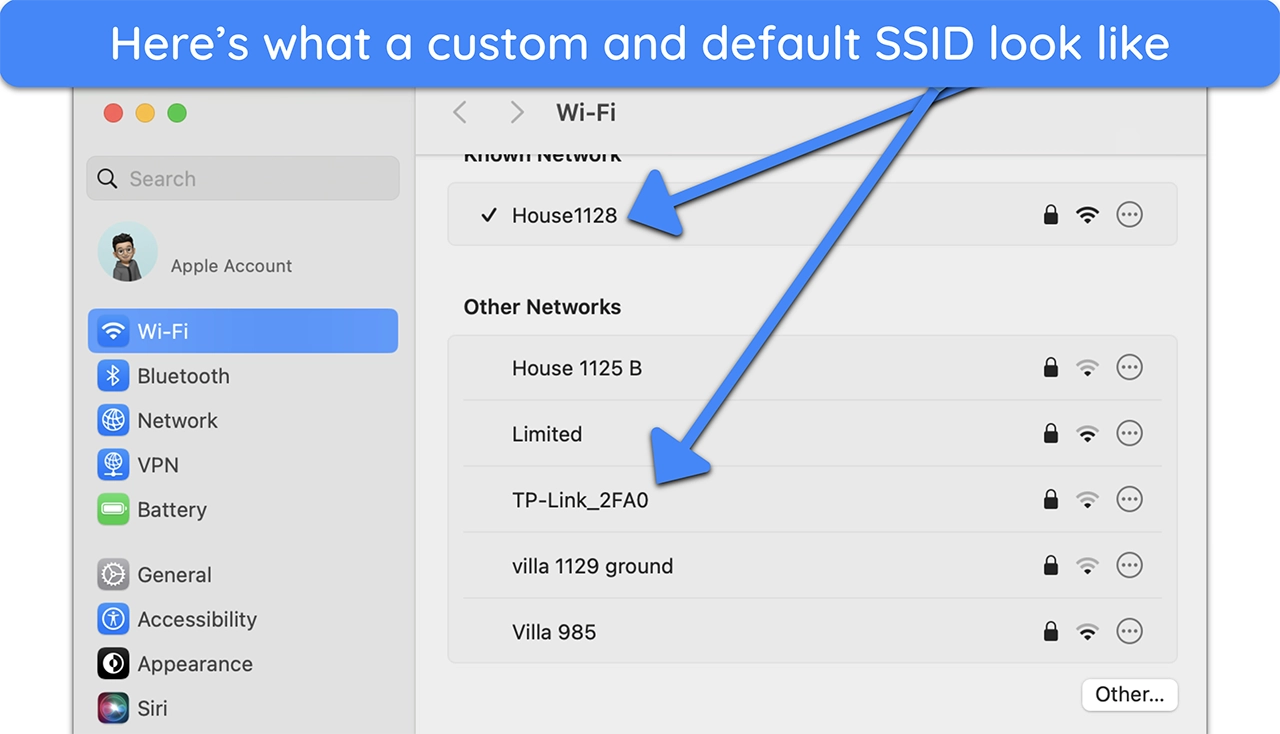
The term “Service Set Identifier” might sound technical, but its function is straightforward. A “service set” refers to a group of wireless devices that communicate with each other, typically through an access point or router. The “identifier” is simply the name that tags this specific group. For instance, if your Wi-Fi network is named “MyHomeNetwork,” then “MyHomeNetwork” is its SSID. This name can be up to 32 characters long, can include letters, numbers, and symbols, and is case-sensitive. While you can technically leave the default SSID provided by your router manufacturer (e.g., “NETGEAR93,” “TP-LINK_ABCD”), it’s generally recommended to customize it for better identification and a touch of personalization.
The Broadcasting Mechanism
SSIDs don’t just magically appear on your device’s screen; they are actively broadcast by your wireless router or access point. This process happens through what are known as “beacon frames.” These are small data packets that the router continuously sends out at regular intervals (typically every 100 milliseconds). Each beacon frame contains crucial information about the network, including its SSID, the supported data rates, security protocols (like WPA2 or WPA3), and other operational details.
When your Wi-Fi-enabled device (like a smartphone, laptop, or smart TV) is searching for networks, it listens for these beacon frames. Upon detecting them, it compiles a list of available SSIDs and presents them to you. This constant broadcasting is what makes Wi-Fi networks visible and easily discoverable. It’s a fundamental part of the 802.11 Wi-Fi standard, ensuring that devices can quickly find and connect to preferred networks.
SSID vs. Wi-Fi Password
It’s crucial to distinguish between an SSID and a Wi-Fi password, as they serve different, yet complementary, roles in network connectivity. The SSID is the public name of the network, acting as the signpost for your devices. It tells your device which network is available. The Wi-Fi password, also known as a network key or passphrase, is the secret credential required to authenticate and gain access to that network.
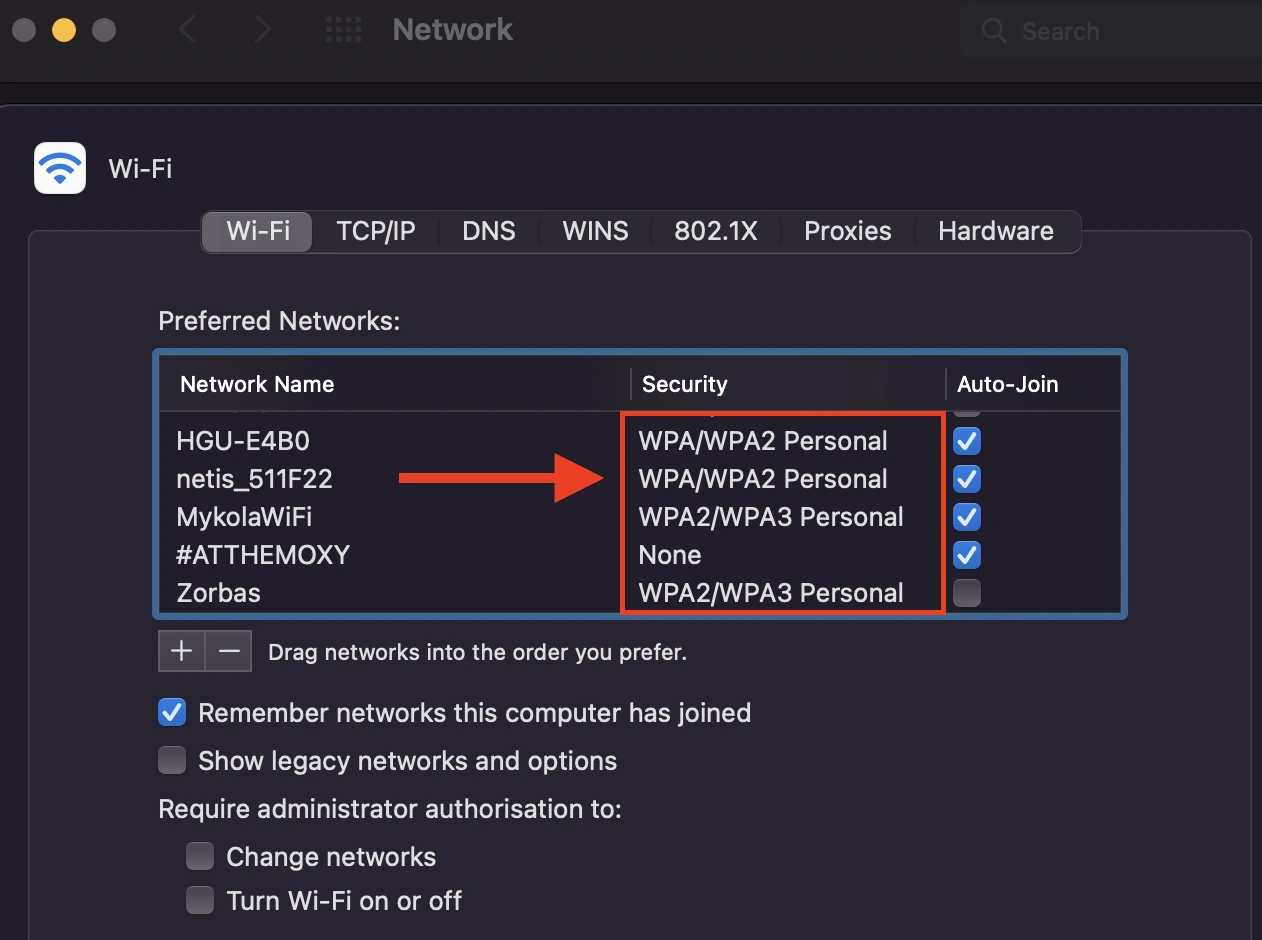
Think of it this way: the SSID is like the name of a private club, visible to everyone. The Wi-Fi password is the secret handshake or membership card required to enter and enjoy the club’s amenities. You need both to connect to a secured Wi-Fi network. The SSID identifies the network you want to join, and the password verifies that you are an authorized user of that network. Without a password, anyone within range could connect to your network, posing significant security risks. Modern Wi-Fi networks rely on robust encryption protocols (like WPA2 or WPA3) that use the password to encrypt all data transmitted over the network, ensuring privacy and data integrity.
Finding Your SSID: Practical Applications
Knowing what an SSID is theory is one thing, but understanding how to find, manage, and interact with it in practice is essential for everyday Wi-Fi usage. Whether you’re connecting a new device, troubleshooting a connection issue, or setting up a new router, familiarity with practical SSID applications will save you time and frustration.
On Your Devices (Laptops, Smartphones, Tablets)
The most common way users interact with SSIDs is by viewing the list of available networks on their devices.
-
On a Windows PC: Click the Wi-Fi icon in the system tray (usually at the bottom right). A panel will display all detected SSIDs.
-
On a Mac: Click the Wi-Fi icon in the menu bar (top right). A dropdown will show available networks.
-
On an Android Phone/Tablet: Go to Settings > Network & Internet > Wi-Fi. You’ll see a list of SSIDs.
-
On an iPhone/iPad: Go to Settings > Wi-Fi. The list of networks will appear.
To connect to a network, you simply select its SSID from the list, enter the correct Wi-Fi password (if it’s a secured network), and your device will attempt to establish a connection. Once connected, your device usually remembers the SSID and password, automatically reconnecting whenever it’s in range.
On Your Router
There are several ways to identify your network’s SSID directly from your wireless router:
-
Physical Label: Most routers have a sticker on the bottom or side that lists the default SSID and password. This is particularly useful when setting up a new router or if you’ve forgotten your network name before changing it.
-
Router Administration Interface: For more advanced management, you can access your router’s web-based administration page. To do this:
-
Find your router’s IP address (often called the default gateway), typically found on the same physical label, or by checking your device’s network settings while connected to the router. Common default IPs include 192.168.1.1, 192.168.0.1, or 10.0.0.1.
-
Open a web browser and type this IP address into the address bar.
-
You’ll be prompted for a username and password (also usually on the physical label, or common defaults like “admin/admin” or “admin/password”).
-
Once logged in, navigate to the “Wireless Settings” or “Wi-Fi” section. Here, you’ll see your current SSID(s) and have the option to change them. This interface also allows you to modify security protocols, change passwords, and manage other network settings.
-
Troubleshooting Common SSID Issues
Occasionally, you might encounter issues related to SSIDs.
-
“Network Not Found” or SSID Not Appearing: If your network’s SSID isn’t showing up, first ensure your router is powered on and functioning. Check if your device’s Wi-Fi is enabled. If the problem persists, try restarting both your device and your router. Sometimes, an SSID might be “hidden” (see the security section below), in which case you’ll need to manually enter the SSID name and password to connect.
-
Interference: In densely populated areas, multiple Wi-Fi networks operating on the same channels can cause interference, making some SSIDs difficult to detect or connect to reliably. Adjusting the Wi-Fi channel in your router settings can sometimes alleviate this.
-
Incorrect Password: The most common reason for failing to connect to a visible SSID is an incorrect password. Remember that Wi-Fi passwords are case-sensitive.
The Security Dimension of SSIDs
While an SSID’s primary role is to identify a network, its visibility and how it’s managed have significant implications for network security. Understanding these implications is crucial for safeguarding your wireless connection against unauthorized access and potential threats.
SSID Broadcasting and Visibility
By default, most wireless routers are configured to broadcast their SSID. This makes your network easily discoverable by any Wi-Fi-enabled device within range. For most home users, this default behavior is perfectly acceptable and convenient. There’s a common misconception that “hiding your SSID” (disabling SSID broadcasting) significantly enhances security. The idea is that if an attacker can’t see your network, they can’t attack it. However, this is largely a myth.
While hiding an SSID removes it from the casual list of networks displayed on devices, it does not make your network invisible to determined attackers. Specialized tools can easily detect hidden SSIDs by capturing beacon frames and probe requests that still contain the SSID, even if it’s not explicitly broadcast. Moreover, hiding your SSID introduces inconvenience for legitimate users, as they must manually enter the SSID name, increasing the likelihood of errors and complicating setup for new devices. For these reasons, relying on a hidden SSID as a primary security measure is generally not recommended and offers a false sense of security.
Protecting Your Network: Beyond the SSID
True wireless network security relies on robust authentication and encryption, not on obscurity through a hidden SSID.
-
Strong Passwords and Encryption (WPA2/WPA3): The cornerstone of Wi-Fi security is a strong, unique password combined with modern encryption protocols. WPA2 (Wi-Fi Protected Access 2) has been the standard for years, and WPA3 is the latest, offering even stronger encryption and improved defenses against brute-force attacks. Always use WPA2-PSK (AES) or WPA3-Personal encryption on your home network. Avoid older, weaker protocols like WEP or WPA (TKIP). Your password should be complex: long (at least 12-16 characters), and include a mix of uppercase and lowercase letters, numbers, and symbols.
-
Router Firmware Updates: Keep your router’s firmware up to date. Manufacturers regularly release updates that patch security vulnerabilities.
-
Guest Networks: Most modern routers allow you to set up a separate guest network with its own SSID and password. This is an excellent security practice, as it allows visitors to access the internet without granting them access to your primary network and all connected devices (like printers, network-attached storage, or smart home devices).
-
Network Segmentation: For advanced users or small businesses, segmenting your network (e.g., separating IoT devices onto their own VLAN or SSID) can limit the potential damage if one device is compromised.
SSID Spoofing and Evil Twin Attacks
While a public SSID doesn’t inherently make you vulnerable, malicious actors can exploit SSIDs through techniques like “SSID spoofing” or “evil twin” attacks.
-
SSID Spoofing: This involves an attacker setting up a rogue access point that broadcasts an SSID identical to a legitimate, well-known network (e.g., “Starbucks Wi-Fi” or “Free Airport Wi-Fi”). Unsuspecting users might connect to the fake network, believing it’s legitimate.
-
Evil Twin Attack: This is a specific type of SSID spoofing where the attacker’s rogue access point mimics a legitimate network that a user commonly connects to (e.g., your home Wi-Fi). The attacker then intercepts traffic, potentially stealing sensitive information like login credentials or banking details.
To protect yourself from these threats, always be cautious when connecting to public Wi-Fi. Verify the network name with an employee if possible, look for secure connections (HTTPS), and consider using a Virtual Private Network (VPN) to encrypt your traffic, especially on untrusted public networks. Avoid performing sensitive transactions (like online banking or shopping) on public Wi-Fi unless you are using a trusted VPN.
Advanced SSID Configurations and Best Practices
Beyond basic connectivity and security, understanding more advanced SSID configurations can significantly enhance network performance, management, and overall user experience, particularly in environments with multiple users or diverse device types.
Multiple SSIDs for Different Purposes
Many modern routers, especially those designed for home and small business use, support the creation of multiple SSIDs for a single physical wireless network. This capability is invaluable for segmenting your network and applying different security policies to various user groups or device types.
-
Main Network: This is your primary SSID, typically secured with a strong WPA2/WPA3 password, used by trusted devices like your personal computers, smartphones, and tablets. It provides full access to your local network resources (printers, shared drives, etc.) and the internet.
-
Guest Network: As discussed, a guest SSID provides internet access to visitors without exposing your internal network resources. It isolates guests from your sensitive data and devices, enhancing security. Guest networks often have time limits or bandwidth restrictions.
-
IoT (Internet of Things) Network: With the proliferation of smart devices (light bulbs, thermostats, security cameras, smart speakers), it’s increasingly wise to create a separate SSID for these devices. IoT devices are sometimes less secure or receive infrequent updates, making them potential entry points for attackers. Isolating them on their own network segment (sometimes referred to as a VLAN or virtual local area network, though often simplified for consumer routers) prevents a compromised IoT device from affecting your main network.
Choosing a Strong SSID
While an SSID isn’t a security credential in itself, your choice of SSID can still have minor security implications and significant usability impacts.
-
Avoid Personal Information: Do not include your full name, address, phone number, or any other personally identifiable information in your SSID. This information could be used by malicious actors for social engineering or other attacks.
-
Avoid Default SSIDs: Change the default SSID (e.g., “Linksys,” “TP-LINKRouter,” “VerizonFIOS_ABC”) provided by your router manufacturer. Default SSIDs can sometimes be associated with default passwords or known vulnerabilities. A unique SSID makes your network stand out and avoids confusion.
-
Unique, Non-Identifiable Names: Opt for an SSID that is unique and doesn’t reveal too much about your location or identity. Creative, non-descriptive names are best.
SSID and Network Management
In larger organizations or enterprise environments, SSIDs play a critical role in network management and user access control.
-
Enterprise Wi-Fi Standards (802.1X): Businesses often use more sophisticated authentication methods than a simple pre-shared key (PSK) password. The 802.1X standard, commonly seen in corporate or educational Wi-Fi networks, uses a central authentication server (like RADIUS) to verify individual user credentials against a directory service. This allows for per-user authentication, making the SSID a gateway to a much more granular and secure access control system. Different SSIDs might correspond to different departments, roles, or security levels within an organization.
-
Roaming and Seamless Connectivity: In large-scale Wi-Fi deployments (e.g., a university campus or a large office building), multiple access points may broadcast the same SSID. This allows devices to “roam” seamlessly from one access point to another without losing their connection, as long as they stay within the same SSID. This provides a consistent and uninterrupted wireless experience across a wide area. Network administrators carefully design these deployments to ensure optimal coverage and performance while maintaining security.

Conclusion
The SSID, or Service Set Identifier, is far more than just a catchy name for your Wi-Fi network. It is a fundamental component of wireless networking, serving as the primary identifier that allows your devices to locate and connect to the internet. From its basic broadcasting mechanism to its critical role in differentiating your network from others, the SSID is indispensable for modern digital life.
While an SSID’s public visibility does not inherently compromise security, understanding its relationship with network passwords, encryption protocols, and potential threats like SSID spoofing is vital. By adopting best practices—such as using strong passwords with WPA2/WPA3 encryption, creating separate guest and IoT networks, avoiding default or personally identifiable SSIDs, and staying vigilant on public Wi-Fi—you can transform your understanding of this seemingly simple identifier into a powerful tool for managing and securing your digital environment. As our reliance on wireless connectivity only continues to grow, a comprehensive grasp of concepts like the SSID empowers us to navigate the technological landscape with greater confidence, efficiency, and safety.
aViewFromTheCave is a participant in the Amazon Services LLC Associates Program, an affiliate advertising program designed to provide a means for sites to earn advertising fees by advertising and linking to Amazon.com. Amazon, the Amazon logo, AmazonSupply, and the AmazonSupply logo are trademarks of Amazon.com, Inc. or its affiliates. As an Amazon Associate we earn affiliate commissions from qualifying purchases.