
In an era defined by digital connectivity and rapid technological advancement, the computer remains the central hub of our personal and professional lives. From casual browsing to professional creative work, the right machine can significantly enhance productivity, foster creativity, and provide seamless access to the vast digital world. However, the sheer variety of options available today—from ultralight laptops to powerful desktop workstations—can be overwhelming. Processors, RAM, storage, operating systems, form factors, and price points all converge into a complex decision matrix.
This guide aims to demystify the process, offering a structured approach to identifying the perfect computer for your specific needs. Instead of chasing the latest trends, our focus will be on understanding your individual requirements and aligning them with the technological specifications that truly matter. By the end of this comprehensive exploration, you’ll be equipped with the knowledge to make an informed, confident decision, ensuring your next computer is not just a purchase, but a strategic investment in your digital future.
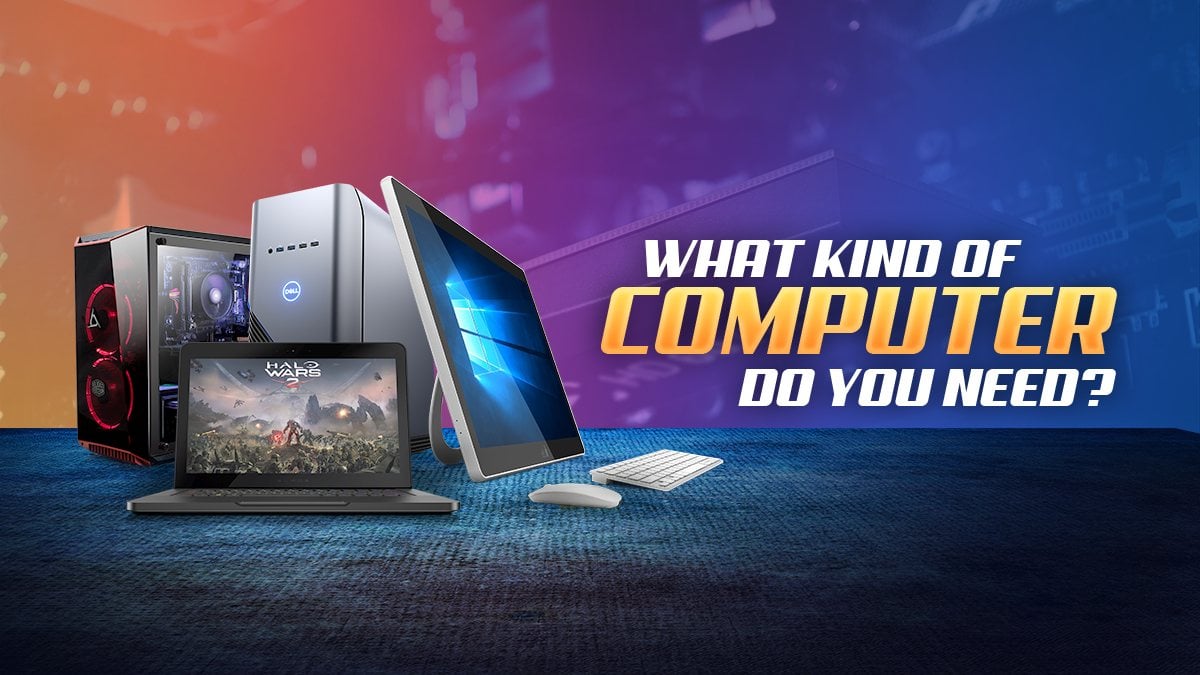
Understanding Your Computing Needs: The Foundation of Choice
Before diving into specifications and brands, the most crucial step is a thorough self-assessment of how you intend to use your computer. This foundational understanding will dictate every subsequent decision, from the operating system to the core hardware components.
Purpose and Primary Use Cases
Every user has a primary motivation for acquiring a computer, and these use cases demand vastly different capabilities.
-
Basic Browsing & Email: For users whose primary activities revolve around web surfing, checking emails, social media, and streaming video, an entry-level machine will suffice. Performance demands are low, and emphasis can be placed on affordability, portability, and battery life.
-
Productivity & Office Work: Professionals and students often require a computer capable of handling multiple applications simultaneously—word processors, spreadsheets, presentation software, video conferencing, and research tools. Mid-range specifications for the CPU and RAM are typically recommended here to ensure smooth multitasking.
-
Creative Professionals: This category encompasses graphic designers, video editors, music producers, and photographers. Their work demands significant processing power, ample RAM, fast storage, and often a dedicated graphics card. High-resolution displays with accurate color reproduction are also critical.
-
Gaming: Gamers represent one of the most demanding user segments. High-performance gaming requires top-tier CPUs, powerful dedicated graphics cards, substantial RAM, fast SSDs, and often specialized cooling systems. Refresh rates and display technology are also paramount.
-
Programming/Development: Developers need robust CPUs, sufficient RAM for running virtual machines or complex IDEs, and fast storage for compiling code. Specific operating system preferences (e.g., Linux for backend development) might also influence the choice.
Portability vs. Power
The physical form factor of your computer largely depends on where and how you plan to use it.
-
On-the-go Mobility: If you frequently travel, commute, or work from various locations, a laptop is the clear choice. Ultrabooks offer extreme portability with decent power, while 2-in-1 convertibles provide tablet-like versatility. Battery life becomes a critical factor here.
-
Stationary Performance: For users who primarily work from a fixed desk, a desktop computer offers unmatched performance for the price, superior upgradeability, and better thermal management. All-in-one (AIO) desktops integrate the components into the monitor for a sleek, space-saving design, albeit with limited upgrade options compared to traditional towers.
Budget Considerations
Your budget plays a significant role in narrowing down options, but it shouldn’t be the sole determinant. A well-chosen, slightly more expensive machine that meets all your needs can be a better long-term investment than a cheaper one that quickly becomes inadequate.
-
Entry-level (Under $500): Suitable for basic tasks, web browsing, and light office work. Typically found in Chromebooks or budget Windows laptops.
-
Mid-range ($500 – $1200): The sweet spot for most users, offering a balance of performance, features, and build quality for productivity, light creative work, and some casual gaming.
-
High-end ($1200+): Reserved for professional workstations, serious gaming rigs, and premium ultrabooks, featuring top-tier components and often superior build materials and displays.
Navigating the Ecosystems: Operating Systems and Form Factors
Once you’ve defined your needs, the next step involves choosing the operating system (OS) and the physical form factor of your computer. These decisions heavily influence your user experience, software compatibility, and overall workflow.
Operating System Choices
The operating system is the core software that manages your computer’s hardware and software resources. Each offers a distinct user experience and ecosystem.
-
Windows: Microsoft’s Windows remains the most popular operating system globally, offering unparalleled software compatibility for applications and games. It’s known for its versatility, allowing users to choose from a vast array of hardware configurations across numerous manufacturers. Windows is suitable for virtually all use cases, from basic productivity to high-end gaming and professional creative work.
-
macOS: Apple’s macOS, exclusive to Mac computers, is renowned for its intuitive user interface, robust security features, and deep integration with other Apple devices (iPhone, iPad, Apple Watch). It’s a favorite among creative professionals due to its strong performance in media editing and design applications, as well as its polished aesthetic. While it offers excellent performance, hardware options are limited to Apple’s own products, which typically come at a premium.
-
ChromeOS: Google’s ChromeOS powers Chromebooks and is a lightweight, cloud-centric operating system. It’s designed for speed, simplicity, and security, primarily relying on web applications and Google services. ChromeOS is ideal for students, casual users, and those who primarily work within a web browser, offering excellent battery life and typically lower price points. Its offline capabilities and native software options are more limited than Windows or macOS.
-
Linux: A family of open-source operating systems, Linux distributions (like Ubuntu, Fedora, Mint) offer unparalleled customization, strong security, and are often free. They are highly favored by developers, system administrators, and privacy-conscious users. While more challenging for beginners, Linux provides a powerful, stable, and flexible environment, with a growing ecosystem of user-friendly interfaces and applications.
Form Factors: Finding Your Physical Fit
The physical design of your computer dictates its portability, upgradeability, and how it integrates into your workspace.
-
Laptops: The most popular choice for general users due to their portability.
-
Traditional Laptops: Offer a balance of features, performance, and price.
-
Ultrabooks: Thinner, lighter, and often more premium, prioritizing portability and battery life over raw power.
-
2-in-1 Convertibles: Feature touchscreens and hinges that allow them to transform into tablet mode, offering versatility for note-taking, drawing, and presentations.
-
-
Desktops: Ideal for users who prioritize raw power, extensive connectivity, and upgradeability, typically for a fixed workspace.
-
Tower PCs: Offer the most flexibility for customization and upgrades, with ample space for high-performance components and cooling solutions.
-
All-in-Ones (AIOs): Integrate all computer components directly into the monitor, creating a sleek, minimalist setup. They offer less upgradeability than traditional towers but save significant desk space.
-
Mini PCs: Extremely compact desktop solutions, often resembling small set-top boxes. They are great for basic tasks, media centers, or light office work where space is at a premium, but performance and upgrade options are limited.
-
Deciphering the Specs: Key Hardware Components Explained
Beyond the operating system and form factor, the internal hardware components determine a computer’s performance, speed, and capabilities. Understanding these core specifications is vital to making an informed decision.
Processor (CPU): The Brain of Your Computer
The Central Processing Unit is responsible for executing instructions and performing calculations. It’s the primary determinant of a computer’s speed and ability to handle complex tasks.
-
Key Brands: Intel (Core i3, i5, i7, i9) and AMD (Ryzen 3, 5, 7, 9) dominate the market.
-
Performance Tiers:
-
i3/Ryzen 3: Good for basic tasks, web browsing, and light office work.
-
i5/Ryzen 5: The mainstream choice, offering a great balance for productivity, light creative work, and casual gaming.
-
i7/Ryzen 7: High-performance CPUs for serious multitasking, video editing, and demanding gaming.
-
i9/Ryzen 9/Threadripper/Xeon: Top-tier processors for professional workstations, extreme gaming, and heavy-duty tasks like 3D rendering and scientific simulations.
-
-
Metrics: Look for higher clock speeds (GHz), more cores (for multitasking), and more threads (for parallel processing).
Memory (RAM): Multitasking Maestro
Random Access Memory is volatile storage used to hold data that the CPU is actively using. More RAM allows you to run more applications simultaneously without slowdowns.
-
4GB: Bare minimum for ChromeOS or extremely light Windows use. Not recommended for modern computing.
-
8GB: Standard for general productivity and web browsing. Sufficient for most users.
-
16GB: Recommended for serious multitasking, light video editing, graphic design, and modern gaming.
-
32GB+: Essential for professional creative work (heavy video editing, 3D rendering), virtual machines, and enthusiast gaming.
Storage: Speed and Capacity
Storage determines how many files you can keep on your computer and how quickly they can be accessed.
-
HDD (Hard Disk Drive): Traditional mechanical drives offer high capacity at a lower cost per gigabyte, but are significantly slower and more fragile. Best for mass storage of less frequently accessed files.
-
SSD (Solid State Drive): Faster, more durable, and quieter than HDDs, as they have no moving parts. SSDs drastically improve boot times, application loading, and overall system responsiveness.
-
NVMe SSDs: The latest generation of SSDs, connecting directly to the motherboard’s PCIe lanes for even faster performance, ideal for operating systems and frequently used applications.
-
Recommendation: Prioritize an SSD (preferably NVMe) for your operating system and primary applications. For users needing vast storage, a combination of a smaller, fast SSD and a larger, slower HDD (in desktops) or external drive (for laptops) is a cost-effective solution.
Graphics Card (GPU): Visual Powerhouse
The Graphics Processing Unit handles rendering images, videos, and animations.
-
Integrated Graphics: Built into the CPU (e.g., Intel Iris Xe, AMD Radeon Graphics). Sufficient for basic tasks, video streaming, and very light gaming.
-
Dedicated Graphics Card: A separate component with its own memory (VRAM) and processor (e.g., NVIDIA GeForce RTX, AMD Radeon RX). Essential for gaming, video editing, 3D modeling, and other graphically intensive tasks. The higher the tier (e.g., RTX 4080 vs. 4050), the greater its performance.
Display: Your Window to the Digital World
For laptops and all-in-one desktops, the display is a crucial component. For tower desktops, you’ll purchase a monitor separately.
-
Size: Measured diagonally (e.g., 13-inch, 15-inch, 27-inch).
-
Resolution: Higher resolution (e.g., 4K/UHD) offers sharper images and more screen real estate than Full HD (1080p).
-
Panel Type: IPS panels offer better color accuracy and wider viewing angles, important for creative work. TN panels are faster but have poorer color and viewing angles, often preferred by competitive gamers. OLED offers superior contrast and true blacks but can be more expensive.
-
Touchscreen/Convertible: Adds versatility for 2-in-1 laptops.
-
Refresh Rate: Measured in Hz (e.g., 60Hz, 120Hz, 144Hz, 240Hz). Higher refresh rates provide smoother motion, crucial for competitive gaming.
Connectivity and Ports
Consider the types and number of ports you’ll need for peripherals (monitors, external drives, chargers, accessories).
-
USB-A: Standard rectangular ports for most peripherals.
-
USB-C/Thunderbolt: Versatile ports for charging, data transfer, and display output. Thunderbolt offers even faster speeds and daisy-chaining capabilities.
-
HDMI/DisplayPort: For connecting external monitors.
-
Ethernet: For wired internet connection (faster and more stable than Wi-Fi).
-
Wi-Fi 6/7 & Bluetooth: Ensure modern wireless connectivity standards for fast internet and peripheral connections.
Specialized Computer Needs: Beyond the Basics
While general-purpose computers serve most users well, certain professions and hobbies demand highly specialized machines with distinct hardware profiles. Understanding these niche requirements can prevent costly mistakes and ensure optimal performance.
Gaming Rigs: Power, Performance, and Aesthetics
Gaming computers are built for high performance, demanding the very best in specific hardware categories to render complex 3D environments and maintain high frame rates.
-
CPU: A high-core count, high clock speed CPU (e.g., Intel Core i7/i9 or AMD Ryzen 7/9) is crucial, as modern games leverage multiple cores.
-
GPU: The single most important component for gaming. A powerful dedicated graphics card (e.g., NVIDIA GeForce RTX 4070/4080/4090 or AMD Radeon RX 7800 XT/7900 XT/XTX) determines frame rates and graphical fidelity. The higher the resolution and refresh rate of your monitor, the more powerful the GPU you’ll need.
-
RAM: 16GB is the minimum, but 32GB is increasingly recommended for high-end gaming and multitasking while streaming.
-
Storage: A fast NVMe SSD is essential for quick game loading times. Larger capacities (1TB+) are preferred as game installations can be massive.
-
Display: High refresh rate monitors (120Hz, 144Hz, 240Hz) with low response times are key for a fluid gaming experience. Resolution (1080p, 1440p, 4K) depends on GPU power.
-
Cooling: Robust cooling systems (liquid cooling for high-end CPUs/GPUs) are vital to prevent thermal throttling during intense gaming sessions.
-
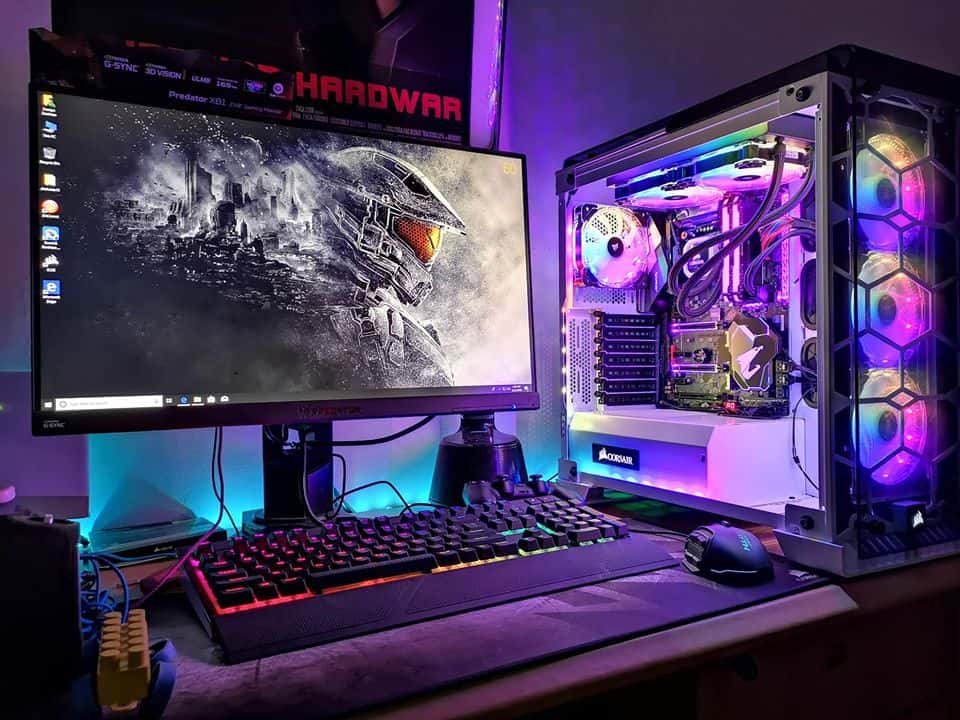
Aesthetics: Often feature RGB lighting, transparent side panels, and aggressive designs.
Workstations for Creative Professionals
Computers for tasks like video editing, 3D rendering, graphic design, and CAD require immense processing power, specialized components, and precise displays.
-
CPU: Multi-core CPUs (Intel Core i7/i9/Xeon or AMD Ryzen 7/9/Threadripper) are paramount for tasks like video encoding, rendering, and complex simulations that scale with core count.
-
RAM: 32GB is a baseline, with 64GB or even 128GB common for very demanding workflows in 4K video editing, large architectural models, or intensive scientific computing. Error-Correcting Code (ECC) RAM may be preferred for maximum data integrity in critical applications.
-
GPU: While gaming GPUs can suffice for some creative tasks, professional GPUs (NVIDIA Quadro or AMD Radeon Pro) offer certified drivers, specialized features, and superior performance for CAD, scientific visualization, and specific rendering engines. VRAM capacity is also crucial.
-
Storage: Multiple fast NVMe SSDs are often configured in RAID arrays for extremely high read/write speeds, essential for large media files.
-
Display: A high-resolution (4K+) monitor with excellent color accuracy (e.g., IPS or OLED with DCI-P3 or Adobe RGB coverage) and calibration features is critical for visual professionals.
-
Connectivity: Ample USB-C (Thunderbolt) ports, multi-gig Ethernet, and SD card readers are often required for connecting external storage, displays, and cameras.
Business and Enterprise Solutions
Computers deployed in a business environment have unique requirements beyond raw performance, focusing on security, manageability, and reliability.
-
Security Features: Hardware-level security like Trusted Platform Modules (TPM) for secure boot and encryption, vPro technology for remote management, and biometric authentication (fingerprint readers, facial recognition).
-
Manageability: Features that allow IT departments to remotely deploy, manage, and secure devices, often integrated with specific enterprise software.
-
Durability and Reliability: Business-grade laptops often feature more robust chassis, spill-resistant keyboards, and undergo stricter quality control to withstand daily professional use. Longer warranty periods and dedicated business support are also common.
-
Longevity and Consistency: Businesses often prefer models that remain available for longer periods to standardize their IT infrastructure.
-
Connectivity: Robust Wi-Fi, often with Ethernet ports, and a range of legacy and modern ports to support various office peripherals.
Student Laptops: Balancing Cost, Portability, and Performance
Student computing needs vary, but common themes include portability, battery life, and cost-effectiveness for everyday academic tasks.
-
Portability & Battery Life: Lightweight laptops (13-inch to 14-inch) with 8+ hours of battery life are highly valued for carrying between classes and studying on the go.
-
Performance: A mid-range Intel Core i3/i5 or AMD Ryzen 3/5 with 8GB of RAM and a 256GB/512GB SSD is usually sufficient for word processing, research, presentations, and online learning.
-
Durability: A sturdy build is important to withstand the rigors of student life.
-
Cost-Effectiveness: Often a primary concern, leading many students towards Chromebooks or budget-friendly Windows laptops.
-
Software Compatibility: Ensure the chosen OS can run any specific software required for their courses.
Making the Final Decision and Future-Proofing
Choosing a new computer is a significant investment that should serve you well for years to come. With all the information gathered, the final step involves prioritizing, considering longevity, and leveraging external resources to finalize your choice.
Setting a Realistic Budget and Prioritizing Features
Your budget should be flexible, but ultimately, it will define the boundaries of your options. Review your primary use cases and decide where you can make compromises and where you absolutely cannot.
-
Where to Splurge: If you’re a gamer or creative professional, allocate a larger portion of your budget to the GPU and CPU. If portability is paramount, invest in a lighter, more durable chassis and better battery life. For professionals, strong security features and robust build quality are worth the extra cost.
-
Where to Save: For basic users, an expensive CPU or dedicated GPU is unnecessary. Consider integrated graphics or a smaller SSD if your budget is tight and you can rely on cloud storage. Sometimes, going with a slightly older generation of components can offer significant savings with minimal performance loss for your specific needs.
Considering Longevity and Upgradeability
Technology evolves rapidly, but a thoughtful purchase can extend the lifespan of your computer.
-
Future-Proofing: While true future-proofing is impossible, investing in slightly higher specifications than you currently need (e.g., 16GB RAM instead of 8GB) can delay obsolescence. Opt for the latest generation of Wi-Fi (Wi-Fi 6/7) and USB (USB-C/Thunderbolt) for better connectivity longevity.
-
Upgradeability: Desktops generally offer the best upgradeability, allowing you to swap out components like RAM, storage, and graphics cards. Most laptops, however, have soldered RAM and limited storage upgrade options. If upgradeability is important to you, research specific models for their user-serviceable components.
-
Software Lifecycle: Consider how long an operating system will receive security updates and feature support. Apple’s macOS typically supports devices for many years, while Windows 11 has specific hardware requirements that might limit upgrades for older machines.
Reading Reviews and Seeking Expert Advice
Once you’ve narrowed down your options to a few models, delve into external resources.
-
Reputable Tech Sites: Websites like TechRadar, CNET, PCMag, and Tom’s Hardware offer in-depth reviews, benchmarks, and comparisons of the latest computers. Look for reviews that align with your specific use cases.
-
User Reviews: Sites like Amazon, Best Buy, and manufacturer websites often contain user reviews that provide real-world insights into a product’s strengths and weaknesses, especially regarding build quality and customer support.
-
Forums and Communities: Online communities like Reddit (e.g., r/buildapc, r/laptops) can offer personalized advice and experiences from other users.
-
Expert Consultation: If your needs are highly specialized (e.g., for a professional workstation), consider consulting with an IT professional or a specialist retailer.
The Importance of Peripherals and Accessories
A great computer can be undermined by poor peripherals. Factor these into your overall budget and decision.
-
Monitor: A high-quality external monitor can drastically improve productivity and comfort for desktop users, and even for laptop users when at a desk.
-
Keyboard and Mouse: Ergonomic and responsive input devices are essential for long-term comfort and efficiency.
-
Webcam and Microphone: Crucial for video conferencing and online communication, especially if not integrated or of poor quality.
-
External Storage: For backups or expanding capacity, especially for laptops.
-
Docking Station: For laptops, a docking station can provide multiple ports and single-cable connectivity to all your desk peripherals.
Ultimately, the “best” computer is not a universal truth but a personal reflection of your unique requirements, budget, and preferences. By meticulously assessing your needs, understanding the various operating systems and form factors, and deciphering the technical specifications, you can confidently navigate the vast landscape of computing devices. Approach your decision thoughtfully, and you’ll find a machine that doesn’t just meet your expectations, but empowers your digital journey for years to come.
aViewFromTheCave is a participant in the Amazon Services LLC Associates Program, an affiliate advertising program designed to provide a means for sites to earn advertising fees by advertising and linking to Amazon.com. Amazon, the Amazon logo, AmazonSupply, and the AmazonSupply logo are trademarks of Amazon.com, Inc. or its affiliates. As an Amazon Associate we earn affiliate commissions from qualifying purchases.