
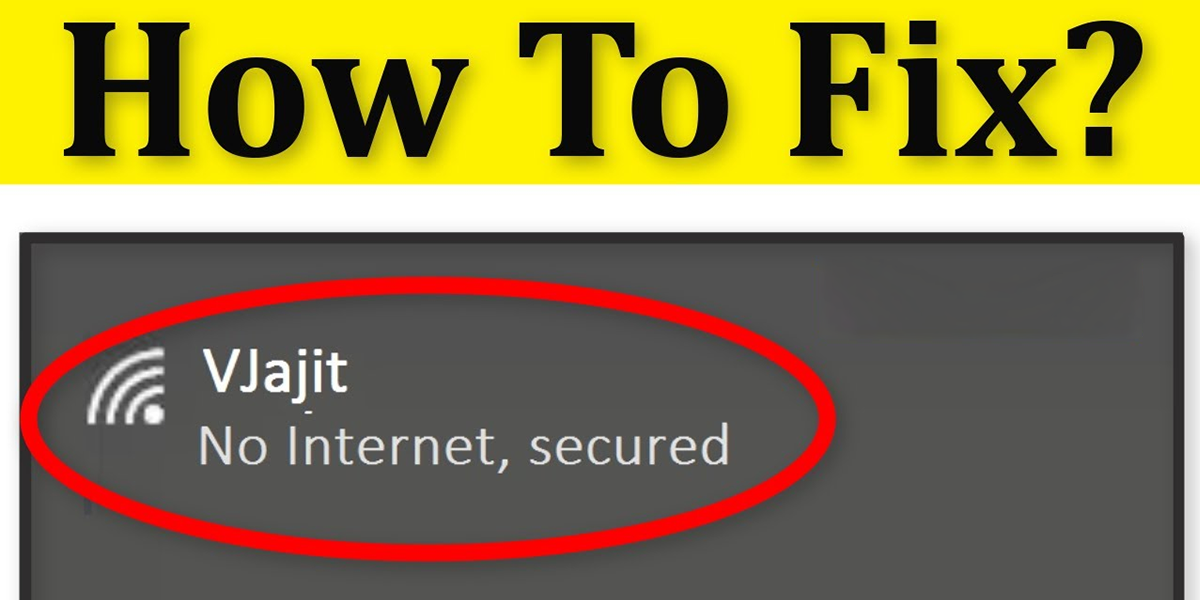
The seemingly innocuous notification “No Internet, Secured” is a common yet frustrating digital roadblock. It signifies that your device has successfully connected to your Wi-Fi network, establishing a secure handshake with the router. However, the crucial link to the wider internet is broken. This situation can halt your work, disrupt your entertainment, and leave you feeling disconnected in an increasingly connected world. Understanding the underlying causes and systematically troubleshooting this issue is essential for any tech-savvy individual or even those who rely on their devices for daily tasks. This article will delve into the multifaceted nature of this problem and provide a comprehensive guide to resolving it, focusing solely on the technological underpinnings of network connectivity.
Understanding the “No Internet, Secured” Phenomenon
Before diving into solutions, it’s crucial to grasp what “No Internet, Secured” actually means. It’s a diagnostic message from your operating system, indicating a specific stage in the network connection process.
The Anatomy of a Wi-Fi Connection
When you connect to a Wi-Fi network, several steps occur:
- Association: Your device (laptop, smartphone, tablet) sends a signal to the Wi-Fi router, requesting to join the network. The router authenticates your device based on the network’s security credentials (password).
- Authentication: Once associated, the router verifies that your device has the correct password or credentials. This is where the “Secured” part of the notification comes into play, confirming an encrypted connection has been established.
- IP Address Assignment: After successful authentication, your device requests an IP address from the router. This IP address acts as your device’s unique identifier on the local network. This assignment is typically handled by a DHCP (Dynamic Host Configuration Protocol) server, which is usually built into the router.
- Internet Access Verification: This is where the “No Internet” message arises. Your device then attempts to reach an external server to confirm that it can access the internet. This is often done by trying to ping a well-known server (like Google’s DNS servers at 8.8.8.8) or by trying to resolve a domain name (like google.com) through DNS. If these attempts fail, the “No Internet” message is displayed.
Differentiating from Other Connection Errors
It’s important to distinguish “No Internet, Secured” from other Wi-Fi issues:
- “Cannot connect to this network”: This usually means your device failed to associate or authenticate with the router. The password might be incorrect, or the network is out of range.
- “Limited connectivity” or “No IP address”: This indicates a failure in the IP address assignment phase. The DHCP server on the router might be malfunctioning, or there’s an IP address conflict on the network.
- Complete lack of Wi-Fi signal: This implies your device isn’t even detecting or able to connect to the Wi-Fi network in the first place.
The “No Internet, Secured” message specifically points to a successful connection to the local network (your router) but a failure to reach the outside world. This narrows down the potential causes significantly.
Initial Troubleshooting Steps: The Quick Fixes
Often, the simplest solutions are the most effective. Before delving into more complex network configurations, start with these basic troubleshooting steps.
The Power of Reboots
The adage “turn it off and on again” is surprisingly effective in the tech world, and network issues are no exception.
- Reboot Your Device: A simple restart of your laptop, smartphone, or tablet can clear temporary glitches in the device’s network stack and re-initiate the connection process cleanly.
- Reboot Your Router and Modem: This is often the most crucial step. Your router and modem are the gateways to the internet for your entire home network.
- Unplug both your modem and router from their power sources.
- Wait for at least 30-60 seconds. This allows the devices to fully discharge and reset.
- Plug in your modem first and wait for its indicator lights to stabilize (usually indicating a connection to your ISP).
- Then, plug in your router and wait for its lights to stabilize.
- Attempt to reconnect your device to the Wi-Fi.
This process effectively refreshes the connection between your devices, your router, your modem, and your Internet Service Provider (ISP).
Checking Physical Connections
While seemingly obvious, ensuring all physical connections are secure is paramount.
- Modem to Wall Jack: Ensure the cable connecting your modem to the internet source (e.g., coaxial cable, Ethernet cable from a fiber optic ONT) is firmly plugged in and undamaged.
- Router to Modem: Verify the Ethernet cable connecting your router’s WAN (Wide Area Network) port to the modem is securely seated at both ends. Try a different Ethernet cable if you suspect a fault.
- Power Cables: Ensure the power adapters for both the modem and router are properly connected to their respective devices and a functioning power outlet.
Verifying Other Devices
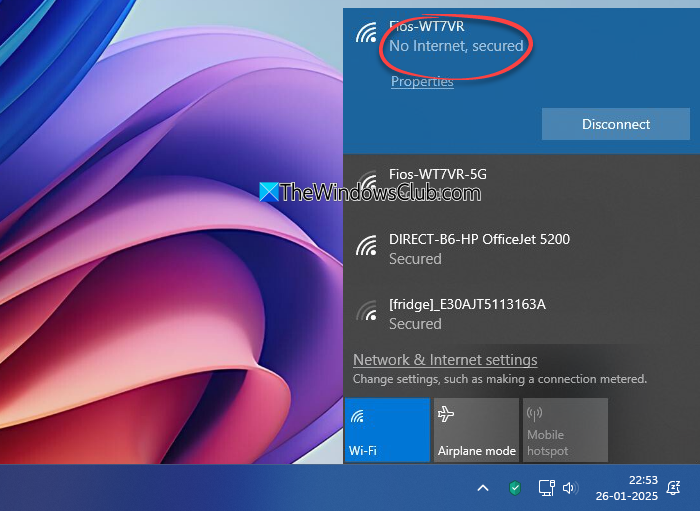
A quick test on other devices connected to the same Wi-Fi network can help isolate the problem.
- Test on Multiple Devices: If other devices are also experiencing the “No Internet, Secured” message, the issue likely lies with your router, modem, or ISP. If only one device is affected, the problem is likely with that specific device’s settings or hardware.
- Test on a Wired Connection: If possible, connect a device directly to your router using an Ethernet cable. If a wired connection works, the issue is specifically with the Wi-Fi transmission or your device’s Wi-Fi adapter.
Advanced Troubleshooting: Digging Deeper
If the initial steps don’t resolve the “No Internet, Secured” error, it’s time to explore more advanced solutions. This involves examining your device’s network settings and potentially your router’s configuration.
Device-Specific Network Settings
Your device’s network configuration plays a significant role in its ability to access the internet.
- Forget and Reconnect to the Network: On your device, go to Wi-Fi settings, find your network name (SSID), and select the option to “forget” or “remove” the network. Then, scan for available networks again, select yours, and re-enter the password. This clears any cached or corrupted connection profiles.
- Check IP Address and DNS Settings:
- Obtain IP Address Automatically (DHCP): For most home networks, your device should be configured to obtain an IP address and DNS server addresses automatically via DHCP. Ensure this setting is enabled. Manually assigning IP addresses or DNS servers can lead to conflicts if not done correctly.
- Manual DNS Configuration: If you’ve previously manually set DNS servers (e.g., Google DNS 8.8.8.8 and 8.8.4.4, or Cloudflare DNS 1.1.1.1), try reverting to automatic settings. Sometimes, the manually configured DNS servers might be temporarily unavailable or experiencing issues.
- Network Adapter Diagnostics (Windows): Windows has built-in network troubleshooter tools. Right-click on the Wi-Fi icon in the system tray and select “Troubleshoot problems.” Follow the on-screen prompts, as it can often identify and fix common network issues.
- Proxy Settings: Ensure no proxy server is configured on your device unless it’s intentionally set up for a specific reason (e.g., corporate network). Incorrect proxy settings can block internet access. In Windows, you can find this in Settings > Network & Internet > Proxy.
Router and Modem Configuration
Your router is the central hub of your home network, and its configuration is critical. Accessing your router’s administrative interface is usually done by typing its IP address (often 192.168.1.1 or 192.168.0.1) into a web browser. Consult your router’s manual or the manufacturer’s website for the specific IP address and login credentials.
- Check Router’s Internet Status: Within the router’s interface, look for a status page that indicates its connection to the internet. It should show an active WAN IP address assigned by your ISP. If this is missing or shows an error, the issue might be with your modem or ISP.
- DHCP Server Status: Ensure the DHCP server on your router is enabled and configured with an appropriate IP address range for your network. This is what assigns IP addresses to your connected devices.
- Firmware Update: Outdated router firmware can cause a variety of issues, including connectivity problems. Check for available firmware updates on your router manufacturer’s website and follow their instructions to perform an update. This can be a critical step for resolving compatibility issues and security vulnerabilities.
- Factory Reset (Last Resort): If all else fails, you can perform a factory reset on your router. Warning: This will erase all your custom settings, including your Wi-Fi network name (SSID) and password, and revert the router to its default configuration. You will need to set up your network again from scratch. There is usually a small reset button on the back of the router that needs to be pressed and held for about 10-30 seconds while the router is powered on.
Ruling Out External Factors
Sometimes, the problem isn’t with your equipment but with the services that provide your internet connection.
Internet Service Provider (ISP) Issues
Your ISP is responsible for delivering internet service to your home.
- Check for Outages: Visit your ISP’s website or use a service like Downdetector to check if there are any reported internet outages in your area. Many ISPs also have customer service lines or mobile apps where you can check for outages.
- Contact ISP Support: If you’ve exhausted all other troubleshooting steps and multiple devices are affected, it’s time to contact your ISP’s technical support. They can remotely diagnose issues with your line, modem, or their network infrastructure. Be prepared to provide them with details of the troubleshooting steps you’ve already taken.
Modem Malfunctions
The modem is the device that translates the signal from your ISP into a format that your router can understand.
- Modem Indicator Lights: Pay close attention to the indicator lights on your modem. Consult your modem’s manual to understand what each light signifies. If the “Internet,” “Online,” or “WAN” light is off, blinking erratically, or red, it usually indicates a problem with the signal from your ISP.
- Modem Compatibility: Ensure your modem is compatible with your ISP’s service. If you’ve recently switched ISPs or upgraded your service plan, you might need a new modem.

Interference and Environmental Factors
While less common for the “No Internet, Secured” message, environmental factors can sometimes contribute to unstable connections.
- Physical Obstructions: Thick walls, metal objects, and large appliances can weaken Wi-Fi signals. Ensure your router is in a central, open location.
- Interference from Other Devices: Other electronic devices, such as microwaves, cordless phones, and Bluetooth devices, can operate on similar frequencies and cause interference. Try moving these devices away from your router.
By systematically working through these troubleshooting steps, you can effectively diagnose and resolve the frustrating “No Internet, Secured” error, restoring your seamless connection to the digital world. Remember to start with the simplest solutions and progressively move to more complex ones, always documenting the steps you take.
aViewFromTheCave is a participant in the Amazon Services LLC Associates Program, an affiliate advertising program designed to provide a means for sites to earn advertising fees by advertising and linking to Amazon.com. Amazon, the Amazon logo, AmazonSupply, and the AmazonSupply logo are trademarks of Amazon.com, Inc. or its affiliates. As an Amazon Associate we earn affiliate commissions from qualifying purchases.