
Choosing the correct wallpaper size for a MacBook is more than a matter of aesthetic preference; it is a technical requirement for anyone seeking to maintain the visual integrity of Apple’s high-density Retina displays. Unlike standard monitors, where a simple 1920×1080 image might suffice, MacBooks utilize specific resolutions and aspect ratios that demand high-fidelity assets. To achieve a crisp, professional look without blurring or pixelation, one must understand the underlying hardware specifications of the current and legacy MacBook lineups.
The Evolution of the Retina Display and Its Impact on Image Resolution
The term “Retina Display” is a brand name used by Apple for its high-pixel-density screens. The fundamental principle of a Retina display is that the human eye, at a normal viewing distance, is unable to distinguish individual pixels. This is achieved by doubling the pixel density of standard displays, often referred to as “HiDPI” mode.

Understanding Pixel Density (PPI)
Most modern MacBooks feature a pixel density ranging between 224 and 254 pixels per inch (PPI). When you are looking for a wallpaper, you aren’t just looking for the dimensions of the screen in “points” (the logical size used for UI elements); you are looking for the physical pixel count. For example, a screen that appears to be 1440×900 in your system settings is actually pushing 2880×1800 physical pixels. If you use a wallpaper that matches only the logical resolution, the macOS system must upscale the image, resulting in a loss of sharpness and clarity.
Aspect Ratios: The 16:10 Tradition and Recent Shifts
For over a decade, the MacBook lineup adhered strictly to a 16:10 aspect ratio. This was a point of distinction from the 16:9 widescreen ratio common in the PC industry, providing more vertical space for productivity tasks like coding and document editing. However, with the introduction of the “Notch” in the M-series MacBook Pro and Air models, the aspect ratio has shifted slightly. The displays are now taller to accommodate the menu bar around the camera housing, resulting in non-standard ratios that require specific attention when cropping images.
Comprehensive Resolution Guide for Modern MacBook Models
To select the perfect wallpaper, you must identify your specific model. Apple’s transition to Silicon (M1, M2, and M3 chips) brought about significant changes in display dimensions and the introduction of Liquid Retina XDR technology.
MacBook Pro Series (Silicon Era)
The current MacBook Pro models utilize Liquid Retina XDR displays with mini-LED backlighting. These screens are significantly more pixel-dense and offer a higher peak brightness.
- MacBook Pro 14-inch (M1, M2, M3): The native resolution is 3024 x 1964 pixels. To ensure the wallpaper looks perfect even when cropped or scaled, a minimum width of 3024 pixels is required.
- MacBook Pro 16-inch (M1, M2, M3): This model features a native resolution of 3456 x 2234 pixels. This is one of the highest resolutions in the laptop market, and using a standard 4K image (3840 x 2160) will actually result in slight pillar-boxing or cropping because the MacBook display is taller than a standard 4K TV.
MacBook Air Series
The MacBook Air remains the most popular consumer laptop in Apple’s lineup, and its display specs have seen a major overhaul with the redesigns of the M2 and M3 generations.
- MacBook Air 13.6-inch (M2, M3): The redesigned Air features a resolution of 2560 x 1664. Note the extra 64 pixels in height compared to previous models; this is to account for the notch area.
- MacBook Air 15.3-inch (M3): This newer form factor boasts a resolution of 2880 x 1864.
- MacBook Air 13.3-inch (M1 and Intel): These legacy models use the classic 2560 x 1600 resolution at a strict 16:10 aspect ratio.
Legacy and Discontinued Models
For users still operating Intel-based machines or the 12-inch MacBook, the resolutions are slightly lower but still require high-quality assets.
- MacBook Pro 13-inch (Touch Bar models): 2560 x 1600.
- MacBook Pro 15-inch (Pre-2019): 2880 x 1800.
- MacBook 12-inch (Retina): 2304 x 1440.
Technical Specifications: Beyond Simple Dimensions
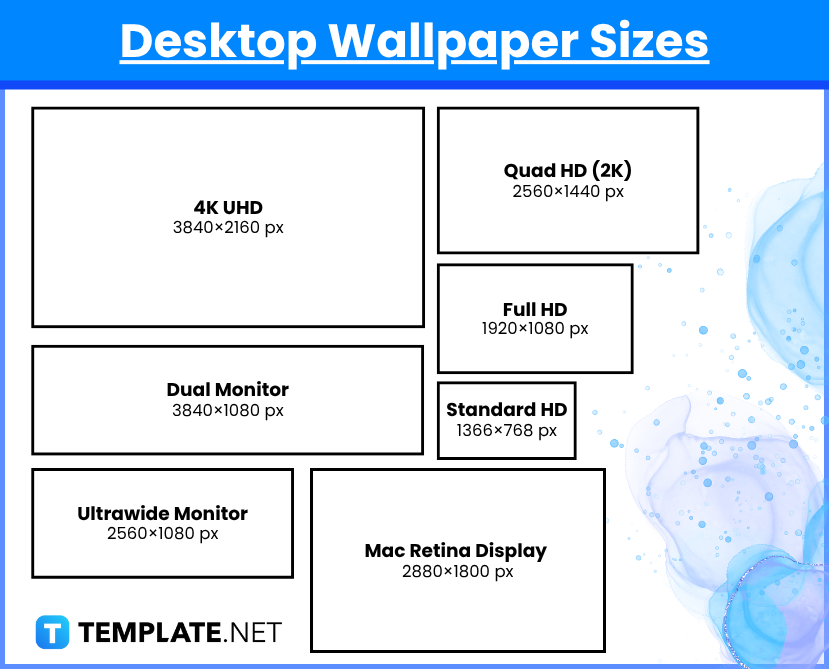
When choosing or designing a MacBook wallpaper, dimensions are only the first part of the equation. To truly take advantage of the hardware, one must consider color profiles and file formats.
The P3 Color Gamut
Modern MacBook displays support the P3 wide color gamut, which offers 25% more colors than standard sRGB. If you are a designer or a photography enthusiast, saving your wallpapers in the Display P3 color space ensures that greens and reds appear more vibrant and true-to-life on your Mac. Using an sRGB image on a P3 display is fine, but you are effectively “leaving colors on the table.”
The Rise of HEIC and Dynamic Wallpapers
macOS introduced the .heic (High Efficiency Image Container) format, which allows for “Dynamic Wallpapers.” These are not static images but containers that hold multiple versions of a single scene.
- Time-Based Transitions: As the sun sets in your physical location, the wallpaper transitions from a daylight shot to a nighttime shot.
- Light/Dark Mode Integration: The wallpaper can automatically toggle between a light version and a dark version based on your system-wide appearance settings.
If you are creating custom wallpapers, utilizing the HEIC format or third-party tools like “Wallpapr” can allow you to leverage these native macOS features for a more integrated tech experience.
File Compression and Performance
While it might be tempting to use a 50MB uncompressed TIFF file for a wallpaper, macOS manages memory more efficiently with optimized JPEGs or PNGs. A high-quality JPEG at 90-100% quality is usually indistinguishable from a lossless file on a 14-inch or 16-inch screen, while keeping the system’s background processes lean.
Accommodating “The Notch” and Menu Bar UI
The introduction of the notch in 2021 changed how wallpapers interact with the macOS interface. In previous iterations, the menu bar was a semi-transparent strip at the top of the display. In the current M-series MacBook Pros and Airs, the menu bar occupies the space to the left and right of the camera notch.
Design Considerations for the Top Edge
If you are using a wallpaper with a busy pattern or high-contrast colors at the very top, it can make the menu bar icons difficult to read. Many tech-focused wallpaper designers have begun “masking” the top 64 to 74 pixels with a darker gradient or a solid color. This effectively hides the notch, making it appear as though the menu bar is a bezel, while providing a clean, high-contrast background for your system clock, battery icon, and menu items.
The Scaling Factor
In System Settings, macOS allows users to change the “Scaled” resolution to provide “More Space” or “Larger Text.” It is a common misconception that changing this setting changes the wallpaper size needed. The physical pixels of the display do not change. Regardless of your scaling settings, you should always aim for the native physical resolution (or higher) to ensure that the OS has enough data to render the background smoothly.
Best Practices for Finding and Creating Mac-Specific Wallpapers
With the technical requirements established, the next step is sourcing or creating assets that meet these high standards.
Professional Sourcing
Standard search engine image results are often compressed and lack the metadata required for a high-end display. For the best results, utilize platforms that cater to high-resolution photography and digital art:
- Unsplash and Pexels: These sites often provide original camera resolutions (often 6000×4000 or higher), which far exceed MacBook requirements and allow for custom cropping.
- WallpapersWide: This platform allows you to filter specifically by “MacBook” resolutions, ensuring the aspect ratio is a perfect 16:10 or the newer notched variations.
- Specialized Tech Forums: Communities like MacRumors or specific subreddits often share “dump” folders of official Apple wallpapers from macOS versions dating back to the early 2000s, often upscaled using AI to meet 5K or 6K standards.
Utilizing AI Upscalers
If you have a lower-resolution image that you are determined to use, modern AI tools can bridge the gap. Software such as Topaz Photo AI or web-based tools like Upscale.media can take a 1080p image and intelligently fill in the missing pixels to create a 3000px+ version suitable for a MacBook Pro. This process is far superior to standard bicubic interpolation, as it preserves edges and removes compression artifacts.
DIY Dimensions: Photoshop and Canva Settings
If you are creating your own branding or custom background, start with a canvas that is slightly larger than your native resolution.
- For a 14-inch MacBook Pro, set your canvas to 3024 x 1964.
- For a 16-inch MacBook Pro, set your canvas to 3456 x 2234.
Always design in 72 or 144 DPI (dots per inch), but remember that in digital displays, the absolute pixel count is what matters most. Ensure your color mode is set to RGB, and if possible, export using the Display P3 color profile for maximum vibrancy.
Conclusion: The Intersection of Hardware and Software
The “size” of a MacBook wallpaper is a moving target that depends on the specific generation of hardware you own. From the classic 2560×1600 resolution of the Intel era to the massive 3456×2234 Liquid Retina XDR displays of today, the key is to match or exceed the physical pixel count. By understanding the relationship between aspect ratios, the notch, and the P3 color gamut, you can ensure that your digital environment is as sharp and professionally presented as the hardware itself. Whether you are a developer, a designer, or a casual user, optimizing your wallpaper for these specifications is the final step in fully utilizing the power of Apple’s display technology.
aViewFromTheCave is a participant in the Amazon Services LLC Associates Program, an affiliate advertising program designed to provide a means for sites to earn advertising fees by advertising and linking to Amazon.com. Amazon, the Amazon logo, AmazonSupply, and the AmazonSupply logo are trademarks of Amazon.com, Inc. or its affiliates. As an Amazon Associate we earn affiliate commissions from qualifying purchases.