
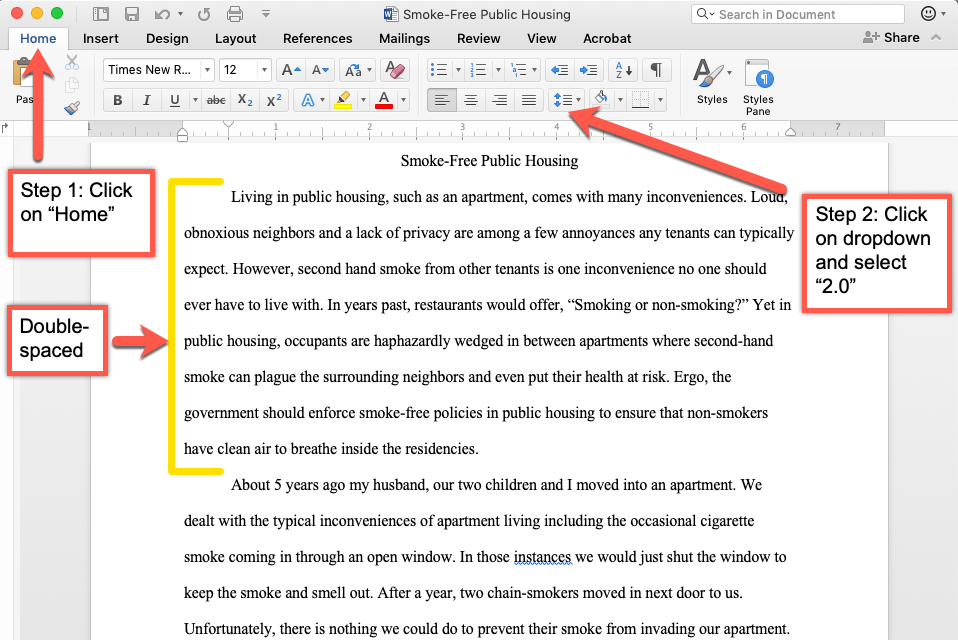
In the world of digital word processing, the term “double spaced” is a ubiquitous requirement for academic papers, legal documents, and professional manuscripts. However, from a technical perspective, the phrase “what number is double spaced” refers to more than just a simple button click. It refers to a specific numerical value within a software’s layout engine—typically the number 2.0.
While users often think of spacing as a visual aesthetic, developers and power users recognize it as a precise calculation of “leading” (the vertical distance between lines of text). In modern software suites like Microsoft Word, Google Docs, and professional IDEs, the number “2.0” represents a line height that is twice the size of the font being used. Understanding the technical mechanics of this number is essential for ensuring document consistency across different platforms and digital devices.
Decoding the Math of Line Spacing in Modern Software
To understand why the number 2.0 is the standard for double spacing, we must look at how word processors calculate vertical space. Digital typography inherited its terminology from the era of manual typesetting, where “leading” referred to physical strips of lead inserted between lines of metal type.
The Standard 2.0 Value in Word Processors
In software like Microsoft Word or LibreOffice, line spacing is relative. If you are using a 12-point font, single spacing (1.0) usually accounts for the height of the characters plus a small buffer for descenders (like the tail of a “g”) and ascenders (like the top of a “k”). When you select the number 2.0 for double spacing, the software dictates that the baseline of one line should be exactly two line-heights away from the baseline of the next.
Technically, this means if your “Single” spacing is 12 points, your “Double” spacing isn’t necessarily just 24 points. Most software adds a built-in “leading” factor (often 15% to 20%) to ensure characters don’t touch. Therefore, the “number” for double spacing is a multiplier of the total line-height value, not just the font size.
Point Sizes vs. Percentages: How Tech Calculates Gap
Beyond the simple 1.0 or 2.0 toggle, many advanced technical applications allow users to input specific numbers in “Points” (pt) or “Percentages” (%). In the realm of digital design and CSS, double spacing is often represented as 200% or 2em.
When a developer sets a line-height to 2, they are telling the rendering engine to take the current font size and double it to create the vertical box for that line of text. This relative numbering ensures that if the user increases the font size from 10pt to 20pt, the spacing remains proportionally “double” without requiring a manual adjustment.
Configuring Double Spacing Across Major Platforms
While the number 2.0 is the universal goal, different software ecosystems handle the technical implementation differently. Navigating these menus requires an understanding of how each application’s layout engine interprets numerical inputs.
Microsoft Word: The Legacy of Paragraph Formatting
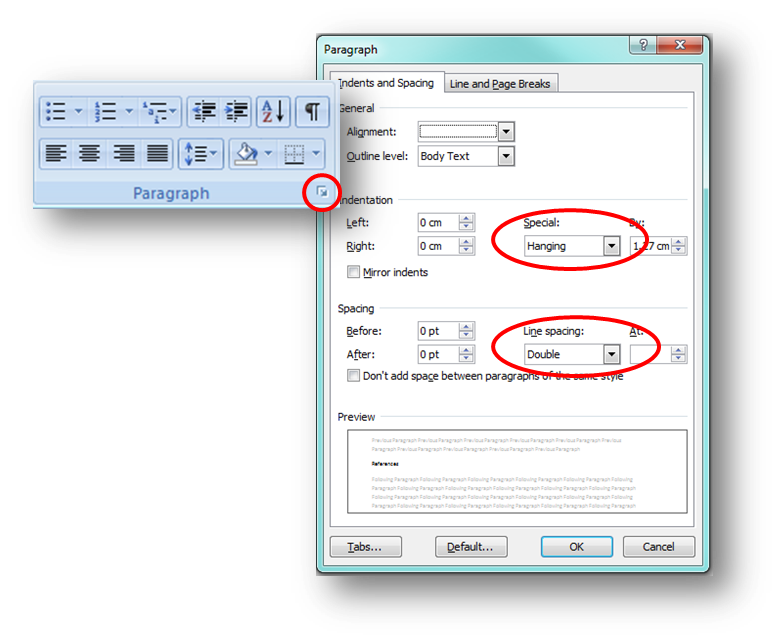
Microsoft Word is the industry standard for document creation, and its handling of the “number” for double spacing is found within the Paragraph Settings. Under the “Indents and Spacing” tab, the “Line Spacing” dropdown offers a preset for “Double.” However, for those needing more precision, the “Multiple” setting allows you to type in any number. Entering 2 in the “At” box achieves the standard double-spaced look.
Word also introduces a technical nuance: “Before” and “After” spacing. If these numbers are set to anything other than zero, your “double spacing” will look wider than intended. From a technical troubleshooting standpoint, ensuring that paragraph spacing is set to 0 pt is the only way to ensure the 2.0 multiplier is mathematically accurate across the entire document.
Google Docs: Cloud-Based Spacing Controls
Google Docs simplifies the interface but follows the same numerical logic. By clicking the “Line & paragraph spacing” icon, users can select “Double.” In the backend, Google Docs applies a CSS-like attribute to the document’s HTML structure, setting the line-height property to 2.
One technical challenge with Google Docs is its behavior during PDF exports. Because it is a web-based tool, the “number” 2.0 might render slightly differently than in a desktop application like Word due to how browser engines (like Chromium) handle font metrics and anti-aliasing.
LaTeX and Professional Typesetting Engines
For researchers and engineers using LaTeX, “double spacing” isn’t a simple dropdown menu. It requires the setspace package. The command doublespacing technically sets the line spacing multiplier to approximately 1.655 for 12pt fonts, rather than a literal 2.0. This is because a literal 2.0 in professional typesetting often looks “too wide” to the human eye. This discrepancy highlights a fascinating technical truth: the “number” for double spacing often changes depending on whether the software is prioritizing mathematical literalism or visual legibility.
Web Development and the CSS Line-Height Property
In web technology, the concept of double spacing shifts from document formatting to cascading style sheets (CSS). Developers don’t have a “double space” button; they have the line-height property.
Translating “Double Spaced” to Code
In CSS, the most efficient way to achieve double spacing is to use a unitless number. The code line-height: 2; is the gold standard. By using a unitless number rather than a fixed pixel value (like 32px), the spacing becomes “relative.” This means it scales automatically with the font size of the parent element.
If a developer uses line-height: 200%;, it calculates the height based on the current font size but can sometimes cause inheritance issues in nested HTML elements. Therefore, the technical recommendation for modern web apps is always to use the raw number 2.
Responsive Design and Fluid Typography
In the era of mobile-first web design, the “number” for double spacing might need to be dynamic. Using CSS functions like calc() or media queries, developers can adjust line spacing for different screen sizes. For instance, while 2.0 (double spacing) is great for a desktop monitor, it might be too airy for a small smartphone screen. Modern UI frameworks often use a technical middle ground—such as 1.5 or 1.6—to balance the traditional “double-spaced” requirement with the physical constraints of mobile hardware.
The Impact of Line Spacing on UX and Digital Accessibility
The technical decision to use the number 2.0 for spacing is not just about tradition; it is a core component of digital accessibility and User Experience (UX).
Improving Readability for Neurodivergent Users
The W3C (World Wide Web Consortium) provides Web Content Accessibility Guidelines (WCAG) that emphasize the importance of line spacing. For users with visual impairments or cognitive disabilities like dyslexia, “double spacing” (or a value of at least 1.5) provides a clear visual path for the eye to follow.
Technically, when the line-height number is too low, the ascenders and descenders of letters can overlap, creating “visual noise.” By enforcing a line-height of 2.0, software developers ensure that the “white space” between lines is sufficient to help the brain distinguish between different rows of text, significantly reducing cognitive load.
Screen Readers and Layout Parsing
While screen readers primarily focus on the text content, the underlying document structure—including spacing—can affect how layout engines parse information. Proper use of the line-height attribute in HTML/CSS ensures that when a browser “reflows” text (for example, when a user zooms in to 400%), the spacing remains consistent. If a fixed number (like a pixel value) is used instead of a relative multiplier like 2.0, the text may overlap when zoomed, rendering the digital document useless for visually impaired users.
Troubleshooting Spacing Anomalies in Digital Documents
Despite the simplicity of the number 2.0, technical errors often lead to inconsistent spacing. Understanding the metadata and hidden characters within a file is key to fixing these issues.
Hidden Metadata and Paragraph Marks
Sometimes a document is set to “Double Space,” but the gaps look uneven. This is often due to “hard returns” vs. “soft returns.” In technical terms, a hard return (Enter) creates a new paragraph, while a soft return (Shift + Enter) creates a line break within the same paragraph.
If the software has “Paragraph Spacing” enabled, it adds extra points to every hard return. This results in a “Double Spaced” document that actually looks like “Triple Spacing” between paragraphs. To fix this, a technician must look at the non-printing characters (the “¶” symbol) to see where the software is injecting extra numerical values into the layout.

Conversion Issues Between Formats
One of the most common tech support issues occurs when converting a .docx file to a .pdf or importing it into a CMS like WordPress. Different rendering engines interpret the “number” for line spacing differently. A 2.0 setting in Word might be interpreted as a fixed “Leading” value in a PDF, but as a relative “Line-Height” in HTML.
When moving text between platforms, the safest technical approach is to strip the formatting (convert to “Plain Text”) and then re-apply the numerical spacing value within the destination software. This clears out any conflicting XML or HTML metadata that might be overriding the desired 2.0 spacing multiplier.
In conclusion, while “what number is double spaced” seems like a simple question, the answer is a cornerstone of digital document architecture. Whether it is the 2.0 multiplier in a word processor, the 2 value in a CSS file, or the 200% setting in a design tool, this number dictates the readability, accessibility, and professional appearance of our digital world.
aViewFromTheCave is a participant in the Amazon Services LLC Associates Program, an affiliate advertising program designed to provide a means for sites to earn advertising fees by advertising and linking to Amazon.com. Amazon, the Amazon logo, AmazonSupply, and the AmazonSupply logo are trademarks of Amazon.com, Inc. or its affiliates. As an Amazon Associate we earn affiliate commissions from qualifying purchases.