
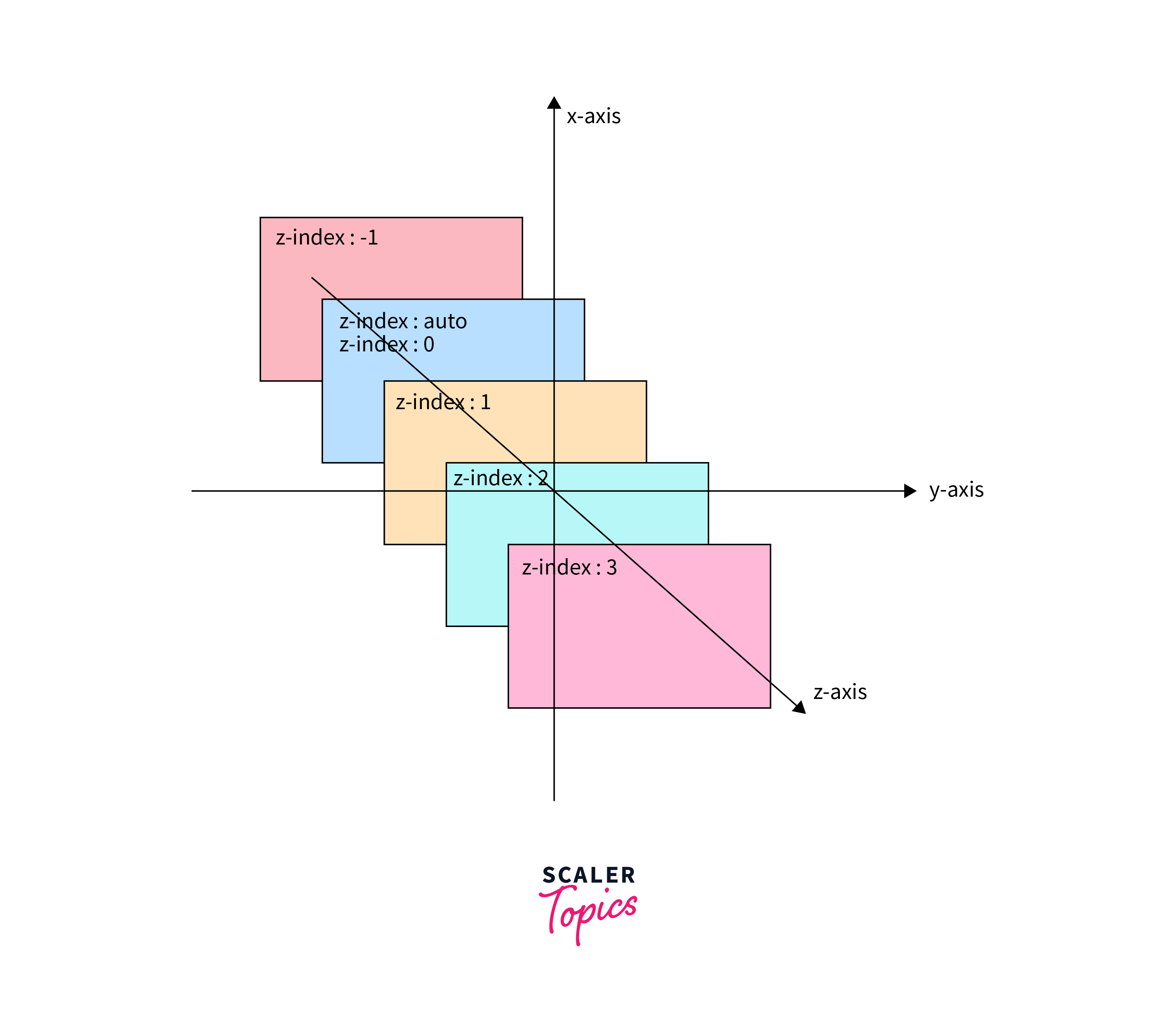
In the early days of the web, layouts were primarily two-dimensional, constrained by the linear flow of document-style HTML. As the digital landscape evolved into the sophisticated, interactive ecosystem we see today, the need for depth became paramount. Enter the z-index, a CSS property that represents the “third dimension” of web design. While most developers are comfortable with the X-axis (horizontal) and Y-axis (vertical), the Z-axis (depth) often remains a source of frustration and layout bugs.
Understanding z-index is not merely about making one element appear on top of another; it is about mastering the “Stacking Context,” a fundamental concept in browser rendering. In this guide, we will explore the technical nuances of the z-index property, how it interacts with other CSS rules, and how to manage complex layering in modern software development.
Understanding the Basics of Z-index
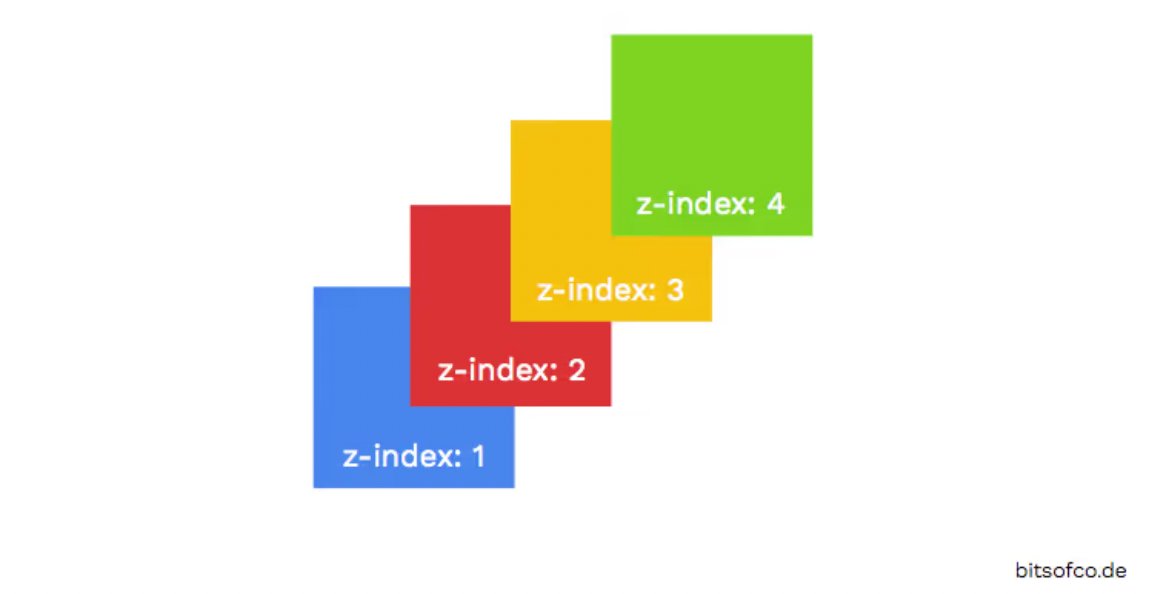
To understand z-index, one must first visualize the browser window as a 3D space. While your screen is flat, CSS allows you to move elements closer to or further away from the viewer. This depth is controlled by the z-index property.
The CSS Box Model and the Third Dimension
The standard CSS box model focuses on width, height, padding, and margins. However, when elements overlap—due to negative margins, absolute positioning, or fixed headers—the browser must decide which element to draw first and which to draw last. The element drawn last appears “on top.” The z-index property allows developers to override the default rendering behavior by assigning an integer value to an element. A higher value moves the element “forward” toward the user, while a lower (or negative) value moves it “backward.”
The Natural Stacking Order
Before applying any z-index values, browsers follow a “natural stacking order.” By default, HTML elements are stacked based on their order in the code. If two elements occupy the same space, the one defined later in the HTML source code will appear on top. This is the browser’s default logic: the “latest” information is the most relevant. However, this logic is often insufficient for modern UI components like sticky navigation bars, pop-up modals, or tooltips, which necessitates the manual intervention of the z-index.
How Z-index Works: Syntax and Rules
While the concept of layering seems simple, z-index has specific prerequisites that often trip up junior and senior developers alike. It is not a property that can be applied to any element in isolation; it requires a specific environment to function.
Positioning: The Prerequisite
The most common reason a z-index value fails to work is the lack of a defined position property. In CSS, z-index only applies to “positioned” elements. By default, all HTML elements have a position of static. A static element ignores z-index. To enable layering, the element must have a position value of:
-
relative -
absolute -
fixed -
sticky
Once an element is positioned, it is “unlocked” from the standard document flow, allowing the z-index property to dictate its depth.
Positive, Negative, and Auto Values
The z-index property accepts several types of values:
-
Integer Values: These can be positive (e.g.,
z-index: 10) or negative (e.g.,z-index: -1). Positive values move elements above the default plane, while negative values push them behind their parent or other elements. -
Auto: This is the default value. It means the element’s stack level is the same as its parent’s, and it does not create a new stacking context.
-
Inherit: The element takes the
z-indexvalue of its parent.
It is a common misconception that you need massive numbers like 9999 to ensure an element stays on top. In reality, a z-index of 1 is often enough, provided the stacking context is managed correctly.
Navigating Stacking Contexts: The Advanced Mechanics
The most complex aspect of the z-index is the “Stacking Context.” Many developers have experienced the frustration of setting a z-index to 999999, only to have the element remain buried behind another element with a z-index of 1. This happens because of how browsers group elements together.
What Triggers a Stacking Context?
A stacking context is a three-dimensional conceptualization of HTML elements. Once a stacking context is formed, all of its child elements are confined to that context. They can be moved forward or backward relative to each other, but they cannot move above or below elements in a different, higher-priority context.
A stacking context is created not just by z-index, but also by:
-
The root element (
<html>). -
An element with
position: absoluteorrelativeand az-indexvalue other thanauto. -
An element with
position: fixedorsticky. -
Elements with an
opacityvalue less than 1. -
Elements using
transform,filter, orperspectiveproperties. -
Flexbox or Grid children with a
z-index.
The “Parent-Child” Constraint
Think of a stacking context like a folder. If “Folder A” is ranked at z-index: 1 and “Folder B” is ranked at z-index: 2, no matter how high you set the z-index of an item inside Folder A, it will never appear above Folder B. This is because the browser resolves the hierarchy of the parent folders first. Understanding this hierarchy is the key to solving 99% of all “z-index not working” bugs. When an element won’t come to the front, you must look up the DOM tree to see if a parent element has created a limiting stacking context.
Practical Applications and Common Pitfalls
In software development and UI design, z-index is used to create visual hierarchies. Without it, the modern web would feel flat and difficult to navigate.
Modals, Navbars, and Tooltips
The most frequent use cases for z-index involve floating UI components.
-
Fixed Navbars: These usually require a mid-level
z-index(e.g.,100) to ensure they stay above page content as the user scrolls. -
Modals/Dialogs: These require the highest
z-indexon the page because they must obstruct all other interactions. -
Tooltips: These need a value higher than the element they are hovering over, but often lower than a modal.
Debugging Z-index Issues
When layers conflict, the best tool at a developer’s disposal is the Browser Developer Tools (Chrome, Firefox, or Safari). Many modern browsers now include a “Layers” panel or “3D View” that allows you to see the stacking contexts visually. By inspecting an element, you can see which computed styles are affecting its position and whether it has been moved into a new stacking context by a parent’s opacity or transform setting.
A common pitfall is the “Z-index Arms Race,” where developers keep adding zeros to their values (e.g., 1000, 10000, 99999). This makes the codebase unmaintainable and unpredictable.
Best Practices for Clean, Scalable Code
In large-scale software projects, managing z-index values randomly is a recipe for disaster. To maintain a professional and scalable codebase, developers should adopt a systematic approach to layering.
Organizing Layers with Variables
Instead of using “magic numbers” scattered throughout your CSS files, it is best practice to use CSS variables or SASS/LESS variables. By defining your layering logic in a central location, you ensure consistency across the entire application. For example:
:root {

  --z-index-dropdown: 100;

  --z-index-sticky-header: 200;

  --z-index-modal-backdrop: 300;

  --z-index-modal-content: 310;

  --z-index-tooltip: 400;

}
This approach allows you to see the entire visual hierarchy at a glance. If you need to insert a new layer, you can adjust the variables in one place rather than hunting through thousands of lines of code.
Avoiding the “9999” Trap
The habit of using z-index: 9999 is often a sign that the developer does not fully understand the stacking contexts at play. Instead of using an arbitrarily high number, investigate why the element isn’t appearing on top. Is it trapped inside a parent with overflow: hidden? Does a parent have a transform applied? Solving the underlying architectural issue is always better than applying a “brute force” number.

Conclusion
The z-index property is a powerful tool in a developer’s arsenal, transforming flat HTML into a rich, layered user experience. By understanding the prerequisites of positioning, the mechanics of stacking contexts, and the importance of organized code, you can build interfaces that are both visually stunning and technically sound. Mastering the third dimension of web design ensures that your tooltips stay where they belong, your modals command attention, and your layouts remain robust across all platforms.