
For many Xfinity internet subscribers, the provided xFi Gateway—a combination modem and router—serves as a functional, all-in-one solution. However, for power users, networking enthusiasts, or those living in larger homes, the default hardware often hits a performance ceiling. This is where “Bridge Mode” becomes a critical configuration tool. By enabling Bridge Mode, you effectively strip the Xfinity gateway of its routing capabilities, turning it into a “dumb” modem that passes a raw internet connection directly to a third-party router of your choice.
Understanding why, when, and how to use this feature can transform your home network from a bottleneck into a robust, high-performance infrastructure.

The Technical Mechanics of Bridge Mode
To understand Bridge Mode, you must first understand the concept of a “Gateway.” An Xfinity xFi Gateway performs two distinct functions: it acts as a cable modem (translating the signal from the coax line into digital data) and a wireless router (managing traffic, assigning IP addresses, and creating a Wi-Fi network).
When you operate the device in its default mode, the gateway sits at the edge of your network, acting as the gatekeeper for all internal traffic. When you toggle Bridge Mode, you are essentially disabling the integrated router, the DHCP server, the NAT (Network Address Translation) firewall, and the Wi-Fi radios.
Bridging vs. Passing Through
It is important to distinguish Bridge Mode from simple port forwarding or DMZ settings. While a DMZ might allow a specific device to bypass some firewall rules, the gateway is still the “brain” of the operation, handling packet routing and maintaining its own internal tables. In Bridge Mode, the gateway stops being the brain entirely. The public IP address provided by Xfinity is passed directly through the Ethernet port to the WAN (Wide Area Network) port of your own router. Your personal router then becomes the singular device responsible for managing the network, security, and device connections.
The Role of DHCP and NAT
In a standard home network, the router uses DHCP (Dynamic Host Configuration Protocol) to assign internal IP addresses to your phone, laptop, and smart fridge. It uses NAT to ensure that data requested by your laptop doesn’t end up on your phone. When the xFi Gateway handles this, your personal router—if you have one plugged in behind it—is often forced into a “Double NAT” scenario. This occurs when two routers are trying to perform the same management tasks on the same data stream, leading to latency, issues with online gaming, and complications with VPN tunnels. Bridge Mode eliminates Double NAT by removing the gateway from the routing equation.
Why Users Opt for Bridge Mode
The primary motivation for enabling Bridge Mode is the desire for control. Xfinity gateways are designed for the “average” user: they are plug-and-play, easy to manage via the Xfinity app, and provide sufficient coverage for smaller apartments. But they lack the granular settings that advanced users demand.
Overcoming Hardware Limitations
Third-party routers—specifically those from brands like ASUS, Ubiquiti, Netgear (Nighthawk), and TP-Link—often provide superior processing power. If you have a gigabit internet plan, the xFi Gateway might be able to process those speeds, but its ability to manage dozens of concurrent IoT devices, heavy 4K streaming, and intense gaming sessions simultaneously can pale in comparison to a dedicated, high-end router with a quad-core processor and better thermal management.

Implementing Advanced Mesh Systems
Many homeowners are moving toward dedicated Mesh Wi-Fi systems, such as the Eero, Orbi, or Velop lineups. While these systems can technically be used in “Access Point” mode behind an Xfinity gateway, you lose many of their advanced features, such as deep packet inspection, parental controls, and advanced traffic shaping. By placing the Xfinity gateway in Bridge Mode, your Mesh system can operate in “Router Mode,” unlocking its full suite of management tools and providing a seamless, unified wireless environment that the ISP’s equipment simply cannot replicate.
Enhanced Network Security
While Xfinity’s security features are convenient, they are often opaque. Users who prefer to manage their own firewalls, use enterprise-grade VPN clients at the router level, or implement VLANs (Virtual Local Area Networks) to segregate their smart home devices from their primary computing hardware require a router that allows for such configurations. Bridge Mode provides the blank canvas necessary to build a hardened, customized network security perimeter.
How to Configure and Troubleshoot Bridge Mode
Enabling Bridge Mode is a straightforward process, but it requires a systematic approach to ensure you don’t lose connectivity or lock yourself out of the gateway’s management interface.
The Configuration Workflow
- Direct Connection: Connect a computer directly to the gateway via an Ethernet cable. While you can do this over Wi-Fi, a wired connection is safer to prevent accidental disconnection during the transition.
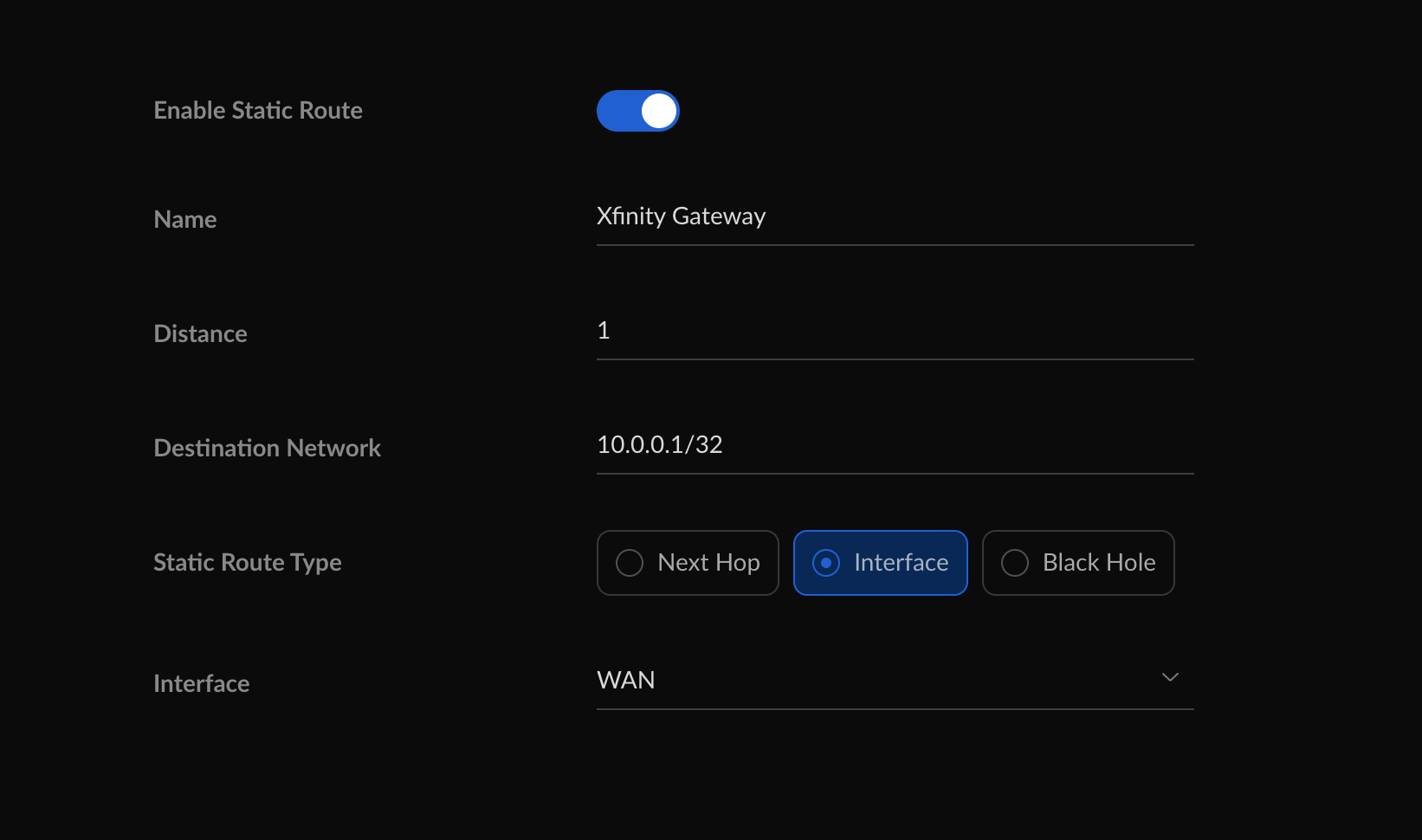
- Accessing the Admin Portal: Open a web browser and enter the default gateway IP, typically
10.0.0.1. Log in with your admin credentials (or the defaultadmin/passwordif you have not changed them). - Locating the Setting: Navigate to the “Gateway” or “Connection” section, then look for “Bridge Mode.”
- Enabling and Rebooting: Click “Enable,” confirm the warning prompt, and allow the device to restart. Once it reboots, the Wi-Fi lights on the front of the gateway will typically turn off, signaling that it is now acting only as a modem.
- Connecting Your Router: Connect an Ethernet cable from one of the LAN ports on the gateway (usually Port 1) to the WAN/Internet port on your new router.
Critical Considerations and Troubleshooting
The most common mistake users make is failing to restart their third-party router after the gateway has been bridged. Your third-party router is expecting an IP address. If it was already connected, it may still be holding onto an old, internal IP from the gateway. Performing a power cycle on your personal router once the bridge is established forces it to request a fresh, public IP from the Xfinity network.
If you find that you have lost internet access, verify that you are plugged into the correct port on the xFi Gateway. Some older models have multiple ports, but Bridge Mode often restricts the functionality to only the first port. If all else fails, a physical factory reset of the xFi Gateway—by holding the reset button for 30 seconds—will revert it to its default state, disabling Bridge Mode and restoring the gateway’s own router and Wi-Fi functionality.
The Strategic Shift: Is Bridge Mode Right for You?
Choosing to use Bridge Mode is a strategic decision that shifts the responsibility of your home network from Xfinity to yourself. It is the transition from a “managed service” to a “customized environment.”
If you are satisfied with your current speeds, have a small footprint, and find the Xfinity app convenient for managing guest Wi-Fi passwords, there is no pressing need to bridge your modem. However, if you find yourself constantly resetting your gateway, struggling with Wi-Fi dead zones that even extenders cannot fix, or requiring specific security configurations to protect your digital workspace, Bridge Mode is the gateway to a more capable network.
By moving your routing logic to a third-party device, you gain the ability to upgrade, replace, and fine-tune your networking hardware at your own pace without ever needing to touch the modem-side configuration again. It turns your Xfinity service into a utility—a simple pipe of data—and lets your personal equipment handle the complexities of your digital life. As home automation becomes more complex and bandwidth demands continue to climb, taking ownership of the network router is the most effective way to ensure that your infrastructure is as future-proof as possible.
aViewFromTheCave is a participant in the Amazon Services LLC Associates Program, an affiliate advertising program designed to provide a means for sites to earn advertising fees by advertising and linking to Amazon.com. Amazon, the Amazon logo, AmazonSupply, and the AmazonSupply logo are trademarks of Amazon.com, Inc. or its affiliates. As an Amazon Associate we earn affiliate commissions from qualifying purchases.