
The digital landscape is rife with conveniences, but also with occasional perplexing quirks. Among the most enduring and frustrating of these for many email users is the unsolicited appearance of a file named winmail.dat. Far from being a malicious virus or a hidden treasure, this seemingly enigmatic attachment is a common by-product of specific email configurations, particularly when a Microsoft Outlook user communicates with recipients using different email clients. Understanding winmail.dat is not just about troubleshooting a technical nuisance; it’s about peeling back a layer of email protocol to reveal the nuances of digital communication and the challenges of interoperability in a fragmented technological ecosystem.

The Enigma of winmail.dat: A Common Email Frustration
For decades, winmail.dat has been a source of confusion and mild annoyance for countless email users. It arrives unbidden, often instead of or alongside expected attachments, and attempts to open it typically result in an unreadable jumble of characters or a prompt that no application can handle the file type. This isn’t a problem with your computer or a corrupted file in the traditional sense; rather, it’s a symptom of how certain email systems choose to package and transmit information, and how others fail to interpret it.
Origins and Purpose: TNEF Encoding Explained
At the heart of the winmail.dat phenomenon lies something called Transport Neutral Encapsulation Format (TNEF). This proprietary encoding standard was developed by Microsoft specifically for its Outlook and Exchange email systems. When an email client, particularly an older or specific configuration of Microsoft Outlook, is set to send messages using its Rich Text Format (RTF), it converts certain message elements into TNEF.
What elements are we talking about? TNEF encapsulates a variety of rich formatting information that standard email protocols (like MIME, Multipurpose Internet Mail Extensions) might not fully support or represent in the same way. This includes:
- Rich text formatting: Bold, italics, varying fonts, colors, and paragraph styles.
- Outlook-specific features: Meeting requests, task requests, custom forms, voting buttons, and contact information (vCards).
- Embedded attachments: Files that are inserted directly into the body of the email rather than sent as traditional attachments.
The intention behind TNEF was to preserve the rich fidelity of messages exchanged between Outlook users within an Exchange environment. It allows for a more consistent display of complex emails and their embedded elements. However, this proprietary nature is precisely where the problem arises. While Outlook and Exchange servers understand how to decode and render TNEF data, most other email clients (Gmail, Apple Mail, Thunderbird, webmail interfaces, etc.) do not. When a non-Outlook client receives a TNEF-encoded message, it sees the winmail.dat file as an unrecognized attachment, containing all the rich formatting information and often the actual file attachments that were meant to be sent.
Who Sends Them? Microsoft Outlook’s Role
The primary culprit, or rather the primary source, of winmail.dat files is almost exclusively Microsoft Outlook. More specifically, it’s Outlook configured to send emails in its proprietary Rich Text Format (RTF) or, in some cases, certain versions configured to send in HTML where TNEF encoding is still applied for specific features or recipients.
When Outlook sends an email using RTF, it essentially wraps the entire message – text, formatting, and attachments – into this TNEF package. If the recipient’s email client is also Outlook or an Exchange server that can properly interpret TNEF, the message is seamlessly rendered, and the winmail.dat file is never seen. The recipient experiences the full rich text and correctly views all attachments. However, if the recipient uses any other email client, that client doesn’t know what to do with the TNEF data. It strips away the standard parts of the email it understands (like the plain text body) and presents the TNEF payload as the dreaded winmail.dat file. Often, any actual attachments originally sent are also hidden inside this winmail.dat file, making them inaccessible to the recipient.
This highlights a classic challenge in technology: a proprietary solution designed for internal consistency can create friction when interacting with the wider, more open digital world.
Why You Receive winmail.dat Files
The appearance of a winmail.dat attachment is almost always indicative of a mismatch between the sender’s email configuration and the recipient’s email client’s ability to interpret a proprietary format. It’s less about a corrupted email and more about an interpretation failure.
Incompatible Email Clients and Platforms
The most straightforward reason for receiving winmail.dat is simply that the sender is using Microsoft Outlook (or an Exchange server that defaults to TNEF for certain recipients), and you are using almost any other email client. This includes, but is not limited to:
- Webmail services: Gmail, Yahoo Mail, Outlook.com (when accessed via a web browser, not the desktop client), etc.
- Desktop email clients: Apple Mail, Thunderbird, Postbox, Spark, etc.
- Mobile email apps: The default mail apps on iOS and Android, third-party apps.
These non-Microsoft email clients adhere to standard internet email protocols (MIME) for handling message formatting and attachments. TNEF, being proprietary, falls outside their scope. They effectively see the winmail.dat as a generic, unidentifiable binary file.
Outlook Configuration Issues
Sometimes, it’s not just a general incompatibility but a specific configuration choice or default setting within the sender’s Outlook application that triggers the TNEF encoding. Outlook offers three primary email formats:
- HTML (HyperText Markup Language): The most common format, supporting rich text, images, and various layouts. It’s largely compatible across email clients because it adheres to web standards.
- Plain Text: Strips all formatting, images, and attachments are sent as separate files. Highly compatible, but very basic.
- Rich Text Format (RTF): This is the format that most reliably triggers TNEF. When Outlook sends an email in RTF, it’s specifically designed to work best with other Outlook recipients.
A sender’s Outlook might be defaulting to RTF for all messages, or more commonly, it might be configured to send RTF to specific contacts listed in their address book. This “per-recipient” setting can be particularly insidious, as the sender might send perfectly normal HTML emails to most people but accidentally use RTF for a specific contact who frequently receives winmail.dat files.
Rich Text Format (RTF) and Its Impact
The use of RTF is the direct catalyst for winmail.dat. When a sender composes an email in RTF within Outlook, the client attempts to preserve all the rich formatting features (fonts, colors, bolding, etc.) and any embedded objects (like an image pasted directly into the email body, or an attachment that appears inline). To ensure this richness is conveyed, Outlook packages all this information into the TNEF format, resulting in the winmail.dat file.
It’s important to differentiate between an attachment that is explicitly attached and an attachment that is embedded. While winmail.dat can encapsulate both, embedding attachments (like dragging and dropping a PDF directly into the body of the email) is a strong indicator that TNEF is likely to be used if the sender is using Outlook RTF. Standard attachments, when sent via HTML or plain text, are handled separately and are rarely wrapped into a winmail.dat file.
How to Open and Access winmail.dat Content
If you’re on the receiving end of a winmail.dat file, don’t despair. While it can be frustrating, there are several methods and tools available to help you extract the contents, including any hidden attachments, from this proprietary file.
Online Converters and Viewers
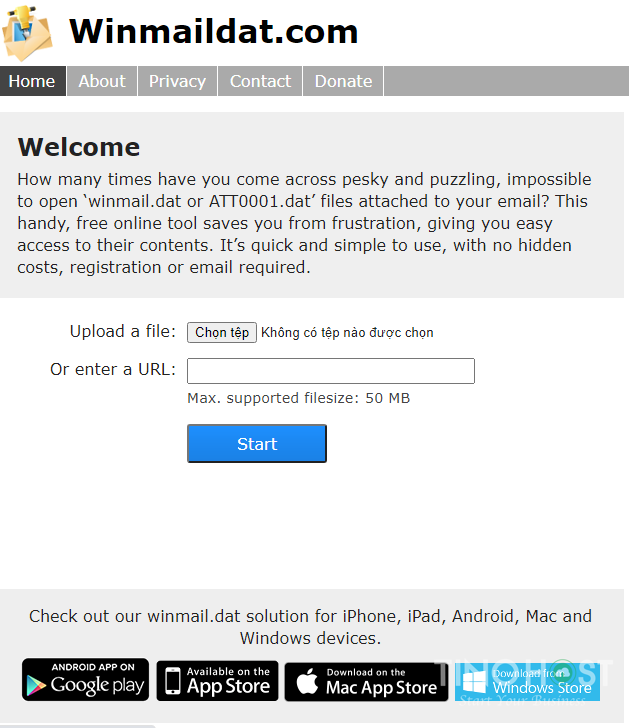
The easiest and often quickest way to deal with an occasional winmail.dat file is to use an online converter. These web-based tools are designed to decode TNEF files and allow you to download the original attachments and view the rich text content.

- How they work: You upload the
winmail.datfile to the website, the service processes it, and then presents you with a list of extracted files (original attachments) and sometimes a readable version of the email body. - Examples: Websites like
winmaildat.com,tnef2html.com, oronline-convert.comoffer this functionality. - Considerations: While convenient, be cautious when uploading sensitive information to third-party online services. For highly confidential documents, a dedicated offline solution is preferable. Always ensure the website is reputable and uses secure connections (HTTPS).
Dedicated Software Solutions for Various OS
For users who frequently receive winmail.dat files or prefer not to use online services, there are dedicated software applications available for various operating systems that can open and extract their contents.
- Windows: Several free and paid utilities exist, such as Winmail Opener, Winmail.dat Reader, or TNEF’s Enough (though this one is more for macOS). These applications allow you to open the
winmail.datfile directly on your desktop and save the encapsulated attachments. - macOS: TNEF’s Enough is a popular and effective free tool for macOS users. It integrates well with the system, allowing you to simply drag the
winmail.datfile onto its icon or open it directly. Another option is Letter Opener Pro for Outlook, a paid plug-in that integrates seamlessly with Apple Mail to automatically decodewinmail.datfiles in your inbox. - Linux: Users can typically install utilities like
tnefvia their package manager. Once installed, these command-line tools can extract files fromwinmail.datarchives. - Cross-Platform (Email Clients): Some advanced email clients or plugins for them might offer built-in TNEF decoding.
These dedicated solutions provide a more robust and often more secure way to handle winmail.dat files, especially if you deal with them regularly.
Workarounds for Mobile Devices
Opening winmail.dat on a mobile device can be particularly tricky, as the default mail apps often lack built-in decoding capabilities.
- Dedicated Apps: For iOS and Android, there are apps specifically designed to open
winmail.datfiles, such as “Winmail.dat Opener” or “TNEF’s Enough” (for iOS). These apps usually require you to save thewinmail.datattachment from your email to the app, which then extracts its contents. - Cloud Integration: If you use an online converter on your desktop, you can then upload the extracted files to a cloud storage service (Dropbox, Google Drive, iCloud) and access them from your mobile device.
- Asking the Sender: The most effective mobile workaround is often to simply ask the sender to resend the email in a compatible format (HTML or Plain Text), or to use one of the prevention methods discussed below.
Preventing winmail.dat: Solutions for Senders
While recipients have ways to open winmail.dat files, the most effective long-term solution lies with the sender. By making a few adjustments to their Outlook settings, senders can virtually eliminate the issue for their recipients.
Adjusting Outlook’s Email Format Settings
The primary way for Outlook users to prevent sending winmail.dat files is to adjust their default email format.
-
Global Setting (for all new messages):
- In Outlook, go to File > Options > Mail.
- Under the “Compose messages” section, find “Compose messages in this format:” and select HTML or Plain Text from the dropdown menu. Avoid Rich Text.
- Under the “Message format” section, find “When sending messages in Rich Text format to Internet recipients:” and select Convert to HTML format or Convert to Plain Text format. This is a critical setting for ensuring TNEF isn’t used for external recipients.
- Click OK to save changes.
-
Per-Recipient Setting (for existing contacts): This is often where the
winmail.datissue lingers, even if global settings are correct. Outlook can store a preferred sending format for each contact in the address book.- Open your Outlook Contacts (People).
- Find the contact who receives
winmail.datfiles from you. - Double-click to open their contact card.
- Right-click on their email address.
- Select Outlook Properties (or similar, depending on Outlook version).
- Under “Internet Format,” choose Send Plain Text only or Send using HTML format. Crucially, ensure “Let Outlook decide the best sending format” is not selected if it continues to cause issues, as Outlook might incorrectly decide to use RTF.
- Click OK to save the contact’s preference.
By ensuring both global and per-recipient settings are aligned with non-proprietary formats, senders can dramatically reduce winmail.dat occurrences.
Sending in Plain Text or HTML
Beyond configuring Outlook, understanding why Plain Text and HTML are better options is important.
- Plain Text: This format strips all formatting (bold, italics, colors, fonts), images, and embedded objects. Attachments are sent as separate, standard files. It’s the most universally compatible format, ensuring that every recipient can read the email, albeit without any aesthetic embellishments. It’s ideal for simple, no-frills communication where content clarity is paramount and formatting is irrelevant.
- HTML: This is the de facto standard for rich emails on the internet. It supports various fonts, colors, images, hyperlinks, and complex layouts. Because it adheres to open web standards, virtually all modern email clients can correctly render HTML emails. When sending in HTML, Outlook generally handles attachments as standard MIME parts, which all email clients understand, thus avoiding the
winmail.datissue.
Encouraging senders to consistently use HTML for rich messages and Plain Text for simple ones is the most direct way to ensure broad compatibility.
Best Practices for Cross-Platform Email Communication
Preventing winmail.dat is part of a broader best practice for email communication, especially in diverse technological environments:
- Educate Senders: Inform Outlook users about the
winmail.datissue and how to resolve it in their settings. Many are unaware that they are sending these files. - Test Email Formats: If an organization frequently communicates across different email platforms, it’s wise to periodically test email formatting to ensure consistent delivery and display.
- Avoid Embedded Attachments: While HTML can embed images, embedding documents (like PDFs or Word files) directly into the body of an email is generally not recommended, especially when communicating with external recipients. It’s almost always better to attach files as distinct attachments.
- Use Standard Signatures: Richly formatted email signatures with embedded images can sometimes contribute to
winmail.datissues if not handled correctly by Outlook’s RTF. Keep signatures simple or ensure they are HTML-compatible. - Consider Web-Based Email for External Communications: For critical external communications, using a web-based email client (like Outlook.com, Gmail, etc.) can often circumvent desktop client-specific issues by enforcing more standard protocols.
The Broader Implications: Digital Literacy and Interoperability
The winmail.dat phenomenon, while a minor inconvenience, subtly underscores larger themes in technology: the importance of digital literacy, the challenges of interoperability, and the value of open standards in a fragmented digital world.
Beyond the File: Understanding Email Protocols
For many users, email is simply “email.” The underlying protocols, encoding methods, and client configurations are invisible. The winmail.dat file forces a momentary peek behind this curtain. It illustrates that email is not a monolithic entity but a complex interplay of standards (MIME, SMTP, POP3, IMAP) and proprietary implementations (TNEF). Understanding this distinction, even at a basic level, helps users troubleshoot not just winmail.dat but other email-related quirks and enhance their overall digital literacy. It highlights the difference between an email client (the software you use) and the email service (the provider).
The Importance of Open Standards
The existence of winmail.dat is a stark reminder of the challenges posed by proprietary formats in an interconnected world. While TNEF served a specific purpose within the Microsoft ecosystem, its lack of an open specification and widespread adoption outside that ecosystem inevitably led to compatibility issues. This contrasts sharply with open standards like HTML and MIME, which are universally understood and form the backbone of the internet. The winmail.dat issue implicitly advocates for the adoption and adherence to open standards to foster seamless communication and reduce friction in digital interactions. When technology relies heavily on proprietary solutions, it often creates walled gardens that hinder broader collaboration and accessibility.
User Experience in a Fragmented Digital World
Ultimately, winmail.dat is a user experience problem. It interrupts the flow of communication, causes confusion, and requires extra steps to resolve. In an age where digital tools are expected to “just work,” such issues diminish trust and productivity. The problem highlights the ongoing challenge for software developers and service providers to ensure their products are not only powerful and feature-rich within their own ecosystem but also gracefully interoperable with the vast array of other tools and platforms users encounter daily. As the digital world becomes increasingly diverse, the focus on interoperability, user education, and adherence to common standards will only grow in importance to deliver a truly seamless and productive user experience for everyone.
In conclusion, winmail.dat is more than just a strange email attachment; it’s a valuable lesson in the complexities of digital communication, reminding us of the intricate balance between proprietary innovation and the universal need for open, accessible, and user-friendly technology. By understanding its origins and implementing simple solutions, we can all contribute to a smoother and more efficient email experience.