
In the intricate landscape of modern computing, where automation, configuration, and management are paramount, understanding the core tools that underpin our systems is essential. Among these, Windows PowerShell stands out as a formidable and indispensable utility for administrators, developers, and power users alike. At its heart, the interaction with this powerful framework on Windows often begins with a simple executable file: powershell.exe. More than just another command prompt, powershell.exe is the gateway to a sophisticated scripting environment that has redefined system administration for the Windows ecosystem and beyond.
This article delves into the essence of powershell.exe, unraveling its identity, its architectural underpinnings, the profound capabilities it unlocks, critical security considerations, and its evolving role in the ever-changing world of technology. By understanding powershell.exe, we grasp not just a file, but a paradigm shift in how we interact with and manage our digital infrastructure.
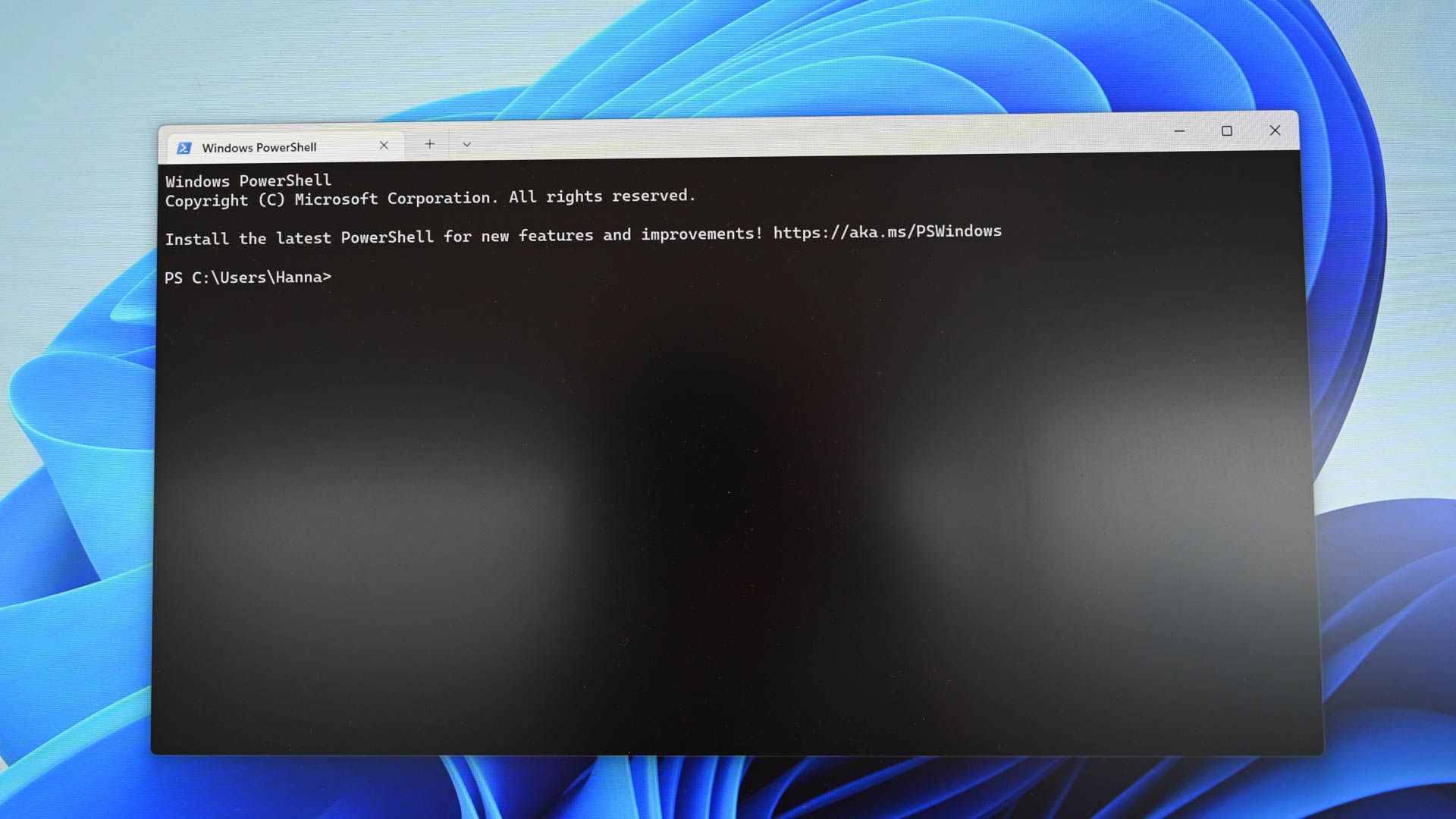
Demystifying Windows PowerShell: A Modern Command-Line Interface
To truly appreciate powershell.exe, we must first understand the broader context of Windows PowerShell itself. It’s not merely a successor to the Command Prompt (cmd.exe) but a fundamentally different and more powerful approach to system management.
Beyond the Traditional Command Prompt
For decades, Windows users relied on cmd.exe for command-line operations. While functional for basic tasks, cmd.exe is largely a shell for executing DOS-like commands and launching other executables. Its output is primarily text-based, which can be challenging to parse and manipulate programmatically.
Windows PowerShell, introduced in 2006, represented a revolutionary leap. It was designed from the ground up as an object-oriented shell. This means that instead of merely outputting text, PowerShell processes and passes objects between commands. An object is a structured piece of data that carries properties and methods, making it incredibly easy to filter, sort, and reformat information directly within the shell. This object-based approach is PowerShell’s defining feature, providing unparalleled flexibility and power compared to traditional text-based shells. It allows for complex operations to be chained together with remarkable elegance, transforming tedious manual tasks into efficient, repeatable scripts.
The Core of the .exe: A Host for the Engine
At its core, powershell.exe isn’t the PowerShell language itself, nor is it the PowerShell engine. Rather, powershell.exe is the host application that provides the user interface and environment for running the PowerShell engine. Think of it as the browser (like Chrome or Firefox) for the internet (the PowerShell engine and language). When you launch powershell.exe, you are launching a console host application that loads the PowerShell engine (a set of .NET libraries) and provides you with an interactive command-line interface.
This distinction is important because the PowerShell engine can be hosted by other applications too. For instance, the PowerShell Integrated Scripting Environment (ISE) also hosts the engine, offering a graphical interface for script development. Visual Studio Code, with the PowerShell extension, also acts as a host. In the context of the .NET framework, developers can embed the PowerShell engine into their own applications to add scripting capabilities.
Why .exe? Understanding the Executable File
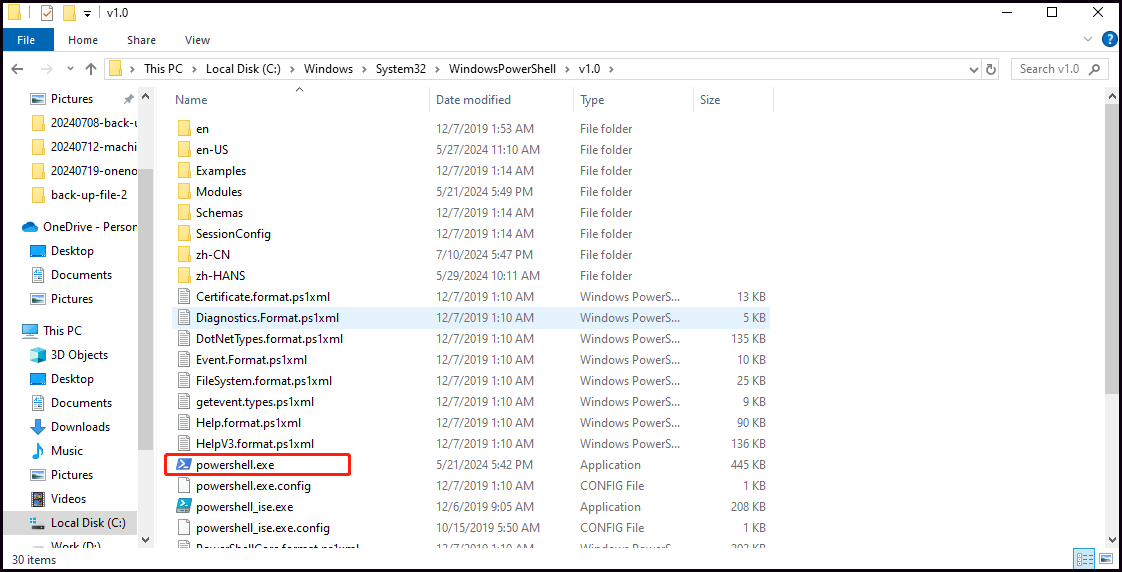
The .exe extension signifies an executable file, the standard format for applications on Windows. powershell.exe is the primary executable you launch to open a PowerShell console window on a Windows operating system. It resides typically in C:WindowsSystem32WindowsPowerShellv1.0powershell.exe (though the “v1.0” path is a legacy artifact, the executable itself is updated with the OS).
When you double-click this file or type powershell into the Run dialog or Command Prompt, the operating system executes this program. This program then initializes the necessary components of the PowerShell engine, loads default modules, sets up the environment variables, and presents you with the familiar PowerShell prompt (PS>). It acts as the bridge between your input and the underlying PowerShell runtime, translating your commands into actions the system can perform and presenting the results back to you. For cross-platform or newer versions of PowerShell (often referred to as PowerShell Core), the executable is pwsh.exe, signifying its evolution and independence from the full .NET Framework.
The Inner Workings: Architecture and Components
To leverage PowerShell effectively, it’s crucial to understand its architectural underpinnings. This insight reveals why PowerShell is so robust and versatile.
The PowerShell Engine and Its Hosting Processes
As mentioned, powershell.exe is merely a host. The true power lies within the PowerShell engine. This engine is built upon the Microsoft .NET Framework (for Windows PowerShell) or .NET Core (for PowerShell Core/7+). It comprises core libraries that define the language syntax, handle command execution, manage sessions, and provide the object pipeline.
When powershell.exe runs, it creates a dedicated process. Within this process, the PowerShell engine operates, loading modules dynamically as needed. Each active PowerShell console, script, or remote session typically runs within its own host process, ensuring isolation and stability. This process isolation is crucial for security and performance, preventing a misbehaving script in one session from affecting others.
Cmdlets, Functions, and Scripts: The Building Blocks
The primary units of command in PowerShell are cmdlets (pronounced “command-lets”). These are lightweight commands designed for specific tasks, following a strict Verb-Noun naming convention (e.g., Get-Process, Set-Service). Cmdlets are typically implemented as .NET classes and compiled into DLLs, offering high performance and deep integration with the system.
Beyond cmdlets, users can define their own functions using the PowerShell scripting language. Functions are reusable blocks of code that can encapsulate complex operations. They can accept parameters, return objects, and even mimic cmdlets in their behavior.
Finally, scripts are collections of cmdlets, functions, and other PowerShell language constructs saved in .ps1 files. Scripts allow for the automation of multi-step processes, conditional logic, loops, and error handling, forming the backbone of advanced administration and deployment strategies. The ability to write and execute scripts is where PowerShell truly shines, transforming manual, repetitive tasks into automated, reliable workflows.
The Object Pipeline: PowerShell’s Unique Advantage
Perhaps the most powerful feature of PowerShell’s architecture is its object pipeline. Unlike traditional shells that pass text streams from one command to the next using pipes (|), PowerShell passes objects. This means that the output of one cmdlet, which is an object with structured properties and methods, can be directly consumed as input by the next cmdlet.
For example, Get-Process | Where-Object {$_.CPU -gt 100} | Select-Object Name, Id, CPU demonstrates this beautifully. Get-Process retrieves process objects, Where-Object filters those objects based on a property (CPU), and Select-Object then extracts specific properties from the filtered objects. This allows for incredibly efficient and precise data manipulation without the need for complex text parsing or regular expressions, which are often fragile and prone to errors. The object pipeline vastly simplifies complex data processing and makes PowerShell scripts much more robust and readable.
Integration with .NET Framework
PowerShell’s deep integration with the .NET Framework is another cornerstone of its power. Because PowerShell is built on .NET, it can directly interact with any .NET class, method, or property. This capability opens up an enormous ecosystem of functionality, allowing administrators and developers to do almost anything that can be done with a compiled .NET application, directly from the command line or within a script. From managing services and files to interacting with databases, web services, and even GUI components, the .NET integration provides an extensible foundation that makes PowerShell incredibly versatile.
Empowering System Administration: Key Capabilities
The architectural foundations of PowerShell translate into a wealth of practical capabilities that have revolutionized system administration and automation.
Automated Task Management and Scripting
The most obvious and widely adopted use of powershell.exe is for task automation. Instead of manually clicking through graphical interfaces for repetitive tasks—like creating user accounts, configuring network settings, deploying software, or managing server roles—administrators can write PowerShell scripts. These scripts can be executed with a single command, scheduled to run at specific intervals, or triggered by events. This not only saves immense time but also reduces human error, ensuring consistency across systems. From simple one-liners to complex multi-file modules, PowerShell makes automation accessible and powerful.
Remote Management and Desired State Configuration (DSC)
PowerShell Remoting, enabled by the Windows Remote Management (WinRM) service, allows administrators to execute commands and scripts on remote computers as easily as they would locally. This is a game-changer for managing large infrastructures, enabling administrators to control hundreds or thousands of servers from a single workstation. Enter-PSSession, Invoke-Command, and implicit remoting are core features that facilitate this.
Building on remoting, Desired State Configuration (DSC) is a management platform in PowerShell that allows you to define the configuration of your servers and enforce it automatically. With DSC, you declare the “desired state” of a system (e.g., specific roles installed, services running, registry settings configured), and PowerShell ensures the system maintains that state, automatically correcting any drift. This is invaluable for maintaining consistency, compliance, and reliability across an IT environment.
System Diagnostics and Reporting
PowerShell excels at gathering system information and generating reports. Cmdlets like Get-WinEvent, Get-Counter, and Get-WmiObject (or Get-CimInstance for newer versions) can tap into a vast array of system data, from event logs and performance counters to hardware inventories and software installations. The object pipeline then allows for easy filtering, aggregation, and formatting of this data into human-readable reports or structured formats (like CSV, JSON, or XML) for further analysis. This capability is critical for troubleshooting, auditing, capacity planning, and maintaining overall system health.
Cloud Integration and DevOps Enablement
With the rise of cloud computing and DevOps methodologies, PowerShell has become an even more critical tool. Both Azure and AWS provide extensive PowerShell modules (Az module for Azure, AWS.Tools for AWS) that allow administrators and developers to manage cloud resources programmatically. This enables infrastructure-as-code practices, automated deployments, and continuous integration/continuous delivery (CI/CD) pipelines. PowerShell scripts can provision virtual machines, configure storage, manage network resources, and interact with cloud-native services, bridging the gap between on-premises infrastructure and scalable cloud environments. Its role in automating the entire software delivery lifecycle makes it an invaluable asset in modern IT operations.
Security Implications and Responsible Use
Given its immense power, understanding the security implications of powershell.exe and implementing best practices is paramount. A misconfigured or misused PowerShell environment can pose significant risks.
Understanding Execution Policies
Windows PowerShell employs an execution policy to control whether it loads configuration files and runs scripts. This is a crucial security feature designed to prevent malicious scripts from running inadvertently. Policies range from Restricted (no scripts allowed) to Bypass (nothing blocked). While the default Restricted policy offers basic protection, a common practice is to set it to RemoteSigned for most workstations (requiring downloaded scripts to be signed) or AllSigned for higher security environments (requiring all scripts, local or remote, to be signed). It’s vital for administrators to understand and configure the appropriate execution policy for their environment, recognizing that it’s a first line of defense, not a comprehensive security solution.
Script Signing and Trust Management
For environments using RemoteSigned or AllSigned execution policies, script signing becomes critical. Digital certificates are used to sign PowerShell scripts, verifying the identity of the script author and ensuring the script has not been tampered with since it was signed. This establishes a chain of trust. Organizations often implement their own Public Key Infrastructure (PKI) to issue certificates for internal script signing, ensuring that only trusted, vetted scripts can run. This practice significantly mitigates the risk of executing unauthorized or malicious code, enhancing the integrity of automated processes.
Logging and Auditing PowerShell Activity
Modern versions of PowerShell offer robust logging capabilities that are essential for security monitoring and incident response. Enhanced logging can capture detailed information about PowerShell operations, including script block logging (recording the actual script content executed), module logging (recording pipeline execution details for specific modules), and transcription (saving a full transcript of every command and output). When integrated with a Security Information and Event Management (SIEM) system, these logs provide invaluable forensic data, allowing security teams to detect suspicious activity, track down attackers, and understand the scope of a breach involving PowerShell. Proper logging configuration is a non-negotiable best practice for any organization using PowerShell.
Best Practices for Secure Scripting
Beyond environmental settings, secure scripting practices are vital. This includes:
-
Principle of Least Privilege: Scripts should run with the minimum necessary permissions.
-
Input Validation: Always validate and sanitize any user input or external data a script processes to prevent injection attacks.
-
Credential Management: Avoid hardcoding credentials in scripts. Use secure methods like
Get-Credential, secret management modules, or integrated Windows authentication. -
Error Handling: Implement robust error handling to gracefully manage unexpected situations and prevent sensitive information from being exposed in error messages.
-
Regular Audits: Regularly review scripts and execution logs for vulnerabilities and anomalous behavior.
Following these practices ensures that the power of powershell.exe is harnessed responsibly and securely.
The Evolution and Future of PowerShell
PowerShell is not a static technology; it continuously evolves to meet the demands of modern IT, reflecting its adaptability and the strong community backing it.
From Windows-Specific to Cross-Platform
Initially, powershell.exe was exclusively a Windows component, tightly coupled with the .NET Framework. However, in 2016, Microsoft open-sourced PowerShell and ported it to .NET Core, leading to PowerShell Core. This marked a monumental shift, making PowerShell truly cross-platform. Now, administrators and developers can use PowerShell on Linux, macOS, and Windows, leveraging the same language and scripting capabilities across diverse operating systems. The executable for this cross-platform version is pwsh.exe, signifying its independence and portability. This move has dramatically expanded PowerShell’s utility, making it a universal tool for heterogeneous environments.
The Community and Open Source Contributions
The open-sourcing of PowerShell has fostered a vibrant and active community. Developers and enthusiasts from around the world contribute to the PowerShell project on GitHub, creating new cmdlets, modules, and host applications, and providing feedback. This collaborative ecosystem ensures that PowerShell remains relevant, secure, and feature-rich. Community-driven initiatives, like the PowerShell Gallery (a central repository for PowerShell modules and scripts), further empower users to share and discover valuable tools, accelerating development and problem-solving.

The Role of PowerShell in Hybrid and Cloud Environments
Looking ahead, PowerShell’s role is set to expand further, particularly in hybrid and cloud-native environments. Its ability to seamlessly manage both on-premises Windows servers and cloud resources from providers like Azure and AWS positions it as a critical orchestration tool. As organizations adopt more complex architectures involving containers, microservices, and serverless computing, PowerShell’s scripting and automation capabilities will be essential for managing the underlying infrastructure, deploying applications, and ensuring operational consistency. It is becoming an increasingly vital component in the toolkit of DevOps engineers, cloud architects, and system administrators navigating the complexities of modern IT.
In conclusion, powershell.exe is far more than a simple executable; it is the entry point to a powerful, object-oriented scripting and automation platform that has fundamentally transformed how Windows systems are managed. From its robust architecture and rich feature set to its critical security considerations and its exciting cross-platform future, PowerShell continues to be an indispensable tool at the forefront of technology, empowering IT professionals to build, manage, and secure the digital world.