
In the modern landscape of computing, the demand for high-speed data transfer, external graphics processing, and multi-monitor setups has led to the widespread adoption of the Thunderbolt protocol. Developed by Intel in collaboration with Apple, Thunderbolt has become the gold standard for peripheral connectivity. However, managing this powerful hardware requires more than just a physical port; it requires a specialized software interface. This is where the Thunderbolt Control Center comes into play.
The Thunderbolt Control Center is a dedicated Windows application designed to manage and monitor Thunderbolt-enabled devices connected to a computer. Whether you are using a high-end workstation, a gaming laptop, or a professional ultrabook, understanding this software is essential for ensuring security, performance, and stability.

Understanding the Thunderbolt Protocol and the Role of the Control Center
To understand the software, one must first appreciate the hardware it governs. Thunderbolt technology—specifically versions 3 and 4—combines PCIe, DisplayPort, and DC power into a single cable. Unlike standard USB connections, Thunderbolt provides direct access to the system’s PCIe bus, which allows for incredibly high bandwidth (up to 40Gbps) but also presents unique security challenges.
The Evolution of Thunderbolt Technology
Since its inception, Thunderbolt has moved from a niche interface for creative professionals to a mainstream requirement for productivity. Thunderbolt 3 introduced the USB-C connector shape, merging the protocol with the most versatile physical port available. Thunderbolt 4 further refined this by mandating support for dual 4K displays and enhancing security requirements. The Thunderbolt Control Center serves as the bridge between these hardware capabilities and the user, providing a graphical user interface (GUI) to manage what would otherwise be invisible background processes.
Why Software Management is Necessary
Because Thunderbolt devices have Direct Memory Access (DMA), they can interact with a computer’s memory without involving the CPU. This is why a Thunderbolt-connected external SSD is significantly faster than a standard USB drive. However, this level of access requires strict oversight. The Thunderbolt Control Center acts as the gatekeeper, allowing users to authorize which devices are permitted to access the system bus and which are restricted to basic functions.
Key Features and Functions of the Thunderbolt Control Center
The Thunderbolt Control Center is not merely a monitoring tool; it is a critical security and configuration utility. Its primary functions revolve around device authorization, status reporting, and hardware identification.
Device Approval and Security Levels
The most vital function of the application is managing “Approved Devices.” When you plug in a new Thunderbolt peripheral, the system typically prompts you to authorize it. Through the Control Center, you can see a list of all devices that have requested a connection.
There are several security levels that the software manages, often dictated by the system’s BIOS/UEFI settings:
- No Security (SL0): Any device connected is immediately functional.
- User Authorization (SL1): The user must manually approve each device through the Control Center before it can operate.
- Secure Connect (SL2): Only devices with a unique encrypted key previously shared with the system are allowed.
- DisplayPort Only (SL3): Only monitors are supported; no data or PCIe functionality is permitted.
The Control Center allows users to “Always Connect,” “Connect Only Once,” or “Do Not Connect” specific peripherals, providing granular control over the workspace.
Real-Time Connection Monitoring
For users with complex setups—such as daisy-chained monitors, external RAID arrays, and eGPUs—the Control Center provides a clear topology of the connection chain. It lists the name of the device, the manufacturer, and the specific port it is occupying. This is particularly useful for troubleshooting “handshake” issues where a device might be physically connected but not performing at its full rated speed.
Firmware and Driver Information
Keeping Thunderbolt controllers updated is essential for maintaining compatibility with new peripherals. The Control Center provides a centralized location to check the NVM (Non-Volatile Memory) firmware version of the controller. While the software itself usually updates through the Microsoft Store or Windows Update, it provides the technical data necessary to determine if a manual driver intervention from the manufacturer (such as Dell, Lenovo, or HP) is required.
Navigating the Interface: A Step-by-Step Tutorial
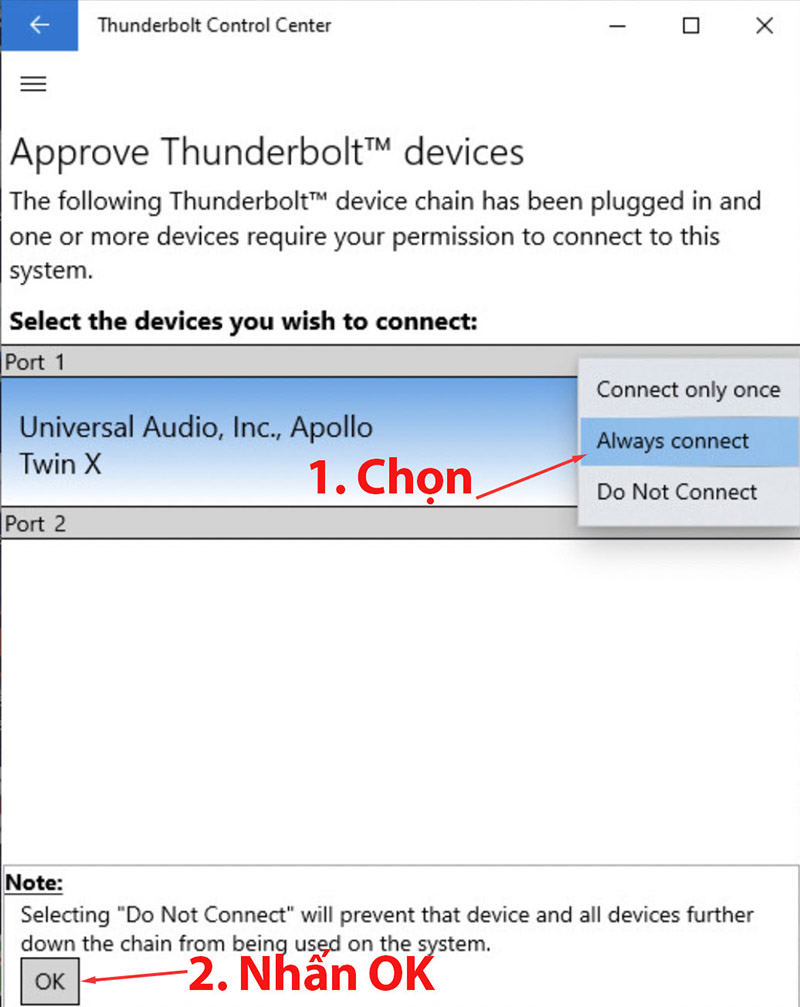
The Thunderbolt Control Center is designed with a minimalist aesthetic, prioritizing utility over visual flair. Navigating it is straightforward, but knowing where specific tools are located can save significant time during setup.
Checking Connected Devices
Upon launching the application, the home screen typically displays a list of “Attached Devices.” If a device is plugged in but not functioning, checking this list is the first step. If the device appears here but shows as “Not Authorized,” the user must click the menu icon (often three horizontal lines) and navigate to “Approve Attached Devices.” This action moves the peripheral from a dormant state to an active state, enabling the high-speed data lanes.
Managing Security Settings and Kernel DMA Protection
Modern systems often utilize “Kernel DMA Protection,” a security feature that prevents unauthorized DMA attacks. In the “About” or “Settings” section of the Thunderbolt Control Center, users can verify if this protection is active. If enabled, the software works in tandem with Windows to ensure that only “trusted” devices—those with drivers that support memory isolation—are allowed to function. If you find that a specific older device refuses to connect, it may be because it lacks the necessary security headers required by modern DMA protection policies.
Troubleshooting Disconnected Peripherals
One of the most common issues users face is a device that fails to “wake up” after the computer returns from sleep mode. The Control Center can be used to “reset” the connection virtually. By viewing the “Manage Approved Devices” list, a user can remove an old entry and re-plug the device to trigger a fresh handshake. This is often more effective than simply unplugging and re-plugging the cable, as it clears the software-side permission cache.
Security Implications and Digital Safety
In the realm of digital security, Thunderbolt ports are often cited as a potential vulnerability due to their high-level access to system memory. The Thunderbolt Control Center is the primary defense mechanism against these types of exploits.
Protecting Against Physical Exploits
“Thunderspy” and similar vulnerabilities highlighted how an attacker with physical access to a machine could bypass lock screens and extract data via the Thunderbolt port. The Thunderbolt Control Center mitigates this by enforcing the authorization protocols mentioned earlier. By requiring manual approval for every new device, the software ensures that a rogue “spy” device cannot simply be plugged in to harvest data while the user is away from their desk.
The Importance of IOMMU and Modern Standards
The Tech industry has largely moved toward IOMMU (Input-Output Memory Management Unit) technology, which creates a “sandbox” for each device. The Thunderbolt Control Center displays whether the system is utilizing these advanced protections. For professionals handling sensitive data, ensuring that the Control Center reports “Kernel DMA Protection: On” is as important as having an active firewall or antivirus.
Common Issues and How to Resolve Them
Despite being a robust piece of software, users may occasionally encounter issues with the Thunderbolt Control Center itself. These problems usually stem from driver conflicts or OS-level glitches.
App Not Opening or Missing from Windows
Sometimes, after a major Windows update, the Thunderbolt Control Center may disappear from the Start menu or fail to launch. This is often because the service that runs in the background has stalled. To fix this, users should check the “Services” app in Windows and ensure the “Thunderbolt(TM) Service” is set to “Automatic” and is currently running. If the app is missing entirely, it can usually be re-installed directly from the Microsoft Store, provided the base Thunderbolt drivers are already present on the system.
Device Not Recognized Despite Being Plugged In
If a device is connected but does not appear in the Control Center, the issue is often related to the cable or the power delivery. Thunderbolt requires “active” cables for longer distances or high-bandwidth tasks. If a user attempts to use a standard USB-C charging cable in a Thunderbolt port, the Control Center will not recognize the device as a Thunderbolt peripheral. Always ensure that the cable features the lightning bolt icon, signifying it meets the protocol’s rigorous specifications.
The Future of High-Speed Interconnects
As we transition into the era of Thunderbolt 5 and the integration of USB4, the role of the Thunderbolt Control Center continues to evolve. Future iterations are expected to offer even more detailed analytics, such as real-time bandwidth consumption per device and advanced power management settings for eco-friendly workstations.
The Thunderbolt Control Center is more than just a pop-up that appears when you plug in a dock. It is a sophisticated management layer that balances the immense power of PCIe-level external connectivity with the security requirements of modern computing. By mastering this tool, users can ensure their high-performance peripherals work reliably, securely, and at the speeds they were designed to achieve. Whether you are a creative professional pushing gigabytes of 8K video or a power user seeking the ultimate desktop dock solution, the Thunderbolt Control Center remains the heart of your high-speed ecosystem.
aViewFromTheCave is a participant in the Amazon Services LLC Associates Program, an affiliate advertising program designed to provide a means for sites to earn advertising fees by advertising and linking to Amazon.com. Amazon, the Amazon logo, AmazonSupply, and the AmazonSupply logo are trademarks of Amazon.com, Inc. or its affiliates. As an Amazon Associate we earn affiliate commissions from qualifying purchases.