
In the landscape of modern computing, the Chromebook has carved out a significant niche by prioritizing speed, simplicity, and cloud-centric productivity. Unlike traditional Windows or macOS machines that rely on complex BIOS configurations and legacy function keys, ChromeOS is designed around the philosophy of the web browser. At the heart of this streamlined user experience is a specific set of dedicated hardware keys, one of the most vital being the Refresh button. While it may appear as a simple circular arrow, its utility extends far beyond merely reloading a webpage.

Understanding the intricacies of the refresh button—and the technical framework it supports—is essential for any user looking to optimize their digital workflow. This guide explores the physical design, the advanced technical applications, and the troubleshooting capabilities of the Chromebook refresh key.
Understanding the Physical and Functional Role of the Refresh Key
To the uninitiated, the Chromebook keyboard can look deceptively sparse. Gone are the F1 through F12 keys that have dominated laptop designs for decades. In their place, Google introduced a row of “Action Keys” designed to execute browser-specific commands with a single tap.
Where is the Refresh Button Located?
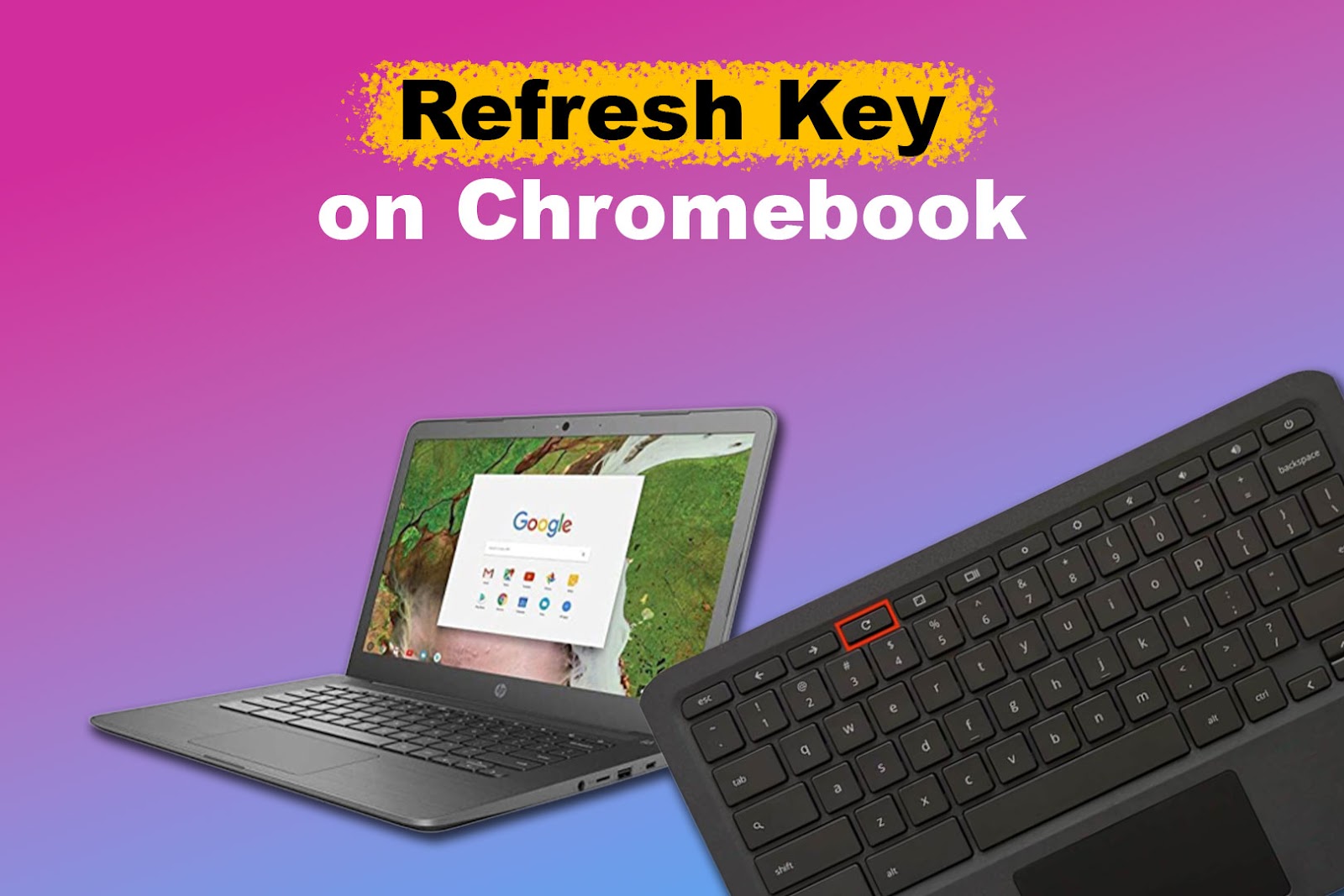
The refresh button is typically found in the top row of the keyboard, usually the fourth key from the left. It is easily identifiable by its icon: a circular arrow pointing clockwise. On most standard Chromebook layouts, it sits between the “Forward” button and the “Full Screen” button.
Unlike traditional laptops where you might need to press a “Function” (Fn) modifier to access media controls, the Chromebook refresh key is active by default. This design choice reflects the reality of web-based computing: users interact with dynamic content that often requires manual updating to reflect real-time data.
The Anatomy of the Chromebook Top Row
The refresh button is part of a larger ecosystem of navigation tools. To understand its role, one must view it in context with its neighbors:
- The Back and Forward Keys: These handle the history stack of your current tab.
- The Refresh Key: This re-requests the current URL from the server.
- The Full Screen/Immersive Key: This toggles the visibility of the shelf and tabs.
- The Overview/Window Switcher: This displays all active applications.
By placing the refresh button in this prominent position, Google emphasizes the iterative nature of web browsing. Whether you are waiting for an email to arrive, watching a live sports ticker, or updating a cloud-based spreadsheet, the refresh key is your primary tool for data synchronization.
Basic Functionality: Beyond Just Reloading Pages
On a surface level, pressing the refresh button tells the Chrome browser to discard the current rendered view of a site and fetch the latest version of the HTML, CSS, and JavaScript from the host server. However, within the ChromeOS environment, this button also serves as a “soft reset” for web applications (PWAs). If an application like Slack or Spotify begins to lag, the refresh button can often re-initialize the app’s script without requiring a full system reboot.
Advanced Keyboard Combinations and Shortcuts
While a single press of the refresh button is sufficient for daily browsing, tech-savvy users can unlock hidden layers of functionality by combining it with modifier keys like Ctrl, Shift, and Alt. These combinations are essential for developers and power users who need to bypass certain browser behaviors.
The “Hard Refresh” (Ctrl + Shift + R)
Standard refreshing often relies on “cached” data. To save bandwidth and speed up loading times, Chrome stores parts of websites (like images and logos) locally on your Chromebook’s storage. Occasionally, this cache becomes outdated or corrupted, causing a website to look “broken” or display old information.
By holding Ctrl + Shift and then pressing the Refresh button (or using the shortcut Ctrl + Shift + R), you perform a “Hard Refresh.” This command instructs the browser to ignore its local cache and download every single byte of the webpage from scratch. This is a critical troubleshooting step when a website’s layout appears scrambled after a server-side update.
Troubleshooting with the Power + Refresh Combo
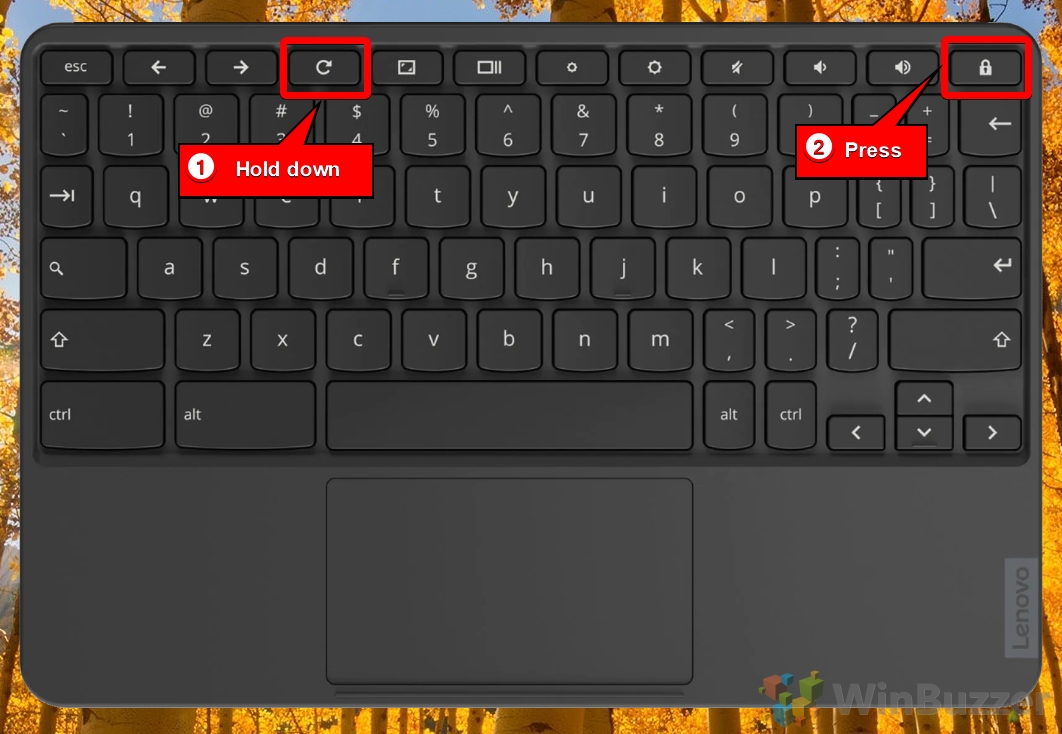
One of the most powerful features of the refresh button is its role in hardware-level resets. If your Chromebook becomes completely unresponsive—a rare but frustrating occurrence—you can perform a “Hard Reset” (also known as a hardware reset).
To do this, you hold the Refresh button and then tap the Power button. This does not erase your files (unlike a “Powerwash”), but it does reset the hardware controller that manages the keyboard, touchpad, and internal components. This is the gold standard for fixing issues where the screen won’t turn on or the battery isn’t charging correctly.
Customizing Your Keyboard Layout
For users transitioning from Windows, the absence of an F5 key (the traditional refresh shortcut) can be jarring. Fortunately, ChromeOS allows for deep customization. Within the Settings > Device > Keyboard menu, users can choose to treat the top-row keys as standard function keys. When this toggle is enabled, the refresh button functions as F3, and you would need to hold the Search (Launcher) key to use the refresh function. This level of flexibility ensures that the hardware adapts to the user’s muscle memory rather than forcing a total behavioral shift.
Why the Refresh Button is Crucial for ChromeOS Performance
Because ChromeOS is essentially a highly optimized Linux kernel running a browser-based interface, system performance is inextricably linked to how the browser handles active processes. The refresh button acts as a manual valve for system resource management.
Managing System Resources and RAM
Chromebooks are famous for running efficiently on modest hardware. However, if you have twenty tabs open, each running complex background scripts, your RAM (Random Access Memory) can become saturated.
When a tab becomes “stale” or begins to consume excessive memory, hitting the refresh button forces the browser to kill the existing process for that tab and start a fresh one. This clears out temporary memory leaks and can significantly improve the snappiness of the interface, especially on devices with 4GB or 8GB of RAM.
Fixing Rendering Issues and Script Errors
Websites today are not just static pages; they are complex software applications. Occasionally, a JavaScript execution error can “freeze” a portion of a page, such as a login button or a video player. Because the refresh button is a hardware-level trigger for the browser’s “Reload” command, it can bypass software freezes that might prevent a mouse-click from registering. It is the universal “try again” button for the modern web.
Enhancing Web App Productivity
For those using a Chromebook for professional work, the refresh button is a vital link in the version-control chain. In collaborative environments like Google Workspace or Microsoft 365 Online, changes are usually saved automatically. However, when working with multiple collaborators, “sync conflicts” can occur. A quick tap of the refresh key ensures that you are looking at the absolute latest iteration of a shared document, preventing the accidental overwriting of a colleague’s work.
The Evolution of Chromebook Hardware Design
The inclusion of a dedicated refresh button marks a shift in how we perceive the “personal computer.” It represents the transition from local processing to cloud-based interaction.
From Dedicated Function Keys to Minimalist Design
In the early days of computing, function keys were necessary because software lacked intuitive graphical interfaces. As we moved toward the “Web 2.0” era, the browser became the most-used application. Google recognized that an “F5” or “F3” label meant nothing to the average student or office worker, but a circular arrow was universally understood. This minimalist design approach helped Chromebooks gain massive traction in the education sector, where intuitive hardware reduces the learning curve for young students.
Comparing Chromebooks with Windows and macOS Layouts
On a MacBook, refreshing usually requires the Command + R shortcut. On Windows, it’s F5 or Ctrl + R. By making “Refresh” a dedicated physical key, Google eliminated the need for multi-finger chords for a basic task. This “one-tap” philosophy is a hallmark of ChromeOS, placing it somewhere between the simplicity of a tablet and the power of a laptop.
The Future of Navigation in ChromeOS
As ChromeOS continues to evolve, incorporating Android apps and Linux environments, the top row of the keyboard remains a constant anchor. While some newer “Plus” branded Chromebooks are experimenting with more complex keyboard features, the refresh button remains a core requirement of the ChromeOS hardware specification. It is a symbol of the OS’s stability and its dedication to a web-first world.
Best Practices for Maintenance and Troubleshooting
Like any physical hardware, the refresh button can occasionally encounter issues. Knowing how to diagnose these problems can save a trip to the repair shop.
What to Do if the Refresh Button Stops Working
If the refresh key becomes unresponsive, the first step is to determine if the issue is hardware or software-related.
- Test the Shortcut: Try pressing Ctrl + R. If the page refreshes, the physical key might be stuck or damaged.
- Check for Debris: Chromebook keyboards use a “chiclet” or “scissor” switch mechanism. A small crumb under the keycap can prevent the contact from registering.
- Guest Mode: Log in as a Guest. If the button works there, a browser extension might be interfering with your keyboard shortcuts in your main profile.
Keeping Your ChromeOS Updated
Sometimes, a system-wide bug can cause the top-row keys to behave unexpectedly. Google releases updates for ChromeOS every four weeks. Ensuring your device is on the latest version of the OS guarantees that the driver mappings for your action keys are optimized and bug-free. Navigate to Settings > About ChromeOS > Check for Updates to ensure your system is current.
Conclusion
The refresh button on a Chromebook is more than just a convenience; it is a fundamental component of the ChromeOS ecosystem. It serves as a bridge between the user and the ever-changing web, providing a simple way to update content, clear memory, and even perform emergency hardware resets. By mastering the use of this key—both on its own and in combination with other modifiers—users can ensure their Chromebook remains a fast, reliable, and efficient tool for both work and play. In the world of technology, where complexity often reigns, the refresh button stands as a testament to the power of simple, purposeful design.
aViewFromTheCave is a participant in the Amazon Services LLC Associates Program, an affiliate advertising program designed to provide a means for sites to earn advertising fees by advertising and linking to Amazon.com. Amazon, the Amazon logo, AmazonSupply, and the AmazonSupply logo are trademarks of Amazon.com, Inc. or its affiliates. As an Amazon Associate we earn affiliate commissions from qualifying purchases.