
In the modern digital landscape, the inbox has become a double-edged sword. While it serves as the primary hub for professional communication, project management, and personal updates, it is also a source of constant interruption. For the average power user, the “Reply-All” chain is perhaps the most significant threat to daily productivity. You find yourself CC’d on a thread that was once relevant but has since devolved into a series of “Thank you” notes or logistical tangents that don’t require your input.
This is where Gmail’s “Mute” feature becomes an essential tool in your digital arsenal. Often overlooked in favor of archiving or deleting, muting is a sophisticated software solution designed to help users regain control over their notifications without losing access to important information. In this guide, we will explore exactly what muting does, how it differs from other Gmail functions, and how you can leverage it to achieve a more streamlined workflow.
Understanding the Mechanics of the Mute Feature
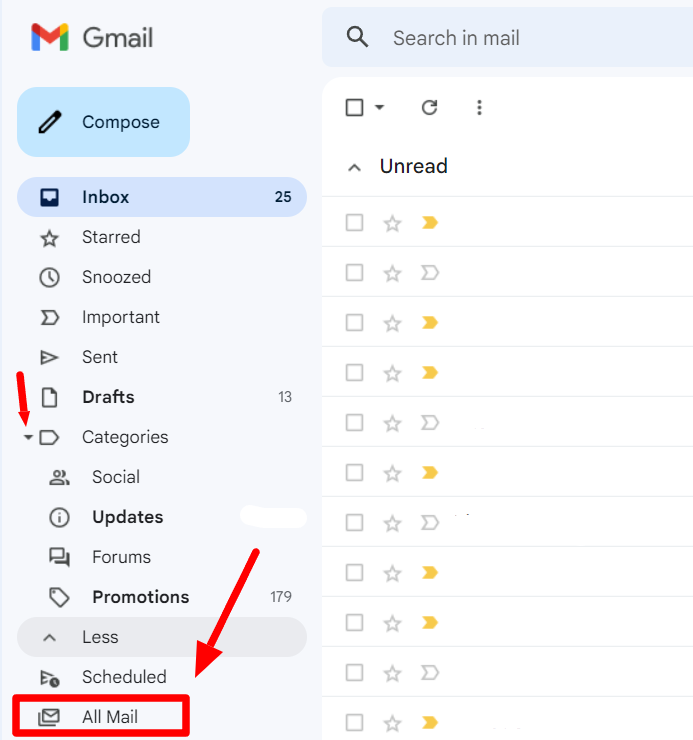
To use Gmail effectively, one must understand the underlying logic of how the platform handles incoming data. Most users are familiar with the “Inbox” as a temporary landing zone. When a new message arrives, it triggers a notification and appears at the top of your list. If you archive that message, it moves to “All Mail,” but if someone replies to that thread, the conversation “jumps” back into your inbox. This is where muting changes the technical behavior of the software.
What Happens When You Click Mute?
When you mute a conversation in Gmail, you are essentially telling the software to suppress any future notifications for that specific thread. Once muted, the entire conversation—including all previous and future replies—is moved out of your primary inbox and into the “All Mail” archive.
Unlike a standard archive command, the mute command is persistent. If a colleague sends a new reply to a muted thread, the message will still arrive in your account, but it will not reappear in your inbox. It will not trigger a push notification on your mobile device, nor will it increment the unread message count in your inbox. The data is stored silently, allowing you to review it at your convenience rather than being interrupted by every incremental update.
Muting vs. Archiving: Key Technical Differences
It is a common misconception that muting and archiving are the same. From a software perspective, they serve two distinct purposes:
- Archiving: This is a “one-time” action. It clears the message from your immediate view to help you reach “Inbox Zero.” However, the system assumes that if there is new activity (a reply), the thread is once again relevant to you, so it brings it back to the inbox.
- Muting: This is a “persistent” state. It tells Gmail that regardless of how many people reply or how long the thread lasts, you do not want to see it in your inbox again. It is a “set it and forget it” solution for noisy conversations.
Why Muting is a Crucial Productivity Tool for Professionals
In a tech-driven work environment, “notification fatigue” is a genuine psychological and professional hurdle. Every time a notification pings, it takes an average of 23 minutes for a worker to return to their original task with the same level of focus. Muting is not just a button; it is a productivity strategy.
Taming the “Reply-All” Chaos
We have all been part of an email thread where a simple announcement leads to fifty different people hitting “Reply-All” to say “Got it!” or “Thanks!” For a developer, designer, or project manager, these pings are digital friction. By muting these threads, you allow the conversation to play out in the background. You can check the “All Mail” folder at the end of the day to see if any actual actionable information was shared, ensuring your deep-work sessions remain uninterrupted.
Managing Group Project Notifications
Modern software integration means that many automated tools (like Jira, Trello, or GitHub) send automated updates to Gmail. If a specific task or ticket is generating a high volume of automated “noise” that you don’t need to monitor in real-time, muting that specific notification thread allows you to keep your inbox reserved for high-priority, human-to-human communication. It allows you to filter the “signal” from the “noise” without having to set up complex filtering rules for every individual thread.

Step-by-Step Tutorial: How to Mute Conversations Across Devices
Gmail’s interface is consistent, but the location of the mute function varies slightly depending on whether you are using the web interface or the mobile application.
Muting on the Desktop/Web Interface
For those who do the bulk of their administrative work on a laptop or desktop, muting is a quick two-click process:
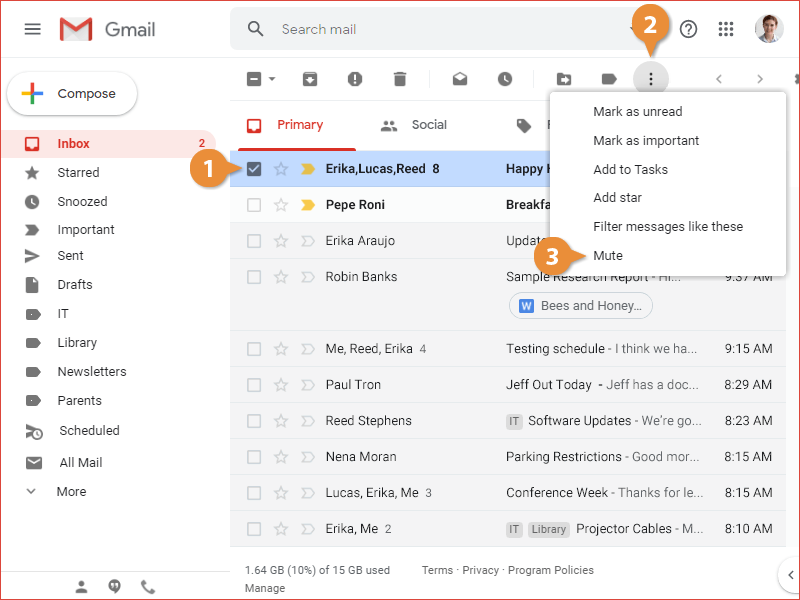
- Select the Thread: You can either open the email or click the checkbox next to the conversation in your inbox list.
- Access the Menu: Click the “More” icon (represented by three vertical dots) in the top toolbar.
- Select Mute: Click “Mute” from the dropdown menu.
- Keyboard Shortcut: For power users, Gmail has a built-in shortcut. Simply highlight the email and press the ‘m’ key on your keyboard (ensure keyboard shortcuts are enabled in your settings).
Muting on Mobile (iOS and Android)
When you’re on the go, managing notifications is even more critical to preserve battery life and mental bandwidth.
- Open the App: Navigate to the Gmail app on your smartphone.
- Long Press or Open: Long-press the conversation you wish to mute, or tap to open the thread.
- The Three Dots: Tap the three horizontal or vertical dots in the top-right corner of the screen (note: make sure you are tapping the menu for the entire thread, not the menu for an individual reply).
- Confirm Mute: Select “Mute” from the list of options. The conversation will immediately vanish from your view.
Managing and Reversing Muted Conversations
One of the biggest fears users have when muting is that the email has “disappeared” into a black hole. This is not the case. Because Gmail is built on a robust search architecture, finding and reversing a mute is straightforward.
How to Find Your Muted Emails
If you need to check in on a conversation you muted three days ago, you don’t have to scroll through thousands of messages in “All Mail.” Gmail uses specific search operators to categorize these threads.
- In the Gmail search bar, type
is:muted. - This will display a comprehensive list of every thread currently in the muted state.
- You can also search for the specific sender or keywords within that search, such as
is:muted from:John.
The Process of Unmuting a Thread
Interests and project requirements change. If a muted thread suddenly becomes a high priority again, you can easily bring it back to your inbox.
- Find the email using the
is:mutedsearch operator. - Select the email.
- Click the “More” (three dots) icon and select “Unmute.”
- Alternatively, you can click the “X” next to the “Muted” label that appears next to the subject line. Once unmuted, any future replies to that thread will once again trigger notifications and appear at the top of your inbox.
Advanced Tips for Gmail Inbox Optimization
Muting is most effective when used as part of a broader digital hygiene strategy. By combining muting with other Google Workspace features, you can create an automated environment that prioritizes your most important tasks.
Combining Muting with Filters and Labels
While muting is usually a manual reaction to a noisy thread, you can use Filters to handle repetitive noise. However, it’s important to note that “Mute” is a thread-specific action, while “Filters” are criteria-specific. If you find yourself muting the same type of email every week, consider creating a filter that applies the “Skip the Inbox (Archive it)” action automatically. This functions similarly to a “Pre-emptive Mute.”
Best Practices for Maintaining a “Zero Inbox” Mentality
To truly master your tech tools, you should view your inbox as a “To-Do” list. If an email does not require your action, it should not stay in your inbox.
- Use Mute for Social/Group Noise: If a social thread among colleagues is distracting you from a sprint, mute it until your lunch break.
- Use Archive for Completed Tasks: Once a question is answered and no further noise is expected, archive it.
- Use Delete for Security and Space: If the email contains sensitive data you no longer need or is simply junk, delete it to save on your Google One storage quota.
By understanding the technical nuances of the “Mute” function, you move beyond being a passive recipient of information and become an active manager of your digital environment. In an age where our attention is the most valuable commodity, the ability to silence the noise without losing the data is a vital skill for any tech-savvy professional.
aViewFromTheCave is a participant in the Amazon Services LLC Associates Program, an affiliate advertising program designed to provide a means for sites to earn advertising fees by advertising and linking to Amazon.com. Amazon, the Amazon logo, AmazonSupply, and the AmazonSupply logo are trademarks of Amazon.com, Inc. or its affiliates. As an Amazon Associate we earn affiliate commissions from qualifying purchases.