
In the modern digital landscape, the internet is often viewed as a singular, vast cloud of information. However, the architecture that allows your laptop to communicate with your printer, or your smartphone to cast video to your television, relies on a more granular system of identification known as the local IP address. While most users are familiar with the concept of an IP address as a “digital mailing address,” the distinction between a local (private) IP and a public IP is fundamental to understanding network security, device management, and hardware connectivity.

A local IP address, also referred to as an internal or private IP, is a unique identifier assigned to every device connected to a private network. Unlike your public IP address, which is assigned by your Internet Service Provider (ISP) and identifies your entire household to the global internet, a local IP address is usually assigned by your router. This distinction allows multiple devices within a single home or office to share one public connection while maintaining individual identities within the local local area network (LAN).
The Role of the Router and Network Address Translation (NAT)
To understand why local IPs exist, one must understand the concept of Network Address Translation (NAT). In the early days of the internet, it was assumed that every device would have a unique global IP address. However, as the number of devices exploded, the pool of available IPv4 addresses (which is limited to approximately 4.3 billion) began to vanish.
NAT solved this by allowing a single public IP address to represent an entire network of devices. Your router acts as a gatekeeper. When you request a webpage on your laptop, the router takes that request, attaches your public IP to it, and sends it out to the internet. When the data returns, the router uses its internal NAT table to remember that the request came from your laptop’s specific local IP (e.g., 192.168.1.15) rather than your tablet or your smart fridge. This internal bookkeeping is what makes modern home networking possible.
How to Find Your Local IP Address Across All Platforms
Locating a local IP address is a common troubleshooting step for setting up local servers, configuring remote desktop software, or managing smart home devices. Because each operating system handles networking differently, the process varies depending on the hardware you are using.
Finding Local IP on Windows
Windows provides several ways to access networking information, ranging from user-friendly graphical interfaces to powerful command-line tools.
- Command Prompt: The most direct method is using the Command Prompt. Open the “Run” dialog (Win + R), type
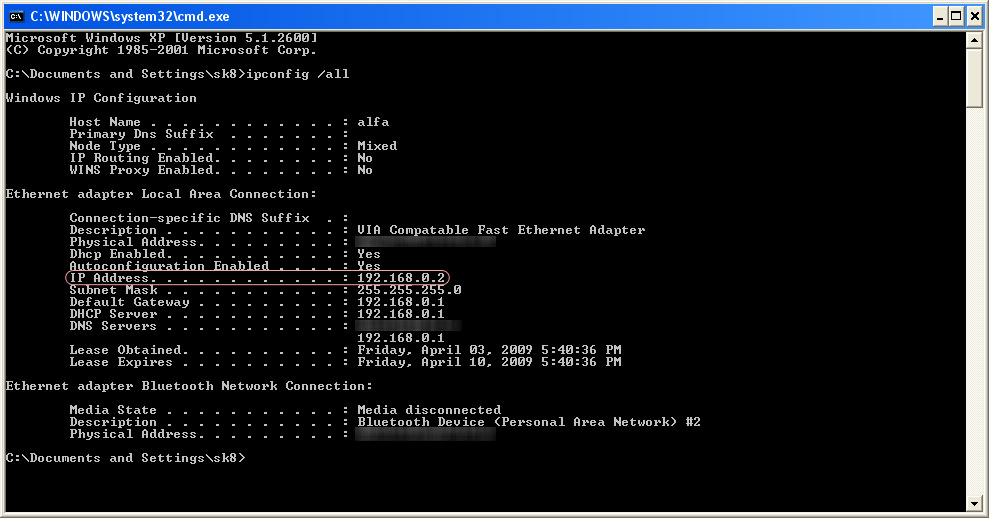
cmd, and press Enter. Once the window opens, typeipconfigand hit Enter. Look for the “IPv4 Address” line under your active connection (usually Ethernet or Wi-Fi). It will typically look something like192.168.x.x. - Settings Menu: For those who prefer a GUI, navigate to Settings > Network & Internet > Wi-Fi (or Ethernet). Select “Properties” for your connected network. Scroll down to the bottom of the window to find your IPv4 address listed among the technical specifications.
Locating Local IP on macOS
Apple’s macOS makes finding internal network details relatively straightforward through the System Settings.
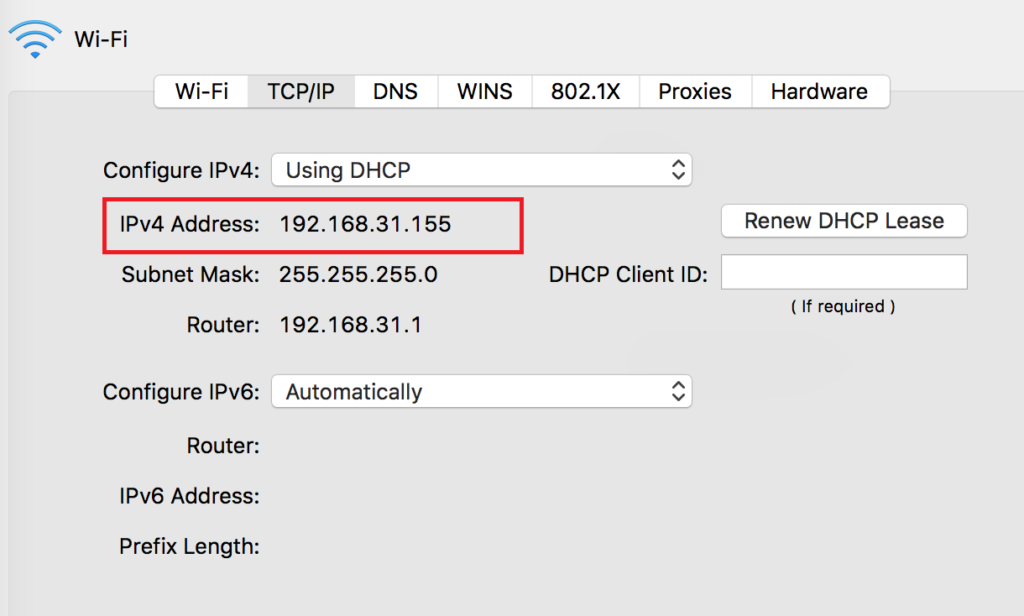
- System Settings: Click the Apple menu and select “System Settings.” Navigate to “Network” in the sidebar. Click on your active connection (marked with a green dot) and then click the “Details” button. Your IP address will be displayed clearly in the overview tab.
- Terminal: Advanced users can open the Terminal and type
ifconfig. This will return a significant amount of data; look for theen0oren1section and find theinetentry to see your internal address.
Accessing Local IP on Mobile Devices (iOS and Android)
Mobile operating systems mask many technical details to simplify the user experience, but the local IP is still accessible within the connection settings.
- iOS (iPhone/iPad): Open Settings, tap “Wi-Fi,” and tap the “i” icon next to the network you are currently joined to. The IP address is listed under the “IPv4 Address” header.
- Android: While the interface varies by manufacturer, the general path is Settings > Network & Internet > Wi-Fi. Tap on the gear icon next to your network and look for “IP Address” under the “Network Details” or “Advanced” section.
Technical Architecture: Private Address Ranges and DHCP
Not all numbers can be used as local IP addresses. The Internet Assigned Numbers Authority (IANA) has reserved specific blocks of the IPv4 address space strictly for private networks. These addresses are never routed on the public internet, ensuring they can be reused by millions of different private networks worldwide without conflict.
Standard Private IP Ranges
If you look at your local IP, it almost certainly falls into one of these three ranges:
- 192.168.0.0 – 192.168.255.255: This is the most common range for home routers.
- 10.0.0.0 – 10.255.255.255: Often used by large corporate networks or sophisticated home setups.
- 172.16.0.0 – 172.31.255.255: Commonly used for software-defined networking and virtual private clouds.
The Dynamics of DHCP
By default, most routers use a protocol called Dynamic Host Configuration Protocol (DHCP). Under this system, the router “leases” an IP address to a device for a specific period. When your phone joins the Wi-Fi, the router picks an available address from its pool and assigns it. Once the phone leaves the network or the lease expires, that address goes back into the pool to be reused. This is why your local IP address might change from day to day, which is generally efficient but can cause issues if you are trying to host a local service.
Static vs. Dynamic Local IPs: When Manual Control Is Necessary
For the average user, dynamic IP addresses are invisible and trouble-free. However, in certain professional or enthusiast scenarios, a “Static IP” is required. A static local IP is a permanent address assigned to a specific device that never changes, regardless of reboots or network resets.
Use Cases for Static Local IPs
- Network Attached Storage (NAS): If you have a central server for your files, you want its address to remain constant so that your mapped network drives always know where to find it.
- Port Forwarding for Gaming: Gamers often need to forward specific ports to their consoles or PCs to reduce latency or host matches. Port forwarding rules in a router are tied to a specific local IP; if that IP changes, the rule breaks.
- Local Web Servers or Development: Developers testing apps locally need a consistent address to view their work across multiple devices on the same network.
- Printers: Network printers often function more reliably when assigned a static IP, preventing the “Printer Offline” errors that occur when a computer tries to send a document to an old, expired IP address.
Implementation: DHCP Reservations
The most “pro” way to handle static IPs is not by configuring the device itself, but by using “DHCP Reservations” within the router’s admin panel. By linking a device’s MAC address (its unique hardware ID) to a specific IP address, you ensure that the router always hands out the same IP to that specific device while still managing it centrally.
Security Implications and the Transition to IPv6
Understanding your local IP is also a critical component of digital security. Because local IPs are “hidden” behind a router’s public IP, they are naturally shielded from many direct attacks from the internet. This layer of protection is often called “security through obscurity,” though it is more accurately described as an architectural barrier.
Internal Vulnerabilities
While the outside world cannot easily see your 192.168.x.x address, other devices on your network can. This is why “lateral movement” is a major concern in cybersecurity. If a single smart lightbulb on your network is compromised, an attacker can use its local IP to scan the network for other devices—like your laptop or your home security camera. Segmenting networks (creating “Guest” Wi-Fi networks) is a common tech strategy to isolate IoT devices from sensitive personal data by placing them on different local IP subnets.
The Shift to IPv6
We are currently in a long-term transition to IPv6, which uses a 128-bit addressing scheme, providing 340 undecillion addresses. In a pure IPv6 environment, the concept of a “local IP” changes. Because addresses are so abundant, every device could technically have a unique public address. However, for privacy and security reasons, local addressing remains a staple of network design. Unique Local Addresses (ULA) in IPv6 serve a similar purpose to the private ranges in IPv4, ensuring that internal traffic remains internal.
Troubleshooting and Optimization
Knowledge of local IPs is the first line of defense when network performance drops. When two devices are accidentally assigned the same local IP (a rare but possible “IP Conflict”), neither will be able to communicate properly. By accessing the router’s client list and identifying which local IPs are active, users can diagnose hardware failures, identify “bandwidth hogs,” or spot unauthorized devices that may have gained access to the network.
In conclusion, the local IP address is the unsung hero of the digital home. It is the invisible thread that connects our diverse ecosystem of gadgets, allowing for seamless communication while conserving the limited resources of the global internet. Whether you are a developer, a gamer, or a remote worker, understanding how these internal addresses function empowers you to build a faster, more secure, and more reliable digital environment.
aViewFromTheCave is a participant in the Amazon Services LLC Associates Program, an affiliate advertising program designed to provide a means for sites to earn advertising fees by advertising and linking to Amazon.com. Amazon, the Amazon logo, AmazonSupply, and the AmazonSupply logo are trademarks of Amazon.com, Inc. or its affiliates. As an Amazon Associate we earn affiliate commissions from qualifying purchases.