
The iPhone camera has long been a benchmark for mobile photography, but one of its most distinct and often misunderstood features is the Live Photo. Since its introduction with the iPhone 6s in 2015, Live Photos have become the default shooting mode for millions of users. While many treat them as mere digital clutter, Live Photos represent a sophisticated blend of video and still imagery that captures the “in-between” moments that traditional photography often misses. Understanding how this feature works, how to manipulate it, and how to maximize its utility can fundamentally change the way you document your life.

The Mechanics of Live Photos: More Than a Still Image
At its core, a Live Photo is not a video, nor is it a simple static image. It is a 3-second hybrid file. When you press the shutter button, your iPhone doesn’t just capture the frame you are looking at; it captures the 1.5 seconds before and the 1.5 seconds after your tap. This data is bundled into a single high-resolution 12-megapixel (or higher, depending on your device) JPEG or HEIF file, accompanied by a MOV video file that contains the motion and audio.
How the Camera Captures the Moment
When you engage the camera app, the internal processor is constantly buffering the scene. The moment you press the shutter, the camera saves that buffer alongside the still frame. Because the device is capturing a stream of data, the iPhone’s image signal processor (ISP) performs a clever trick: it analyzes the entire 3-second clip to select the single frame with the best focus, lighting, and clarity to serve as the “Key Photo.” This ensures that even if your subject blinked or moved at the exact second you tapped the screen, the final still image remains crisp.
File Storage and Compatibility
One of the common concerns regarding Live Photos is storage. Because they contain both image and video data, they naturally take up more space than a standard still photo. However, modern iPhones utilize the High Efficiency Image Format (HEIF) and High Efficiency Video Coding (HEVC) to compress these files significantly without sacrificing quality. This allows users to store thousands of Live Photos without overwhelming their iCloud or local device storage. Furthermore, while these files appear as standard images in third-party apps, they retain their “live” properties when shared via AirDrop, iMessage, or synced through iCloud across other Apple devices.
Unlocking the Creative Potential of Live Photos
The true power of Live Photos is realized in the Photos app, where Apple provides a suite of tools to transform these snippets of time into creative assets. Many users are unaware that a Live Photo can be edited or converted into various formats to suit different aesthetic goals.
Converting to Loops and Bounces
Once you have captured a Live Photo, you can access the “Effects” menu by swiping up on the image. From here, you can toggle between “Loop” and “Bounce.” The “Loop” effect plays the 3-second clip continuously, turning a static image into a seamless animation—perfect for capturing crashing waves, a flickering fireplace, or a bustling street scene. “Bounce” is perhaps the most playful setting; it plays the video forward and then plays it in reverse, creating a rhythmic, pendulum-like motion that is perfect for toasts, waving, or candid movements.
Long Exposure: The Hidden Gem
Perhaps the most professional application of the Live Photo feature is the “Long Exposure” effect. Traditionally, long-exposure photography requires a DSLR, a tripod, and a neutral density filter to blur motion like waterfalls or car light trails. With Live Photos, the iPhone simulates this process through computational photography. By selecting the “Long Exposure” effect on a Live Photo, the software stitches the 3-second motion data together, blurring moving objects while keeping the static elements of the composition sharp. This feature turns mundane snapshots into professional-looking artistic expressions with a single tap.

Editing the Key Photo
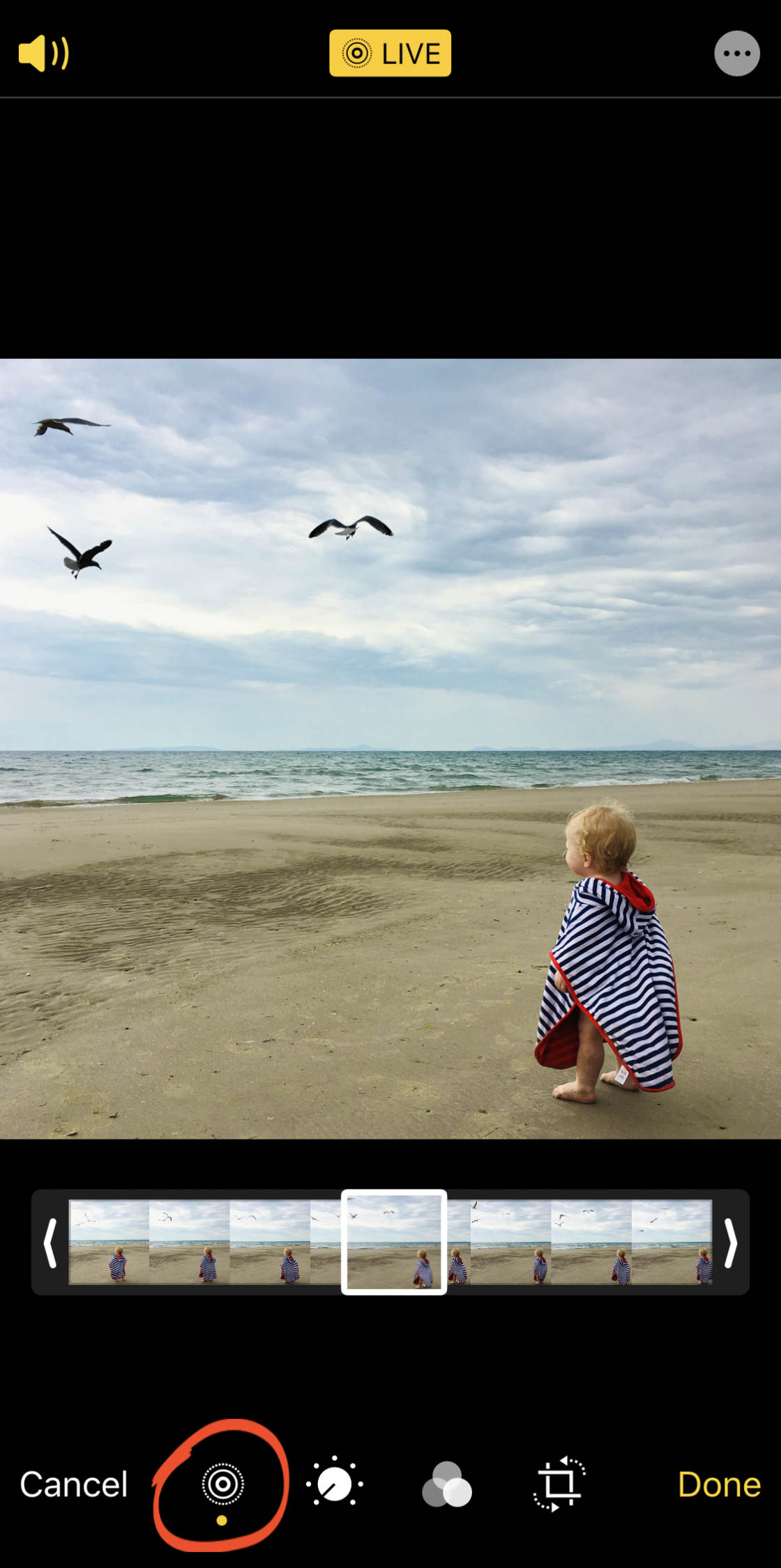
If you dislike the specific frame the iPhone chose as the “Key Photo,” you aren’t stuck with it. You can open any Live Photo, tap “Edit,” and then tap the Live icon. You will see a frame-by-frame slider of the entire 3-second sequence. You can scrub through these frames to select the exact moment that best captures the expression or action you wanted, and set it as the new Key Photo. This is an invaluable tool for group shots where someone might have been mid-blink in the original capture.
Integration and Workflow: Moving Beyond the iPhone
The utility of Live Photos extends well beyond the iPhone interface. Integrating these files into broader digital workflows requires an understanding of how they interact with external software and social platforms.
Sharing and Social Media
Sharing Live Photos directly to social media platforms like Instagram or TikTok often converts them into standard video files. To preserve the “live” element for platforms that support it, many users find it helpful to convert their Live Photos into high-quality GIFs. Numerous third-party apps, such as Lively or even the built-in “Save as Video” option in the Share Sheet, allow you to export these files into a format that keeps the motion intact for non-Apple users.
Metadata and Preservation
It is important to remember that Live Photos carry metadata that includes not just the time and location, but also the motion data. When moving these files to a computer, it is highly recommended to use the Photos app on macOS or a cloud service like iCloud. If you manually drag and drop files from an iPhone to a Windows PC via a cable, there is a risk that the still JPEG and the companion MOV file will be separated, rendering the Live Photo effect broken. Apple’s ecosystem is specifically designed to keep these “married” files together, so staying within that environment is the most reliable way to maintain the integrity of your media library.
Practical Tips for Better Live Photos
To get the most out of this feature, consider how you approach the act of shooting. Since Live Photos are constantly buffering, you should avoid moving your camera away the second you hit the shutter button. Hold the phone steady for an extra second or two after the capture to ensure the end of the clip is stable and useful.
Managing Battery and Storage
While the overhead for Live Photos is minimal, if you are planning on shooting hundreds of photos in a high-action environment (like a sports event or a concert), disabling Live Photos can save a small amount of battery and storage space. You can toggle this by tapping the concentric circle icon in the top right of the Camera app. However, for everyday documentation, the benefit of having a “second chance” to find the perfect frame far outweighs the negligible storage cost.
Future-Proofing Your Memories
As technology advances, the quality of these 3-second clips continues to improve with better low-light performance and higher frame rates. By embracing Live Photos today, you are essentially building a richer, more dynamic visual archive of your life. When you look back at these photos years from now, having the audio and the slight movement of a moment provides a sensory depth that a static image simply cannot replicate. Whether it’s the sound of a loved one laughing or the motion of a busy city street, Live Photos allow you to step back into the moment rather than just observing it from a distance.
Ultimately, the Live Photo is a testament to how Apple bridges the gap between technical complexity and user simplicity. It asks nothing of the user while providing a wealth of creative possibilities, ensuring that your most important memories are captured with a level of detail and vitality that traditional photography often leaves behind.
aViewFromTheCave is a participant in the Amazon Services LLC Associates Program, an affiliate advertising program designed to provide a means for sites to earn advertising fees by advertising and linking to Amazon.com. Amazon, the Amazon logo, AmazonSupply, and the AmazonSupply logo are trademarks of Amazon.com, Inc. or its affiliates. As an Amazon Associate we earn affiliate commissions from qualifying purchases.