
In the rapidly evolving landscape of web browsers, Google Chrome maintains its dominance by adhering to a rigorous and transparent update schedule. For the average user, the “latest version” is not just a number but a package of security patches, performance enhancements, and cutting-edge features that redefine how we interact with the digital world. As of the current software cycle, Google has transitioned to a four-week release cadence for major “Milestone” updates, ensuring that technological debt is minimized and security remains airtight.
Understanding what constitutes the latest version requires looking beyond the digits. Chrome operates on a multi-tiered release architecture designed to balance stability with innovation. Whether you are a casual surfer, a developer, or a corporate IT manager, staying informed about the current state of Chrome is essential for maintaining a secure and efficient digital environment.
Understanding the Google Chrome Release Cycle and Channels
Google Chrome is built upon the open-source Chromium project. Because of this, its development is public and follows a highly structured path before reaching the general public. To understand what the “latest” version is, one must first identify which “channel” they are using. Each channel represents a different stage of the software’s maturity.
The Stable Channel
The Stable channel is what the vast majority of users mean when they ask for the latest version. This version has undergone weeks of testing in previous stages and is deemed reliable for everyday use. Google typically releases a major Milestone (e.g., Version 120, 121, 122) every four weeks. Between these major releases, “Point” updates (the numbers following the first decimal) are pushed frequently—often weekly—to address critical security vulnerabilities or high-impact bugs.
The Beta and Dev Channels
For those who wish to see what is coming next, the Beta channel provides a preview of the upcoming Milestone. It is generally stable enough for daily use but may contain minor bugs. The Dev channel is even further ahead, updated once or twice a week, showcasing features that are still in active development. These channels are crucial for web developers who need to test their sites against upcoming browser changes before they hit the mainstream.
The Canary Channel
Named after the “canary in a coal mine,” this is the most experimental version of Chrome. It is updated daily and can be highly unstable. Canary is often several versions ahead of the Stable release. It is used primarily by engineers and enthusiasts to test the absolute bleeding edge of web technology. Because Canary installs as a separate application, it can run alongside the Stable version of Chrome without interference.
How to Verify and Update Your Chrome Version Across Devices
Google Chrome is designed to update automatically in the background. However, various factors—such as restrictive network settings, pending restarts, or hardware limitations—can prevent these updates from occurring. Knowing how to manually trigger an update is a fundamental digital literacy skill.
Desktop (Windows, macOS, and Linux)
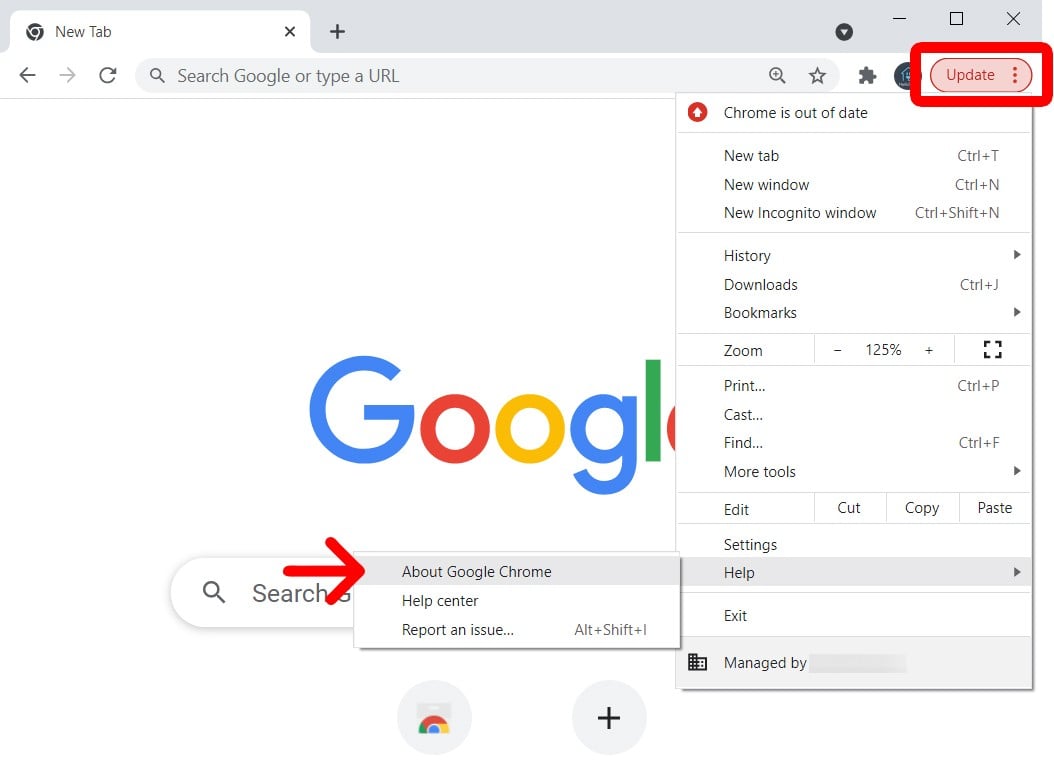
On a desktop environment, checking your version is a straightforward process. By clicking on the three vertical dots (the “Kebab” menu) in the top-right corner of the browser, navigating to “Help,” and selecting “About Google Chrome,” the browser will automatically initiate a check for the latest version.
If an update is available, Chrome will download it immediately. The most critical step, which many users overlook, is the “Relaunch.” An update is not fully applied until the browser is closed and reopened. Chrome facilitates this by providing a “Relaunch” button that preserves your open tabs and windows, ensuring a seamless transition to the latest build.
Mobile (Android and iOS)
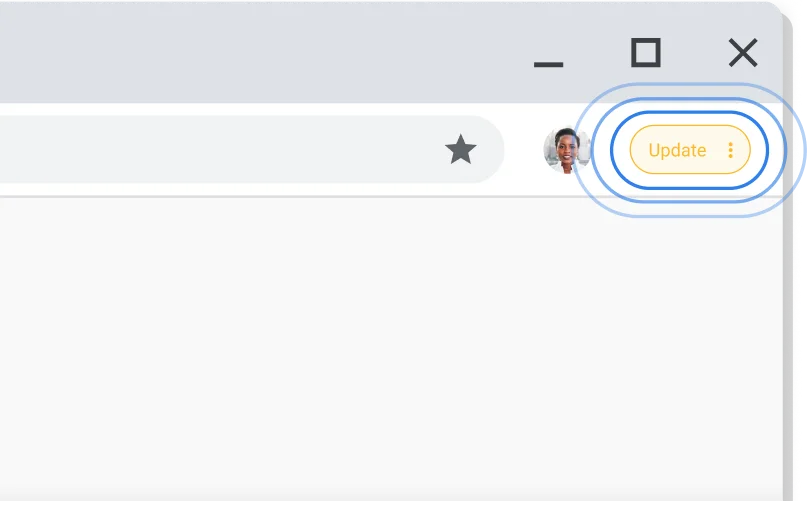
On mobile devices, Chrome updates are handled through the respective app stores. For Android users, the Google Play Store manages updates, while iOS users rely on the Apple App Store. While these updates are usually automatic, users can manually check by searching for “Google Chrome” in their app store. If the button says “Update,” a newer version is available. If it says “Open,” you are running the latest version compatible with your device’s operating system.
The Technical Significance of Regular Updates
The drive toward the latest version is not merely aesthetic. In the tech sector, software versioning is the primary defense mechanism against an increasingly hostile cyber landscape.
Security Patches and Zero-Day Mitigations
The most compelling reason to stay on the latest version of Chrome is security. Web browsers are the primary window to the internet, making them a high-value target for hackers. Google’s “Project Zero” and a global community of security researchers constantly identify vulnerabilities such as buffer overflows or remote code execution flaws.
Many updates address “Zero-Day” exploits—vulnerabilities that are being actively exploited in the wild before a patch is even available. When Google releases an emergency update, the version number increments slightly, signaling that a critical hole has been plugged. Running an outdated version of Chrome is equivalent to leaving your front door unlocked in a high-crime neighborhood.
Performance Optimizations and Memory Management
Chrome has historically been criticized for its high RAM usage. Recent versions have introduced significant architectural changes to combat this. The “Memory Saver” and “Energy Saver” modes, introduced in the latest Milestones, represent a major leap in performance tech.
Memory Saver automatically frees up memory from inactive tabs, ensuring that the active tab has the resources it needs to run smoothly. Energy Saver limits background activity and visual effects to preserve battery life on laptops. These features are not static; they are refined with every version to improve the V8 JavaScript engine’s efficiency and the browser’s overall footprint.
Web Standards and Developer Tools
For the tech-savvy, each new version of Chrome brings support for new Web APIs and CSS properties. This allows developers to create more immersive and functional web applications. Updates also include enhancements to “DevTools,” the suite of diagnostic tools built into Chrome. Recent versions have added better debugging for CSS Flexbox and Grid, enhanced performance profiling, and improved network throttling simulations, all of which help developers build a better web for everyone.
Recent Innovations in Chrome’s Latest Major Versions
As we move through the current era of Chrome development, several key technological shifts are defining the “latest” experience. Google is currently focused on three pillars: Artificial Intelligence, Privacy, and the transition to a more secure extension framework.
AI Integration and Generative Features
The latest versions of Chrome are increasingly infused with Artificial Intelligence. Google has begun rolling out experimental AI features, such as a “Tab Organizer” that uses machine learning to suggest groupings for your open tabs. Another significant addition is the “Help me write” feature, which assists users in drafting text within web forms. Furthermore, the integration of Gemini (Google’s advanced AI model) into the browser’s address bar (Omnibox) and side panel is transforming Chrome from a simple viewer into a proactive digital assistant.
The Transition to Manifest V3
One of the most significant technical shifts in recent Chrome history is the migration from Manifest V2 to Manifest V3 for browser extensions. This update changes how extensions interact with the browser, specifically regarding how they filter network requests. While controversial among some ad-blocker developers, Google maintains that Manifest V3 is essential for improving privacy, security, and performance. The latest versions of Chrome are enforcing these new standards, requiring developers to update their extensions to remain functional.
Privacy Sandbox and the End of Third-Party Cookies
Chrome is currently leading the charge in phasing out third-party cookies in favor of the “Privacy Sandbox.” This is a massive shift in how digital advertising works. The goal is to protect user privacy by moving the tracking and profiling logic from individual websites to the browser itself, using anonymized “Topics” to serve relevant ads without exposing personal data. The latest versions of Chrome are currently in the process of rolling this out to 100% of users, marking a historic turning point in web privacy.
Troubleshooting Common Chrome Update Errors
Despite Google’s streamlined process, users occasionally encounter hurdles when trying to reach the latest version. Understanding these technical “error codes” is part of maintaining a healthy software environment.
- Error 3 or 11: These typically indicate a connection issue. The browser cannot reach Google’s update servers. This is often caused by a firewall or a VPN that is blocking the communication.
- Error 7: This suggests that the update was downloaded, but it failed to install. This is common on Windows systems where the Google Update Service has been disabled or interfered with by third-party optimization software.
- “Update disabled by administrator”: In corporate or educational environments, IT departments often manage Chrome versions centrally using Group Policy (GPO) or Chrome Browser Cloud Management. In these cases, the “latest version” is determined by the organization’s stability requirements rather than Google’s release schedule.
To resolve most update issues, a clean reinstallation is often the most efficient path. By uninstalling Chrome and downloading the latest installer from the official Google website, users can bypass local configuration errors and ensure they are on the most recent, secure build.
In conclusion, the “latest version” of Google Chrome is a moving target, by design. It represents a continuous stream of innovation that balances the needs of security, performance, and user experience. By staying updated, users ensure they are not only protected against the latest threats but are also equipped with the most advanced tools the modern web has to offer. Whether it is the integration of generative AI or the fundamental shift in web privacy through the Privacy Sandbox, the latest version of Chrome remains the benchmark for the modern browsing experience.
aViewFromTheCave is a participant in the Amazon Services LLC Associates Program, an affiliate advertising program designed to provide a means for sites to earn advertising fees by advertising and linking to Amazon.com. Amazon, the Amazon logo, AmazonSupply, and the AmazonSupply logo are trademarks of Amazon.com, Inc. or its affiliates. As an Amazon Associate we earn affiliate commissions from qualifying purchases.