
In the complex ecosystem of the Windows operating system, hundreds of background processes work in tandem to ensure a seamless user experience. Many of these processes remain invisible until they consume excessive system resources or trigger a security alert. One such critical component is spoolsv.exe. While it might sound like an obscure system file, it is the primary engine behind every document you send to a printer. Understanding what spoolsv.exe is, how it functions, and how to manage its potential security risks is essential for anyone looking to maintain a healthy and secure digital environment.
The Core Functionality of the Print Spooler Service
At its heart, spoolsv.exe is the executable file for the Windows Print Spooler service. The term “spool” is actually an acronym for “Simultaneous Peripheral Operations On-Line.” In the early days of computing, printers were significantly slower than the computers feeding them data. To prevent the computer from freezing while waiting for a printer to finish a job, engineers developed “spooling”—a process where data is stored in a temporary buffer (the spool) and then fed to the peripheral device at its own pace.
How the Spooling Process Works
When you click “Print” in an application like Microsoft Word or a web browser, the application doesn’t communicate directly with your printer. Instead, it sends the data to the spoolsv.exe process. This service takes the print request and writes it to a temporary file on your hard drive.
Once the data is “spooled,” the Print Spooler service manages the queue. If you have multiple documents waiting to print, spoolsv.exe keeps them in order and monitors the status of the printing hardware. It tracks whether the printer is online, out of paper, or experiencing a jam. This architectural layer allows the user to continue working in their primary application immediately after hitting the print button, rather than waiting for the physical hardware to complete its task.
The Relationship Between Spoolsv.exe and Printer Drivers
The spoolsv.exe process also acts as an intermediary for printer drivers. For a computer to talk to a specific printer model, it needs a driver that translates generic print commands into a language the hardware understands (such as PCL or PostScript). The Print Spooler service loads these drivers into memory when needed. This modular approach is what allows Windows to support thousands of different printer models through a single, unified interface.
Troubleshooting High CPU and Memory Usage
While spoolsv.exe is vital for productivity, it is also one of the most common culprits for system slowdowns. Users frequently report that the process consumes 50% to 100% of their CPU capacity, causing the entire computer to lag. Understanding why this happens is the first step toward a resolution.
Identifying Corrupt Print Jobs
The most common reason for spoolsv.exe resource spikes is a “stuck” or corrupt print job. If the Spooler service encounters a file it cannot properly interpret or a file that has been partially written to the disk due to a system crash, it may enter an infinite loop trying to process the data. Because the service is designed to ensure the document eventually prints, it will continue to retry the operation, consuming more and more CPU cycles in the process.
To resolve this, users often need to navigate to the Windows Spooler folder located at C:WindowsSystem32spoolPRINTERS. By stopping the service and deleting the .spl and .shd files in this directory, you effectively “wipe the slate clean,” allowing the process to return to its idle state.
Driver Incompatibility and Memory Leaks
Another technical hurdle involves outdated or poorly coded printer drivers. Because spoolsv.exe loads these drivers into its own process space, a bug in a manufacturer’s driver can manifest as a memory leak within the spoolsv.exe process. In a tech-centric environment where hardware is frequently updated, ensuring that you are using the latest “Universal Print Driver” or a WHQL-certified (Windows Hardware Quality Labs) driver is crucial for maintaining system stability.
Step-by-Step Fixes for System Lag
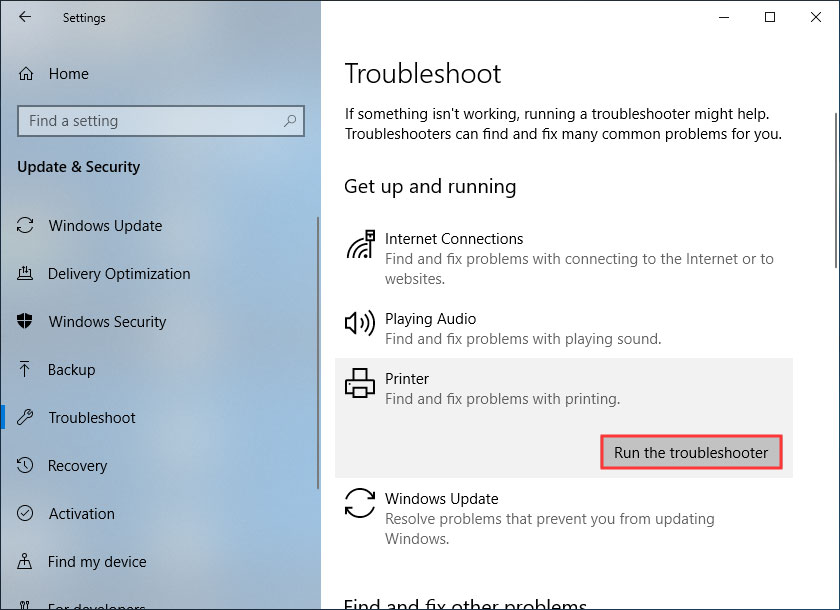
If you encounter high CPU usage, the following technical workflow is recommended:
- Restart the Service: Open
services.msc, locate “Print Spooler,” right-click, and select “Restart.” - Clear the Spooler Directory: Stop the service, delete all files in
C:WindowsSystem32spoolPRINTERS, and restart the service. - Update Driver Software: Check the manufacturer’s website for the latest driver version, as many spooler issues are patched via driver updates rather than Windows updates.
- Isolate the Printer: If you have multiple printers installed (including virtual “Print to PDF” drivers), try removing them one by one to identify if a specific driver is causing the conflict.
Security Implications: Is Spoolsv.exe a Virus?
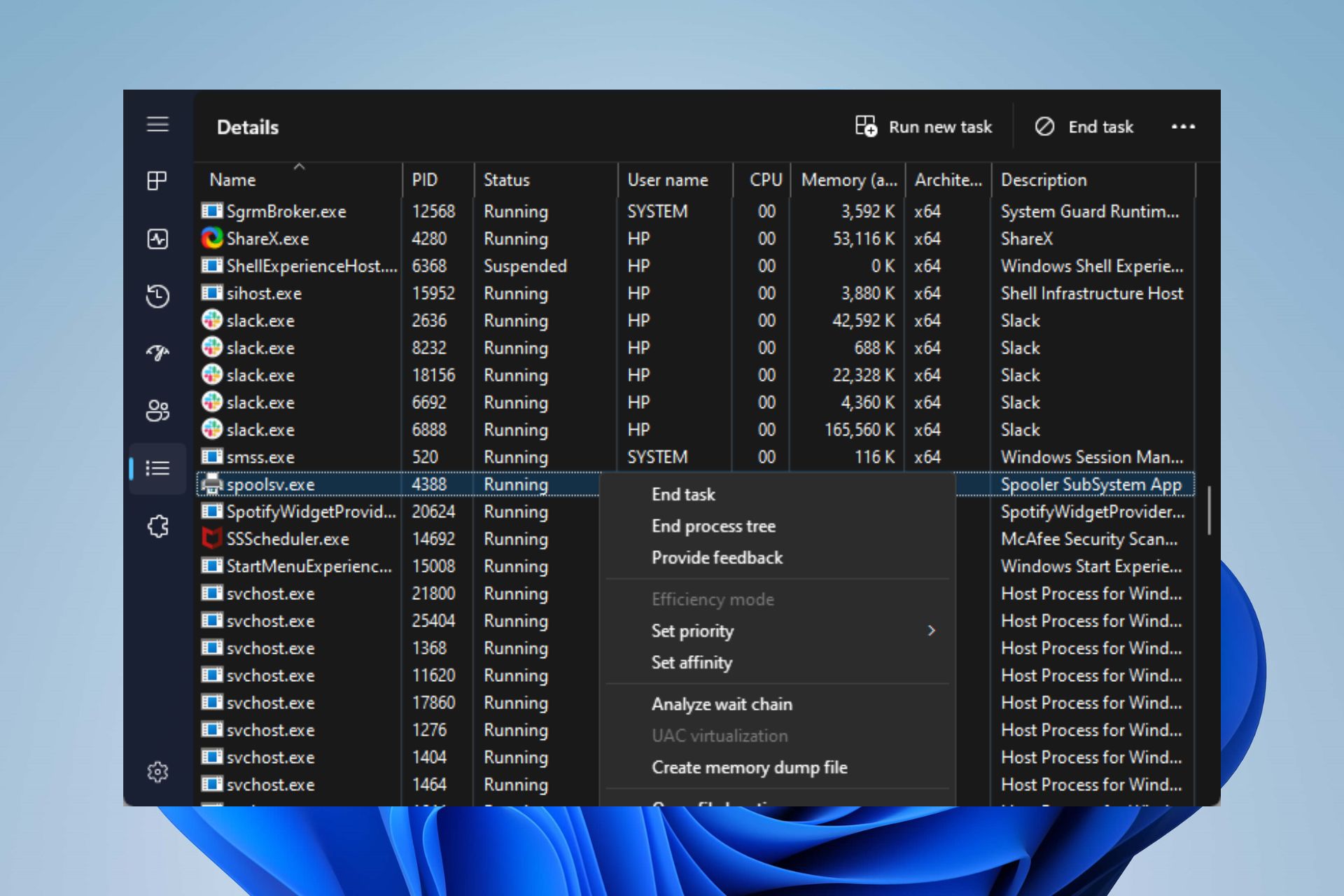
In the realm of digital security, spoolsv.exe is a “high-value target” for malicious actors. Because it is a legitimate system process that runs with high privileges (System-level access), malware often attempts to hide by using the same name or by exploiting vulnerabilities within the service itself.
Legitimate vs. Malicious Executables
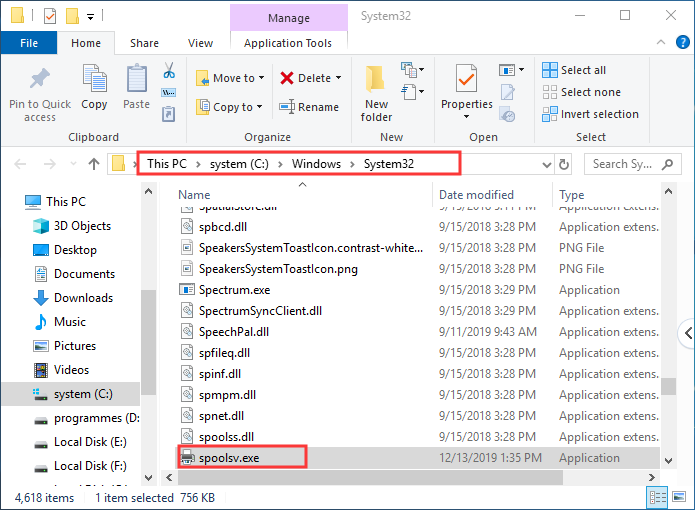
To determine if the spoolsv.exe running on your machine is safe, you must verify its location and digital signature. The legitimate Windows file is always located in C:WindowsSystem32. If you find a file named spoolsv.exe in your Downloads folder, Temp folder, or C:UsersYourNameAppData, it is almost certainly a Trojan or a miner.
Modern security software uses heuristic analysis to watch for unusual behavior from the spooler. For example, if spoolsv.exe suddenly starts attempting to connect to an external IP address in a foreign country or tries to modify system registry keys unrelated to printing, it is a clear indicator of a compromise.
The History of Print Spooler Vulnerabilities (PrintNightmare)
The Print Spooler has been the center of several major cybersecurity events, most notably the “PrintNightmare” vulnerability (CVE-2021-34527). This was a critical flaw that allowed remote code execution (RCE). Essentially, an attacker could send a specially crafted print job to a vulnerable system and gain full administrative control over the domain controller or workstation.
This event highlighted a fundamental shift in how IT professionals view the spooler service. In many enterprise environments, the recommendation transitioned from “maintain the service” to “disable the service on all non-printing servers.” This “zero-trust” approach to legacy services like spoolsv.exe is now a cornerstone of modern cybersecurity infrastructure.
Best Practices for Hardening Print Security
To protect your system from exploits targeting spoolsv.exe, consider the following strategies:
- Keep Windows Updated: Microsoft frequently releases “out-of-band” patches for the spooler service. Never delay these updates.
- Disable if Unnecessary: If you are running a server that does not need to print, disable the Print Spooler service entirely to reduce the attack surface.
- Use Group Policy: In a business environment, use Group Policy Objects (GPO) to restrict printer driver installation to administrators only, preventing non-privileged users from introducing malicious drivers into the spooler.
Managing and Optimizing the Spooler Service
For tech enthusiasts and power users, managing spoolsv.exe goes beyond simple troubleshooting. It involves optimizing how the service interacts with the network and the local hardware to ensure peak performance.
How to Safely Disable or Restart Spoolsv.exe
There are several ways to interact with the spooler service depending on your technical proficiency:
- The Services Console: The most user-friendly method is through
services.msc. This allows for manual starting, stopping, and setting the “Startup type” (Automatic, Manual, or Disabled). - Command Prompt / PowerShell: For automation, administrators use commands like
net stop spoolerandnet start spooler. In PowerShell, the commandsStop-Service SpoolerandStart-Service Spoolerprovide more granular control and can be integrated into maintenance scripts.
Automating Maintenance Tasks
If you find that your printer environment frequently clogs, you can create a simple batch script to automate the cleaning process. A script that stops the service, deletes the contents of the PRINTERS folder, and restarts the service can be pinned to the desktop or scheduled to run weekly. This proactive approach prevents the build-up of orphaned print files that eventually lead to high CPU usage.
The Future of Printing Services in Modern Operating Systems
As we move toward a more cloud-centric world, the role of spoolsv.exe is evolving. Microsoft’s “Universal Print” is a cloud-based print solution that aims to eliminate the need for complex on-premises print servers and local spooling headaches. By moving the heavy lifting of print processing to the cloud, the dependency on local executables like spoolsv.exe may decrease over time.
However, for the foreseeable future, spoolsv.exe remains a critical component of the Windows NT kernel architecture. It represents the bridge between our digital creations and their physical manifestations. By understanding its role—from its basic spooling mechanics to its significant security implications—users can better navigate the technical challenges of modern computing, ensuring their systems remain both productive and protected. Whether you are a casual user or an IT professional, keeping a watchful eye on this silent worker is a hallmark of good system stewardship.
aViewFromTheCave is a participant in the Amazon Services LLC Associates Program, an affiliate advertising program designed to provide a means for sites to earn advertising fees by advertising and linking to Amazon.com. Amazon, the Amazon logo, AmazonSupply, and the AmazonSupply logo are trademarks of Amazon.com, Inc. or its affiliates. As an Amazon Associate we earn affiliate commissions from qualifying purchases.