
The process of upgrading to a new smartphone is often a bittersweet experience. While the allure of faster processors, vibrant displays, and cutting-edge camera systems is undeniable, the prospect of moving years of digital life—thousands of photos, complex message threads, customized settings, and essential applications—can be daunting. In the Android ecosystem, particularly for those moving into the Samsung Galaxy family, “Smart Switch” has emerged as the definitive solution to this migration anxiety. It is not merely a file transfer utility; it is a sophisticated software bridge designed to ensure digital continuity.

Understanding what Smart Switch is, how it functions, and the technical nuances of its operation is essential for any modern tech user. Whether you are a lifelong Android enthusiast or a recent convert from iOS, mastering this tool is the key to a seamless transition.
Understanding Smart Switch: The Gateway to Seamless Device Upgrades
At its core, Samsung Smart Switch is a proprietary data transfer application developed to simplify the transition from an old mobile device to a new Samsung Galaxy smartphone or tablet. In the broader landscape of software tools, it serves as a specialized migration agent that abstracts the complexity of file structures and database transfers into a user-friendly interface.
What is Smart Switch?
Smart Switch is a multi-platform utility available as a mobile application for Android and iOS, as well as a desktop application for Windows and macOS. Its primary function is to scan an “old” device (the source) and replicate its content onto a “new” Galaxy device (the destination). Unlike generic cloud backup services that might only sync contacts or photos, Smart Switch is designed for deep-system migration. It attempts to reconstruct your digital environment, right down to your call logs, alarms, and even the layout of your home screen.
For the tech-savvy user, it is important to note that while Smart Switch is a Samsung product, its “source” compatibility is impressively broad. It can pull data from almost any Android device (running Android 4.3 or later) and iPhones (running iOS 5.0 or later). This inclusivity makes it a pivotal tool in the competitive smartphone market, lowering the barrier to entry for users switching brands.
How Smart Switch Works: Wireless vs. Wired
The technical architecture of Smart Switch relies on two primary methods of data transmission: wireless transfer and wired (USB) transfer.
The wireless method utilizes a technology known as Wi-Fi Direct. Unlike standard Wi-Fi, which requires an intermediate router or access point, Wi-Fi Direct creates a peer-to-peer connection between the two devices. This creates a high-speed, private “tunnel” for data to flow through, independent of your home internet speed. This is particularly useful for users who may not have a stable internet connection or the necessary cables on hand.
The wired method involves connecting the two devices directly using a USB-C to USB-C cable or a USB-OTG (On-The-Go) adapter. In professional circles, the wired method is often preferred for large data migrations (exceeding 50GB). Because a physical connection is less susceptible to interference and provides a more consistent throughput, it is generally faster and more reliable for transferring high-resolution video libraries and massive photo archives.
What Can You Actually Transfer? Data Types and Compatibility
One of the most common questions regarding Smart Switch is the extent of its reach. Modern smartphones are complex repositories of data, and not all data is created equal. Smart Switch categorizes data into several buckets to ensure that the destination device remains stable while retaining as much of the user’s history as possible.
Supported Data Categories
Smart Switch is remarkably comprehensive in what it can move. The standard list of transferable items includes:
- Personal Information: Contacts, schedule/calendar events, messages (SMS/MMS), call history, and memos.
- Media Content: Photos, music, videos, and voice recordings.
- App Data and Settings: A list of installed apps (which the Google Play Store will then attempt to re-download), home screen layouts, alarms, Wi-Fi settings, and even device settings like brightness and ringtones.
However, there are technical limitations. For instance, Smart Switch cannot transfer encrypted data from secure messaging apps like WhatsApp or Signal directly through its own interface; these apps usually require their own internal cloud backup systems (Google Drive or iCloud). Furthermore, it cannot transfer digital rights management (DRM) protected content, such as certain paid movies or music files that are locked to a specific hardware ID.
Cross-Platform Migration: Switching from iOS to Android
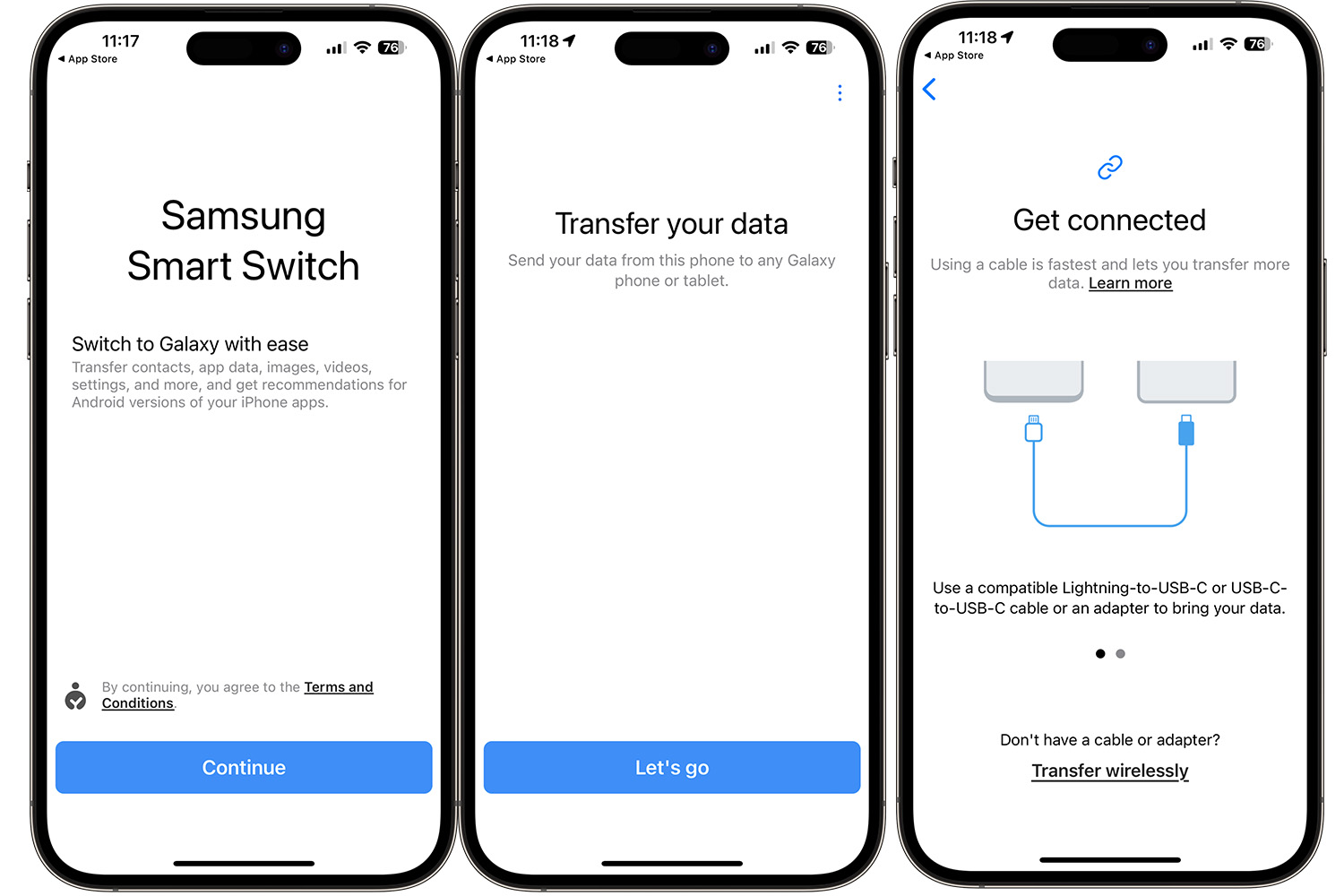
The most impressive feat of Smart Switch is its ability to interpret iOS data structures and translate them for Android. When moving from an iPhone, Smart Switch offers two pathways: a wired connection or an iCloud import.
By signing into your iCloud account within Smart Switch, the tool can pull contacts, calendar events, and photos directly from Apple’s servers. However, for a truly comprehensive migration—including text messages and videos—a wired connection is the gold standard. During this process, Smart Switch essentially “scans” the iPhone’s backup partition and maps that data to the corresponding directories on the new Android device. It even goes as far as searching the Google Play Store for Android equivalents of the apps you had on your iPhone, presenting you with a list of matches to install.
Step-by-Step Tutorial: How to Use Smart Switch Efficiently
To ensure a successful migration, one must follow a logical sequence. Data transfer is a resource-intensive process that taxes both the processor and the battery.
Preparing Your Devices
Before initiating the transfer, three conditions must be met. First, both devices should be charged to at least 80% or remain plugged into a power source. A power failure mid-transfer can result in corrupted data or “ghost” files that take up space without being accessible. Second, ensure that the Smart Switch app is updated to the latest version on both devices to avoid compatibility glitches. Third, disable any “Battery Saver” modes, as these can throttle data speeds or put the app to sleep in the background.
Executing the Transfer via Wi-Fi or USB-C
- Launch and Permissions: Open Smart Switch on both devices. On the new Galaxy device, select “Receive data,” and on the old device, select “Send data.” You will need to grant a plethora of permissions (contacts, storage, etc.)—this is necessary for the app to access the data it needs to move.
- Establish Connection: Select your connection method (Cable or Wireless). If wireless, the devices will use high-frequency sound or a PIN code to pair. If wired, simply connect the cables and tap “Trust” on the source device if prompted.
- Selection of Content: This is the most critical step. Smart Switch will provide an estimate of how long the transfer will take. You can choose “Everything,” “Just accounts/calls/contacts,” or “Custom.” For a clean experience, many power users prefer “Custom” to avoid bringing over years of “junk” photos or obsolete apps.
- The Transfer Process: Once you hit “Transfer,” let the devices sit. It is tempting to use the phone during this time, but doing so can interrupt the Wi-Fi Direct stream or cause the USB connection to reset.
Using Smart Switch for PC/Mac Backups
While the mobile-to-mobile transfer is most common, the Smart Switch desktop application offers a robust “Plan B.” By backing up your old device to a computer, you create a physical snapshot of your data. This is an excellent safety net. If the direct transfer fails due to a hardware glitch, you can simply restore the backup from your PC to your new Galaxy device via a USB cable. This desktop version also facilitates software updates for your Samsung device, often providing a more stable environment for firmware installation than a standard Over-the-Air (OTA) update.
Digital Security and Privacy During Data Transfer
In an era where data privacy is paramount, moving your entire digital life between devices raises legitimate security concerns. Samsung has integrated several layers of protection within Smart Switch to ensure that your data remains yours.
Encryption and Data Integrity
When using the wireless transfer method, Smart Switch employs WPA2 encryption for the peer-to-peer connection. This means that even if someone were to intercept the Wi-Fi Direct signal, the data would be unreadable without the specific handshake key generated between the two phones.
Furthermore, Smart Switch performs a “checksum” verification during the transfer. This is a technical process where the app calculates a digital signature for a file on the old device and compares it to the file on the new device once moved. If the signatures don’t match, the app identifies the file as corrupted and attempts the transfer again, ensuring that your precious wedding photos or critical work documents arrive intact.
Best Practices for Secure Migration
To maximize security, always download Smart Switch from official sources like the Google Play Store, Samsung Galaxy Store, or the official Samsung website for the desktop version. Avoid third-party “clones” that may contain malware. Additionally, once the transfer is complete and you have verified that all data is present on the new device, it is a professional best practice to perform a factory data reset on the old device before selling or recycling it. This ensures that no residual data remains on the source hardware.
Troubleshooting Common Smart Switch Issues
Despite its sophistication, Smart Switch can occasionally encounter hurdles. Understanding these common friction points can save hours of frustration.
Connection Failures and Interruptions
The most common issue is a dropped connection. In wireless transfers, this is often caused by interference from other Wi-Fi networks or Bluetooth devices. If a wireless transfer fails repeatedly, switching to a wired connection usually resolves the issue. If using a cable, ensure that the ports on both phones are free of lint and debris; even a small amount of pocket lint can prevent the high-speed data pins from making a solid connection.
App Compatibility and Storage Limitations
Sometimes, users notice that not every app moved over. This is usually due to one of two reasons: the app is no longer available on the Google Play Store, or the app’s internal security settings prevent third-party backup tools from accessing its data.
Another frequent hurdle is storage capacity. If your old phone had 256GB of data and your new phone only has 128GB, Smart Switch will provide a warning. In this scenario, you must use the “Custom” selection tool to prioritize essential data (contacts and messages) over heavy media files, which can be offloaded to a cloud service or a computer.

The Future of Mobile Migration
As we move toward a more cloud-centric world, tools like Smart Switch continue to evolve. They are becoming more intelligent, using machine learning to predict which apps you use most and prioritizing their transfer, or optimizing the compression of media files to speed up the process.
For the Android user, Smart Switch represents the pinnacle of utility software—it is a complex technological engine hidden behind a simple, intuitive interface. By understanding its mechanics, from Wi-Fi Direct protocols to data encryption, you transform the stressful task of switching phones into a streamlined, professional transition. Whether you are migrating for business or personal use, Smart Switch ensures that your digital identity remains seamless, secure, and ready for the next generation of mobile technology.
aViewFromTheCave is a participant in the Amazon Services LLC Associates Program, an affiliate advertising program designed to provide a means for sites to earn advertising fees by advertising and linking to Amazon.com. Amazon, the Amazon logo, AmazonSupply, and the AmazonSupply logo are trademarks of Amazon.com, Inc. or its affiliates. As an Amazon Associate we earn affiliate commissions from qualifying purchases.