
The digital landscape is constantly evolving, with new technologies and applications emerging to enhance our productivity and streamline our workflows. Among these advancements, the concept of Progressive Web Apps (PWAs) has gained significant traction, offering a hybrid approach that blends the accessibility of web applications with the functionality of native software. Microsoft Outlook, a cornerstone of professional communication and organization for millions, has embraced this evolution with its own PWA offering. But what exactly is Outlook PWA, and how does it differ from its traditional counterparts? This article delves into the intricacies of Outlook PWA, exploring its core technology, benefits, and how it fits into the modern tech ecosystem.

Understanding Progressive Web Apps (PWAs)
Before dissecting Outlook PWA specifically, it’s crucial to grasp the foundational technology behind PWAs. Progressive Web Apps are essentially web applications that leverage modern web capabilities to deliver an app-like experience to users. They are built using standard web technologies like HTML, CSS, and JavaScript, but are designed to offer features typically associated with native mobile or desktop applications.
The Core Principles of PWA Technology
The “progressive” aspect of PWAs refers to their ability to work for every user, regardless of their browser choice, because they are built with progressive enhancement as a core tenet. This means they start as a standard website and progressively gain enhanced features as the user’s browser and device support them. Key technologies underpinning PWAs include:
- Service Workers: These are JavaScript files that run in the background, separate from the web page, and enable features like offline functionality, background syncing, and push notifications. They act as a proxy between the browser and the network, allowing for sophisticated caching strategies.
- Web App Manifest: This is a JSON file that provides information about the web application, such as its name, icon, and display mode. It allows the web application to be installed on the user’s home screen, appear as a standalone app, and integrate with the operating system’s features.
- HTTPS: PWAs require a secure connection (HTTPS) to function correctly, ensuring the safety and integrity of data transmitted between the user and the application.
These technologies collectively allow PWAs to offer a robust and engaging user experience that often rivals or even surpasses that of traditional native applications in terms of accessibility and development efficiency.
PWA vs. Native Apps vs. Traditional Web Apps
To fully appreciate Outlook PWA, it’s helpful to differentiate it from other application types:
- Traditional Web Apps: These are accessed via a web browser and run entirely online. They typically require a constant internet connection and lack the ability to be installed or offer offline functionality.
- Native Apps: These are applications developed specifically for a particular operating system (e.g., iOS, Android, Windows) and are downloaded and installed from an app store. They often offer the most integrated and performant experience but require separate development for each platform.
- Progressive Web Apps (PWAs): As discussed, PWAs offer a middle ground. They can be accessed through a browser like a web app but can also be “installed” to the device, offering offline capabilities, push notifications, and a more integrated feel, all without the need for an app store download or separate development cycles for different platforms.
The beauty of PWAs lies in their adaptability. They provide a consistent experience across devices and platforms, reducing development overhead while still delivering advanced features.
Outlook PWA: Bridging the Gap
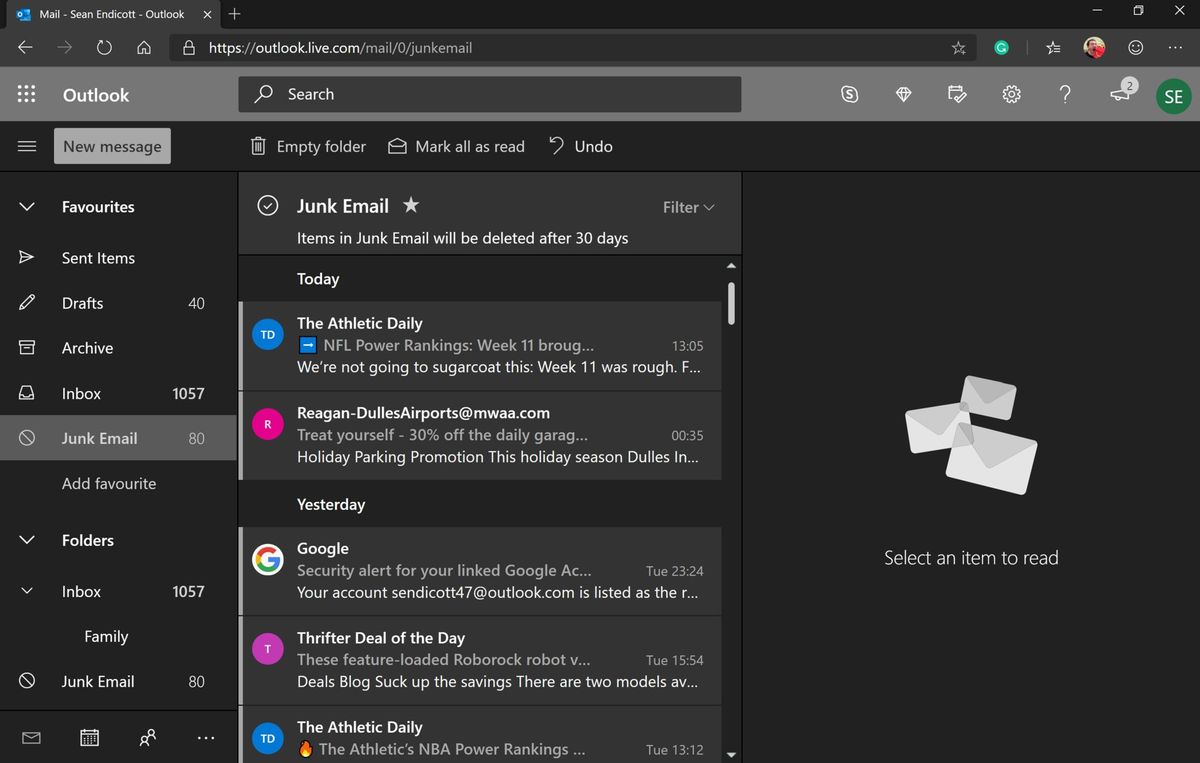
Microsoft Outlook’s adoption of PWA technology aims to offer users the best of both worlds: the widespread accessibility and ease of use of a web application combined with the enhanced features and performance of a dedicated desktop or mobile app. Essentially, Outlook PWA is a web-based version of Outlook that has been optimized to function like a standalone application.
How Outlook PWA Works
When you access Outlook through a compatible web browser (like Microsoft Edge or Chrome) and choose to install it, you are essentially installing the PWA. This process involves saving the PWA’s manifest and service worker, allowing the application to be launched from your desktop or app drawer without needing to navigate to a specific URL in a browser tab.
The service worker plays a critical role here. It enables Outlook PWA to cache essential application data and even emails, allowing you to access and work with your inbox even when you are offline. When an internet connection is re-established, the service worker can then synchronize any changes made offline with the server. This offline capability is a significant differentiator from traditional web-based applications.
Key Features and Benefits of Outlook PWA
The Outlook PWA inherits many of the core functionalities of the Outlook desktop client while offering distinct advantages stemming from its PWA architecture:
- Offline Access: This is perhaps the most compelling benefit. With Outlook PWA, you can compose emails, manage your calendar, and view existing mail even without an internet connection. Changes are automatically synchronized once you reconnect.
- Installable Experience: Users can “install” Outlook PWA to their device, meaning it can be launched from their desktop, taskbar, or start menu just like a native application. This eliminates the need to open a browser and navigate to the Outlook web interface.
- Faster Load Times: PWAs are designed for speed. Through intelligent caching and optimized code delivery, Outlook PWA often loads faster than a traditional web application, especially on subsequent launches.
- Push Notifications: Similar to native apps, Outlook PWA can send you real-time notifications for new emails or calendar events, ensuring you never miss important communications.
- Cross-Platform Compatibility: Since it’s a web-based technology, Outlook PWA works across different operating systems (Windows, macOS, Linux) and devices without requiring platform-specific development. This ensures a consistent experience for users regardless of their chosen platform.
- Automatic Updates: As a web application, Outlook PWA is updated automatically on the server side. Users don’t need to manually download and install updates, ensuring they are always using the latest version with the newest features and security patches.
- Lightweight Footprint: Compared to full-fledged desktop applications, PWAs generally have a smaller storage footprint on your device, making them an attractive option for users with limited disk space.
- Secure: PWAs are served over HTTPS, ensuring that all communication between the user and the application is encrypted and secure.
These benefits collectively contribute to a more seamless, efficient, and accessible email and calendaring experience for Outlook users.
Navigating Outlook PWA: Installation and Usage
For users accustomed to either the desktop application or the web interface, understanding how to install and use Outlook PWA is straightforward. The process is designed to be intuitive and to enhance user experience from the outset.
How to Install Outlook PWA
The installation process for Outlook PWA is typically initiated through your web browser. The exact steps might vary slightly depending on your browser and operating system, but the general flow remains consistent:
- Access Outlook Web: Open your preferred web browser and navigate to the Outlook web interface (outlook.com or office.com and select Outlook).
- Look for the Install Prompt: Most modern browsers will detect if a website is a PWA and offer an installation option. This usually appears as an icon in the address bar (often a monitor with a downward arrow) or a prompt within the browser’s settings menu. For Microsoft Edge, you might see a prompt in the address bar or under the “Apps” menu.
- Click “Install”: Clicking the install prompt will initiate the installation. You may be asked to confirm the installation and grant any necessary permissions.
- Launch from Desktop/Start Menu: Once installed, Outlook PWA will appear as an icon on your desktop, in your taskbar, or within your operating system’s application list (e.g., Start Menu on Windows). You can launch it directly from these locations.
If you don’t see an immediate prompt, try visiting the Outlook web app and exploring the browser’s settings. For instance, in Chrome, you might find the option under “More Tools” > “Create shortcut…” and then selecting “Open as window.”
Daily Usage and Integration
Using Outlook PWA is very similar to using the traditional desktop client or the web app, but with the added convenience of direct access and enhanced offline capabilities.
- Composing and Sending Emails: The familiar interface for composing new emails, replying to messages, and attaching files remains largely the same. The PWA’s architecture ensures these actions are smooth and responsive.
- Managing Your Calendar: Scheduling appointments, viewing your daily, weekly, or monthly agenda, and inviting attendees are all seamlessly integrated. The PWA’s ability to sync in the background means your calendar is always up-to-date.
- Offline Capabilities in Action: If you lose your internet connection, you can continue to work on drafted emails, review previously downloaded messages, and check your schedule. Once your connection is restored, these actions will be synchronized automatically.
- Customization and Settings: Many of the customization options you’d find in the desktop app are also available within the PWA, allowing you to tailor your Outlook experience to your preferences.
The integration into your system through the installation process means that Outlook PWA feels more like a native application, providing a focused and uncluttered environment for managing your communications and schedule.
The Future of Outlook and PWA Technology
The adoption of PWA technology by major software providers like Microsoft signals a broader trend in how applications are developed and delivered. As web technologies continue to mature, the distinction between web-based and native applications is becoming increasingly blurred.
The Evolution of Web Applications
PWAs represent a significant leap forward for web applications. They address many of the limitations that previously drove users towards native apps, such as poor performance, lack of offline access, and limited device integration. This evolution means that more complex and powerful applications are now feasible as PWAs, offering a compelling alternative to traditional software.
The ongoing development of web standards and browser capabilities will likely bring even more advanced features to PWAs in the future. We can expect further enhancements in areas like deeper operating system integration, improved performance for resource-intensive tasks, and even more sophisticated offline capabilities.
Microsoft’s Strategic Approach
Microsoft’s investment in Outlook PWA is a clear indication of their commitment to embracing web-first strategies. By offering a PWA version of Outlook, they are catering to a diverse user base with varying technical needs and device preferences. This approach allows them to:
- Reach a Wider Audience: Users who might not want to install a full desktop application can still benefit from a robust Outlook experience.
- Streamline Development and Updates: A single PWA codebase simplifies development and deployment compared to maintaining separate native applications for multiple platforms.
- Stay Competitive: The PWA model aligns with industry trends and offers a modern, flexible solution that meets the expectations of today’s users.
As more applications follow this PWA paradigm, we can anticipate a future where the lines between the web and native environments continue to dissolve, offering users more choice and flexibility in how they access and utilize their favorite tools and services. Outlook PWA is a prime example of this transformative shift, demonstrating the power and potential of progressive web applications in the modern tech landscape.
aViewFromTheCave is a participant in the Amazon Services LLC Associates Program, an affiliate advertising program designed to provide a means for sites to earn advertising fees by advertising and linking to Amazon.com. Amazon, the Amazon logo, AmazonSupply, and the AmazonSupply logo are trademarks of Amazon.com, Inc. or its affiliates. As an Amazon Associate we earn affiliate commissions from qualifying purchases.