
The digital landscape is replete with a myriad of software applications, each serving a specific purpose. Among these, web browsers stand as a fundamental gateway to the internet, and while many options exist, some distinguish themselves by catering to specialized user bases. operagxsetup refers to the installation package for Opera GX, a unique web browser specifically designed with gamers in mind. Far from being just another browser, Opera GX integrates a suite of features engineered to enhance gaming performance, streamline online interactions, and offer a highly customizable browsing experience. Understanding operagxsetup involves delving into its technical components, installation process, and the core functionalities that make Opera GX a distinctive player in the browser market.

Understanding Opera GX Setup: The Installation Process
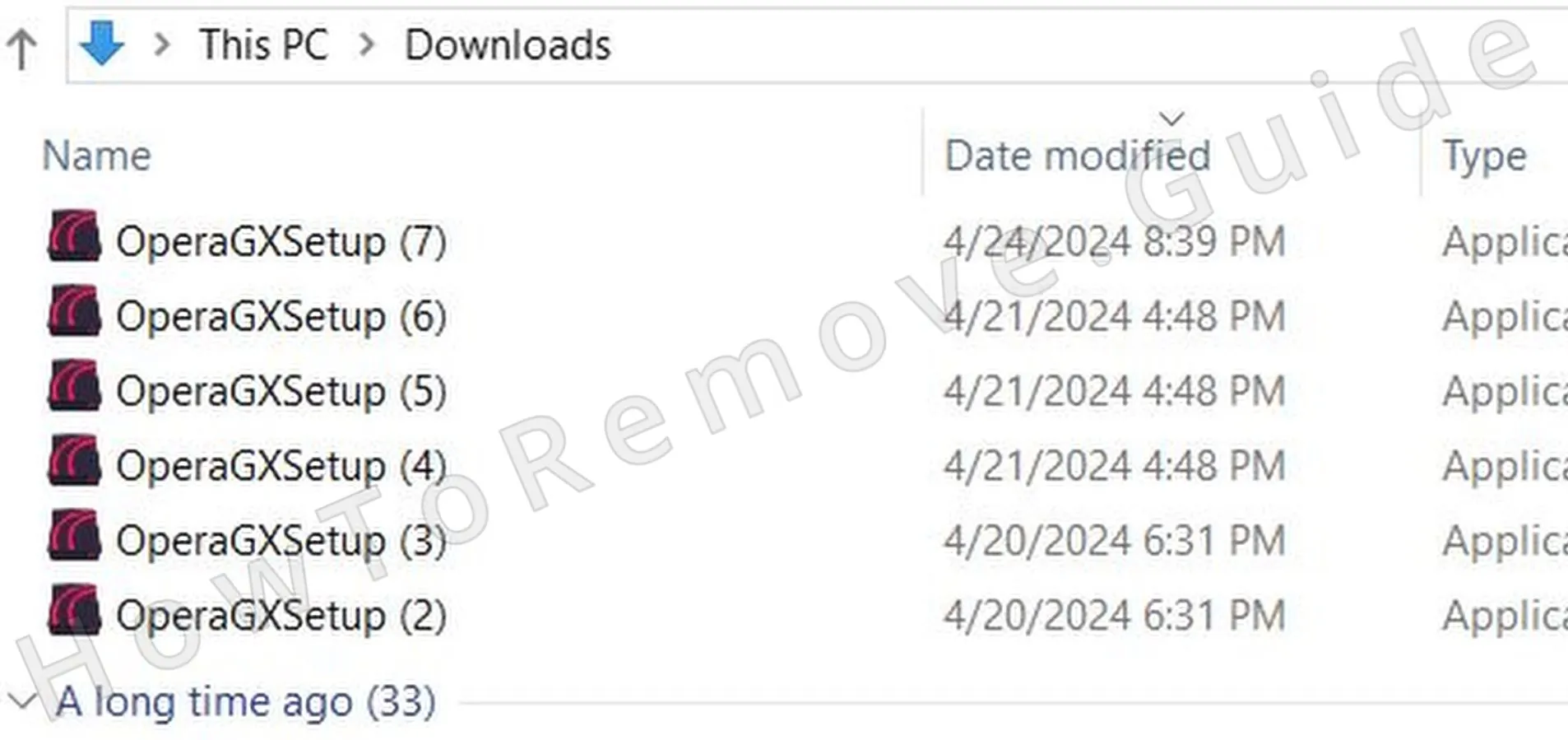
At its core, operagxsetup.exe is the executable file that initiates the installation of the Opera GX browser on a Windows operating system. Similar files exist for macOS (.dmg) and potentially Linux distributions, though Windows remains its primary target demographic. The setup process is designed to be straightforward, guiding users through the necessary steps to get the browser up and running.
Downloading the Installer
The first step is always to acquire the legitimate installer. This should exclusively be downloaded from the official Opera GX website. Sourcing the installer from third-party sites carries inherent risks, including the potential for malware, outdated versions, or compromised files. The official site ensures you receive the latest, secure build, often automatically detecting your operating system to provide the correct download.
Executing the Setup File
Once operagxsetup.exe is downloaded, double-clicking it launches the installation wizard. Typically, the initial screen presents a user license agreement, which should be reviewed. Users are then usually given two primary installation choices:
- Express/Default Installation: This option proceeds with standard settings, often installing the browser to the default program files directory (e.g.,
C:Program FilesOpera GX) and creating desktop shortcuts. It’s the quickest path for most users. - Custom Installation: This allows for greater control, enabling users to specify the installation directory, choose whether to make Opera GX the default browser, and decide on creating shortcuts. This is beneficial for users with specific disk partitioning schemes or those who prefer a non-standard installation path.
During the installation, the setup program extracts and copies necessary files, configures system paths, and registers the browser components. The process is generally quick, depending on system specifications and disk speed. Upon completion, Opera GX typically launches automatically, presenting a first-run experience that includes options for importing bookmarks and settings from other browsers, customizing the theme, and showcasing some of its unique features. This initial setup helps tailor the browser to the user’s preferences right from the start, minimizing post-installation configuration.
Key Features That Define Opera GX
Opera GX distinguishes itself through a specialized feature set designed to cater specifically to the needs of gamers and power users. These features go beyond standard browser functionalities, aiming to optimize system resources and integrate gaming-centric utilities.
GX Control: Resource Management at Your Fingertips
One of the most innovative and praised features is GX Control. This built-in panel allows users to monitor and limit the CPU, RAM, and network bandwidth that Opera GX consumes.
- RAM Limiter: Prevents the browser from hogging excessive memory, ensuring system resources remain available for demanding games or other applications. Users can set a hard limit or a soft limit, providing flexibility.
- CPU Limiter: Similarly, this feature restricts the amount of CPU cycles Opera GX can use. This is crucial during CPU-intensive gaming sessions where every bit of processing power matters.
- Network Limiter: Known as “Network Limiter” or “Hot Tab Killer,” this functionality allows users to control the network bandwidth used by the browser, preventing background downloads or streaming from interfering with online game latency (ping).
GX Corner: Your Gaming News Hub
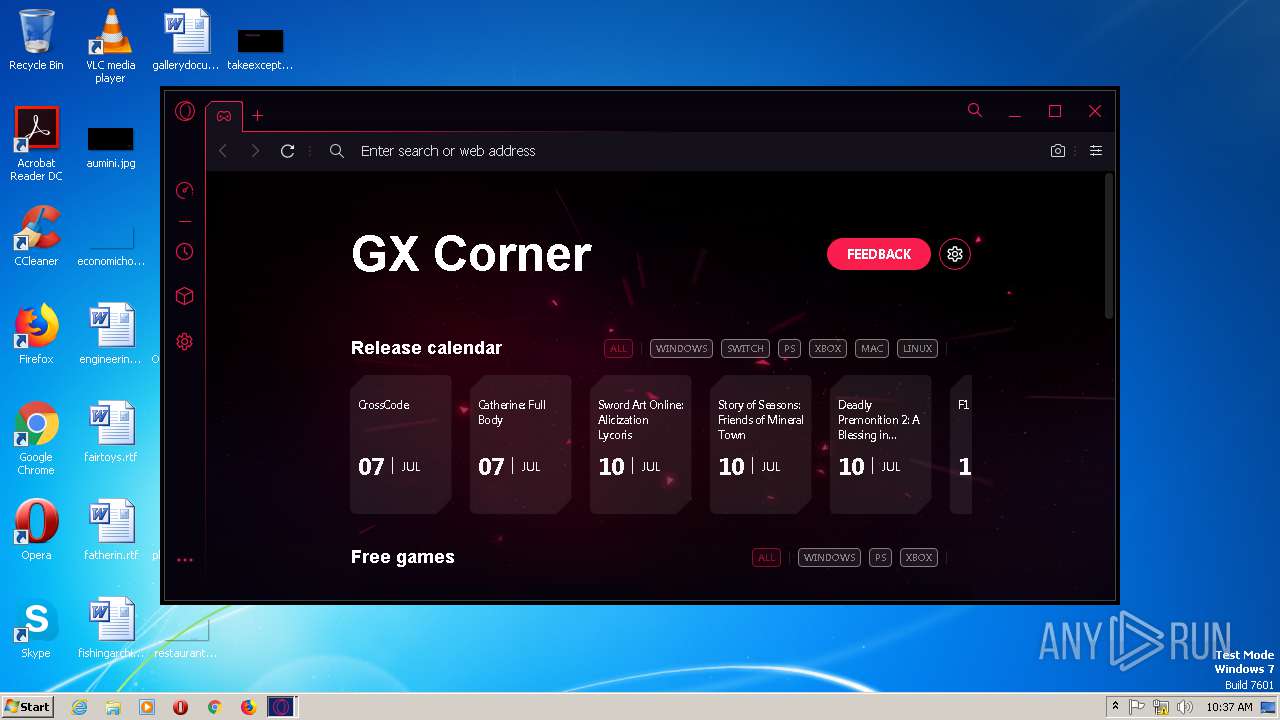
GX Corner serves as a dedicated portal within the browser, providing a centralized hub for gaming news, release dates, deals, and free game alerts. It keeps users updated on the latest in the gaming world without needing to navigate to multiple websites, making it a valuable time-saver for enthusiasts.
Integrated Communications and Entertainment
Opera GX comes with direct integrations for popular communication and streaming platforms.
- Sidebar Integrations: Built-in panels for Twitch, Discord, WhatsApp, Messenger, and Instagram are accessible directly from the sidebar. This allows users to stay connected, chat with friends, or monitor streams without opening separate applications or tabs, thus conserving system resources and streamlining workflow.
- Video Pop-out: This feature enables users to detach a video from its web page and keep it playing in a resizable, floating window on top of other applications. This is ideal for multitasking, such as watching a tutorial while in-game or browsing other content.
- GX Player: A dedicated media player accessible from the sidebar, allowing users to control music and videos from various streaming services without needing to switch tabs.
Enhanced Security and Privacy
True to its Opera lineage, GX includes robust security and privacy tools.
- Free VPN: A built-in, no-log VPN service enhances online privacy by masking the user’s IP address. While not as feature-rich as premium VPNs, it provides a solid layer of anonymity and can bypass geo-restrictions for casual browsing.
- Ad Blocker and Tracking Protection: Integrated ad blocking functionality not only improves browsing speed by preventing ads from loading but also enhances privacy by blocking tracking scripts. This contributes to a cleaner, faster, and more secure web experience.
Customization and Aesthetics
Opera GX offers extensive customization options, reflecting the personal tastes often found in gaming setups.
- Themes and GX Lights: Users can choose from a variety of themes, dynamic wallpapers, and sound effects. Crucially, GX Lights allows synchronization with Razer Chroma RGB lighting and Corsair iCUE products, extending the browser’s aesthetic to the user’s physical gaming setup for an immersive experience.
- Mod Support: A recent addition, allowing users to install custom mods that alter the browser’s appearance, sounds, and even functionality, fostering a community-driven customization ecosystem.
System Requirements and Optimization
To ensure a smooth experience with Opera GX, understanding its system requirements and how to optimize its performance is crucial. While designed to be resource-friendly due to its GX Control features, a baseline level of hardware is necessary.
Minimum System Specifications
For Windows, the typical minimum requirements are:
- Operating System: Windows 7 (64-bit) or later.
- Processor: Intel Core i3 or equivalent AMD processor.
- RAM: 4 GB.
- Storage: At least 200 MB of free disk space for installation, with more recommended for cache and user data.
- Graphics: Any DirectX 9 compatible graphics card.
- Internet Connection: Required for installation and updates.
For macOS, similar specifications apply, typically requiring macOS 10.12 (Sierra) or later and comparable processor and RAM.
Recommended System Specifications
For the best experience, especially when multitasking or using the browser alongside demanding games, recommended specifications are higher:
- Operating System: Windows 10 (64-bit) or macOS 10.15 (Catalina) or later.
- Processor: Intel Core i5 / AMD Ryzen 5 or higher.
- RAM: 8 GB or more.
- Storage: SSD for faster loading times and ample free space.
- Graphics: Dedicated GPU for optimal video decoding and rendering.
Optimizing Opera GX Performance
Even on systems meeting recommended specs, further optimization can enhance the user experience.
- Leverage GX Control: Actively use the RAM, CPU, and Network limiters, especially when gaming. Setting soft limits for daily browsing and stricter limits during critical gaming sessions can make a significant difference.
- Manage Extensions: While extensions add functionality, they consume resources. Regularly review installed extensions and disable or remove those not frequently used.
- Clear Cache and Browsing Data: Periodically clearing the browser cache can free up disk space and resolve potential performance glitches.
- Hardware Acceleration: Ensure hardware acceleration is enabled in browser settings (if your system supports it) for smoother graphics rendering and video playback. If issues arise, disabling it can sometimes help.
- Keep Updated: Regularly update Opera GX to the latest version. Updates often include performance enhancements, bug fixes, and security patches that contribute to a more stable and efficient browser.
- Tab Management: While Opera GX is efficient, having an excessive number of active tabs will still consume resources. Utilize the tab suspender feature (if enabled) or manually close unneeded tabs.
Troubleshooting Common Installation Issues
While operagxsetup is generally robust, users might occasionally encounter issues during or after installation. Addressing these systematically can resolve most problems.
Installer Download Corruption
- Symptom: The installer fails to run, displays an error about the file being corrupt, or exits prematurely.
- Solution: Delete the downloaded
operagxsetup.exefile and re-download it from the official Opera GX website. Ensure a stable internet connection during the download process.
Insufficient Disk Space
- Symptom: An error message indicating lack of disk space, or the installation failing partway through.
- Solution: Check the hard drive where you intend to install Opera GX. Free up space by deleting unnecessary files, emptying the recycle bin, or uninstalling other programs. A minimum of 200MB is needed, but more is always recommended.
Antivirus or Firewall Interference
- Symptom: Installation fails without a clear error, the browser doesn’t launch after installation, or certain features don’t work.
- Solution: Temporarily disable your antivirus software and firewall during the installation process. Remember to re-enable them afterward. If this resolves the issue, add an exception for Opera GX in your security software’s settings.
Compatibility Issues
- Symptom: The installer refuses to run, or the browser crashes repeatedly on launch.
- Solution: Verify that your operating system meets the minimum requirements (e.g., Windows 7 64-bit or later). Ensure your OS is updated to its latest service packs and security patches. Running the installer in compatibility mode for an older Windows version might occasionally help, but is rarely necessary for modern software.
“Installation Failed” or Generic Errors
- Symptom: The setup wizard displays a generic “Installation Failed” message without specific details.
- Solution:
- Run as Administrator: Right-click the
operagxsetup.exefile and select “Run as administrator.” This grants the installer necessary permissions to modify system files. - Check Installer Logs: Some installers generate log files (often in the temporary directory or a specific Opera setup folder) that might contain more detailed error codes.
- Restart System: A simple system restart can clear temporary conflicts or processes hindering the installation.
- Delete Previous Install Traces: If a previous attempt at installing Opera GX failed, there might be residual files causing conflicts. Use a reliable uninstaller tool or manually check program files and user data folders to ensure all traces are removed before attempting re-installation.
- Run as Administrator: Right-click the
Why Choose Opera GX for Gaming and Beyond?
The technical design and feature set of Opera GX articulate a clear value proposition, especially for its target audience. Its existence is a testament to the idea that a web browser can be more than just a tool for accessing websites; it can be an integrated part of a digital lifestyle, tailored for specific activities like gaming.
For gamers, the appeal of Opera GX is immediate and multifaceted. The GX Control features directly address the common frustration of browsers consuming excessive system resources, which can lead to in-game lag, stuttering, or even crashes. By providing granular control over CPU, RAM, and network usage, Opera GX empowers users to prioritize their gaming performance without completely closing their browser. This means quick access to guides, wikis, Discord chats, or Twitch streams remains possible without compromising the gaming experience. The GX Corner further solidifies this appeal, acting as a curated feed that keeps gamers informed and engaged with their passion.
Beyond pure performance, Opera GX fosters an immersive environment. The extensive customization options, including dynamic themes, unique sound effects, and particularly the GX Lights RGB integration, allow users to extend their gaming aesthetic into their browsing experience. This level of personalization is often highly valued within the gaming community, where custom setups and RGB lighting are prevalent.
However, Opera GX isn’t solely for the hardcore gamer. Its robust privacy and security features, such as the built-in VPN, ad blocker, and tracking protection, make it an attractive option for any user concerned about their online anonymity and data. The sidebar integrations for popular communication apps also offer a significant productivity boost for anyone who frequently juggles multiple online communication channels, regardless of whether they are gaming or working.
In essence, operagxsetup is the gateway to a specialized browsing experience that meticulously combines performance optimization, gaming-centric utilities, robust security, and deep customization. It represents a niche browser that successfully carved out its own identity by understanding and catering to the distinct needs of modern digital users, particularly those who prioritize their online gaming and multimedia consumption.