
In the modern landscape of PC gaming and high-end laptop hardware, audio is no longer an afterthought. As users demand more immersive experiences, manufacturers have integrated sophisticated software suites to bridge the gap between standard hardware and studio-quality output. If you have ever scrolled through your Windows Task Manager or your “Services” list on an MSI, Gigabyte, or Alienware machine, you likely encountered a process called “Nahimic Service.”
To the uninitiated, this might look like another piece of “bloatware” consuming system resources. However, Nahimic is a sophisticated digital signal processing (DSP) suite that plays a critical role in how your hardware interprets sound. This article explores the technical foundations of the Nahimic service, its core functionalities, and its impact on the modern computing experience.

1. Understanding the Architecture of Nahimic Service
At its core, Nahimic is an audio enhancement software developed by A-Volute, a company that was acquired by SteelSeries in 2020. It is designed to work in tandem with your computer’s existing audio drivers—most commonly Realtek—to provide a layer of post-processing that improves sound quality across speakers, headphones, and microphones.
The Role of the NahimicService.exe
The NahimicService.exe is the background process responsible for maintaining the link between the hardware driver and the user interface (the Nahimic app). Unlike a simple media player, this service operates at the system level. It intercepts the audio stream as it leaves your applications (games, browsers, or music players) and applies real-time filters and spatialization before the signal reaches your speakers.
Integration with OEM Hardware
Nahimic is not a standalone product you typically buy off the shelf. Instead, it is integrated into the motherboards and laptops of major manufacturers. Brands like MSI, ASUS (ROG/TUF series), Gigabyte, and Dell utilize Nahimic because it allows them to market “3D Gaming Audio” without needing to install excessively expensive physical sound cards. It essentially uses software algorithms to simulate the acoustic performance of high-end hardware.
The Evolution from Nahimic 2 to Nahimic 3
The technology has evolved significantly over the years. Early versions were often criticized for being resource-heavy. With the transition to Nahimic 3, the service moved toward the Windows Universal Platform (UWP) architecture. This shift allowed for better integration with the Windows 10 and 11 ecosystems, providing a cleaner interface and more efficient resource management, though it still relies on a background service to ensure that audio effects are applied globally across the OS.
2. Key Features and Technical Capabilities
The reason many users choose to keep the Nahimic service running is the suite of features it offers, which are specifically tuned for different types of media consumption. These features are divided into three main pillars: Audio, Microphone, and Gaming.
Spatial Sound and 3D Virtualization
One of the primary selling points of the Nahimic service is its ability to provide 7.1 virtual surround sound on standard stereo hardware. By using advanced Head-Related Transfer Functions (HRTF), Nahimic mimics how human ears perceive sound coming from different directions. This is particularly beneficial for gamers who need to pinpoint the exact location of footsteps or gunfire in competitive shooters.
Enhanced Voice Clarity and Microphone Processing
The service isn’t just about output; it’s also about input. Nahimic provides several tools for microphone optimization:
- Static Noise Suppression: It filters out background hums from fans or air conditioners.
- Echo Cancellation: It prevents the sound from your speakers from being picked up by your microphone during a call.
- Voice Leveler: This feature automatically adjusts the gain of your voice so that you are heard at a consistent volume, regardless of your distance from the microphone.
The Sound Tracker
A unique, albeit controversial, feature of the Nahimic service is the “Sound Tracker.” This is a visual overlay that appears in games, providing a circular radar that indicates where the loudest sounds are coming from. While some see this as a helpful accessibility tool for those with hearing impairments, others in the competitive gaming community view it as a borderline “cheat.” Regardless, it demonstrates the deep level of integration the service has with the system’s graphics and audio engines.
3. Performance Impact: Efficiency vs. Utility

A common question in tech circles is whether the Nahimic service is “bloatware.” To answer this, one must weigh the performance cost against the utility provided.
Resource Consumption
In a healthy system, the Nahimic service typically uses a negligible amount of CPU (usually less than 1%) and a modest amount of RAM (around 10–30 MB). Because it is a real-time DSP, it must stay active in the background. For high-end gaming rigs, this impact is virtually invisible. However, on lower-end systems, every background process is scrutinized.
Software Conflicts and Stability
Because Nahimic “hooks” into the audio stream, it can occasionally conflict with other software. Users have reported issues where certain applications—like Discord, Chrome, or specific games—experience audio crackling or crashes when the Nahimic service is active. This usually happens when another software is trying to gain exclusive control over the audio driver, leading to a “tug-of-war” between processes.
Compatibility with Other Audio Enhancers
The tech industry is filled with competing audio standards, such as Dolby Atmos for Headphones and DTS Sound Unbound. Nahimic is designed to coexist with these, but it is often better to choose one and stick with it. Running multiple DSP layers can lead to “double-processing,” which can distort the sound and increase latency, the enemy of any serious gamer or audio professional.
4. Troubleshooting and Managing the Nahimic Service
Given its deep integration into the Windows OS, managing the Nahimic service requires a bit of technical know-how. Whether you are dealing with a “Service Not Found” error or you simply want to disable it to maximize performance, here is how to handle the software.
Fixing the “Nahimic Service Not Found” Error
This is perhaps the most common issue users face. It usually occurs after a Windows update or an improper driver installation. To fix this, you generally need to:
- Update the Realtek Driver: Since Nahimic depends on the base audio driver, ensuring the Realtek High Definition Audio driver is up to date is the first step.
- Reinstall the Nahimic Component Driver: This is a specific driver found in the Device Manager under “Software components.”
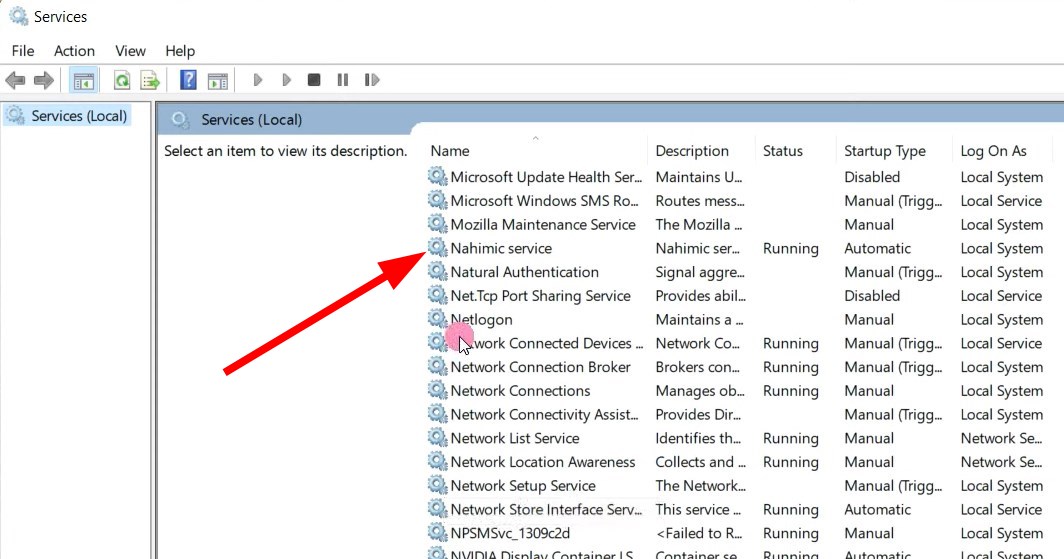
- Check Service Status: Open
services.msc, locate “Nahimic Service,” and ensure its startup type is set to “Automatic.”
How to Properly Disable Nahimic
If you prefer “pure” audio without any software processing, or if you use an external DAC/Amp that handles its own processing, you might want to disable the service. Simply closing the app isn’t enough; you must stop the underlying service.
- Open the Services app in Windows.
- Find Nahimic Service.
- Right-click, select Properties, and change the startup type to Disabled.
- Restart your computer.
Note that disabling the service will revert your audio to the default Windows/Realtek settings, which may sound “flat” if you have become accustomed to the enhanced profile.
5. The Verdict: Is Nahimic Service Worth Keeping?
In the context of modern technology, Nahimic represents a successful implementation of software-defined audio. While audiophiles might prefer a completely transparent signal chain without DSP interference, the average user and the hardcore gamer benefit significantly from the features Nahimic provides.
For Gamers and Media Consumers
If you use your PC primarily for gaming or watching movies on a laptop, the Nahimic service is a valuable asset. The 3D virtualization and voice leveling significantly enhance the immersive experience without requiring an investment in expensive external hardware. It bridges the gap between the physical limitations of small laptop speakers and the expansive soundstages required by modern media.
For Professionals and Purists
If you are a music producer, sound engineer, or an audiophile using high-fidelity external equipment, the Nahimic service may be redundant or even detrimental. In these cases, the “coloring” of the sound provided by Nahimic’s EQ and spatialization filters can interfere with accurate sound reproduction.
Future Outlook
As SteelSeries continues to integrate Nahimic technology into its broader “Sonar” ecosystem, we can expect even more refined control over audio streams. The Nahimic service is a prime example of how software is becoming just as important as hardware in the quest for the perfect digital experience.
Ultimately, “What is Nahimic Service?” is a question with a two-part answer: it is both a background utility that keeps your audio running smoothly and a powerful creative tool that transforms how you hear the digital world. For most users, it is a silent partner that makes their games more exciting and their calls clearer, proving that sometimes, the most important tech is the stuff you don’t always see.
aViewFromTheCave is a participant in the Amazon Services LLC Associates Program, an affiliate advertising program designed to provide a means for sites to earn advertising fees by advertising and linking to Amazon.com. Amazon, the Amazon logo, AmazonSupply, and the AmazonSupply logo are trademarks of Amazon.com, Inc. or its affiliates. As an Amazon Associate we earn affiliate commissions from qualifying purchases.