
In the modern digital era, we often take our internet connectivity for granted. We flip a switch, click an icon, and instantly access a global repository of information. However, beneath the seamless user interfaces of our smartphones and laptops lies a complex architecture of protocols and hardware. At the heart of this architecture is the “Default Gateway.” If you have ever tried to troubleshoot a “No Internet” error or attempted to configure a home server, you have likely encountered the need to find your IP gateway address.
Understanding what a gateway is and how to locate it is a fundamental skill for anyone looking to master their home or office network. This guide provides a deep dive into the technicalities of gateway addresses and offers step-by-step instructions for finding yours across various operating systems.
1. The Anatomy of a Network: What is an IP Gateway?
To understand a gateway, one must first understand the concept of a Local Area Network (LAN). Your home Wi-Fi is a LAN, consisting of your phone, laptop, smart TV, and any other connected gadgets. These devices talk to each other easily, but they cannot talk to the “outside” world (the internet) without a mediator.
The Role of the Default Gateway
The Default Gateway is essentially the “exit door” for your local network. It is the IP address of the interface on your network that connects your local network to other networks—usually the internet. In most residential and small business setups, your router serves as the default gateway. When your computer wants to reach a website, it realizes the website is not on the local network. Consequently, it sends the data packets to the Default Gateway, which then routes them toward their destination on the World Wide Web.
The Difference Between Private and Public IP Addresses
It is crucial to distinguish between your Public IP address and your Gateway IP address. Your Public IP is the address assigned to your house by your Internet Service Provider (ISP); it is how the world sees you. Your Gateway IP is a private address within your local network (commonly something like 192.168.1.1 or 192.168.0.1). This address allows your internal devices to communicate with the router itself to access management settings or request data from the outside.
Why You Might Need to Know Your Gateway Address
There are several tech-centric reasons to locate this address:
- Router Configuration: To change your Wi-Fi password, update firmware, or adjust security settings, you must enter the gateway address into a web browser.
- Troubleshooting: If you can ping your gateway but not a website, the issue lies with your ISP. If you cannot even ping your gateway, the issue is with your local hardware.
- Static IP Assignment: When setting up printers or servers, knowing the gateway is required to ensure the device knows where to send outgoing data.
2. Finding Your Gateway Address on Windows Operating Systems
Windows remains the most prevalent desktop operating system in the world, and Microsoft provides several ways to access networking information, ranging from user-friendly graphical interfaces to powerful command-line tools.
Using the Command Prompt (ipconfig)
For tech enthusiasts, the Command Prompt (CMD) is often the fastest way to retrieve network data.
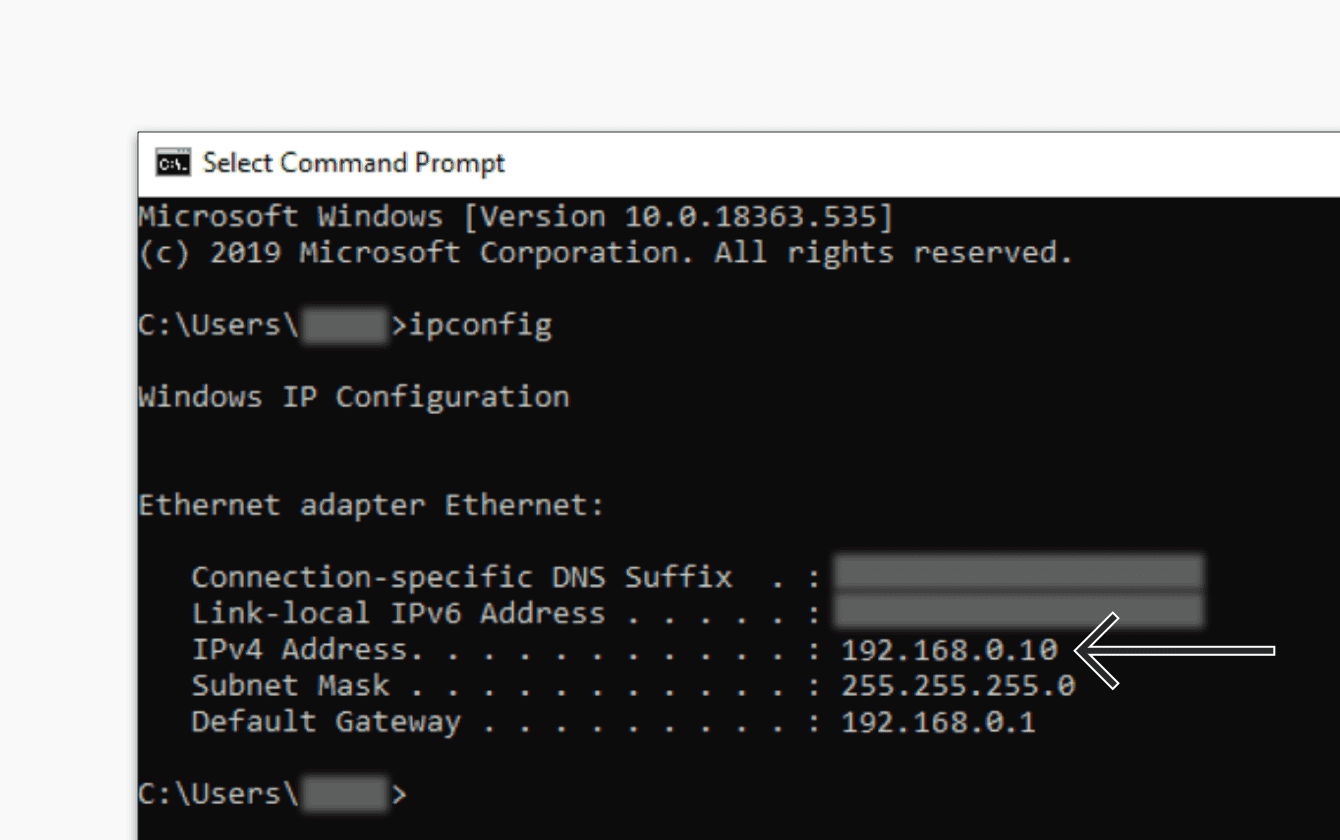
- Press the Windows Key, type
cmd, and press Enter. - In the black window that appears, type
ipconfigand hit Enter. - A list of network adapters will appear. Look for the section titled “Ethernet adapter” or “Wireless LAN adapter Wi-Fi.”
- Locate the line labeled Default Gateway. The numerical address next to it (e.g., 192.168.1.1) is your gateway.
Accessing Gateway Info via Windows Settings
If you prefer a visual approach, Windows 10 and 11 have integrated these details into the Settings menu.
- Go to Settings > Network & Internet.
- On Windows 11, click on Properties next to your active connection or go to Advanced network settings > Hardware and connection properties.
- Scroll down until you see “IPv4 default gateway.” This method is particularly useful for those who want to see additional details like link speed and DNS servers in one view.
PowerShell Alternatives
For system administrators, PowerShell offers a more detailed command: Get-NetRoute. Running this command will display the routing table, where the destination 0.0.0.0/0 points directly to your Default Gateway. This is useful for complex environments with multiple network interfaces.
3. Locating the Gateway on macOS and Linux Environments
Unix-based systems like macOS and Linux handle networking information with precision. Whether you are using a MacBook or a Linux-based server, the process is straightforward.
Finding the Address on macOS
Apple has made it very simple to find network details through the System Settings (formerly System Preferences).
- Click the Apple Menu and select System Settings.
- Navigate to Network in the sidebar.
- Select your active connection (Wi-Fi or Ethernet) and click the Details… button.
- Click on the TCP/IP tab.
- Your gateway address will be listed clearly next to Router.
Using the Terminal in macOS and Linux
For those working in a terminal environment, the netstat or ip commands are the standard tools.
- On macOS: Type
netstat -nr | grep default. This filters the routing table to show only the default route. - On Linux: The modern command is
ip route show. Look for the line that starts withdefault via. For example,default via 192.168.1.1 dev eth0tells you exactly which device is acting as the gateway.
The Importance of the ‘Route’ Command
In many Linux distributions, the route -n command is still widely used. It provides a table format that helps tech professionals visualize how traffic moves through different interfaces. Understanding these tables is essential for managing local servers or configuring Virtual Private Clouds (VPCs).
4. Identifying the IP Gateway on Mobile Devices (iOS and Android)
In an increasingly mobile-first world, we often need to troubleshoot connectivity issues directly from our smartphones. Both iOS and Android provide access to these technical details within their Wi-Fi settings.
Gateway Discovery on iOS (iPhone/iPad)
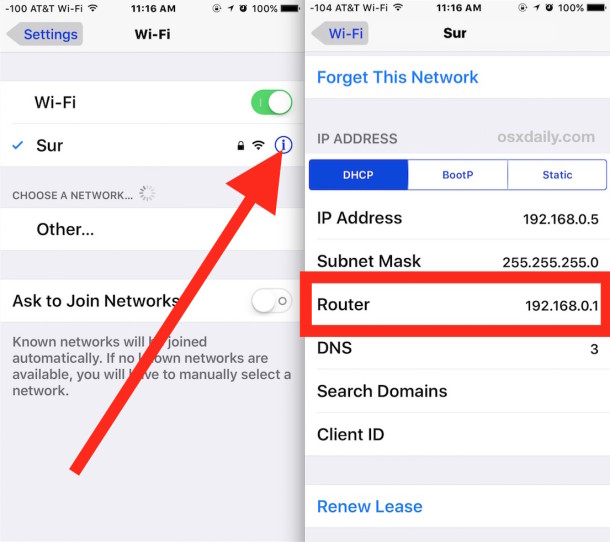
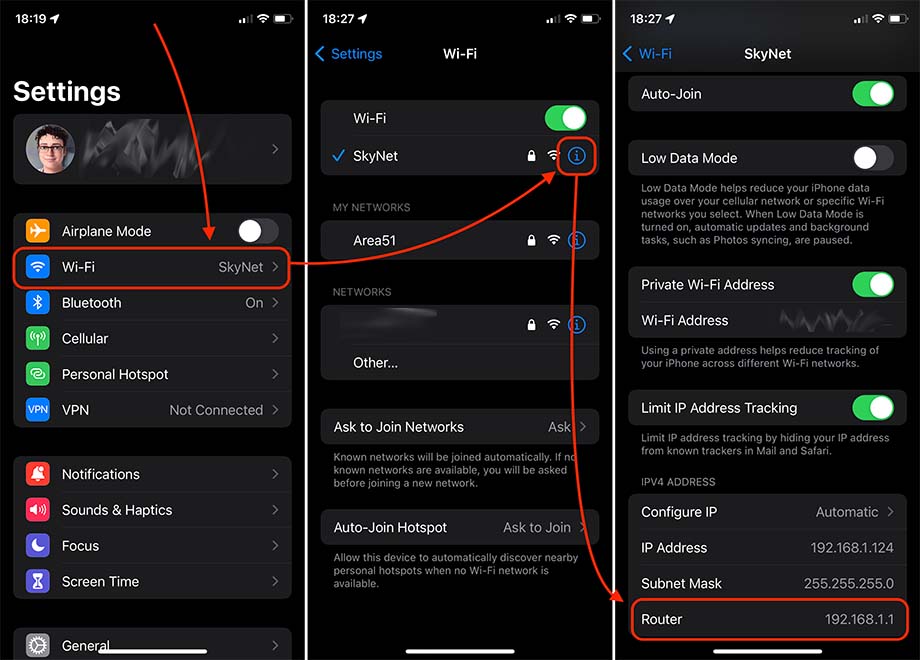
- Open the Settings app and tap on Wi-Fi.
- Tap the blue “i” (info) icon next to the network you are currently connected to.
- Scroll down to the IPv4 Address section.
- The address listed next to Router is your Default Gateway.
Gateway Discovery on Android
While Android interfaces vary slightly by manufacturer (Samsung, Google, OnePlus), the general path remains consistent:
- Open Settings and go to Network & Internet or Connections.
- Tap on Wi-Fi and then tap the gear icon next to your current network.
- Look for “View More” or “Advanced.”
- Find the IP settings section. You may need to change it from “DHCP” to “Static” temporarily just to see the greyed-out gateway field, though most modern versions of Android display the “Gateway” or “Router” address directly in the network details.
5. Advanced Technical Applications and Security Considerations
Knowing your gateway address is more than just a troubleshooting step; it is a gateway (pun intended) to advanced network management and digital security.
Accessing the Router Management Portal
Once you have the gateway IP, you can type it into any web browser’s address bar. This opens the login page for your router. From here, tech-savvy users can:
- Change DNS Providers: Switch from your ISP’s default DNS to faster, more private options like Cloudflare (1.1.1.1) or Google (8.8.8.8).
- Update Firmware: Ensuring your router’s software is up to date is the single best way to protect your network from hardware-level vulnerabilities.
- Manage Quality of Service (QoS): Prioritize bandwidth for gaming or video conferencing over background downloads.
Security and the “Evil Twin” Attack
In the realm of digital security, it is important to verify your gateway. In a “Man-in-the-Middle” (MitM) or “Evil Twin” attack, a hacker might set up a rogue access point. If you notice your gateway address has changed to something unusual or if you have multiple gateways appearing in your routing table, it could be a sign of a network compromise. Professional network monitors often track the MAC address of the gateway to ensure it remains a trusted device.
Port Forwarding and Static IPs
For those hosting a home lab or a gaming server, the gateway is the coordinator for Port Forwarding. By telling the gateway to send traffic arriving on a specific port (like 25565 for Minecraft) to a specific internal IP address, you enable external connections to reach your local machine. This requires a firm grasp of your gateway’s internal IP and its DHCP (Dynamic Host Configuration Protocol) settings.
Conclusion
The IP gateway address is the unsung hero of our digital lives. It sits at the boundary of our private world and the public internet, directing traffic with millisecond precision. Whether you are a casual user trying to fix a connection or a burgeoning IT professional, knowing how to find and utilize this address is an essential component of digital literacy. By mastering the tools available in Windows, macOS, Linux, and mobile platforms, you gain the power to optimize, secure, and troubleshoot the very foundation of your technological ecosystem.
aViewFromTheCave is a participant in the Amazon Services LLC Associates Program, an affiliate advertising program designed to provide a means for sites to earn advertising fees by advertising and linking to Amazon.com. Amazon, the Amazon logo, AmazonSupply, and the AmazonSupply logo are trademarks of Amazon.com, Inc. or its affiliates. As an Amazon Associate we earn affiliate commissions from qualifying purchases.