
In the modern digital workspace, the printer remains a critical piece of hardware, bridging the gap between digital assets and physical documentation. However, as printers have evolved from simple plug-and-play USB devices into sophisticated network nodes, troubleshooting them has become a more technical endeavor. One of the most vital pieces of information for managing, configuring, or troubleshooting a networked printer is its IP (Internet Protocol) address.
An IP address acts as a unique digital identifier for your printer within your local area network (LAN). Whether you are trying to install drivers on a new laptop, connect a mobile device, or access the printer’s web-based management console to check ink levels, knowing that specific string of numbers is essential. This guide provides a deep dive into the various methods for locating your printer’s IP address across different operating systems and hardware configurations.

Why Your Printer’s IP Address Matters in a Networked Environment
Before diving into the “how,” it is important to understand the “why.” In a home or office network, your router assigns IP addresses to every connected device—smartphones, laptops, smart TVs, and printers. Most devices use a protocol called DHCP (Dynamic Host Configuration Protocol), which means the IP address can occasionally change when the device restarts or the router reboots.
When your computer loses its connection to the printer, the culprit is often a mismatch between the IP address stored in your computer’s printer settings and the current IP address assigned to the hardware. By identifying the IP address, you can:
- Access the Embedded Web Server (EWS): Most modern printers have a built-in website where you can adjust advanced settings, update firmware, and view detailed diagnostics.
- Manual Installation: If auto-discovery fails, you can manually point your OS to the printer using its IP.
- Network Troubleshooting: Determining if the printer is actually active on the network by “pinging” the address from a command line.
Understanding IPv4 vs. IPv6
In most local networks, you will be looking for an IPv4 address, which typically looks like 192.168.1.15 or 10.0.0.42. Some newer environments may also display an IPv6 address, which is a much longer string of hexadecimal characters. For standard configuration and connectivity, the IPv4 address remains the industry standard for local device management.
Locating the IP Address Directly via Printer Hardware
The most direct way to find a printer’s IP address is through the device itself. Since the printer is the host of the address, it usually has several ways to display this information to the user.
Using the On-Screen Control Panel
If your printer has an LCD or touch-screen display, the IP address is usually buried within the settings or network menu. While every brand (HP, Canon, Epson, Brother) has a slightly different user interface, the logic remains consistent:
- Navigate to the Settings, Setup, or Network menu.
- Look for a sub-menu labeled Network Settings, Wi-Fi Settings, or TCP/IP Status.
- The IP address is often displayed on the main “Network Summary” page.
Printing the Network Configuration Page
For printers without a complex screen, or for those who prefer a physical record of their network settings, printing a “Configuration Page” or “Network Status Report” is the most effective method.
- For HP Printers: Often, pressing the “Wireless” and “Information” (i) buttons simultaneously will trigger the report.
- For Brother Printers: Navigate to “Machine Info” and select “Print Settings” or “Network Config.”
- The “Long Press” Method: On many budget printers with only a few buttons, holding down the “Cancel” (X) button or the “Wi-Fi” button for 5–10 seconds will force the printer to output a diagnostic sheet containing the IP address, MAC address, and signal strength.
Finding the IP Address via Operating Systems
If the printer is not physically accessible—perhaps it is in another room or a different floor of the office—you can retrieve its IP address from a computer that is already successfully connected to it.
Windows 10 and 11 Procedures
Windows stores printer connection details deep within its device management settings. There are two primary ways to find it here:
-
The Settings App:
- Go to Settings > Bluetooth & devices > Printers & scanners.
- Select your printer from the list.
- Click on Printer properties (Note: this is different from “Printing preferences”).
- In the pop-up window, click the Ports tab.
- Look for the port that is checked. If it is a “Standard TCP/IP Port,” the IP address is often listed in the “Port” column. If the column is too narrow, click Configure Port to see the IP address in the “Printer Name or IP Address” field.
-
The Command Prompt (Power Users):
- Type
cmdin the Windows search bar and hit Enter. - Type
netstat -rto see a list of active network routes, or use thearp -acommand to see a list of all IP and MAC addresses currently cached by your computer. - While
arp -aprovides a list of all devices, you can cross-reference the physical address (MAC) of your printer to find its corresponding IP.
- Type
macOS Procedures
Apple’s macOS makes it relatively simple to find printer details through the System Settings.
- Click the Apple Menu and select System Settings (or System Preferences).
- Go to Printers & Scanners.
- Select your printer from the left-hand sidebar.
- Click Options & Supplies.
- Under the General tab, you will see a field labeled “Location” or “URL.” The IP address is usually the numerical sequence following
dnssd://or listed plainly as the location.
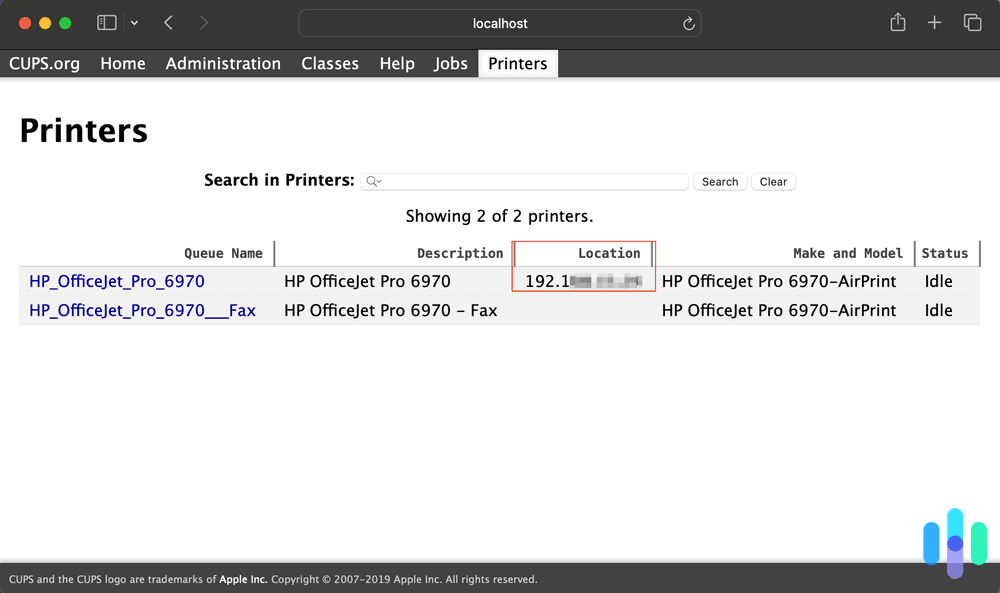
Alternatively, Mac users can use the CUPS (Common Unix Printing System) interface. By navigating to http://localhost:631/printers/ in a web browser, you can see a technical breakdown of every printer installed on the system, including their network URI (Universal Resource Identifier) which contains the IP address.
Utilizing Router Dashboards and Mobile Apps
In some cases, the computer might not be connected, and the printer might not have a screen. In these scenarios, the network infrastructure itself holds the answer.
The Router’s DHCP Client List
Since the router is the device that assigns the IP address to the printer, its administrative dashboard contains a master list of every connected device.
- Log in to your router’s web interface (usually by typing
192.168.1.1or192.168.0.1into a browser). - Locate the section labeled Connected Devices, DHCP Client List, or Network Map.
- Look for the printer’s name (e.g., “HP-OfficeJet-8020”). The IP address will be listed right next to it.
- If the printer name isn’t clear, look for the manufacturer name in the MAC address or “Comment” field.
Manufacturer Mobile Apps
In the era of mobile-first connectivity, many manufacturers offer apps like HP Smart, Canon PRINT, or Epson Smart Panel. If your printer was set up via one of these apps on your smartphone:
- Open the app and select your printer.
- Go to Advanced Settings or Printer Information.
- The IP address is almost always listed under the network status section of the app.
Best Practices: Static IP Addresses and Network Security
Once you have found your printer’s IP address, you may want to ensure it doesn’t change again. This is particularly important for office environments where multiple users rely on a stable connection.
Assigning a Static IP
To prevent the IP from changing (a common cause of “Printer Offline” errors), you should assign a “Static IP” or a “DHCP Reservation.”
- Via the EWS: Enter the printer’s current IP address into a web browser. Navigate to the Network or IPv4 settings and change the configuration from “Automatic/DHCP” to “Manual/Static.” You can then manually input the IP address you want it to keep.
- Via the Router: Most modern routers allow you to “Reserve” an IP for a specific MAC address. This ensures that every time the printer requests an IP, the router gives it the exact same one.

Printer Security and IP Exposure
A critical tech consideration is the security of your printer’s IP address. You should never expose your printer directly to the public internet (i.e., via port forwarding). Printers are notoriously vulnerable to security exploits if left unprotected. Always ensure your printer is behind a firewall and its IP address is only accessible within your private local network. If you need to print remotely, use encrypted services like VPNs or proprietary cloud print solutions rather than opening the printer’s IP to the world.
By mastering these methods to find and manage your printer’s IP address, you gain greater control over your hardware, reduce downtime, and ensure a more stable digital workflow. Whether through a quick check of the printer screen or a deep dive into router logs, this technical data is the key to maintaining a seamless connection between your devices.
aViewFromTheCave is a participant in the Amazon Services LLC Associates Program, an affiliate advertising program designed to provide a means for sites to earn advertising fees by advertising and linking to Amazon.com. Amazon, the Amazon logo, AmazonSupply, and the AmazonSupply logo are trademarks of Amazon.com, Inc. or its affiliates. As an Amazon Associate we earn affiliate commissions from qualifying purchases.