
In the modern computing era, the web browser is arguably the most important piece of software on any device. It is the portal through which we access cloud-based applications, conduct financial transactions, engage in social media, and manage our professional workflows. However, many users often find themselves wondering exactly which browser is acting as their system’s “gatekeeper.” Identifying and managing your default browser is not just a matter of convenience; it is a fundamental aspect of digital security, system performance, and user experience.
A default browser is the application that your operating system automatically opens when you click a hyperlink in an external program, such as an email client, a PDF document, or a messaging app like Slack or Discord. While Windows and macOS come pre-installed with their own proprietary options, the competitive landscape of software development means users have a plethora of choices, each offering distinct advantages in terms of speed, privacy, and extension ecosystems.
How to Identify Your Current Default Browser
Determining which browser is currently set as your default varies depending on your operating system. Because modern interfaces are designed to be intuitive, you can usually find this information within a few clicks, but the specific menus have changed significantly with recent software updates.
Checking on Windows 10 and 11
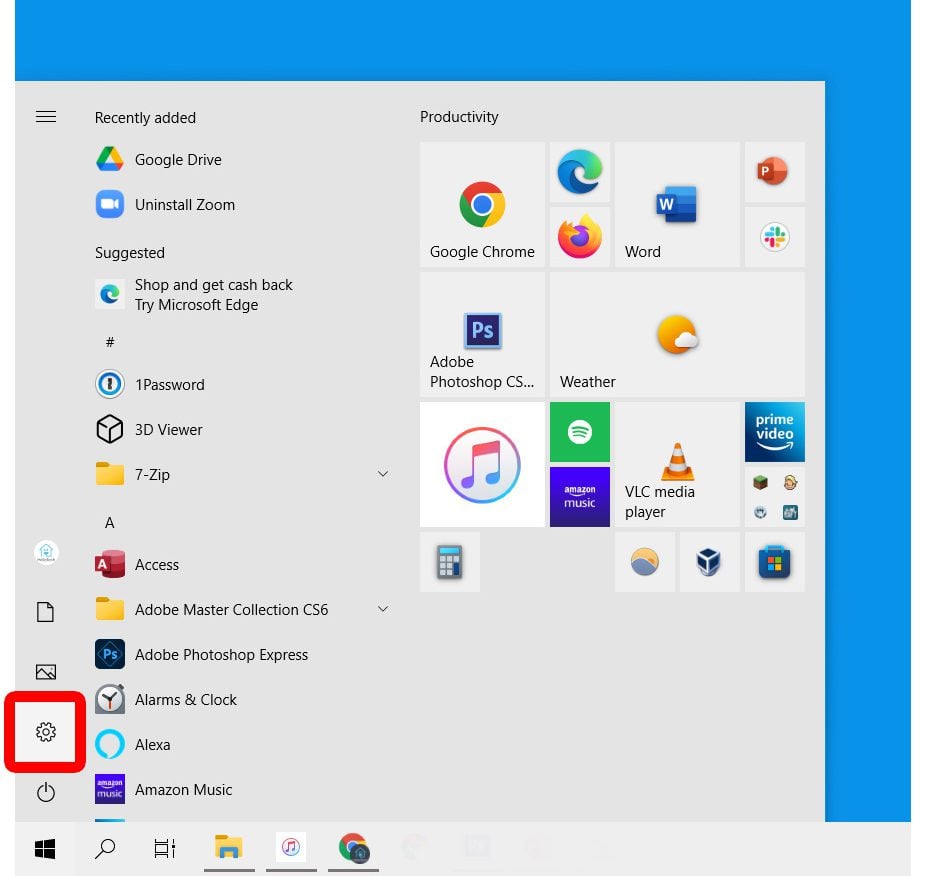
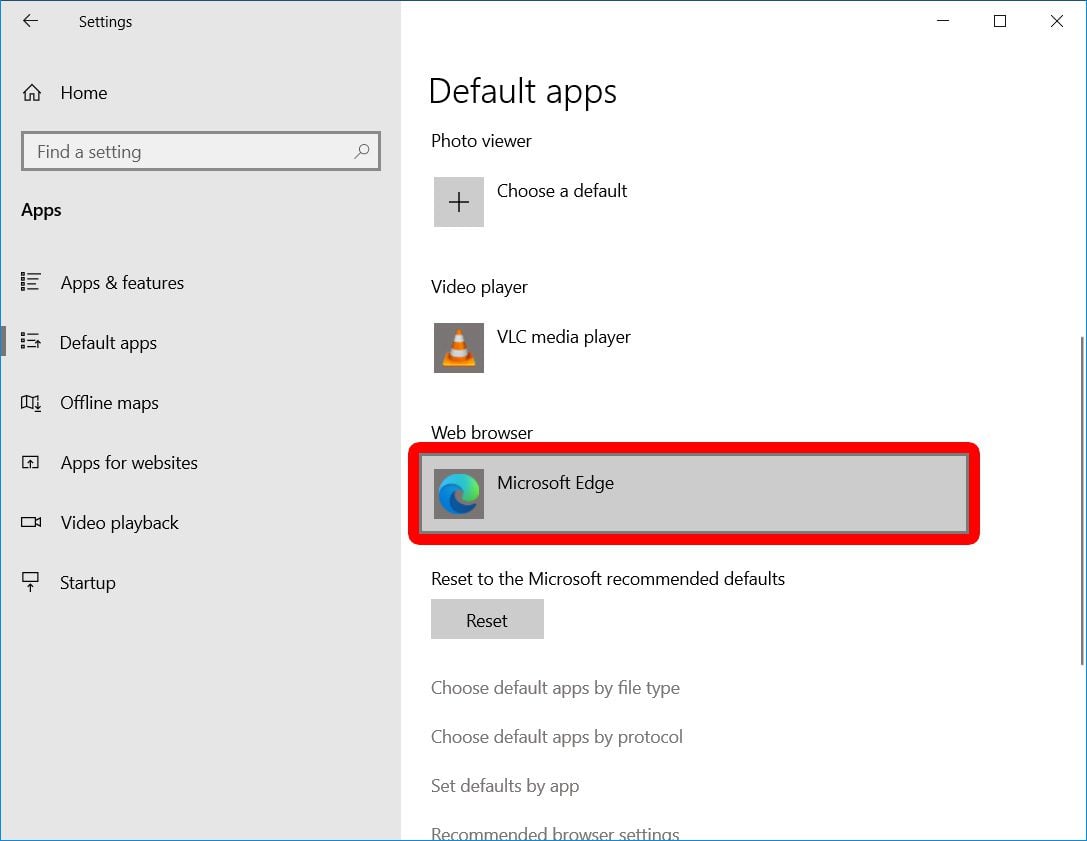
Windows has a long history of promoting its native browsers—first Internet Explorer and now Microsoft Edge. To see if Edge or another browser like Chrome or Firefox is your default on Windows 11, you must navigate to the “Apps” section of your System Settings. Unlike older versions of Windows, Windows 11 requires you to look specifically at the “Default Apps” menu.
Once there, you can search for “Web Browser” or look through the list of installed applications. If you click on a specific browser, such as Google Chrome, the system will show you if it is currently assigned to handle standard protocols like HTTP and HTTPS. If Microsoft Edge is the default, you will often see a “Set Default” button available for other browsers, indicating they do not currently hold that position.
Checking on macOS
Apple’s ecosystem is generally more streamlined, but it also prioritizes its native browser, Safari. To identify your default on a Mac, you navigate to “System Settings” (or “System Preferences” on older versions) and select “Desktop & Dock.” Within this menu, there is a dedicated dropdown menu labeled “Default web browser.” This single location provides a clear, immediate answer as to which application is handling your external links.
The “Diagnostic Link” Method
If you want to identify your default browser without digging through system settings, a simple practical test is often the fastest way. Open a non-browser application—such as your email client or a simple Notepad/TextEdit file with a URL typed into it—and click a link. The application that launches to display the website is your system’s current default. This is an effective way to see the “truth” of your system’s configuration, as sometimes software updates or third-party “cleaner” apps can change your settings without your explicit knowledge.
The Technical Importance of the Default Choice
Choosing a default browser is a decision that impacts the very architecture of your digital life. It isn’t just about the icon you see; it’s about the engine running under the hood and how it interacts with your hardware.
Rendering Engines and Performance
Browsers are built on different engines that interpret HTML, CSS, and JavaScript. Google Chrome, Microsoft Edge, and Brave all run on the Chromium engine (Blink). This means they share a similar foundation in how they process data and manage system memory. Safari uses WebKit, while Mozilla Firefox utilizes Gecko.
If you choose a Chromium-based browser as your default, you are opting for high compatibility with the majority of the modern web, as most developers optimize for Chromium first. However, Chromium is known for high RAM consumption. If you are working on a computer with limited memory, setting a more resource-efficient browser like Safari (on Mac) or a hardened version of Firefox as your default can significantly improve the overall snappiness of your operating system.
Security and Privacy Protocols
Your default browser is your first line of defense against phishing, malware, and cross-site tracking. When you click a link in a suspicious email, your default browser’s security filters determine whether that site is blocked or allowed to load.
Browsers like Brave or Firefox focus heavily on privacy, offering built-in trackers and ad-blocking that are active the moment a link is opened. In contrast, Google Chrome offers seamless integration with Google’s Safe Browsing database, which is one of the most comprehensive lists of malicious sites in the world. Understanding which browser is your default helps you understand your risk profile; if you are using an outdated version of Internet Explorer or an unpatched version of an obscure browser as your default, you are leaving your system vulnerable to “drive-by downloads” and other web-based exploits.
Step-by-Step: Changing Your Default Browser
If you have identified your default browser and decided it does not meet your needs for speed or privacy, changing it is a straightforward process, though OS developers sometimes make it slightly “sticky” to encourage the use of their native tools.
Transitioning on Windows 11
In early versions of Windows 11, changing the default browser was notoriously difficult, requiring users to change the default app for every individual file extension (.html, .htm, .pdf). Following user feedback, Microsoft simplified this. Now, you can go to Settings > Apps > Default Apps, select your preferred browser (e.g., Firefox), and click the “Set Default” button at the top of the page. This will globally assign that browser to the most common web protocols.
Transitioning on macOS
On macOS, when you open a browser that is not the default—such as Chrome—the app itself will usually display a banner at the top asking, “Google Chrome is not your default browser. Would you like to set it as default?” Clicking “Yes” will trigger a system confirmation dialog. This is the most efficient way to change settings on a Mac. Alternatively, you can use the Desktop & Dock settings mentioned earlier to toggle between Safari, Chrome, or any other installed browser.
The Rise of Mobile-to-Desktop Sync
When choosing a default browser for your computer, you should also consider your mobile devices. If you use an iPhone and a Mac, keeping Safari as the default on both allows for “Handoff,” where you can start reading an article on your phone and instantly pick it up on your computer. If you are an Android user who uses Chrome, setting Chrome as your default on your PC ensures that your bookmarks, history, and saved passwords transition seamlessly between your pocket and your desk.
Managing Multiple Browsers for Maximum Productivity
For many power users, the question isn’t just “what is my default,” but “how do I manage the three different browsers I use?” The “one-browser-fits-all” approach is becoming less common as users seek to compartmentalize their digital lives.
Creating a Work-Life Boundary
One effective tech strategy is to set a “boring,” highly secure browser like Microsoft Edge or Safari as the system default for opening links from emails and documents, while using a different browser like Chrome or Firefox specifically for intensive work tasks. By keeping your “work” browser separate from your “system default,” you prevent accidental overlaps where a personal link clicked in a chat app opens a tab in the middle of a professional presentation window.
Link Routing Tools
There is a growing niche of software tools designed for users who want more control than a single default browser allows. Applications like “Browserosaurus” (for Mac) or “Hurl” (for Windows) act as a “middle-man” default. When you click a link, instead of it opening in a browser immediately, a small menu pops up asking which of your installed browsers you would like to use. This is particularly useful for developers who need to test links in multiple environments or for users who want to open social media links in a privacy-hardened browser while opening work tools in a browser with specific extensions.
The Role of Browser Profiles
Before you decide to change your system-wide default, consider whether “Profiles” might solve your problem. Chrome, Edge, and Firefox all support multiple user profiles. You can have a “Work” profile and a “Personal” profile within the same browser. While the operating system can only have one default application, you can often configure that application to open links in the “last used” profile or a specific “default” profile, allowing for a high degree of organization without needing to install multiple different software packages.
Troubleshooting and Maintenance
Sometimes, your computer might “forget” your default browser settings, or links might start opening in applications you didn’t choose. This is often the result of software updates or the installation of new suites (like Adobe Creative Cloud or Microsoft Office) that may attempt to re-associate certain file types with their own internal viewers.
Dealing with “Default Hijacking”
If you find that your settings are reverting to the system native (Edge or Safari) after every reboot, it may be due to a corrupted registry key in Windows or a permission error in macOS. To fix this, it is often best to “reset” the browser. Uninstalling and reinstalling the preferred browser often forces the operating system to recognize it as a fresh candidate for the default slot. Additionally, ensure that your browser is updated to the latest version, as older versions may lose their ability to communicate correctly with the OS’s default app handler.

The Evolution of the Browser
As we move toward a future where the line between the operating system and the web browser continues to blur—seen in the rise of ChromeOS and web-based desktop environments—knowing how to manage your default browser will only become more critical. It is the most used tool in your digital arsenal. By taking five minutes to ensure your computer is using the browser that best fits your needs for speed, security, and ecosystem integration, you are significantly optimizing your daily digital interaction. Whether it is the privacy of Firefox, the ubiquity of Chrome, the integration of Safari, or the productivity features of Edge, the choice of the default browser is ultimately the choice of how you want to experience the internet.
aViewFromTheCave is a participant in the Amazon Services LLC Associates Program, an affiliate advertising program designed to provide a means for sites to earn advertising fees by advertising and linking to Amazon.com. Amazon, the Amazon logo, AmazonSupply, and the AmazonSupply logo are trademarks of Amazon.com, Inc. or its affiliates. As an Amazon Associate we earn affiliate commissions from qualifying purchases.