
In an era dominated by sleek graphical user interfaces (GUIs), the Command Prompt (CMD) might seem like an archaic relic from computing’s past. Yet, beneath its Spartan, text-based facade lies a powerful and indispensable utility that continues to serve as a cornerstone for system administrators, developers, and power users alike. CMD, often referred to as the command-line interpreter (CLI) for Windows operating systems, offers a direct conduit to the heart of your computer, enabling granular control, automation, and diagnostic capabilities that are often inaccessible or less efficient through graphical means.
Understanding “what is in CMD” is not merely about memorizing a list of commands; it’s about appreciating a fundamental interface that predates the mouse and icons, one that speaks the language of the operating system directly. This deep dive will explore its historical significance, fundamental functionalities, advanced applications, and why, even in a world awash with intuitive visual experiences, the command prompt remains an essential tool in the modern technological landscape. Far from being obsolete, CMD stands as a testament to efficient interaction, offering a level of precision and speed that is unparalleled for specific tasks, bridging the gap between human intent and machine execution.
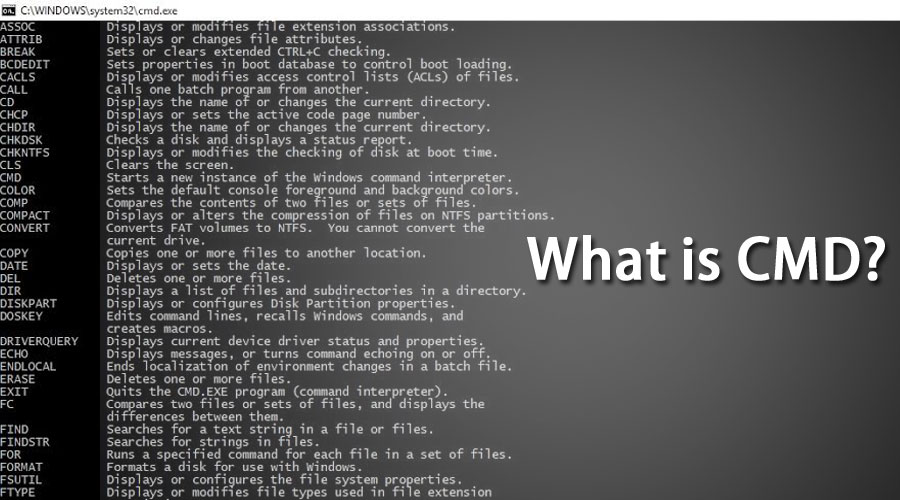
The Command Prompt: A Gateway to System Control
The Command Prompt is more than just a black box for typing commands; it’s a direct line of communication with the operating system kernel. It allows users to execute commands by typing them in plain text, bypassing the layers of abstraction inherent in graphical environments. This directness is its greatest strength, offering unparalleled control and efficiency for those who master its syntax.
Origins and Evolution
The lineage of the Command Prompt traces back to the very roots of personal computing: MS-DOS (Microsoft Disk Operating System). When IBM PCs first arrived, DOS was the primary operating system, and all interactions were command-line driven. Users typed commands to launch programs, manage files, and configure system settings. With the advent of Windows, the GUI became dominant, but Microsoft wisely retained a command-line interface for backward compatibility, advanced system management, and scripting needs.
Initially, command.com handled these tasks, primarily within the DOS subsystem. With the introduction of Windows NT and its robust, security-focused architecture, cmd.exe emerged as the native command interpreter. Unlike its DOS predecessor, cmd.exe runs as a 32-bit (and later 64-bit) console application within Windows, benefiting from the full capabilities of the NT kernel. This evolution ensured that the command line remained a powerful and integral part of the Windows ecosystem, even as its graphical counterpart flourished.
Why Use CMD in a GUI World?
The perennial question in a GUI-centric world is: why bother with CMD? The answer lies in its distinct advantages for specific use cases:
-
Automation and Scripting: One of CMD’s most compelling features is its ability to execute sequences of commands automatically through batch files (
.bator.cmd). This enables the automation of repetitive tasks, such as file backups, system cleanup, software installations, and complex data processing, significantly boosting productivity for system administrators and developers. -
Access to Low-Level Functions: Many system utilities and configurations are either exclusively accessible via the command line or are far more granularly controllable there. This includes advanced network diagnostics, system file integrity checks, disk partitioning, and security policy adjustments.
-
Troubleshooting and Diagnostics: When a GUI fails or a system becomes unstable, the Command Prompt often remains a viable interface for diagnosing problems, repairing corrupted files, or even restarting services. Tools like
ipconfig,ping,sfc, andchkdskare invaluable for troubleshooting network issues, hardware problems, and operating system errors. -
Efficiency for Power Users: For experienced users, typing a command can be significantly faster than navigating through multiple menus and dialog boxes in a GUI. For example, creating a new directory and moving files into it can be done with a few quick commands (
md,move) faster than dragging and dropping. -
Remote Management: CMD is often used in conjunction with tools like PowerShell or SSH to remotely manage servers and workstations, offering a lightweight and efficient way to control systems without a graphical interface.
Essential Commands and Their Functions
The true power of CMD lies in the vast array of commands it supports, each designed for a specific task. Mastering these commands unlocks a new level of system interaction and control.
Navigating the File System
Managing files and directories is a primary function of any operating system, and CMD excels at it with a suite of intuitive commands:
-
cd(Change Directory): This command allows you to navigate through your file system.cd ..moves up one level,cdgoes to the root directory, andcd folder_nameenters a specific folder. -
dir(Directory): Displays a list of files and subdirectories in the current or specified directory. It supports various switches (e.g.,/wfor wide format,/sfor subdirectories) for customized output. -
md(Make Directory) /mkdir: Creates a new directory or folder. -
rd(Remove Directory) /rmdir: Deletes an empty directory. The/sswitch can be used to delete a directory and all its contents (subdirectories and files), but use with caution as it’s irreversible. -
copy: Duplicates one or more files from one location to another. -
move: Transfers files and directories from one location to another. -
del(Delete): Deletes one or more files. Likerd /s, this command permanently removes data, so careful usage is advised. -
ren(Rename): Changes the name of a file or directory.
System Information and Configuration
CMD provides powerful commands to query system status, manage processes, and configure basic settings:
-
ipconfig: A crucial networking tool that displays all current TCP/IP network configuration values. It’s essential for diagnosing network connectivity issues, showing IP addresses, subnet masks, and default gateways. -
systeminfo: Gathers detailed configuration information about the operating system and computer hardware, including OS version, CPU, RAM, network adapters, and hotfixes installed. -
tasklist: Shows a list of all currently running processes on the local or a remote computer, including process IDs (PIDs) and memory usage. -
taskkill: Terminates one or more running processes using their PID or image name. Useful for closing unresponsive applications or services. -
shutdown: Shuts down, restarts, or logs off the local or a remote computer. It can be scheduled with a timer. -
time/date: Displays or sets the system time and date.
Network Diagnostics
For network administrators and users troubleshooting connectivity, CMD offers invaluable diagnostic tools:
-
ping: Sends Internet Control Message Protocol (ICMP) echo request packets to a target host and listens for ICMP echo reply packets. It’s used to test the reachability of a host on an Internet Protocol (IP) network and to measure the round-trip time for messages. -
tracert(Trace Route): Traces the path that an IP packet takes to a destination host. It shows the number of hops and the time taken for each hop, helping to pinpoint where network delays or failures might be occurring. -
netstat(Network Statistics): Displays active TCP connections, ports on which the computer is listening, Ethernet statistics, the IP routing table, and IPv4/v6 statistics. Useful for identifying open ports and network activity.
Advanced Applications and Scripting
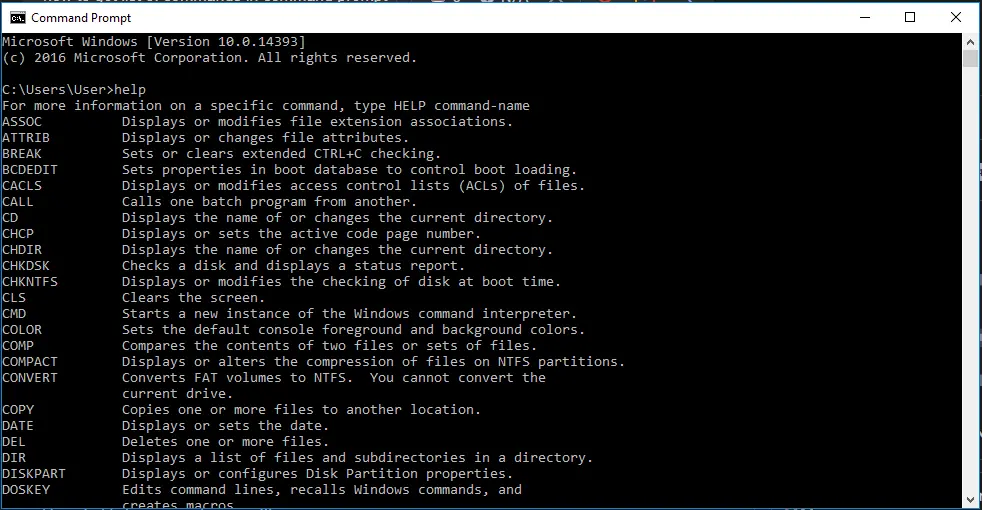
Beyond basic commands, CMD truly shines in its capability for advanced system management through scripting and integration with other powerful utilities.
Batch Scripting Fundamentals
Batch files are plain text files containing a series of CMD commands that are executed sequentially. They are denoted by the .bat or .cmd extension. Batch scripting allows for the automation of complex and repetitive tasks, making it a favorite among IT professionals.
-
echo: Displays messages on the screen or turns command echoing on/off. Used for user feedback or debugging scripts. -
pause: Halts the execution of a script until the user presses a key. -
set: Displays, sets, or removes CMD environment variables. Essential for storing temporary data within a script. -
for: A powerful loop command used to run a specified command for each item in a set. Highly versatile for processing lists of files or other data. -
if: Performs conditional processing in batch programs. Allows scripts to make decisions based on conditions (e.g., file existence, error levels, string comparison). -
goto: Directs the command interpreter to a labeled line in a batch program, enabling rudimentary flow control.
Simple batch scripts can perform tasks like regularly backing up specific folders, automating software installations, or running custom diagnostics at startup. Their simplicity and direct integration with CMD commands make them incredibly efficient for many automation needs.
Administrative Tasks and Permissions
Many critical system maintenance tasks require elevated privileges, which CMD can provide by running it “as Administrator.”
-
sfc /scannow(System File Checker): Scans and verifies the integrity of all protected Windows system files and replaces incorrect, corrupted, changed, or damaged versions with the correct versions. An indispensable tool for resolving system instability. -
dism(Deployment Image Servicing and Management): A powerful command-line utility used to prepare, modify, and repair Windows images. It can be used to add language packs, enable/disable Windows features, and fix issues with Windows component store. -
icacls: Displays or modifies discretionary access control lists (DACLs) on files and directories. This allows for granular control over file and folder permissions, critical for security and multi-user environments. -
gpupdate/gpresult: Forces an update of Group Policy settings or displays the resultant set of policy settings for a user and computer. Vital for managing domain-joined systems.
Integration with Other Tools
While CMD is potent, it’s not always the only tool in the box. It often works in concert with other utilities:
-
PowerShell: Microsoft’s successor to CMD, PowerShell is a more advanced object-oriented shell and scripting language. While CMD is command-based, PowerShell cmdlets return objects, allowing for more complex data manipulation. Many IT professionals use CMD for simpler tasks and PowerShell for advanced scripting and system management.
-
ftp/telnet(client): While less common now due to security concerns, CMD historically included command-line clients for FTP (File Transfer Protocol) for file transfers and Telnet for remote access. Modern CMD installations often require these features to be manually enabled and more secure alternatives like SFTP or SSH are preferred. -
ssh(OpenSSH client): With recent Windows updates, an OpenSSH client is now often included, allowing secure remote shell access to Linux/Unix servers directly from the Command Prompt.
Best Practices and Security Considerations
Working with CMD involves direct system manipulation, which comes with responsibility. Adhering to best practices and understanding security implications is crucial.
Safe Usage and Permissions
-
Understand Command Impact: Before executing any command, especially those involving file deletion, system modification, or network changes, ensure you understand its full implications. A single typo in a powerful command can lead to data loss or system instability.
-
Run as Administrator When Necessary: Many administrative tasks require elevated privileges. Always launch CMD “as Administrator” for such tasks to avoid permission errors and ensure changes are applied correctly. However, avoid running CMD with admin rights for routine, non-administrative tasks to minimize potential security risks.
-
Backup Before Major Changes: Before performing significant system alterations or running potentially destructive scripts, always back up critical data. This provides a safety net in case something goes wrong.
-
Use Test Environments: For complex scripts or commands, test them first in a non-production or virtual machine environment to ensure they behave as expected without affecting your primary system.
Security Implications
The power of CMD can be a double-edged sword:
-
Malicious Scripts: Unscrupulous individuals can use batch files or other command-line utilities to spread malware, delete files, or compromise system security. Always be wary of unknown
.bator.cmdfiles from untrusted sources. -
Privilege Escalation: If an attacker gains access to your system, a command prompt offers a direct route for them to execute commands, potentially escalating their privileges or installing malicious software. Robust user account controls and strong passwords are vital.
-
Phishing and Social Engineering: Attackers may try to trick users into opening CMD and typing malicious commands. Always verify the source and intent of any instructions asking you to interact with the command line.
Learning Resources and Further Exploration
For those keen to deepen their understanding of CMD, numerous resources are available:
-
Microsoft Docs: The official Microsoft documentation (
docs.microsoft.com) provides comprehensive details on every command and utility available in Windows. -
Online Tutorials and Courses: Websites like freeCodeCamp, W3Schools, and various YouTube channels offer structured learning paths for CMD and batch scripting.
-
Community Forums: Platforms like Stack Overflow, Reddit’s r/sysadmin, and other tech forums are excellent places to ask questions, share knowledge, and learn from experienced users.
-
Practice: The best way to learn is by doing. Set up a virtual machine or use a non-critical system to experiment with commands and write your own scripts.
Conclusion
The Command Prompt, or CMD, is far more than a legacy interface; it is a continuously relevant and powerful tool in the arsenal of anyone interacting deeply with Windows operating systems. From its humble origins in MS-DOS to its modern incarnation as cmd.exe, it has consistently provided a direct, efficient, and highly controllable means of managing files, configuring systems, diagnosing issues, and automating tasks.
While graphical interfaces offer user-friendliness and accessibility, CMD provides speed, precision, and the ability to perform operations at a scale and granularity that GUIs often cannot match. Understanding “what is in CMD” unlocks a deeper appreciation for the underlying mechanics of your computer and empowers you to wield significant control over its operations. For those willing to venture beyond the clicks and icons, the Command Prompt remains an indispensable gateway to true system mastery, a powerful ally in navigating the complexities of the digital world.
aViewFromTheCave is a participant in the Amazon Services LLC Associates Program, an affiliate advertising program designed to provide a means for sites to earn advertising fees by advertising and linking to Amazon.com. Amazon, the Amazon logo, AmazonSupply, and the AmazonSupply logo are trademarks of Amazon.com, Inc. or its affiliates. As an Amazon Associate we earn affiliate commissions from qualifying purchases.